VRAM quick fix guide helps with texture warnings, stutter, and graphics settings that exceed your GPU memory. The quickest remedy is often a targeted setting change, but recurring limits can signal that your card has outgrown its workload. This guide shows when to adjust settings and when a 12GB or 16GB upgrade makes sense.
How to Choose A GPU
Start by identifying whether VRAM is actually the bottleneck, then match the fix to capacity, bandwidth, workload, and hardware fit. This avoids buying memory you do not need and prevents a setting change from masking a broader performance problem. VRAM quick fix guide connects directly to the four GPUs in this comparison.
VRAM Capacity
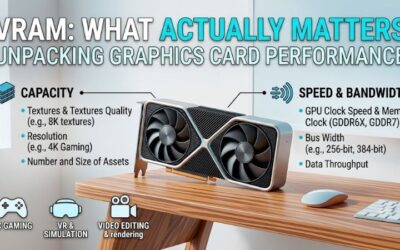
Capacity is the graphics data a card can keep in dedicated memory before pressure rises. Textures, frame buffers, ray-tracing assets, and other resources compete for that space. A 12GB card can handle moderate settings, while 16GB provides more margin for demanding textures and newer games during a longer ownership cycle.
For repeated texture-limit warnings, start with 16GB when your budget allows, especially for longer ownership or large mods. VRAM quick fix guide decisions favor the SAPPHIRE PULSE AMD Radeon RX 9060 XT OC 16GB for value and the SAPPHIRE PULSE AMD Radeon RX 9070 when you also need stronger rendering at higher settings.
Memory Bandwidth
Bandwidth is the rate at which the GPU moves data through its memory system, shaped by memory speed, interface width, and architecture. A wider bus can matter materially during heavy workloads, so matching capacity alone is insufficient when comparing cards with different designs and memory standards. That matters when settings become demanding.
The RX 9070 combines 16GB GDDR6 with a 256-bit interface and up to 640GB/s bandwidth, while the RTX 5070 uses 12GB GDDR7 on a 192-bit interface. That makes the RX 9070 the clearest choice when memory throughput is part of the problem, particularly at higher resolutions where bandwidth demand increases under heavy loads.
Resolution And Workload
Resolution and workload determine whether a memory shortage actually hurts. High texture presets, ray tracing, large mods, and some creative workloads can raise VRAM use, while lowering textures can provide an immediate fix. At 1440p, 16GB offers useful margin; at 4K, the GPU core must still provide enough rendering power.
For buyers prioritizing ray tracing and NVIDIA’s current feature stack, the ASUS Dual GeForce RTX 5070 12GB GDDR7 OC Edition is the logical target despite its lower capacity. For heavier 16GB gaming workloads, the SAPPHIRE PULSE AMD Radeon RX 9070 is better aligned with higher-resolution settings and larger texture budgets.
Power And Physical Fit
Power and physical clearance matter because a GPU upgrade must fit the case and power supply. Check card length, slot thickness, connector type, and power-supply guidance before purchase. A smaller card can be the better fix when your case is tight, even if a larger model offers more raw capability and memory headroom.
The ASUS Dual GeForce RTX 5060 Ti 16GB GDDR7 OC Edition measures 229mm and carries a 550W recommended PSU, making it the strongest compact-build fit here. The larger SAPPHIRE PULSE AMD Radeon RX 9070 instead targets systems with substantially more clearance and a 650W power-delivery budget for small-form-factor builds.
Top Picks
VRAM quick fix guide works best when the replacement solves the same limitation you confirmed during our research. These four GPUs cover distinct needs: overall headroom, affordable 16GB capacity, ray-tracing features, and compact 16GB expansion. Use the table first, then read the matching pick for its strengths and tradeoffs.
| Product | Best For | Key Spec | Watch Out For |
|---|---|---|---|
| SAPPHIRE PULSE AMD Radeon RX 9070 | Best Overall | 16GB GDDR6, 256-bit, up to 640GB/s | 280mm, 220W |
| SAPPHIRE PULSE AMD Radeon RX 9060 XT OC 16GB | Best Value | 16GB GDDR6, 128-bit, up to 320GB/s | Lower GPU tier |
| ASUS Dual GeForce RTX 5070 12GB GDDR7 OC Edition | Best For Ray Tracing | 12GB GDDR7, 192-bit, 28Gbps | Lower capacity |
| ASUS Dual GeForce RTX 5060 Ti 16GB GDDR7 OC Edition | Best For Compact Builds | 16GB GDDR7, 128-bit, 28Gbps | Lower GPU tier |
SAPPHIRE PULSE AMD Radeon RX 9070
VRAM quick fix guide points to the SAPPHIRE PULSE AMD Radeon RX 9070 as the Best Overall choice for buyers wanting a 16GB buffer without dropping into a lower performance class. It has 16GB GDDR6, a 256-bit interface, up to 20Gbps memory speed, and up to 640GB/s bandwidth for demanding 1440p and 4K gaming at high settings.
Its 220W typical board power and 280mm, 2.5-slot design are the main tradeoffs. The benefit is strong memory capacity and bandwidth for 1440p and 4K workloads, while the drawback is clear for space-constrained PCs: you need adequate clearance and a recommended 650W PSU before installation, with adequate airflow around the card.
SAPPHIRE PULSE AMD Radeon RX 9060 XT OC 16GB
The SAPPHIRE PULSE AMD Radeon RX 9060 XT OC 16GB is the Best Value choice when memory capacity is the primary limitation and you do not need the higher performance tier of the RX 9070. It offers 16GB GDDR6, a 128-bit interface, 20Gbps memory, and up to 320GB/s bandwidth in a 160W typical-board-power design for mainstream builds.
Its biggest advantage is getting to 16GB without the RX 9070’s power and size demands. The compromise is the narrower 128-bit memory interface and lower GPU tier, so it is best for buyers who mainly need more texture headroom at 1080p or 1440p rather than a card built for demanding native 4K performance in newer games.
ASUS Dual GeForce RTX 5070 12GB GDDR7 OC Edition
The ASUS Dual GeForce RTX 5070 12GB GDDR7 OC Edition is the Best For Ray Tracing pick for users who value NVIDIA’s current rendering and upscaling features. It carries 12GB GDDR7, a 192-bit interface, 28Gbps memory, 6144 CUDA cores, and fourth-generation ray-tracing hardware for compatible games and demanding ray-traced scenes.
The advantage is feature-rich performance with a fast GDDR7 memory system, while the main drawback is the 12GB capacity. That ceiling gives less room for texture-heavy settings than the 16GB alternatives, so this card makes the most sense when ray tracing, DLSS, and NVIDIA software features matter more than maximum memory capacity.
ASUS Dual GeForce RTX 5060 Ti 16GB GDDR7 OC Edition
The ASUS Dual GeForce RTX 5060 Ti 16GB GDDR7 OC Edition is the Best For Compact Builds pick for buyers who need 16GB but cannot fit larger cards comfortably. It uses 16GB GDDR7, a 128-bit interface, 28Gbps memory, 4608 CUDA cores, and a 229mm length in a 2.5-slot design for space-limited cases where long cards are awkward.
Its 550W recommended PSU and short 229mm body are practical advantages for smaller systems, while the lower GPU tier is the meaningful limitation. It can solve a capacity problem, but buyers seeking stronger ray tracing or sustained high-end 4K performance should step up rather than expecting extra VRAM to replace GPU compute power.
Frequently Asked Questions
VRAM quick fix guide is mostly about separating a temporary memory spike from a graphics card that has reached its practical limit. The questions below cover fixes buyers can try immediately, what system RAM can and cannot change, and when a GPU replacement becomes the cleaner solution for recurring limits across several games.
How Do I Free Up VRAM Without Buying A New GPU?
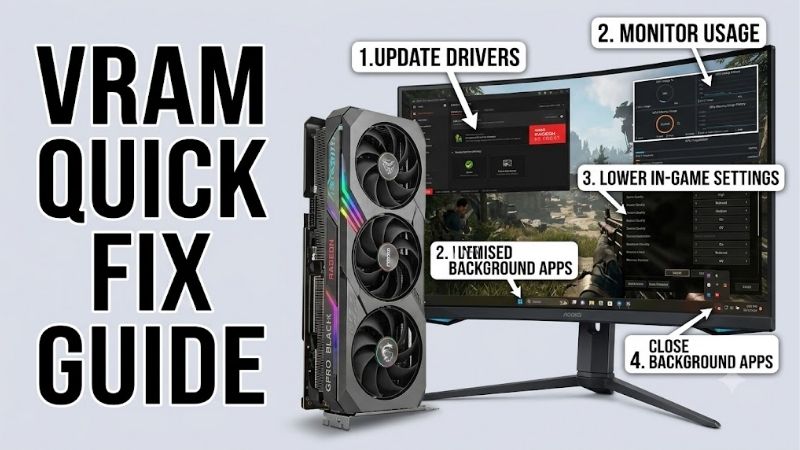
How do I free up VRAM without buying a replacement GPU? Lower texture quality first, then reduce other memory-intensive settings and close nonessential GPU-accelerated applications. This creates more headroom without hardware changes and is the effective troubleshooting diagnostic when warnings appear only at ultra-demanding presets.
Restart the affected game after making the change, then reproduce the same memory-intensive scene. If the warning subsequently disappears while frame rates remain acceptable, allocation pressure was the immediate allocation issue. VRAM quick fix guide steps should stop there unless the same limit returns at normal settings.
Does Lowering Texture Quality Fix VRAM Problems?
Does lowering texture quality fix VRAM problems? Often, yes, when the selected preset requires substantially more memory than your GPU can comfortably allocate. Texture data can consume a significant portion of VRAM, so stepping down one level can remove the warning without forcing a substantial reduction in resolution.
The exception is a game with a memory-management bug or leak, where lowering settings may only delay the problem. In that situation, updating the game and GPU driver is more sensible than repeatedly lowering image quality. A persistent issue across multiple games, however, points more strongly toward the hardware’s capacity.
Will Adding System RAM Increase VRAM?
Will adding system RAM increase VRAM? No. System RAM and dedicated graphics memory are separate resources, even though some systems can use shared memory in specific scenarios. More system RAM can help when Windows or an application becomes memory-starved, but it does not add physical capacity to the VRAM chips on your GPU.
That distinction matters when diagnosing stutter. If monitoring shows the graphics card repeatedly approaching its own memory limit while system RAM still has headroom, adding DDR5 will not remove that specific bottleneck. A setting change or a higher-capacity GPU is the relevant fix, depending on how often the limit occurs.
When Should I Replace My GPU Because Of VRAM Limits?
When should I replace my GPU because of VRAM limits? Replace it when sensible settings changes still leave repeated warnings, texture compromises, stutter, or workloads that no longer fit your intended resolution. At that point, the limit is part of the card’s capability rather than an isolated configuration-related issue.
VRAM quick fix guide becomes a buying decision when the ceiling appears repeatedly in the games or applications you actually use. The RX 9060 XT is the value-oriented 16GB option, the RX 9070 adds stronger overall headroom, the RTX 5070 favors ray tracing features, and the RTX 5060 Ti fits compact 16GB systems with manageable power demands.
Final Thoughts
VRAM quick fix guide is simple when you diagnose before shopping: lower the setting that causes the memory spike, retest, and upgrade only when the limitation remains. Choose 16GB for extra capacity, favor bandwidth and GPU power for demanding resolutions, and verify case and PSU requirements before ordering a replacement card.