The 16-inch laptop hits a comfortable middle ground: a bigger, more productive screen than a 14- or 15-inch model without the bulk of a 17-inch machine. But a great 16-inch setup is about more than the laptop itself, since the right case, memory upgrade, and accessories protect your investment and make it far more useful day to day.
- Watch: Best 16 Laptop — Video Review
- How to Choose Your 16-Inch Setup
- The Best 16-Inch Laptop and Essentials Reviewed
- What Changes When You Move From 15 to 16 Inches
- Matching Specs to Workload: A Quick Reference
- Who a Core 7 150U Class Chipset Fits Best
- Budget-Tier vs Premium-Tier 16-Inch Builds: What the Price Difference Buys
- Running Games on a 16-Inch Chassis Without a Discrete GPU Mindset
- Creator Workloads: Color Accuracy and Sustained Performance Thresholds
- Ultrabook Trade-Offs: Weight, Battery, and Port Count
- Display Specs That Actually Matter at 16 Inches
- Battery Life Thresholds and What Actually Drains Them
- Port and Connectivity Checklist Before You Buy
- How Much RAM and Storage You Actually Need
- Upgrade Path: What You Can and Cannot Change After Purchase
- Protecting a 16-Inch Laptop: Case, Sleeve, and Travel Considerations
- When a Portable Monitor Extender Earns Its Desk Space
- Common Mistakes When Buying a 16-Inch Laptop Setup
- Maintenance and Longevity Tips
- Thermal Design and Fan Noise in a Thin 16-Inch Chassis
- Webcam, Microphone, and Speaker Quality for Calls and Streaming
- Keyboard and Trackpad Ergonomics at 16 Inches
- Warranty and Support: What Is Worth Paying For
- Worked Example: Building a 16-Inch Setup for a Hybrid Office Worker
- Myths vs Facts About 16-Inch Laptops
- Screen Coating: Matte Versus Glossy on a 16-Inch Display
- Hinge Durability and Long-Term Wear Points
- Carrying a 16-Inch Setup Through Travel and Security Checks
- Running Dual Monitors at a Home Desk With the Extender
- Cleaning and Storing Laptop Accessories Between Uses
- Driver and Firmware Update Habits That Extend Laptop Life
- Expansion Card Slots and Memory Access Points to Check First
- Resale and Trade-In Value: What Holds Up Over Time
- Charger Wattage and Fast-Charging Compatibility Notes
- External GPU and Thunderbolt Expansion: When It Makes Sense for a 16-Inch Laptop
- Laptop Stands and Desk Ergonomics for Extended 16-Inch Use
- Frequently Asked Questions
- Final Thoughts
- Related Articles
This roundup takes a practical, whole-setup approach to going 16-inch: a capable base laptop plus the essential gear that complements it. We will explain what to prioritize, then review our top picks so you can build a complete, well-protected, and productive 16-inch workstation.
As an Amazon Associate we earn from qualifying purchases at no extra cost to you.






🎮 Get More From Your Setup — Free
Prime Gaming gives you free PC games every month, in-game loot, and a free Twitch channel sub — plus fast free shipping on all the gear above. New members get a 30-day free trial.
Watch: Best 16 Laptop — Video Review
How to Choose Your 16-Inch Setup
- The laptop core: Look for a modern CPU, at least 16GB of RAM, and an SSD for smooth everyday performance.
- Protection: A fitted sleeve or briefcase guards against scratches and drops in transit.
- Upgradability: A memory kit is the cheapest way to extend a laptop’s useful life.
- Productivity add-ons: A portable monitor extender multiplies your screen space on the go.
- Carrying comfort: Padded compartments and trolley straps ease daily commuting.
The Best 16-Inch Laptop and Essentials Reviewed
Dell 16 Laptop (Core 7 150U)
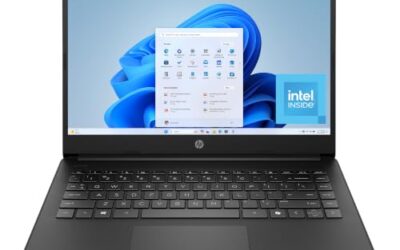
The Dell 16 (DC16251) anchors the setup with an FHD+ display, an Intel Core 7 150U, 16GB of RAM, and Windows 11 Home. It is a clean, capable productivity machine whose roomy 16-inch screen and efficient processor make it a strong daily driver for work, study, and browsing.
MOSISO 360 Protective Laptop Case
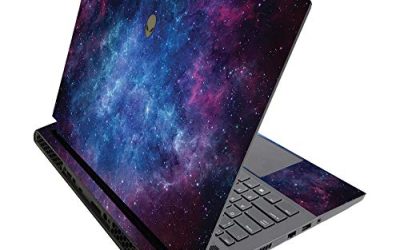
To keep that laptop pristine, the MOSISO 360 protective case fits 15 to 16-inch machines and wraps them in shock-absorbing protection. It is an affordable, sensible first accessory that guards against the everyday knocks of backpack and bag life.
16″ Laptop Screen Extender
For productivity on the move, this 1200P FHD triple portable monitor clips onto a 16-inch laptop to add extra display real estate. Ultra-slim and travel-friendly, it is a game-changer for anyone who works with multiple windows away from a desk.
Targus 15-16 Inch Slim Briefcase
The Targus slim briefcase offers a more professional carry option, with a padded compartment and a trolley strap for pairing with luggage. Lightweight and understated, it suits commuters and business travelers who want polished protection.
Crucial 32GB DDR5 Memory Kit
Finally, the Crucial 32GB DDR5 SODIMM kit (2x16GB) is the upgrade that keeps a compatible laptop feeling fast for years. Compatible with recent Intel Core and AMD Ryzen 7000 platforms, it is an easy, high-impact boost for heavy multitaskers.
What Changes When You Move From 15 to 16 Inches
A 16-inch panel adds meaningful screen real estate over a 15-inch model without jumping into the bulk of a 17-inch chassis. Most 16-inch laptops gain their extra inch mainly through a taller 16:10 aspect ratio rather than a wider body, which means more vertical space for spreadsheets, code, and documents rather than a dramatically wider desk footprint. The weight difference between a well-built 15-inch and 16-inch ultraportable is often under half a pound, so the jump is rarely the deciding factor; battery capacity, port selection, and chassis material usually matter more for day-to-day comfort. Keyboard decks also tend to grow slightly, which gives manufacturers room for a full-size layout and sometimes a number pad that a 15-inch chassis cannot fit without shrinking other keys.
Matching Specs to Workload: A Quick Reference
| Workload | RAM | Storage | Display Priority |
|---|---|---|---|
| Browsing, documents, video calls | 16GB | 512GB SSD | Brightness and matte coating over refresh rate |
| Spreadsheets, light multitasking | 16-32GB | 512GB-1TB SSD | Resolution for on-screen row and column density |
| Photo or video editing | 32GB | 1TB+ SSD | Color accuracy and consistent brightness across the panel |
| Gaming or 3D workloads | 32GB | 1TB+ SSD, ideally expandable | Refresh rate and response time over color coverage |
This table is a starting point, not a hard rule. Storage needs grow faster than most buyers expect once raw photo files, game installs, or project backups accumulate, so leaning toward the higher end of a range costs less upfront than paying for an external drive and cable management later.
Who a Core 7 150U Class Chipset Fits Best
Processors in this efficiency-focused class are built around low power draw rather than peak performance, which makes them well suited to office work, web-based tools, writing, and video calls where the CPU rarely needs to run at full boost for more than a few seconds at a time. Battery life and quiet, low-heat operation are the main payoff, since efficiency-class chips let the fan stay off or spin slowly through most of a typical workday. Buyers who spend their day in browser tabs, office suites, and messaging apps will rarely notice a ceiling on this class of hardware.
The trade-off shows up under sustained load. Long video exports, large batch photo edits, or compiling sizeable codebases will take noticeably longer on an efficiency-class chip than on a higher-wattage performance chip, because the U-series design intentionally caps power draw to protect battery life and keep the chassis cool in a thin build. Anyone whose work regularly pushes the CPU for ten minutes or longer should weigh a higher-power chip class instead, even if it costs some battery life in return.
Budget-Tier vs Premium-Tier 16-Inch Builds: What the Price Difference Buys
Entry-level 16-inch laptops usually save cost in three places: a lower-resolution or lower-brightness panel, a plastic rather than metal chassis, and a smaller battery cell to keep the price down. None of those cuts affect raw computing speed directly, which is why a budget-tier machine can still handle office work competently. Premium tiers put the extra cost into build rigidity, a brighter and more color-accurate display, better speakers, and typically a larger battery that holds up over more charge cycles.
The spec sheet gap between budget and premium tiers at the same processor class is often smaller than the price gap suggests. Where premium pricing shows up most is in the things a spec sheet underrepresents, like hinge durability, keyboard flex, and how evenly a display is lit at the edges. Buyers who mainly care about raw task completion can often save money in the budget tier, while buyers who will be looking at the screen for hours a day benefit more from the premium display investment.
Running Games on a 16-Inch Chassis Without a Discrete GPU Mindset
Many 16-inch laptops built around efficiency-class or integrated-graphics chips are not marketed as gaming machines, but integrated graphics have improved enough to handle older or lighter titles, especially at reduced resolution and graphics settings. The practical limit is thermal headroom: a thin 16-inch chassis built for battery life has less fan and vent capacity than a dedicated gaming laptop, so sustained high-graphics loads will throttle sooner. Buyers who want occasional gaming on a productivity-first 16-inch laptop should expect to lower resolution and settings rather than expect discrete-GPU performance from integrated graphics.
A 16-inch screen’s taller aspect ratio also changes how older games render, since many titles were designed for 16:9 and will either show black bars or stretch slightly on a 16:10 panel depending on how the game handles aspect ratio. This is a minor annoyance for most single-player titles and rarely affects competitive multiplayer games, which typically force a 16:9 render window regardless of the physical panel shape.
Creator Workloads: Color Accuracy and Sustained Performance Thresholds
For photo and video work, display color accuracy matters more than raw brightness. A panel that covers close to 100% of the sRGB color space keeps colors looking consistent between the laptop screen and most client-facing displays, while panels with partial sRGB coverage can cause edited images to look correct on the laptop but shift noticeably once viewed elsewhere. Panel uniformity, meaning consistent brightness and color from corner to corner, is harder to verify from a spec sheet and is one of the areas where premium-tier panels most often outperform budget ones.
Sustained CPU and storage performance matters more for creators than for office users. Large video exports and RAW photo batch processing run for minutes rather than seconds, so a laptop that throttles under sustained load will add real time to every export. Fast, adequately sized SSD storage also matters here, since editing software commonly uses scratch disk space that can fill a smaller drive quickly during a single project.
Ultrabook Trade-Offs: Weight, Battery, and Port Count
Ultrabook-class 16-inch laptops trade port count and sometimes battery capacity for a thinner, lighter chassis. Thinner designs leave less internal space for a large battery cell and fewer physical ports, which is why many ultrabooks lean on USB-C for nearly everything and may drop a full-size HDMI port or SD card slot that a thicker 16-inch laptop would include. For buyers who travel frequently or carry the laptop between rooms all day, the weight savings are immediately noticeable; for buyers who mostly use the laptop at one desk, the extra ports on a slightly heavier chassis are often more useful day to day than the weight reduction.
Display Specs That Actually Matter at 16 Inches
- Resolution: 1920×1200 is a comfortable baseline for text clarity at 16 inches, while 2560×1600 or higher adds noticeably sharper detail for photo work and lets more content fit on screen at once.
- Refresh rate: 60Hz is sufficient for office work and media, while 120Hz and above makes scrolling and cursor movement look smoother and matters more for gaming or fast-motion video review.
- Brightness: panels rated in the 300-400 nit range handle typical indoor use comfortably, while anyone working near windows or outdoors benefits from brightness above that range to avoid glare washout.
- Panel coating: matte or anti-glare finishes reduce reflections in bright rooms at the cost of slightly softer-looking colors compared to glossy panels, which show deeper color but reflect more light.
Battery Life Thresholds and What Actually Drains Them
Manufacturer battery estimates are measured under light, steady workloads like video playback at reduced brightness, so real-world mixed use typically runs shorter than the advertised number. Screen brightness is the single biggest drain on most laptops, followed by sustained CPU load from video calls, background sync software, and browser tabs with autoplay video. A 16-inch laptop with a 70Wh or larger battery generally holds up through a full workday of mixed use, while batteries under 50Wh often need a midday top-up under the same usage pattern.
Airline carry-on rules cap lithium batteries at 100Wh without special airline approval, and most laptop batteries intentionally stay under that threshold, so battery capacity alone rarely becomes a travel issue. What does cause travel friction is a nonremovable battery that ages past its useful capacity; after roughly 300-500 full charge cycles, most lithium batteries retain somewhere around 80% of their original capacity, which is a normal degradation curve rather than a defect.
Port and Connectivity Checklist Before You Buy
A thin 16-inch laptop can still cover most connectivity needs if the right combination of ports is present. At minimum, confirm there is at least one USB-C port that supports video output and charging, since this is what a docking setup or an external monitor typically needs. A dedicated HDMI port avoids needing a dongle for projectors and conference room displays, which still overwhelmingly use HDMI over USB-C video. An SD card slot matters specifically for anyone offloading photos or video directly from a camera, and its absence is one of the most common regrets reported after buying an ultrathin laptop.
Wireless standards are worth checking too. Wi-Fi 6E or Wi-Fi 7 support future-proofs the laptop against increasingly congested 2.4GHz and 5GHz bands by adding access to the less crowded 6GHz band, though this only matters if the router at home or office also supports it.
How Much RAM and Storage You Actually Need
16GB of RAM remains a workable baseline for browsing, documents, and video calls, but it leaves little headroom once several browser tabs, a video call, and a background sync tool run at the same time. 32GB has become the more comfortable target for anyone who multitasks heavily or runs photo and video editing software, since those applications cache large amounts of data in memory during editing sessions. On laptops where the RAM is soldered rather than socketed, buying the higher capacity at purchase time is the only option, which is where a kit like the Crucial 32GB DDR5 Memory Kit becomes relevant on models that do support a user upgrade.
Storage follows a similar pattern: 512GB fits a typical mix of apps and documents comfortably, but creative work, game libraries, or large media collections fill that space faster than most buyers expect. Checking whether the storage drive is replaceable or only soldered-on before buying avoids being locked into a capacity that felt adequate on day one but cramped a year later.
Upgrade Path: What You Can and Cannot Change After Purchase
Not every component inside a 16-inch laptop can be changed after purchase. RAM and storage are the two most commonly upgradable parts, but only on models where the manufacturer uses a socketed memory module and a standard M.2 storage slot rather than soldering those components directly to the motherboard. Battery and display panel replacements are technically possible on most laptops but typically require professional service rather than a user-level swap. Checking a model’s upgrade policy before buying matters most for buyers planning to keep a laptop for several years, since a RAM or storage bump can meaningfully extend a laptop’s useful life without a full replacement.
Protecting a 16-Inch Laptop: Case, Sleeve, and Travel Considerations
A hard-shell case like the MOSISO 360 Protective Laptop Case guards against drops and shelf impact when a laptop travels inside a backpack alongside other gear, while a padded sleeve on its own mainly protects against scratches and light bumps. For anyone carrying a laptop on a daily commute by foot or bike, the added impact protection of a hard shell is worth the small weight and bulk increase over a thin sleeve. A dedicated laptop bag such as the Targus 15-16 Inch Slim Briefcase adds organized storage for chargers, cables, and documents, which matters more for frequent travelers than for someone who mostly moves a laptop between a desk and a couch.
Fit matters more than most buyers expect: a case or sleeve sized for a 15-inch laptop will stretch or fail to close around a 16-inch chassis, so checking the exact interior dimensions against the laptop’s actual footprint, not just the screen size label, avoids returning an ill-fitting case.
When a Portable Monitor Extender Earns Its Desk Space
A clip-on screen extender, such as the 16″ Laptop Screen Extender, adds a second display without the desk footprint of a standalone monitor, which makes it most useful for anyone who regularly works from temporary setups like a hotel desk, a coworking space, or a kitchen table. Compared to a full external monitor, a screen extender trades some brightness and color accuracy for portability and a near-instant setup time. Buyers who work from one fixed desk most of the time generally get more consistent image quality from a standalone monitor, while buyers who move locations frequently benefit more from the extender’s compact form.
Common Mistakes When Buying a 16-Inch Laptop Setup
- Buying based on screen size alone and skipping the RAM and storage upgrade policy, then discovering the configuration cannot be changed later.
- Choosing a glossy, high-brightness panel for a room with large windows, then dealing with glare that a matte panel would have avoided.
- Picking a case or sleeve by screen size label instead of measuring the laptop’s actual width and depth, resulting in a case that will not fully close.
- Assuming an efficiency-class processor will handle sustained creative workloads as well as office tasks, then hitting throttling during long exports.
- Overlooking port selection and ending up needing a dongle for basic daily tasks like connecting to a projector or offloading photos.
- Ignoring battery cycle degradation and expecting a three-year-old battery to match its original runtime.
Maintenance and Longevity Tips
Keeping vents clear of dust meaningfully extends the life of both the cooling system and the components it protects, since trapped dust raises internal temperatures and can accelerate fan wear. Avoiding full battery drain on a regular basis and keeping the laptop between roughly 20% and 80% charge when possible slows long-term battery capacity loss, since lithium batteries degrade faster at the extremes of a full charge or a near-empty one. Finally, keeping the operating system and driver updates current, especially graphics and power-management drivers, resolves a meaningful share of the performance and battery-life complaints that get mistaken for hardware problems.
Thermal Design and Fan Noise in a Thin 16-Inch Chassis
A larger chassis gives engineers more room for heat pipes, vents, and fan blade size, which is one reason some 16-inch laptops run cooler and quieter than their 14-inch counterparts at the same processor class even though they are not marketed as cooling-focused machines. Fan noise under load depends less on raw chassis size than on how aggressively the laptop is tuned to prioritize quiet operation over sustained clock speed, so two 16-inch laptops with similar specs can behave very differently once a demanding task runs for more than a minute or two.
Keyboard deck temperature is a more noticeable day-to-day issue than fan noise for most buyers. Thin aluminum unibody designs conduct heat efficiently, which keeps internal components cooler but can make the keyboard and palm rest noticeably warm during video calls or streaming, while thicker plastic-chassis laptops often feel cooler to the touch at the cost of trapping more heat internally.
Webcam, Microphone, and Speaker Quality for Calls and Streaming
Built-in webcams on most 16-inch laptops sit in the 1080p range now, which is adequate for video calls but still noticeably softer than a dedicated external webcam in low light, since laptop camera modules are limited by the thin lid they fit into. Microphone arrays have improved more than cameras in recent years, with multi-microphone setups and software noise suppression doing a reasonable job of cutting keyboard and fan noise out of calls without needing a headset.
Speaker quality varies more by chassis design than by price tier alone. Downward-firing speakers mounted on the bottom of the laptop lose clarity when used on a soft surface like a bed or couch cushion, while upward-firing speakers built into the keyboard deck or hinge area stay consistent regardless of what surface the laptop sits on. Anyone who regularly takes calls without a headset benefits from checking speaker placement specifically, since this detail rarely appears on a spec sheet.
Keyboard and Trackpad Ergonomics at 16 Inches
The extra width of a 16-inch chassis usually goes toward key spacing and travel distance rather than cramming in more keys, which tends to make typing more comfortable than on a 14-inch laptop with the same layout squeezed into a smaller deck. Some 16-inch models use the added width for a dedicated number pad, which benefits spreadsheet-heavy work but shifts the main keyboard off-center, which can feel awkward for touch typists used to a centered layout.
Trackpad size scales with chassis width as well, and a larger glass trackpad with precise palm-rejection tends to reduce accidental cursor jumps during typing. Buyers who rely heavily on an external mouse may not value this as much, but anyone using the laptop without a mouse on a couch, in a meeting room, or while traveling will notice the difference between a cramped and a generously sized trackpad within the first few days of use.
Warranty and Support: What Is Worth Paying For
Standard manufacturer warranties typically cover hardware defects for one year, which protects against a failure that shows up early but offers no protection against accidental damage like a cracked screen or spilled drink. Extended accidental-damage coverage costs extra but matters most for laptops that travel frequently or get used outside a dedicated desk setup, where drops and spills are more likely. Buyers who keep a laptop at one desk most of the time get less practical value from accidental-damage add-ons than buyers who carry the laptop daily.
On-site or next-business-day repair service is worth checking for anyone who depends on the laptop for work income, since standard mail-in warranty repairs can take one to two weeks round trip. This matters less for a secondary or personal-use laptop where a short repair wait is only an inconvenience rather than a loss of income.
Worked Example: Building a 16-Inch Setup for a Hybrid Office Worker
Consider a buyer who works from home three days a week and commutes to an office the other two, spending most of the day in video calls, spreadsheets, and a browser with a dozen open tabs. For this workload, the specs table above points toward 16-32GB of RAM and a 512GB-1TB SSD, prioritizing brightness and a matte coating over a high refresh rate since video calls and documents do not benefit meaningfully from fast-motion clarity.
On the accessory side, this buyer’s twice-weekly commute makes a hard-shell case a reasonable addition over a plain sleeve, since the laptop will ride in a backpack alongside other items on transit days. A slim briefcase style bag adds room for a charger and a notebook without the bulk of a full backpack on office days. Because this buyer already has a monitor at both the home desk and the office desk, a portable screen extender adds less value here than it would for someone working from varied locations; the budget saved on the extender could instead go toward the higher end of the RAM range, since multitasking across calls and spreadsheets is the more frequent bottleneck than screen space in this scenario.
Myths vs Facts About 16-Inch Laptops
- Myth: a bigger screen always means a heavier laptop. Fact: chassis material and battery size affect weight more than screen size alone; some 16-inch ultrabooks weigh close to smaller 15-inch models built with heavier materials.
- Myth: more RAM always speeds up a laptop. Fact: RAM prevents slowdowns from running out of memory but does not increase raw processing speed; a CPU-bound task will not finish faster just because RAM capacity increased beyond what the task actually uses.
- Myth: a higher-resolution display always looks better. Fact: without matching brightness and color accuracy, a higher-resolution panel can still look worse than a lower-resolution one with better color and contrast.
- Myth: soldered components always mean a bad laptop. Fact: soldering RAM or storage is a deliberate space and power trade-off in thin designs, not necessarily a sign of lower build quality elsewhere in the machine.
Screen Coating: Matte Versus Glossy on a 16-Inch Display
A matte, anti-glare finish scatters overhead light rather than reflecting it directly back at the viewer, which matters more on a larger 16-inch panel simply because there is more surface area to catch window or ceiling light. Glossy coatings tend to produce deeper blacks and slightly more vivid color, which creator-focused buyers often prefer for photo and video work, but that comes at the cost of visible reflections in bright rooms. Anyone working near a window or under overhead office lighting for long stretches generally finds a matte finish easier on the eyes across a full workday.
Hinge Durability and Long-Term Wear Points
The hinge mechanism on a 16-inch laptop carries more leverage than on a smaller chassis, since the lid itself is larger and heavier, which puts additional strain on the hinge barrels every time the laptop opens and closes. Metal hinge assemblies rated for tens of thousands of open-close cycles tend to hold tension longer than plastic-reinforced hinges, and a lid that gradually droops on its own after a year of daily use is one of the more common wear symptoms owners report. Lifting the laptop by the base rather than the screen corner reduces unnecessary twisting stress on the hinge over time.
Carrying a 16-Inch Setup Through Travel and Security Checks
A 16-inch laptop sits at the upper edge of what most airline carry-on laptop sleeves and bag compartments are sized for, so confirming sleeve dimensions against the laptop’s actual footprint, not just its screen size, avoids a tight fit at the gate. Standard airport security screening typically requires removing the laptop from its bag for a separate pass through the scanner, and a slim sleeve that slides in and out quickly saves time compared with a padded case buried inside a larger backpack. Packing the memory upgrade kit and extender separately from the laptop itself also reduces the chance of pressure damage to the screen during transit.
Running Dual Monitors at a Home Desk With the Extender
Pairing a 16-inch laptop with a portable screen extender effectively creates a dual-monitor setup without needing a separate external monitor stand, which suits a hybrid worker who wants a full desktop-style layout at home but a lighter single-screen setup while traveling. The extender typically draws power and video signal through a single USB-C cable, so checking that the laptop’s available port supports video output over USB-C, not just charging, is worth confirming before buying one for this purpose. Desk space and viewing angle both tend to work better when the extender sits slightly behind and above the laptop’s own screen rather than directly beside it.
Cleaning and Storing Laptop Accessories Between Uses
A protective case left zipped around a laptop that was stored while still slightly warm can trap moisture against the chassis, which is a more common cause of long-term cosmetic damage than most owners expect. Letting the laptop cool and wiping down the case’s interior lining periodically prevents dust and oils from building up against the lid’s finish during storage. Screen extenders and memory modules should be stored in anti-static packaging when not in use, since loose static-sensitive components left in a bag pocket are more prone to connector damage from repeated jostling.
Driver and Firmware Update Habits That Extend Laptop Life
Keeping chipset, graphics, and battery-management firmware current is one of the more overlooked factors in how long a laptop’s battery and thermal performance hold up over several years of use. Manufacturers periodically revise power-management firmware specifically to correct charging behavior or fan-curve issues identified after a model ships, and skipping these updates can leave a laptop running warmer or draining its battery faster than the hardware is actually capable of. Checking for firmware updates every few months, rather than only when a problem appears, tends to catch these improvements before they become noticeable as a performance complaint.
Expansion Card Slots and Memory Access Points to Check First
Not every 16-inch laptop chassis places its RAM and storage behind an easily removable panel, and some ultraportable designs solder memory directly to the board, which makes a planned memory upgrade impossible regardless of how capable the kit itself is. Checking a model’s official service documentation for a labeled memory access panel, rather than assuming all 16-inch laptops share the same internal layout, avoids buying an upgrade kit that a particular chassis cannot actually accept. Laptops marketed toward business or creator use are more likely to include a user-accessible memory slot than ultra-thin consumer models built primarily around battery life.
Resale and Trade-In Value: What Holds Up Over Time
A 16-inch laptop kept in a protective case for most of its life, with its screen free of deep scratches and its hinge still holding tension, generally commands a noticeably higher trade-in or resale value than an otherwise identical unit with visible wear. Buyers evaluating a used machine tend to inspect the hinge, the screen coating, and the keyboard deck closely, since these three areas show cumulative handling wear faster than internal components do. Keeping original packaging and any included accessories, such as a charger with the correct wattage, also tends to matter more to a resale buyer than most sellers expect, since mismatched or missing chargers raise doubts about how the machine was used.
Storage capacity and installed memory at the time of resale affect value less than most sellers assume if the chassis supports user upgrades, since a buyer can add capacity later; the chassis condition and battery health typically carry more weight in a resale price than the specific configuration sold at purchase.
Charger Wattage and Fast-Charging Compatibility Notes
A 16-inch laptop’s larger battery and display typically draw more power than a smaller ultraportable, so a replacement or travel charger needs to match or exceed the original unit’s rated wattage to charge at full speed. A lower-wattage USB-C charger will usually still charge the laptop, just more slowly, and in some cases may not keep up with battery drain if the machine is under heavy load at the same time. Checking the wattage printed on the original charger’s label before buying a lighter travel replacement avoids an unpleasant surprise during a long work session away from a fixed power source.
External GPU and Thunderbolt Expansion: When It Makes Sense for a 16-Inch Laptop
Many thin 16-inch builds, including Core 7 150U-class configurations, ship with Thunderbolt 4 but no discrete GPU, which leads some owners to consider an external GPU enclosure as a workaround for occasional gaming or GPU-accelerated editing.
Where an eGPU Realistically Helps
Workloads that are GPU-bound and tolerant of some added latency, such as video export, 3D rendering previews, or casual gaming at a fixed desk, see the clearest benefit, since the laptop’s own thermal and power limits are no longer the bottleneck.
Where It Falls Short
Thunderbolt and USB4 bandwidth is a fraction of an internal PCIe slot, so competitive or latency-sensitive gaming sees a smaller gain than the GPU’s specs would suggest, and CPU-bound tasks see almost no improvement at all regardless of which external card is attached.
Checking Enclosure Compatibility Before Buying One
Not every Thunderbolt port supports external graphics at full bandwidth, so confirming the exact port specification in the laptop’s manual is a better signal than the generic “Thunderbolt” label on the chassis. Owners should also check the enclosure’s own power delivery rating against the laptop’s charging needs, since some enclosures can power the laptop through the same cable while others require a separate charger running at the same time.
Laptop Stands and Desk Ergonomics for Extended 16-Inch Use
A 16-inch chassis is noticeably taller and heavier on a desk than a 14-inch model, and that size shift changes how the screen sits relative to eye level during long sessions.
Screen Height and Neck Strain
Raising the laptop so the top third of the display sits at or just below eye level reduces the forward neck tilt that causes strain over a full workday, and a stand is usually the simplest way to reach that height without also raising the keyboard.
Pairing a Stand With a Screen Extender
Owners who already run a 16-inch screen extender for a dual-monitor layout should set both panels to a matching height rather than letting the attached laptop sit lower than the extender, since mismatched heights reintroduce the same neck strain a stand is meant to fix.
Frequently Asked Questions
Why choose a 16-inch laptop over 15 or 17?
Sixteen inches gives more vertical screen space for documents and multitasking than a 15-inch, while staying lighter and more portable than a bulky 17-inch model. It is a great balance.
Do I really need a case or sleeve?
If you ever carry your laptop, yes. A sleeve or briefcase prevents scratches, dents, and cracked screens, cheap insurance for an expensive device.
Can I upgrade the RAM in any laptop?
Only laptops with accessible SODIMM slots. Many modern ultrabooks have soldered memory, so check your specific model’s specs before buying a kit like the Crucial 32GB.
Is a portable monitor extender worth it?
For anyone who multitasks on the road, absolutely. The added screen space boosts productivity significantly and folds away neatly when you are done.
Final Thoughts
Building the best 16-inch setup means pairing a solid laptop with the right support gear. The Dell 16 with a Core 7 and 16GB of RAM makes a dependable foundation, while a MOSISO case or Targus briefcase keeps it safe. Add the screen extender for on-the-go productivity and the Crucial memory kit for longevity, and you will have a complete, capable workstation that travels well and lasts for years.