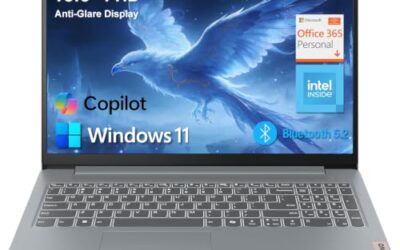
Lenovo laptops use the standard Windows capture tools, and the main thing that changes between ThinkPad, IdeaPad and Legion machines is where the Print Screen key lives and whether it needs Fn. On many ThinkPads it is a dedicated PrtSc key on the bottom row, while on some IdeaPad and Legion layouts it shares a key. Press PrtSc for a clipboard copy, Win+PrtSc for a saved file, or Win+Shift+S for an area. The notes below deal with Fn Lock, where the files go and common fixes.
- Where the key sits on common Lenovo lines
- Understanding Fn Lock on Lenovo keyboards
- Method one: PrtSc to the clipboard
- Method two: Win+PrtSc for an instant file
- Method three: Win+Shift+S and Snipping Tool
- Summary of shortcuts by situation
- Troubleshooting on Lenovo hardware
- Worked example: a before-and-after memory comparison
- Capturing on a Legion or other gaming model
- Tips for tidier captures
- Related guides
- Frequently asked questions
Where the key sits on common Lenovo lines
Layouts differ by series and by generation, so treat the following as typical patterns rather than guarantees. On many ThinkPad keyboards, the PrtSc key sits near the right side of the bottom row, close to the Alt and Ctrl keys. IdeaPad, Yoga and Legion keyboards often follow a more consumer-style arrangement, where PrtSc sits in the upper right area or shares a key with another function and has a second label.
Look for the text “PrtSc” first. If the label is the same color as the main key legend, you probably do not need Fn. If it is in a secondary color, plan on holding Fn. When in doubt, try both, since neither can cause harm. The model-specific user guide, which Lenovo publishes on its support site, shows the keyboard diagram.
Understanding Fn Lock on Lenovo keyboards
Fn Lock is the setting behind most Lenovo screenshot confusion. Lenovo laptops commonly print two functions on each key in the top row, such as a speaker icon and F1. Fn Lock decides which one you get when you press the key alone. With Fn Lock on, pressing the key produces the F-number, and holding Fn gives the media or system function. With it off, the reverse applies.
On many models, a key combination toggles it, and Fn+Esc is a commonly cited example, with a small indicator light on the Esc or Fn key. Some models also let you switch the behavior in the BIOS or through Lenovo Vantage. Because details vary, check your manual before changing system settings. The behavior only affects shared keys. A dedicated PrtSc key needs no Fn at all.
Method one: PrtSc to the clipboard
- Display what you want to capture.
- Press PrtSc, adding Fn if the label shows it is a secondary function.
- Open Paint or any text field that accepts images.
- Press Ctrl+V, then save.
Adding Alt copies only the active window. Click the window first, then press Alt+PrtSc. Both versions are quick, and they leave no files behind. The downside is that a second copy action replaces the image.
Method two: Win+PrtSc for an instant file
Hold the Windows key and press PrtSc. Your display dims briefly, and Windows saves a PNG into the Screenshots folder in Pictures. For a shared key, the combination may become Win+Fn+PrtSc. Open File Explorer to check the folder and view the numbered file.
If you have OneDrive backing up your Pictures folder, which is common on new Windows installs, the screenshot may sync automatically. That is convenient but also means a private screen could be uploaded, so keep it in mind when capturing sensitive pages. A user can pause or change syncing in the OneDrive settings if preferred.
Method three: Win+Shift+S and Snipping Tool
Press Win+Shift+S for the snipping overlay, choose rectangle, freeform, window or full screen, and drag. The image is placed on the clipboard, and a notification lets you open it in Snipping Tool for editing and saving. It does not rely on the Print Screen key or on Fn Lock, making it a dependable choice on any Lenovo model.
Snipping Tool also runs from the Start menu. Windows 11 versions have a toolbar with a delay option, which helps capture drop-down menus. Recent builds also include more features than older ones, so menu names may differ from this description.
Summary of shortcuts by situation
| You want to | Press | Fn possibly required |
|---|---|---|
| Copy the full screen | PrtSc | On shared keys |
| Copy only one window | Alt + PrtSc | On shared keys |
| Save a full-screen PNG | Win + PrtSc | On shared keys |
| Select an area | Win + Shift + S | No |
| Open the editor directly | Start menu, Snipping Tool | No |
Troubleshooting on Lenovo hardware
- PrtSc seems dead: Try the Fn variant. If a media function like volume or brightness changes instead, Fn Lock is set the other way.
- Win+PrtSc saves nothing: Make sure you are holding Windows, not just Fn, and look in Pictures\Screenshots. A redirected Pictures folder moves the destination.
- Black image in a game: Use borderless mode, or capture with the game’s own key. Some titles block standard shortcuts in exclusive fullscreen.
- Utility conflicts: Lenovo Vantage is not required for screenshots, but cloud or capture utilities may use the same hotkey. Review their settings.
- External keyboard: A standard keyboard has a dedicated Print Screen key. If it works, the laptop keyboard may need servicing.
- Stuck modifier: A restart usually clears a stuck Windows or Fn key state.
If none of this helps, contact Lenovo support, particularly if the laptop is under warranty, rather than opening the chassis yourself.
Worked example: a before-and-after memory comparison
Say you are preparing a reference for a RAM upgrade and want to record the memory details that Windows reports before and after. The assumptions: a Lenovo laptop running Windows 11, shared Print Screen key needing Fn, and Task Manager open on the Performance tab. Press Win+Shift+S, select the memory panel, and paste the image into a notes app. After the upgrade, repeat. You now have two matching images for comparison. If the new capacity does not show up, the guide How to Install RAM in a Laptop: Step-by-Step Upgrade Guide covers reseating and checking the module.
Note that screenshots from the BIOS or setup screen cannot be taken with Windows shortcuts, because Windows is not running at that point. A phone photograph of the screen is the usual substitute.
Capturing on a Legion or other gaming model
Gaming laptops sometimes ship with extra software that adds its own overlay or hotkeys, for example a recording feature in the graphics driver suite. If one of those tools is active, the Print Screen key may trigger it instead of the Windows default, or the capture may land in a different folder. Open the overlay’s settings to see where it saves, and disable its screenshot hotkey if it clashes. Win+Shift+S generally stays free of such conflicts, so it works as a clean fallback during play.
Tips for tidier captures
Close notifications first so unrelated pop-ups do not appear in the image. Pin the Screenshots folder to Quick Access. Rename important files straight away to something descriptive, since sequence numbers say little weeks later. For text-heavy screens, keep the PNG format. And review the picture for private data before posting it anywhere public.
Related guides
- Usb C Kvm Switch For Two Laptops And Two Monitors
- Vertical Laptop Stand For Dual Laptop Desk Setup
- Nvme Enclosure With Active Cooling For Mac Mini
Frequently asked questions
What is the screenshot shortcut on a Lenovo laptop?
Press the PrtSc key to copy the screen, Win+PrtSc to save a PNG into Pictures\Screenshots, or Win+Shift+S to select a region. On many ThinkPads the PrtSc key sits on the bottom row near the right Alt key. On some IdeaPad and Legion models you may need Fn held as well.
Why does Fn matter for screenshots on Lenovo laptops?
Lenovo keyboards often assign dual functions to the top row, and Fn Lock decides which is the default. If Fn Lock is on or off, a shared key may act as a media key rather than Print Screen. A commonly used toggle is Fn+Esc, but the exact method depends on the model, so confirm it in the user guide.
Where are Lenovo screenshots saved?
Win+PrtSc writes a PNG file to Pictures, inside the Screenshots folder. PrtSc and Alt+PrtSc only copy to the clipboard, so you must paste them into Paint or another app and save. Win+Shift+S copies the region to the clipboard and shows a notification that opens Snipping Tool, where you can press Save.
Do I need Lenovo Vantage to take screenshots?
No. Lenovo Vantage manages settings, updates and hardware options, and it is not required for capturing the screen. Windows provides the shortcuts and Snipping Tool. Vantage can sometimes expose a hotkey setting that changes how the function row behaves, which may be relevant if your top row keys act differently than expected.
How do I screenshot a game on a Legion or other gaming laptop?
Try Win+PrtSc first, which works in many windowed and borderless games. If the image is black or nothing saves, switch the game to borderless mode or use its own screenshot key. The Xbox Game Bar capture button can also work in many titles. Check for a Fn requirement on the Print Screen key.