⚡ Key Takeaways
- 1. Buying Incompatible Parts
- 2. Forgetting to Enable EXPO/XMP
- 3. Skipping the I/O Shield
- 4. Misapplying or Forgetting Thermal Paste
- 5. Plugging In the Wrong Power Cables
- 6. Mis-Seating RAM and the GPU
- 7. Poor Cable Management Blocking Airflow
- 8. Buying a Cheap, Underpowered PSU
- 9. Wrong Fan Orientation
- 10. Forgetting to Install Standoffs
- 11. Not Updating BIOS and Drivers
- 12. Working Carelessly: Static and Forcing Parts
- Mistakes That Cost You Performance (Not Just Boots)
- Mistakes in Part Selection
- Quick Pre-Boot Checklist
- Top-Rated Picks
- Frequently Asked Questions
- Final Thoughts
- Related Articles
Get instant results in seconds — no signup.
- The number one mistake is mismatched components: a CPU that doesn't fit the motherboard socket, the wrong RAM type, or a cooler that won't clear the case.
- You bought fast DDR5, but it's running at a sluggish default speed because you never enabled its memory profile.
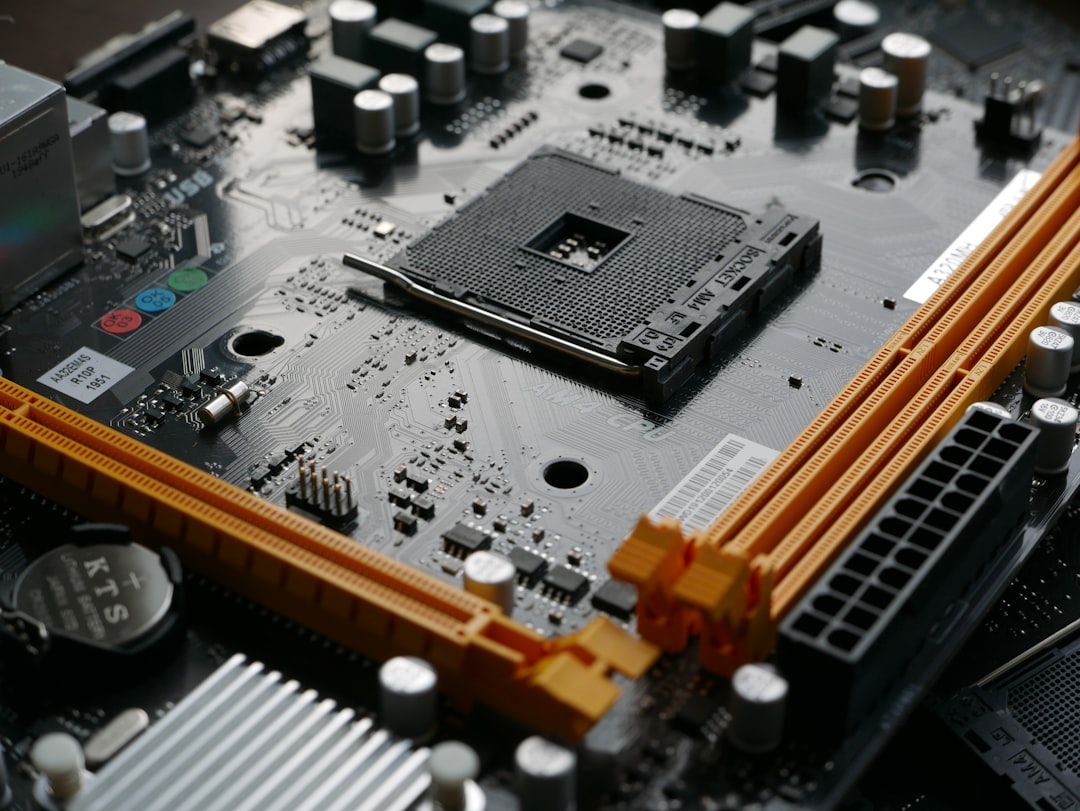
- If your motherboard has a separate (non-integrated) I/O shield, it must go into the case before the motherboard.
- A pea-sized dot in the center is plenty—the cooler's pressure spreads it.
Building your first PC is exciting, but it’s also where small oversights turn into hours of troubleshooting. The most common PC building mistakes aren’t catastrophic—they’re the avoidable little errors that cause a system not to boot, run hot, or perform below its potential. The good news is that knowing them in advance makes you immune to almost all of them. Here are the twelve mistakes first-time builders make most often, and exactly how to sidestep each one.
🛒 Best Price Today on Amazon
Prime members get fast, free shipping on everything above, plus member-only deals. New members get a 30-day free trial — cancel anytime.
Quick answer: Our top pick in 2026 is the 24-pin + 8-pin EPS connected — our #1 rated choice. See the full ranked comparison, alternatives and buying advice below.
1. Buying Incompatible Parts
The number one mistake is mismatched components: a CPU that doesn’t fit the motherboard socket, the wrong RAM type, or a cooler that won’t clear the case. Before buying anything, verify the CPU socket (AM5 for Ryzen 9000, LGA 1851 for Core Ultra), confirm the board uses DDR5, and check clearances. Compatibility checkers and our component guides take the guesswork out of this step.
2. Forgetting to Enable EXPO/XMP
You bought fast DDR5, but it’s running at a sluggish default speed because you never enabled its memory profile. After your first boot, go into BIOS and turn on EXPO (AMD) or XMP (Intel) to unlock the speed you paid for. Skipping this leaves free performance on the table—a mistake even experienced builders sometimes make.
3. Skipping the I/O Shield
If your motherboard has a separate (non-integrated) I/O shield, it must go into the case before the motherboard. Builders routinely forget this and have to unscrew and remove the whole board to add it. Most modern boards have a pre-attached shield, but always check before you drop the board in.
4. Misapplying or Forgetting Thermal Paste
Either applying way too much paste or forgetting it entirely leads to poor cooling. A pea-sized dot in the center is plenty—the cooler’s pressure spreads it. Remember that most coolers ship with paste pre-applied, so don’t double up. Forgetting it on a fresh cooler causes immediate thermal throttling.
5. Plugging In the Wrong Power Cables
Forgetting the 8-pin EPS (CPU power) cable at the top of the board is a classic no-boot cause. People connect the big 24-pin and the GPU power but miss the CPU power connector. Double-check that every required cable—24-pin, EPS, PCIe to GPU—is fully seated and clicked. For modern GPUs, push the 12V-2×6 connector all the way home.
6. Mis-Seating RAM and the GPU
RAM and graphics cards need firm, even pressure until they click into place. A stick that looks seated but isn’t fully clicked causes a no-display boot. Open the slot clips, align the notch, and press until both ends lock. For dual-channel, use the correct slots (usually 2 and 4) per your manual. The same applies to the GPU—ensure it clicks into the top PCIe slot.
7. Poor Cable Management Blocking Airflow
Beyond aesthetics, a tangle of cables in front of fans restricts airflow and raises temperatures. Route cables behind the motherboard tray, use the case’s tie-down points, and keep the main chamber clear. A roomy, well-ventilated ATX mid-tower makes this dramatically easier for first-timers.
8. Buying a Cheap, Underpowered PSU
Skimping on the power supply to save money is a false economy. A low-quality unit can fail and take other components with it, and an underpowered one causes crashes under load. Buy a reputable, adequately rated PSU—a quality 850W power supply covers high-end builds with headroom, while 750W suits most mid-range rigs.
9. Wrong Fan Orientation
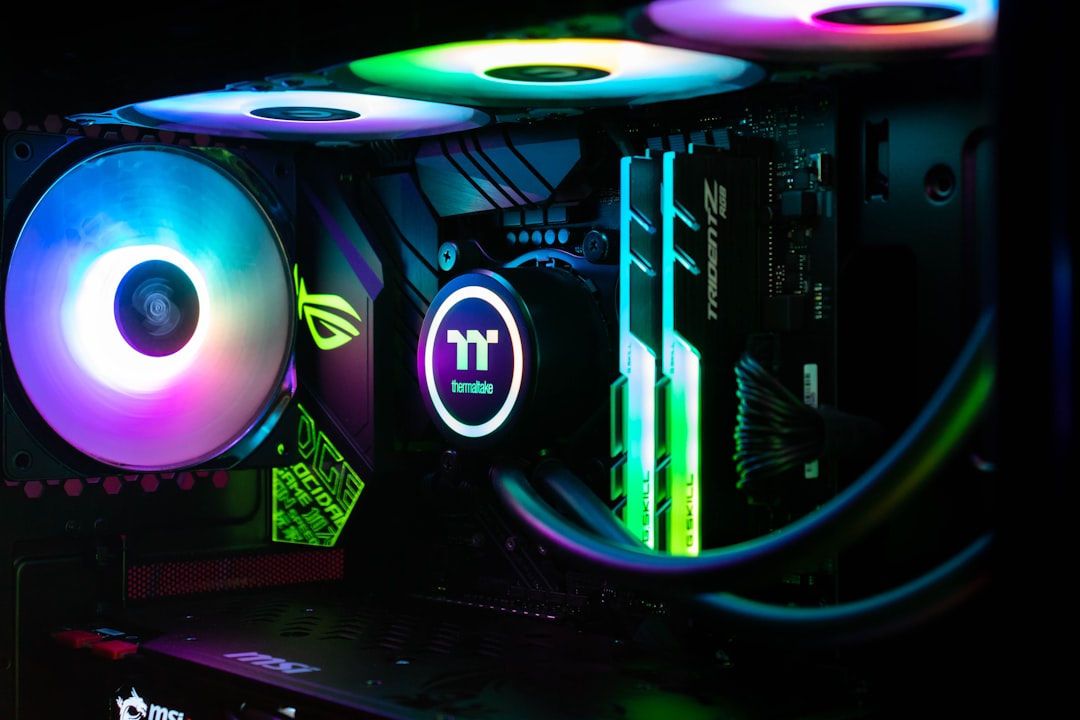
Fans push air in the direction of the arrows on the frame. Installing intakes and exhausts backward creates negative pressure, dust buildup, and poor cooling. Plan your airflow: front and bottom fans as intake, rear and top as exhaust, aiming for slightly more intake than exhaust.
10. Forgetting to Install Standoffs
The brass standoffs lift the motherboard off the case tray to prevent short circuits. Forgetting them—or leaving an extra one where it touches the board’s underside—can prevent boot or even cause damage. Install standoffs matching your board’s size before mounting it.
11. Not Updating BIOS and Drivers
A motherboard may ship with a BIOS too old to recognize your CPU, causing a frustrating no-boot. Many modern boards have a BIOS Flashback button to update without a CPU installed. After the OS is up, install chipset and GPU drivers first—skipping them leaves performance and stability on the table.
12. Working Carelessly: Static and Forcing Parts
Two habits cause damage: ignoring static electricity and forcing components. Ground yourself by touching bare metal, and never force a CPU, RAM stick, or connector—if it resists, something’s misaligned. Patience prevents bent pins and broken clips. A proper PC building tool kit with an anti-static strap and the right screwdrivers makes careful work easy.
Mistakes That Cost You Performance (Not Just Boots)
Some errors don’t stop your PC from working—they quietly rob you of the performance you paid for. Forgetting EXPO/XMP is the headline example, but there are others. Installing RAM in the wrong slots so it runs single-channel instead of dual-channel can cost 10–20% in CPU-limited games. Plugging your monitor into the motherboard’s display output instead of the graphics card means you’re using the weak integrated GPU while your powerful card sits idle. And leaving Windows on a power-saving plan can cap your CPU’s clocks. None of these throw an error, so builders live with degraded performance for months without realizing it.
The fix is a quick post-build audit. Confirm your RAM is in dual-channel and running its rated speed, verify your monitor cable goes into the graphics card, set Windows to a balanced or high-performance power plan, and update your chipset and GPU drivers. Five minutes of checking unlocks performance that’s otherwise invisibly lost.
Mistakes in Part Selection
Several common errors happen before you ever pick up a screwdriver. Pairing a powerful GPU with a weak CPU (or vice versa) creates a bottleneck that wastes money on the over-spec’d part. Buying a case too small for your graphics card or cooler forces a frustrating return. Choosing a motherboard without enough M.2 slots or the right features for your CPU limits your build before it begins. And under-sizing the power supply to save a few dollars invites instability. Spending a little extra time matching parts thoughtfully—balancing CPU and GPU, confirming clearances, and sizing the PSU with headroom—prevents the most expensive mistakes of all.
Quick Pre-Boot Checklist
| Check | Why It Matters |
|---|---|
| 24-pin + 8-pin EPS connected | Most common no-boot cause |
| RAM and GPU clicked in | Prevents no-display boots |
| Standoffs installed correctly | Avoids shorts |
| Cooler seated, paste applied | Prevents thermal throttling |
| Fan orientation correct | Ensures proper airflow |
| EXPO/XMP enabled in BIOS | Unlocks RAM speed |
Top-Rated Picks
| Product | Brand | Rating | Reviews | Price |
|---|---|---|---|---|
| Amazon Smart Plug, Works with Alexa, Simple Setup, En… | Amazon | ★ 4.7 | 570.4k | $24.99 |
| Seagate Portable 5TB External Hard Drive HDD – USB 3.… | — | ★ 4.6 | 271.1k | $207.31 |
| Amazon Echo Dot (newest model) – Vibrant sounding spe… | Amazon | ★ 4.7 | 192.8k | $49.99 |
| SANDISK 256GB Extreme microSDXC UHS-I Memory Card wit… | — | ★ 4.8 | 145.2k | $59.50 |
| Kasa Smart Plug HS103P2, Smart Home Wi-Fi Outlet Work… | — | ★ 4.6 | 150k | $14.99 |
Frequently Asked Questions
What is the most common first-time PC building mistake?
Buying incompatible parts, followed closely by forgetting the 8-pin CPU power cable. Both are easy to avoid by verifying compatibility before purchase and double-checking every cable before boot.
Why won’t my new PC turn on?
Usually a loose 8-pin EPS cable, unseated RAM, or front-panel power pins on the wrong header. Reseat the RAM and GPU and confirm all power cables are fully connected.
How much thermal paste should I use?
A pea-sized dot in the center of the CPU is enough—the cooler spreads it evenly. Many coolers come with paste pre-applied, so check before adding more.
Do I need to update my BIOS for a new CPU?
Sometimes. A board may ship with a BIOS too old to recognize a newer CPU. Check support lists, and use BIOS Flashback if your board supports updating without a CPU installed.
Is static electricity really a risk when building?
It can damage components, though it’s less common than people fear. Ground yourself by touching bare metal periodically, and avoid building on carpet to stay safe.
Final Thoughts
Almost every first-build problem traces back to one of these twelve mistakes—and now you know them all. Verify compatibility, connect every cable firmly, mind your airflow and standoffs, and enable your RAM profile in BIOS. Work patiently and double-check before you hit the power button, and your first build will boot on the first try like a pro’s.
Ready to decide? Our #1 pick for 2026 is the 24-pin + 8-pin EPS connected.
Live price & availability on Amazon.
Top picks from this guide
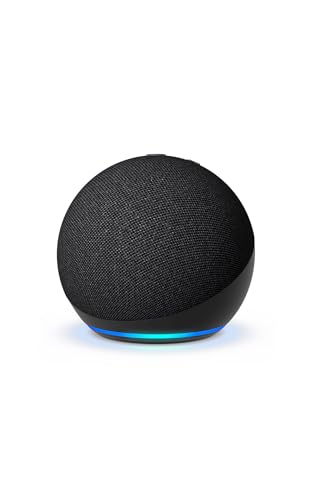 AmazonAmazon Echo Dot (newest model) - Vibrant sounding speaker, Designed…$50 \xc2\xb7 98/100
 Kasa SmartKasa Smart Plug HS103P2, Wi-Fi Outlet Works with Alexa, 2-Pack$18 \xc2\xb7 98/100
 SeagateSeagate Portable 5TB External Hard Drive HDD – USB 3.0…$220 \xc2\xb7 96/100
 SandiskSANDISK 256GB Extreme microSDXC UHS-I Memory Card with Adapter -…$72 \xc2\xb7 95/100