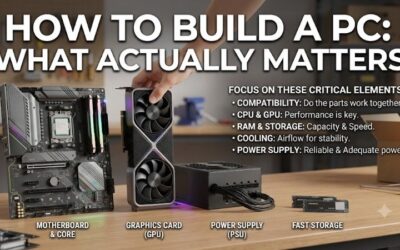
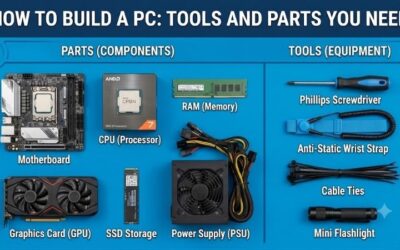
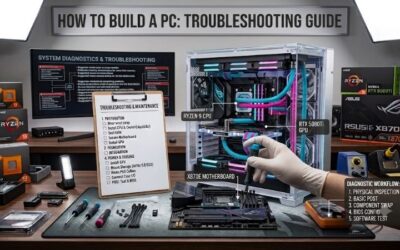
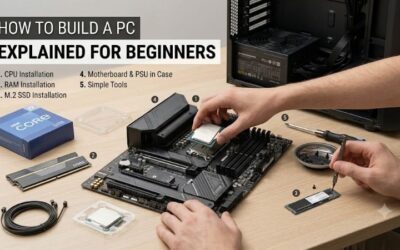
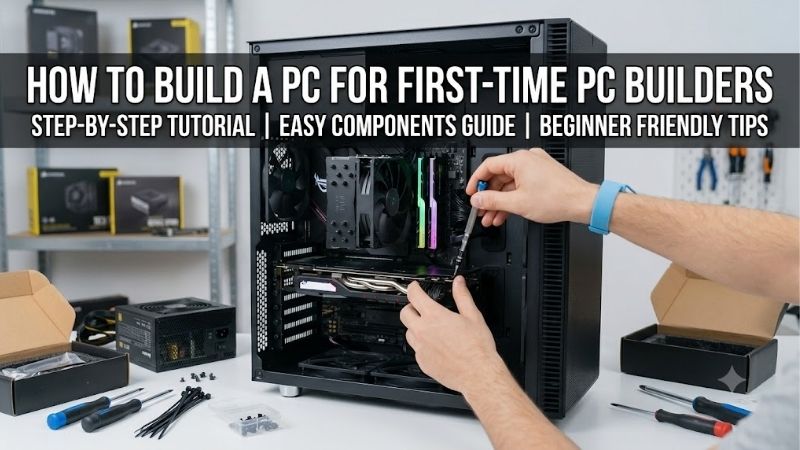
How to build a pc for first time pc builders is mostly about planning the right parts before touching a screwdriver. The biggest beginner mistakes usually come from compatibility, unclear assembly order, or buying more hardware than the system needs. A simple plan makes the process easier to follow and leaves fewer expensive surprises once the build begins.
Quick answer: Our top pick in 2026 is the iFixit Pro Tech Toolkit — our #1 rated choice. See the full ranked comparison, alternatives and buying advice below.
How to Choose PC Building Tools
For a first build, the toolkit should match the type of assembly and future maintenance you expect. The right choice comes down to bit coverage, electrostatic protection, driver control, and portability. Those factors determine whether you have everything needed on the work surface or still need to improvise when a small problem appears during assembly.
Bit Coverage
Bit coverage means having the correct driver sizes and shapes for the screws in the case, motherboard, cooler, graphics card, and drives. Pro Tech Toolkit and Mako Driver Kit offer 64-bit selections, while Pro Tech Go has 32 and Essential has 16. More coverage costs more and takes space, so choose the range that fits your build and likely future repairs.
For one straightforward desktop, Essential can be enough when its common Phillips selection matches the hardware. Mako is better for builders who already own other tools but want extensive bits, while Pro Tech Go balances coverage and portability. Pro Tech is the broadest option, making Essential the value pick and Pro Tech the safer long-term choice for varied projects.
ESD Protection
Electrostatic discharge is worth considering before handling exposed computer components. An anti-static wrist strap can help control static buildup when used correctly with grounding, while kits without one require a suitable ESD-safe working routine. Pro Tech Toolkit includes a dedicated wrist strap, giving cautious beginners an integrated option instead of requiring another purchase.
The important point is not to buy an ESD accessory and assume the risk disappears. Use the equipment correctly and follow sensible handling practices around components. Pro Tech is the clearest choice for beginners wanting built-in protection, while Essential, Mako, and Pro Tech Go remain practical when your workspace already provides an established ESD-control method.
Driver Control
Driver control matters when screws are recessed, awkwardly positioned, or close to delicate parts. A comfortable handle, magnetic bit holder, and suitable shaft can make repeated fastening less frustrating. Mako emphasizes screwdriver use, Pro Tech adds broader repair tools, and the smaller Essential and Pro Tech Go keep the basic driver experience compact for simple desktop assembly.
For a builder whose priority is precise screw handling rather than a large accessory collection, Mako is the strongest fit. Pro Tech makes more sense when the toolkit will also handle repairs, while Essential and Pro Tech Go favor smaller setups. The trade-off is simple: more capability adds bulk, while a focused driver kit stays easier to manage.
Portability And Organization
Portability matters when your PC is being assembled on a small desk, moved between rooms, or built without a permanent workshop. Pro Tech Go measures 6.25 by 4 by 2 inches, Essential measures 6.25 by 6 by 1.5 inches, and Pro Tech is larger because it carries more tools. Mako also keeps its driver-focused footprint manageable.
Organization becomes especially useful once screws, bits, manuals, and small parts start accumulating. Essential offers a compact rigid case, Pro Tech provides broader tool storage, and Mako concentrates on driver bits. Pro Tech Go is the easiest match for limited space, while Pro Tech is better when maximum coverage matters more than keeping the kit as small as possible.
Top Picks
For how to build a PC for first time PC builders, the best toolkit depends on whether you value complete coverage, lower cost, driver depth, or portability. These four picks are useful for desktop assembly but deliberately serve different buyers. That makes it easier to spend money on tools that solve a real problem instead of collecting accessories you never use.
| Product | Best For | Key Spec | Watch Out For |
|---|---|---|---|
| iFixit Pro Tech Toolkit | Best Overall | 64 S2-steel bits + anti-static wrist strap | More tools than one PC build requires |
| iFixit Essential Electronics Toolkit | Best Value | 16 S2-steel bits | No integrated anti-static wrist strap |
| iFixit Mako Driver Kit | Best For Driver-Focused Builders | 64 precision bits, 4mm aluminum driver | Focuses on screw driving |
| iFixit Pro Tech Go Toolkit | Best For Portable Builds | 32 S2-steel bits, compact case | Less coverage than Pro Tech |
iFixit Pro Tech Toolkit — Best Overall
For how to build a PC for first time PC builders, iFixit Pro Tech Toolkit is the Best Overall choice because it covers far more than one desktop assembly. It includes 64 S2-steel bits, an anodized-aluminum driver, and an anti-static wrist strap. Its case measures 8.25 by 5.6 by 2.75 inches, providing substantial coverage without becoming a workshop-sized kit.
The advantage is longevity: the same kit can remain useful for storage upgrades, electronics repairs, and future PC maintenance. The drawback is that many included tools are unnecessary for a conventional first desktop. Builders who only need common Phillips drivers may spend more than necessary, but frequent upgraders can justify that broader capability.
iFixit Essential Electronics Toolkit — Best Value
For how to build a PC for first time PC builders, iFixit Essential Electronics Toolkit is the Best Value option when you want a compact starter set. It includes 16 S2-steel bits in a 6.25 by 6 by 1.5-inch case, plus basic opening tools and tweezers. Its straightforward contents make it easier for beginners to understand without sorting through a large collection.
Its main advantage is avoiding unnecessary complexity while still providing useful precision hardware for desktop assembly and other small repairs. The limitation is equally clear: it does not include the Pro Tech’s anti-static wrist strap or broader tool selection. That makes Essential a better fit for an uncomplicated build and an already-prepared ESD-safe workspace.
iFixit Mako Driver Kit — Best For Driver-Focused Builders
For how to build a PC for first time PC builders, iFixit Mako Driver Kit is the Best For Driver-Focused Builders who already own basic accessories. It provides 64 precision bits with a 4mm anodized-aluminum driver, giving extensive fastener coverage while keeping the product focused on screw driving. That makes it easier to choose the exact bit needed without carrying unrelated repair tools.
The advantage is specialization: Mako gives more bit variety than Essential without turning into a full electronics repair kit. The drawback is what it leaves out. There is no broader accessory collection like Pro Tech, and buyers needing integrated ESD equipment will need another solution. Choose Mako when the screwdriver itself is the priority.
iFixit Pro Tech Go Toolkit — Best For Portable Builds
For how to build a PC for first time PC builders, iFixit Pro Tech Go Toolkit is the Best For Portable Builds when a full workbench is unavailable. Its 6.25 by 4 by 2-inch case carries 32 S2-steel bits with a compact driver and supporting tools. That provides more variety than Essential while keeping the overall kit easy to store in a small drawer or bag.
Its advantage is balance between portability and usefulness. The kit can handle a desktop build and remain useful for later electronics work without taking much room. The downside is reduced coverage compared with the full Pro Tech Toolkit. Builders tackling complex repairs regularly will eventually benefit from the larger kit and its broader selection.
Frequently Asked Questions
How to build a PC for first time PC builders becomes much easier once component compatibility is confirmed before assembly. Check the processor socket, motherboard support, memory generation, case clearances, graphics-card dimensions, power requirements, and available storage connections. A toolkit helps you install those parts, but it cannot fix a parts list that was incompatible from the start.
How Do You Know PC Parts Are Compatible?
PC parts are compatible when the CPU fits the motherboard socket, the board supports that processor, the memory matches the required generation, and the case and power supply can physically and electrically support the remaining hardware. Always check the exact model documentation instead of assuming parts are interchangeable because they share a manufacturer or product family.
Upgrade planning adds another layer because a component can support future hardware but still have practical limitations. Check firmware support, available slots, cooler height, GPU length, and power connectors before purchasing. Writing down exact model numbers for every major part makes the compatibility check more reliable and helps prevent buying a component that creates a hidden bottleneck.
What Parts Do You Need For A First PC Build?
A normal desktop build needs a CPU, motherboard, memory, storage, power supply, case, and graphics solution when integrated graphics are insufficient. You may also need a CPU cooler if the processor does not include one. A monitor, keyboard, mouse, and operating system are separate purchases rather than components installed inside the PC itself.
The exact combination changes with the workload. Gaming systems often devote more of the budget to the graphics card, while office and productivity builds can spend less there. Some processors include integrated graphics or a bundled cooler, so check the exact product contents before purchasing. That prevents paying for duplicate hardware or discovering a missing part during assembly.
What Order Should You Assemble A PC?
Prepare the motherboard outside the case by installing accessible components first, then mount it in the chassis. Connect the power supply, storage, fans, front-panel headers, and other required cables carefully. Work from the motherboard and component manuals instead of memorizing one universal sequence, because connector layouts and included hardware differ between models.
Access is the main reason to adjust that order. Install anything that becomes awkward after larger components are mounted while the board is still easy to handle. Keep screws separated by type and never force a connector. When something does not fit normally, stop and compare the component and header with the manual before proceeding.
Do You Need Anti-Static Protection When Building A PC?
Sensible ESD precautions are worthwhile when handling exposed computer components, especially in dry environments. The goal is to control static rather than rely on luck. Pro Tech Toolkit includes an anti-static wrist strap, while Essential, Mako, and Pro Tech Go are better suited to builders who already have an appropriate ESD-safe working method.
A wrist strap is not a substitute for correct use, grounding, or careful handling. Keep components on suitable surfaces and avoid unnecessary contact with exposed electrical contacts. Beginners wanting an integrated option should favor Pro Tech, while experienced builders with an established routine can choose a smaller toolkit without sacrificing the quality of the actual PC assembly.
Final Thoughts
For how to build a PC for first time PC builders, success comes from compatibility checks, careful assembly, and sensible tool selection rather than buying every premium accessory. Choose Pro Tech for maximum coverage, Essential for value, Mako for driver depth, or Pro Tech Go for portability. Build slowly, verify each connection, then test the completed system before refining its appearance.
Product specifications in the article were verified against the manufacturers’ current documentation for iFixit, ASRock, Fractal Design, Kingston, and SanDisk. (ifixit.com)
Ready to decide? Our #1 pick for 2026 is the iFixit Pro Tech Toolkit.
Live price & availability on Amazon.