Disclosure: As an Amazon Associate, we earn from qualifying purchases made through links in this article, at no additional cost to you.
A service business sells time and trust before it sells a product. The terminal at the desk has to pull up an appointment, find a customer record, add a service that was not on the original booking, print a job ticket, and take payment — often while the client is standing in front of it watching every step. That is why the best windows pos terminals for service businesses are not simply retail registers with a different label. They need a full Windows desktop for booking and invoicing software, a touchscreen large enough for a calendar, and, in many cases, a second screen or a built-in printer for the paperwork services generate.
Every terminal in this guide runs Windows according to its listing — Windows 11 Professional or Windows 10 Pro / Windows 10 — and is an all-in-one touchscreen POS machine. No Android terminal has been relabelled as Windows. The picks differ in the way a real service desk differs: one is a clean single-screen front-desk unit, one shows charges to the customer on a second display, one prints tickets from the terminal itself, and one offers a brighter finish for design-led premises.
Quick Picks
- Best all-round service desk pick: Volcora POS Terminal (Black, Windows 11 Pro) — a current Windows all-in-one for booking and invoicing software.
- Best for showing charges to clients: ASSUR POS Terminal (Dual Screen, Windows 10 Pro) — a customer screen for walking through a bill line by line.
- Best for printed job tickets: MEETSUN POS Cash Register SET02 — a built-in thermal printer in the terminal bundle.
- Best for fuller Windows service software: ZHONGJI Touch POS System SET03 — Core i5 and 8GB of memory in a 15-inch Windows 10 system.
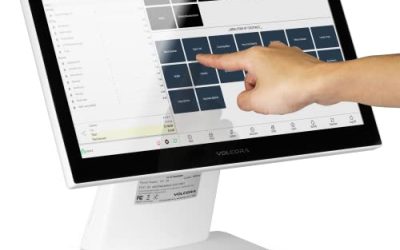
Volcora Retail and Restaurant POS Terminal — Windows 11 Pro, 15.6-Inch, Black

For a salon, repair shop, clinic reception, or consultancy desk, the job is less about scanning hundreds of items and more about appointments, customer records, invoices, and card-era checkout flowing without friction. This Volcora unit is a proper Windows 11 Professional all-in-one, so Windows-based booking, CRM, and invoicing programs can run on the same screen staff use to take payment. The 15.6-inch capacitive touchscreen is large enough to keep a calendar view and a payment panel readable side by side, and the Intel Core i5 configuration is aimed at everyday multitasking rather than a single locked app. Because it is sold as hardware only, you choose the service software instead of being tied to one platform.
Specs
- Display: 15.6-inch capacitive touchscreen; Operating system: Windows 11 Professional; Processor: Intel Core i5; Memory: 4GB RAM; Storage: 128GB; Form factor: All-in-one, hardware only; Model number: 530022
- ASIN: B0CG8M8G7D
- Link: https://www.amazon.com/dp/B0CG8M8G7D
Pros:
– Runs Windows 11 Professional, so mainstream Windows booking and invoicing software is in scope
– 15.6-inch touchscreen suits appointment calendars and customer records at a service desk
– All-in-one form keeps a reception counter tidy, with no separate PC tower
Cons:
– Hardware only, so POS or booking software, printer, and card reader are separate choices
– 4GB RAM is a modest configuration for heavy multitasking, so keep background apps lean
ASSUR POS Cash Register Terminal — 15.6-Inch With 11.6-Inch Customer Screen, Windows 10 Pro

The ASSUR dual-screen terminal fits service businesses where the customer should see what is being charged while staff work. The main 15.6-inch touchscreen faces the operator and the 11.6-inch customer screen can show job lines, service items, and totals, which helps at auto-service counters, tailors, and repair desks where explaining a bill matters. It runs Windows 10 Pro on an Intel Celeron J6412 with WiFi, so a Windows service program, a browser-based scheduler, and a receipt printer can share one station. The listing is clear that POS software is not included, which is useful to know before planning setup day.
Specs
- Display: 15.6-inch touchscreen with 11.6-inch customer screen; Operating system: Windows 10 Pro; Processor: Intel Celeron J6412, 4-core; Memory: 4GB RAM; Storage: 128GB SSD; Connectivity: WiFi module; Note: POS software is not included per listing
- ASIN: B0CL5RH7CH
- Link: https://www.amazon.com/dp/B0CL5RH7CH
Pros:
– Customer-facing second screen makes service charges easier to walk through in person
– Windows 10 Pro and WiFi suit a desk that is not wired for Ethernet
– True-flat touchscreen style is easy to wipe down between customers
Cons:
– POS software is not included, so budget time to install and configure your own program
– J6412 processor is built for POS workloads, not for demanding back-office tasks on the same machine
MEETSUN POS Cash Register SET02 — 15-Inch Windows Touchscreen With Built-In Thermal Printer

MEETSUN’s SET02 takes a different route: instead of only a terminal, it bundles a built-in thermal receipt printer into a 15-inch Windows touchscreen system with an 11.6-inch customer display. For a service business that hands over a printed job ticket, invoice copy, or pickup slip at the counter, that built-in printer removes one peripheral from the desk. Listings describe 8GB of memory and a 128GB SSD, with a bank of USB ports plus HDMI, VGA, and LAN for a cash drawer, scanner, or second display. It suits a compact service counter where printing happens all day but a separate printer stand is not available.
Specs
- Display: 15-inch flat touchscreen with 11.6-inch customer display; Operating system: Windows 10 (Windows system per listing); Memory: 8GB RAM; Storage: 128GB SSD; Printer: Built-in 58mm (2 1/4-inch) thermal receipt printer; Ports listed: 6 USB, HDMI, VGA, LAN
- ASIN: B098SHM4KV
- Link: https://www.amazon.com/dp/B098SHM4KV
Pros:
– Built-in thermal printer is handy for job tickets, invoices, and pickup slips
– Customer display keeps totals visible during payment
– Generous wired ports for a drawer, scanner, and other counter peripherals
Cons:
– Built-in printer uses the narrower receipt format, so check your ticket layout before committing
– Larger bundled footprint needs more counter depth than a terminal-only unit
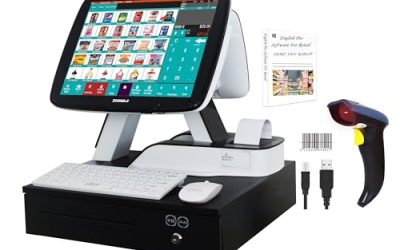
ZHONGJI Touch POS System SET03 (ZJ-A7DP-RES) — Windows 10

The ZHONGJI SET03, model ZJ-A7DP-RES, is documented in its manual as a Windows 10 touch POS system with an Intel Core i5, 8GB of memory, and a 128GB SSD. That combination is relevant for service businesses running a fuller Windows application — for example a workshop system that stores customer history, photos of completed work, and invoices locally. The 15-inch touchscreen keeps the unit at home on a standard counter, and the Windows base means staff are working in a familiar desktop environment for email, documents, and supplier portals between customers.
Specs
- Display: 15-inch touchscreen; Operating system: Windows 10; Processor: Intel Core i5; Memory: 8GB RAM; Storage: 128GB SSD; Model number: ZJ-A7DP-RES (SET03)
- ASIN: B08DTHBHZ9
- Link: https://www.amazon.com/dp/B08DTHBHZ9
Pros:
– Windows 10 with Core i5 and 8GB RAM handles fuller service-management programs
– 128GB SSD gives local room for customer records and job documents
– 15-inch size fits a normal reception or workshop counter
Cons:
– Confirm the exact bundle contents on the listing before ordering, as ZHONGJI sells several similar sets
– Check how Windows activation and software licensing are handled for the specific set you buy
How to Choose
Start with the software, not the screen. List the Windows programs the desk must run in the same hour: the booking or job-management system, invoicing, email, and a browser. Confirm each one supports Windows 10 or Windows 11 as listed for the terminal, then work backwards to hardware. A single-screen all-in-one is enough for a solo desk where the operator explains charges verbally. Choose a dual-screen model when clients regularly question a bill, authorise extra work, or need to see a total before paying — the customer display does that explaining for you.
Next, count the paper. Services produce job tickets, consent and intake copies, invoices, and pickup slips. If that printing is constant, a terminal with a built-in printer, like the MEETSUN set, reduces clutter. If printing is occasional, a terminal-only Volcora or ASSUR plus a separate printer you already own is cleaner. Then check ports against your actual peripherals: cash drawer, receipt printer, barcode scanner for retail add-ons, and a card reader. Finally, plan for the desk itself — measure counter depth, decide where the customer stands, and keep a wired Ethernet option in mind if your WiFi is unreliable at peak times.
FAQs
Can a Windows POS terminal run my booking software?
If the booking program is a Windows desktop application or runs in a browser, a Windows 10 or Windows 11 terminal is the right starting point. Check the software maker’s stated Windows version support before ordering, and confirm any local database or printer driver requirements.
Do service businesses need a customer-facing second screen?
Not always, but it helps when bills are itemised. A second screen lets a client follow service lines and totals as they are added, which reduces disputes at payment and speeds up approval for extra work.
Is a built-in printer worth it for a service desk?
It is worth it when job tickets and printed invoices are part of every visit. If most documents are emailed, a terminal-only unit plus an occasional-use printer is usually tidier.
What should I confirm about Windows licensing?
Confirm the Windows edition named on the listing, how it is activated, and whether your POS or booking software licence is included or separate. Several terminals here are hardware only or state that POS software is not included.
Conclusion
For most service businesses, start with the black Volcora Windows 11 Pro terminal: it is a clean, current Windows all-in-one that keeps your existing booking and invoicing choices open. Move to the ASSUR dual-screen model if clients need to see charges as they build, or to the MEETSUN SET02 if printed job tickets are central to your workflow. Whichever route you take, decide the software first, match the screen and printer to how your desk actually serves people, and the terminal will support the service instead of slowing it down.