
The best monitor for pc and console should make switching systems easy while preserving the features each can use. Start with the LG 32GR93U-B for an IPS setup, consider the MSI MPG 321URX for OLED gaming, and check HDMI compatibility before assuming a high PC refresh rate guarantees the same console experience.
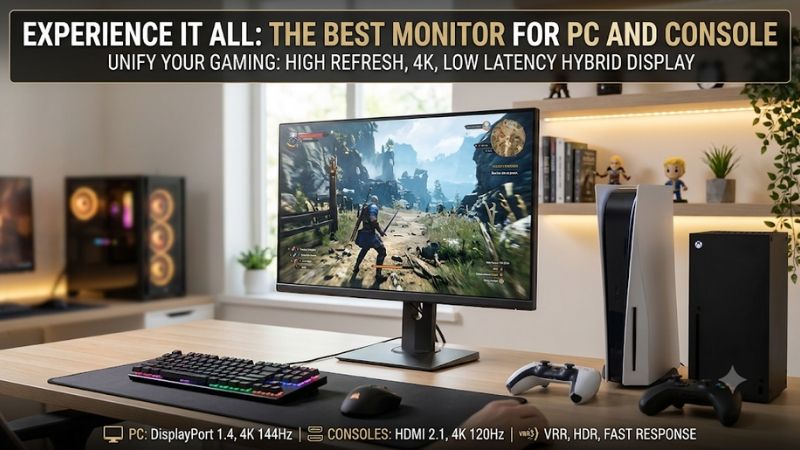
Quick verdict: Best monitor for pc and console setups
The LG 32GR93U-B is the starting point for a shared desk that handles desktop work and gaming. The MSI MPG 321URX QD-OLED suits buyers who prioritize OLED contrast and have a PC capable of benefiting from its higher refresh ceiling. Choose around your daily workload first.
For a smaller display, the Sony INZONE M9 II combines a 27-inch 4K panel with full-array local dimming and PS5-specific conveniences. Its compact screen is especially appealing when you sit close to your keyboard and do not want a 32-inch display dominating your field of view.
The Gigabyte M32U adds useful KVM functionality, while the Dell G3223Q provides another 32-inch IPS route. Both need attention to console color-format limitations. The original ASUS ROG Swift OLED PG32UCDM is the alternative for buyers who want OLED plus extensive desktop connectivity.
These are use-case recommendations, rather than a cheapest-to-most-expensive ranking. No universal budget was supplied, and comparable live US offers were not established across all six models. Check the exact model, seller, condition, return policy, and delivered cost before deciding which makes financial sense.
Quick comparison of the six monitors
Every shortlisted monitor has a native 3840 × 2160 panel and a conventional 16:9 shape. The PC refresh figures below describe display capabilities, while console operation depends on the source, supported game mode, connection, and settings. A faster panel does not increase a console’s output ceiling.
| Monitor | Screen and panel | Maximum PC refresh | Main reason to consider it | Meaningful drawback |
|---|---|---|---|---|
| LG 32GR93U-B | 31.5-inch IPS | 144Hz | Shared work and gaming desk | Modest HDR ambitions; no USB-C video |
| MSI MPG 321URX QD-OLED | 31.5-inch QD-OLED | 240Hz | OLED gaming with explicitly documented console features | Burn-in risk with persistent static content |
| Sony INZONE M9 II, SDM-27U9M2 | 27-inch-class IPS | 160Hz over DisplayPort; 144Hz over HDMI | Compact 4K screen with local dimming | Smaller image for distant controller play |
| Gigabyte M32U | 31.5-inch IPS | 144Hz | KVM-equipped desktop setup | Official 4K 120Hz console specification uses 4:2:0 |
| Dell G3223Q | 32-inch-class IPS | 144Hz | Large IPS alternative with two HDMI inputs | 24Gbps HDMI bandwidth limits uncompressed formats |
| ASUS ROG Swift OLED PG32UCDM, original model | 31.5-inch QD-OLED | 240Hz | OLED plus USB-C and optical audio output | Requires OLED care; easy to confuse with later variants |
How these monitors were selected
Selection focused on exact model specifications, usable connections, screen shape, and the compromises involved in sharing one display. Manufacturer documentation provides the technical basis. This is a researched shortlist; it does not present original hands-on measurements or claim that every current monitor was tested.
The central requirement was a practical path to high-refresh PC gaming and 4K 120Hz console use. Other priorities included an alternative to OLED for static desktop work, a smaller screen option, and useful connection features. Products earn different roles because those needs are genuinely different.
Advertised response times were not treated as comparable laboratory results. A manufacturer’s fastest gray-to-gray transition, a motion-picture response figure, and end-to-end input latency describe different things. None establishes how every dark transition, overdrive setting, or 60Hz game will behave.
LG 32GR93U-B: Best monitor for pc and console with mixed desktop use
The LG 32GR93U-B combines a 31.5-inch 4K IPS panel, a 144Hz maximum refresh rate, HDMI 2.1, and DisplayPort. It is the most straightforward starting point here for someone who writes, browses, and works on a PC before switching to console gaming in the evening.
Its appeal is the balance of screen space and conventional LCD ownership. At this size, 4K accommodates detailed game interfaces and a roomy desktop, although Windows scaling may still be preferable to tiny native-size text. The height, tilt, and pivot adjustments help position the display around your chair and desk.
LG lists G-SYNC Compatible and FreeSync Premium support. These features are relevant to compatible PC configurations; they should not be read as a promise that every graphics card and connector combination behaves identically. Connect the console directly over HDMI and use DisplayPort for the desktop when practical.
The limitation is picture quality in demanding HDR scenes. DisplayHDR 400 certification does not by itself establish sophisticated local dimming or OLED-like black levels. Choose this model for its practical IPS configuration rather than expecting dramatic dark-room HDR from the badge alone.
Buy if: Your screen spends substantial time displaying documents, browser windows, and games. Skip if: OLED contrast or USB-C laptop docking is central to the purchase. The MSI is the more relevant alternative for a gaming-focused room, while the Sony is worth considering for a smaller desk.
MSI MPG 321URX QD-OLED: OLED for a powerful gaming PC
The MPG 321URX QD-OLED pairs a 31.5-inch 4K panel with a 240Hz ceiling and a particularly clear manufacturer description of console support. MSI explicitly documents 48Gbps HDMI 2.1, 120Hz operation, VRR, and ALLM, making this a strong candidate for a gaming-first shared setup.
The distinction is how your two systems use it. A compatible PC can aim beyond console refresh rates, while a PS5 or Xbox Series X uses supported modes up to 120Hz. Buying this monitor for a console alone leaves much of its high-refresh capability unused; a capable gaming desktop strengthens the argument.
Its USB-C connection supports DisplayPort Alt Mode and up to 90W power delivery, and MSI includes KVM functionality. That makes an occasional laptop easier to integrate, although power delivery should be checked against the laptop’s own requirements. It does not replace a high-wattage gaming-laptop charger in every workload.
OLED changes the ownership equation. Persistent taskbars, application panels, and game interfaces create burn-in considerations, and panel-care features should remain enabled. MSI lists a three-year warranty including burn-in, but buyers should confirm the applicable US terms and purchase eligibility rather than treating coverage as permission to ignore care.
Buy if: Gaming dominates your screen time and your PC can exploit high-refresh 4K in your preferred titles. Skip if: You mainly run static dashboards throughout the workday. Compare the ASUS for connection preferences; choose the LG when conventional LCD ownership better fits your routine.
Sony INZONE M9 II: Compact 4K gaming with PS5 conveniences
The INZONE M9 II, model SDM-27U9M2, is the compact option in this shortlist. Its 27-inch-class IPS display combines native 4K resolution with full-array local dimming, while the maximum refresh rate differs by connection: 160Hz through DisplayPort and 144Hz through HDMI.
That interface distinction matters on a shared desk. Use DisplayPort if reaching the monitor’s 160Hz PC ceiling is important. A console does not need that ceiling, so its HDMI connection remains appropriate. Sony also documents HDMI VRR, G-SYNC compatibility, Auto HDR Tone Mapping, and Auto Genre Picture Mode for PS5.
Local dimming gives the Sony a different backlight strategy from a basic HDR-capable LCD. It can adjust groups of backlight LEDs for different parts of an image, although zone-based illumination cannot control each pixel independently. Expect trade-offs around bright objects on dark backgrounds rather than assuming the same behavior as OLED.
The smaller screen suits close viewing and tighter desks. Conversely, players who lean back with a controller may prefer the larger image of a 32-inch display. Both sizes show the same native pixel count; changing size mainly changes physical image scale and pixel density.
Buy if: You want a compact PC-and-PS5 screen with local dimming and automated PS5 picture features. Skip if: Your seat is far from the monitor or your main goal is 240Hz PC play. The LG offers a larger IPS canvas; the MSI offers a different contrast and refresh proposition.
Gigabyte M32U: KVM convenience for a busy desk
The Gigabyte M32U is a 31.5-inch 4K IPS monitor with a 144Hz PC refresh ceiling and a built-in KVM. It makes sense when the shared display also belongs to a desktop-and-laptop workspace, where switching supported USB peripherals can reduce cable handling.
The console caveat is explicit: Gigabyte lists PS5 and Xbox Series X support at 4K 120Hz using 4:2:0 chroma subsampling. That format preserves the image’s luminance resolution while reducing color detail. It is a more consequential consideration for fine colored text than for many normal gaming scenes.
This does not mean the PC desktop must use the same format. Configure the PC connection separately and verify the available output format at your selected refresh rate. A console’s accepted signal and a PC’s DisplayPort configuration are separate compatibility questions, even when they feed the same panel.
KVM also needs realistic expectations. It routes supported USB peripherals between connected hosts; it does not make every console game support a keyboard and mouse. You still need the appropriate USB upstream connections, and game compatibility remains a separate matter from the monitor’s switching feature.
Buy if: Sharing peripherals across computers is a recurring inconvenience and you accept the documented console color format. Skip if: Uncompromised console color bandwidth is a primary requirement. The MSI’s explicitly documented 48Gbps HDMI support is the clearer alternative when that requirement drives your shortlist.
Dell G3223Q: Large IPS with a bandwidth qualification
The Dell G3223Q provides a 32-inch-class 4K IPS screen, up to 144Hz over compatible PC connections, and two HDMI 2.1 inputs. It is another route for buyers who want substantial desktop space and high-refresh gaming without adopting an OLED panel.
Dell’s support documentation is especially important here. It identifies the HDMI ports as 24Gbps FRL3 connections and documents 4K 120Hz console operation using 4:2:0 at 10–12-bit color. The presence of an HDMI 2.1 label therefore should not be interpreted as full 48Gbps bandwidth.
For a buyer, that means judging the actual signal support rather than the connector name. Dell also describes higher-detail color formats using Display Stream Compression with compatible computer graphics cards. Those PC capabilities should not be transferred automatically to a console configuration that negotiates a different signal.
Its category overlaps the LG, so the final decision should consider the exact offer, return arrangements, and connection priorities. There is no useful reason to pay more simply because two products occupy different positions in a roundup. A verified local deal may change which IPS option makes sense.
Buy if: You want a large LCD and the console color-format limitation is acceptable. Skip if: Your purchase specifically requires full-bandwidth HDMI or OLED-style dark-scene contrast. Compare the LG for the general mixed-use role and the MSI when higher HDMI bandwidth is essential.
ASUS ROG Swift OLED PG32UCDM: OLED with flexible connections
The original ROG Swift OLED PG32UCDM combines a 31.5-inch 4K QD-OLED panel and 240Hz refresh capability with extensive connectivity. It is particularly relevant when the gaming screen also needs to accommodate a laptop and an audio setup with requirements beyond a simple headphone connection.
ASUS lists two HDMI 2.1 ports, DisplayPort 1.4 with DSC, USB-C DisplayPort Alt Mode with 90W power delivery, and an optical digital audio output. The latter can be useful when your existing audio equipment accepts optical input. Confirm that equipment’s supported formats before planning the whole audio chain around it.
As with the MSI, the 240Hz ceiling is principally a PC advantage. It should influence your purchase only if the desktop, games, and settings can use it. Lowering demanding graphics settings may be necessary to pursue high frame rates, and the monitor cannot compensate for an overloaded GPU.
Pay particular attention to the model name. This recommendation concerns the original PG32UCDM, not PG32UCDP or a later PG32UCDM generation. Specifications such as panel technology and DisplayPort version must follow the exact listing. Similar names are not evidence of identical hardware or included features.
Buy if: You want OLED gaming and can use the USB-C or optical connections. Skip if: Those extras add little to your setup or static desktop work dominates. Compare the MSI using exact delivered prices and warranty terms; use an IPS option when OLED care does not fit your habits.
Choosing the best monitor for pc and console
Choose the resolution, panel, and physical size around what you actually do each day. A monitor that accepts a console’s preferred signal can still be an awkward desktop purchase if it overwhelms your desk, complicates audio, or charges you for PC performance your graphics card cannot use.
Match resolution and refresh to both systems
A 4K monitor can accept a 4K signal without every game rendering internally at native 4K. Console performance modes often change image-quality settings to pursue higher frame rates. Likewise, selecting 120Hz output does not force a game designed around 30 or 60fps to run at 120fps.
For a midrange PC, 1440p may remain the more economical overall target, particularly when fast competitive games dominate. This shortlist emphasizes 4K because it serves the shared-console brief well. It does not imply that every buyer should replace a satisfactory 1440p monitor or upgrade a GPU just to match it.
Check HDMI formats and variable refresh support
Read the supported resolution-and-refresh combinations rather than stopping at the HDMI version number. Color format, bit depth, compression, and VRR support can affect what works simultaneously. For a two-console desk, count suitable HDMI inputs so changing platforms does not require regularly moving a cable.
Keep the PC and console directly connected while testing. Add switches, capture devices, or receivers only after the direct paths work. Each additional device has its own signal limits, and a chain is only as capable as the combination it successfully negotiates.
Choose panel ownership and desk fit together
OLED is attractive for gaming contrast, but static desktop use deserves consideration before purchase. IPS avoids OLED burn-in concerns and can be the more comfortable ownership choice for long work sessions. Local-dimming LCD offers another approach, with its own zone-related compromises around difficult images.
Measure the available width and stand depth, then consider how far back you can place the screen. At 4K, try text scaling instead of assuming small text is unavoidable. For audio, decide whether you will use a controller headset, monitor output, external speakers, or a separate interface before buying accessories.
Frequently asked questions
The final checks concern how a single display behaves with different sources. Confirm each system independently during the return window, using games you actually play. Successful desktop output alone does not demonstrate console VRR, HDR, audio routing, or the desired high-refresh mode.
Can a 240Hz monitor make PS5 or Xbox Series X run at 240Hz?
No. The monitor’s ceiling does not override the console’s supported output modes. These consoles use up to 120Hz in compatible configurations. A 240Hz screen becomes more useful when the same display also serves a PC capable of delivering higher frame rates in suitable games.
Is 32 inches too large for a shared gaming desk?
It depends on viewing distance, desk depth, and your preferred image size. A 27-inch display is easier to fit into some close-viewing setups, while 32 inches can suit controller play from farther back. Measure your space and compare physical dimensions rather than relying on diagonal size alone.
Should Series S owners buy one of these 4K monitors?
It can make sense when the PC also benefits from 4K or a future console upgrade is already planned. However, a 4K panel does not transform Series S game rendering into native 4K. Compare suitable 1440p alternatives before spending extra for resolution that contributes little to your actual use.
Conclusion
Start with the LG 32GR93U-B for a mixed desktop-and-gaming setup, or the MSI MPG 321URX for gaming-focused OLED use. Choose the Sony INZONE M9 II for a smaller local-dimming screen, the M32U for KVM convenience, and the ASUS for its connection mix. Consider the Dell alongside the LG after checking exact offers and its HDMI limitation. The right purchase preserves the signal features you need while fitting your desk, workload, and PC performance.









