
The best monitor for gaming and work should make documents comfortable to read, fit your daily connections, and handle games without awkward compromises. Start with a 27-inch QHD or 32-inch 4K IPS screen, then consider a docking-focused display, a wide workspace, or OLED according to how you divide the day.
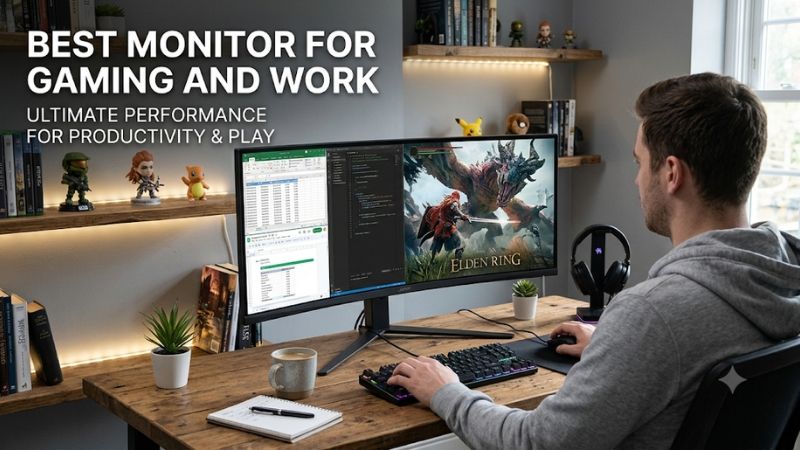
Quick verdict on the best monitor for gaming and work
The Gigabyte M32U is a useful starting point for a shared desk that needs 4K, 144Hz, and a KVM rather than a full docking station. The MSI MAG 274QPF E20 is the more modest-resolution choice, while the Dell S2725QC offers compact 4K with practical USB-C charging for a suitable laptop.
Choose the Dell U3225QE when work connections and docking take priority over the highest gaming refresh ceiling. The Dell U4025QW suits a deliberately wide, multitasking-heavy desk. The MSI MPG 321URX QD-OLED is the gaming-led option when OLED contrast and 240Hz are valuable enough to accept the associated care requirements.
There is no universal winner across those jobs. This guide assumes general office work, browsing, spreadsheets, coding, and ordinary content tasks alongside gaming. Specialized color grading and proofing need additional validation. No fixed budget was supplied, so compare each model’s complete setup cost rather than treating a more expensive monitor as an automatic upgrade.
Quick comparison of six shared-desk options
Look at the screen format and connection features before comparing refresh ceilings. A work laptop with one suitable USB-C port creates different needs from a single gaming desktop. The table separates the reason to choose each model from the limitation most likely to affect a normal workday or evening session.
| Monitor | Screen and maximum refresh | Useful work feature | Gaming direction | Main drawback |
|---|---|---|---|---|
| Gigabyte M32U | 31.5-inch 4K IPS, 144Hz | KVM and a large standard-format workspace | Conventional high-refresh 4K | Connection/DSC conditions; confirm older-model availability |
| MSI MAG 274QPF E20 | 27-inch QHD Rapid IPS, 200Hz | Adjustable stand and USB-C video | Lower-resolution gaming with refresh headroom | USB-C provides only 15W; no KVM |
| Dell S2725QC | 27-inch 4K IPS, 120Hz | USB-C 65W, adjustable stand, speakers | Work-first casual gaming | 120Hz alone does not establish fast pixel response |
| Dell UltraSharp U3225QE | 31.5-inch 4K enhanced IPS Black, 120Hz | Thunderbolt hub, KVM, Ethernet, up to 140W | Docking-focused desk with gaming afterward | Lower refresh than gaming specialists |
| Dell UltraSharp U4025QW | 39.7-inch 5120 × 2160 IPS Black, 120Hz | Wide workspace and Thunderbolt hub | Supported ultrawide games | Large desk footprint and demanding pixel count |
| MSI MPG 321URX QD-OLED | 31.5-inch 4K QD-OLED, 240Hz | USB-C 90W and KVM | Gaming-led ownership with work alongside | OLED care and USB 2.0 peripheral hub |
A KVM lets supported computers share peripherals through the monitor; it does not automatically supply laptop charging or every port a dock would provide. Similarly, USB-C video does not prove there is a KVM. Those distinctions can matter more than a small refresh difference when you switch computers every day.
How these monitors were selected
Selection focused on verified model specifications, useful everyday connections, adjustable positioning, and refresh rates above a basic 60Hz screen. It spans different work-to-gaming balances instead of treating every reader as a competitive player. The recommendations are research-based and do not claim detailed research or matched performance measurements across all six.
Six monitors for different work-and-play routines
Choose around the routine you repeat most: one desktop, a work laptop plus gaming PC, a compact desk, or several applications open at once. The models below solve different problems. Each recommendation explains the relevant features, the practical compromise, and the alternative to compare before spending.
Gigabyte M32U: Best monitor for gaming and work with a conventional KVM setup
The M32U combines a 31.5-inch 3840 × 2160 IPS panel, a 144Hz ceiling, and a built-in KVM. It fits someone who wants a substantial standard-shape desktop and high-refresh gaming while sharing a keyboard and mouse between computers, without requiring the monitor to serve as a complete Thunderbolt workstation hub.
The format works well as a comparison point because 32-inch-class 4K adds both physical screen area and fine detail. Whether it replaces two monitors depends on your window arrangement and scaling. Test the actual applications you use rather than assuming pixel count alone guarantees a comfortable multiwindow layout.
Gigabyte documents high-refresh connection conditions involving Display Stream Compression or chroma subsampling. For work, preserve RGB or full 4:4:4 chroma where the source supports it so fine text remains clear. Do not select an output mode only because it reaches the maximum refresh number.
Buy if the standard-format 4K canvas and KVM match your desk. Skip if high-power charging or a full network-and-peripheral hub is essential. This is an older model, so confirm current availability and condition. Compare the U3225QE for docking features or the QHD MSI for a lower native-resolution workload.
MSI MAG 274QPF E20 for a straightforward QHD desktop
The MAG 274QPF E20 uses a 27-inch 2560 × 1440 Rapid IPS panel with a 200Hz ceiling and height, swivel, pivot, and tilt adjustment. It suits a single desktop or a laptop setup that already has charging and peripheral connections covered, keeping the monitor’s main job focused on displaying work and games.
QHD at 27 inches provides a practical step above Full HD without requiring the same rendering workload as 4K. That can be attractive if you want to keep your current graphics card. It also avoids choosing a physically larger display when the desk is already crowded by a laptop or speakers.
MSI specifies QHD at up to 200Hz through DisplayPort or compatible USB-C video, while HDMI reaches up to 144Hz. USB-C provides 15W power delivery, and MSI explicitly lists no KVM. Plan for a laptop charger and another way to share peripherals if those are part of your routine.
Buy if you want flexible positioning and QHD gaming without needing a monitor-based dock. Skip if one-cable laptop charging and switching are the real problems to solve. Compare the S2725QC for a charging-focused compact 4K screen or the M32U when a built-in KVM matters.
Dell S2725QC for compact 4K and a suitable USB-C laptop
The S2725QC combines a 27-inch 3840 × 2160 IPS screen with up to 120Hz, USB-C video with 65W power delivery, and dual 5W speakers. It suits a smaller desk where work takes priority and the same monitor handles less demanding or slower-paced games after the laptop is closed.
Its 4K resolution creates dense detail at this size, but text comfort depends on scaling. A smaller physical panel does not provide the same presentation as a 32-inch 4K screen even though both contain the same number of pixels. Check menus, spreadsheets, and application sidebars at your preferred size.
Dell documents AMD FreeSync and HDMI VRR capabilities. However, a 120Hz input does not prove that every pixel transition completes cleanly within that interval. Treat this as a work-first option rather than an automatic substitute for a gaming specialist solely because it accepts a high-refresh signal.
Buy if compact 4K, integrated audio, and 65W charging fit your equipment. Skip if your laptop needs substantially more power or competitive motion clarity drives the purchase. Compare the larger UltraSharp for docking flexibility and the QHD MSI when gaming refresh headroom matters more than 4K density.
Dell UltraSharp U3225QE for a connected two-computer desk
The U3225QE pairs a 31.5-inch 4K enhanced IPS Black panel with a 120Hz ceiling, a Thunderbolt hub, and KVM functionality. It is the work-led choice for someone who wants a laptop and desktop to share a larger screen, peripherals, and network access with fewer separate boxes on the desk.
Dell documents up to 140W EPR power delivery and 2.5GbE networking. Verify the laptop’s charging support and the exact video mode before relying on that arrangement. Maximum charging capability is not a guarantee that every laptop accepts the same wattage or supports the full display mode through every cable.
The gaming trade-off is its work-first design and lower refresh ceiling than 144Hz or 240Hz alternatives. Dell specifies HDMI VRR in the input description; that should not be generalized into universal FreeSync or G-SYNC certification across all connections. Validate the intended graphics-card path if VRR is a purchase requirement.
Buy if docking and everyday operation outweigh the need for maximum refresh. Skip if a separate dock already solves those needs and your budget is mainly for gaming image quality. Compare the M32U for a simpler KVM arrangement and the MSI OLED for a gaming-led alternative.
Dell UltraSharp U4025QW for a wide multitasking workspace
The U4025QW provides a 39.7-inch curved IPS Black panel with 5120 × 2160 resolution and a 120Hz ceiling. It fits someone who regularly needs several substantial windows visible together and specifically wants a continuous ultrawide desktop rather than another conventional 16:9 monitor or two separate panels.
The extra horizontal pixels can accommodate a document beside a spreadsheet or development tools beside a browser. That benefit depends on scaling and application layout rather than diagonal size alone. Measure the screen area and desk depth before assuming a larger workspace will automatically be easier to scan from your normal chair.
Dell documents a Thunderbolt hub with up to 140W charging, networking, and USB expansion. For gaming, verify ultrawide support in the titles you play and the exact source/input mode. Its 11.06-million-pixel native image is more demanding to render than standard 4K, independent of its physical size.
Buy if the wide workspace improves daily work and your desk can accommodate it. Skip if gaming is mostly console-based or the PC already struggles at 4K. The U3225QE offers a simpler standard-format workstation, while the M32U is another option if you do not need the complete hub.
MSI MPG 321URX QD-OLED for gaming-led ownership
The MPG 321URX QD-OLED combines a flat 31.5-inch 4K panel with 240Hz, USB-C video with 90W power delivery, and a KVM. It suits someone who wants OLED gaming as the main upgrade and also needs the monitor to handle a work computer, rather than choosing a screen primarily around office connections.
OLED controls illumination at the pixel level, making its architecture relevant to dark scenes and contrasting highlights. Work creates another consideration: fixed toolbars, taskbars, and application panels can remain visible for long periods. Keep the manufacturer’s protection features enabled and evaluate that ownership routine alongside the appeal of evening gaming.
MSI documents G-SYNC Compatible and FreeSync Premium Pro support. Its peripheral hub is USB 2.0, so do not expect the KVM to replace a high-speed connection for large file transfers or external work drives. Connect bandwidth-intensive devices directly to the computer or a suitable dock.
Buy if gaming image quality and 240Hz matter enough to accept OLED care. Skip if the screen spends nearly all day showing unchanged applications and you prefer conventional LCD ownership. Compare the U3225QE for a work-led hub or the M32U for a standard-format IPS/KVM setup.
How to choose a monitor for the whole day
Start with the task that currently causes friction: cramped windows, small text, repeated cable changes, uncomfortable height, or a gaming limitation. Then choose the monitor features that directly address it. The right purchase should make the daily routine simpler without creating an expensive graphics, docking, or furniture problem.
Match screen size, resolution, and scaling
Resolution and physical size work together. A 27-inch 4K panel places the same pixel dimensions into a smaller surface than a 32-inch 4K panel, producing higher pixel density. That can improve fine detail, but it may also require scaling so ordinary text and controls remain comfortable to use.
More pixels do not automatically mean more usable windows at your preferred text size. Try the scaling you would actually choose and consider applications that behave differently when moved between the laptop screen and monitor. A comfortable layout is more useful than the maximum number of tiny windows you can fit into a screenshot.
For gaming, native resolution also affects rendering demand. QHD contains about 3.69 million pixels per frame, standard 4K contains 8.29 million, and 5120 × 2160 contains 11.06 million. These counts explain workload direction, not exact FPS; settings, CPU limits, and upscaling change the outcome.
Separate video, charging, peripherals, and switching
USB-C describes a connector, while a usable laptop arrangement depends on the functions implemented at both ends. The port may need to carry video, data, and charging simultaneously. A cable intended mainly for charging can be unsuitable for the complete display-and-peripheral connection you want to build.
A KVM adds switching for supported peripherals, but both computers need the appropriate upstream connections and configuration. A USB hub without KVM support does not automatically move your keyboard and mouse when you change video input. Read the monitor’s source-assignment instructions before planning the desk around a single button press.
Charging deserves a separate check. A 15W output is very different from 65W, 90W, or 140W, and a laptop may still require its original charger under heavy load. Match the computer’s documented requirements rather than assuming any USB-C display eliminates the power adapter.
Choose refresh rate around actual games
A higher refresh rate can improve desktop scrolling and game presentation, but it is not a complete measure of motion quality. Pixel transitions, overdrive settings, frame delivery, and supported VRR modes also matter. A work-focused 120Hz screen and a gaming-focused 240Hz OLED serve different priorities even at the same resolution.
At 120Hz, a refresh interval is approximately 8.33ms; at 144Hz it is 6.94ms; at 240Hz it is 4.17ms. These are calculated intervals rather than measured input latency. The benefit also depends on whether the game produces enough fresh frames to use the available refresh opportunities.
If your gaming mostly involves slower-paced titles, work features may justify accepting a lower ceiling. Competitive players should investigate exact-model motion measurements and GPU compatibility before choosing. Do not assume a large manufacturer response-time claim or a familiar panel label settles the comparison.
Compare OLED care with ordinary work habits
OLED can be attractive for gaming, but a mixed-use purchase must account for static work content as well. Think about how often you leave the same application visible, whether you step away without sleeping the display, and whether maintenance routines fit your day. Avoid invented predictions about a guaranteed number of safe hours.
MSI’s US material describes three-year OLED panel coverage including burn-in, subject to the applicable terms. Review the actual purchase conditions and keep care features active. Warranty coverage and appropriate use are complementary considerations; neither establishes that all panels will age identically.
If text appearance is a priority, inspect the exact screen with your normal applications during the return period. Pixel layout, scaling, rendering settings, and your viewing distance all influence the result. A conventional IPS display can be the more comfortable choice even when OLED remains appealing for games.
Frequently asked questions
The final decision often comes down to whether additional workspace, simplified connections, or gaming improvements would help most. These questions address common assumptions about one-screen setups, ultrawides, and existing equipment. Use the answers to decide what needs replacing and what can continue serving the desk you already own.
Can one monitor replace a work screen and a gaming screen?
One monitor can serve both roles when its size, connections, and gaming capabilities meet your needs. The advantage is a single central position with less desk clutter. The compromise is that you cannot keep the entire work desktop visible on one screen while using a separate full-size gaming screen beside it.
Consider when each task happens and whether you actually need simultaneous visibility. Picture-by-picture features, where available, can divide a display, but they may change resolution, refresh, or other operating modes. Verify the specific implementation rather than assuming it duplicates two independent monitors without trade-offs.
Is an ultrawide always better for multitasking?
An ultrawide can be useful when a continuous row of windows matches the work you do. It is less automatically useful when applications need more height, a portrait screen, or independent positioning. The benefit comes from the layout you can comfortably read rather than the total diagonal measurement.
Gaming support also varies by title and device. A console normally uses a standard-format image, and some PC games or cutscenes may retain side bars. Compare the actual work applications and games before buying width that will be unused for much of the day.
Should you replace a good monitor just to get USB-C?
USB-C is useful when it removes a real connection problem, but it is not necessary for a desktop already working well through HDMI or DisplayPort. If the current screen is comfortable and suitable for games, a separate dock, USB switch, or simpler cable arrangement may solve the problem at lower cost.
Replace the monitor when the new screen improves several recurring needs together, such as unreadable text, insufficient workspace, poor positioning, and inconvenient source switching. Count any arm, cable, charger, or dock still required. The final usable setup matters more than one connector on the specification sheet.
Conclusion
Start with the M32U for conventional 4K and KVM functionality, the QHD MSI for a straightforward gaming desktop, or the S2725QC for compact USB-C work. Choose the U3225QE for docking, the U4025QW for a deliberately wide workspace, and the MSI OLED when gaming leads the decision. Match the screen to your text size, source connections, desk, and actual games before paying for features that add little to the daily routine.









