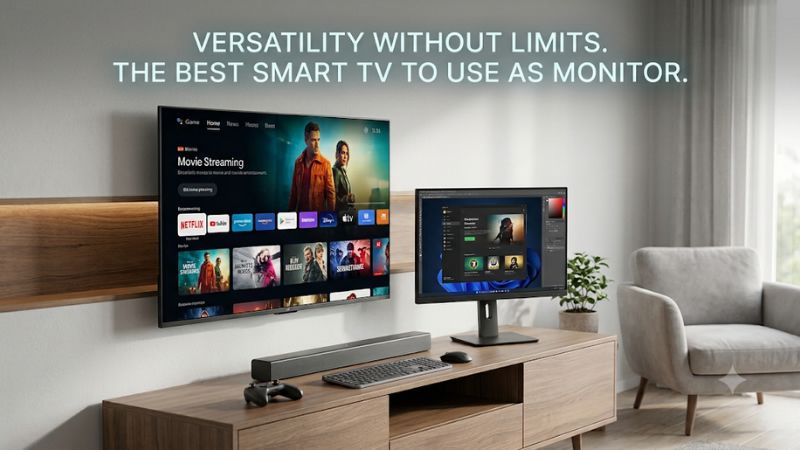
The best smart TV to use as monitor for everyday office work is the 43-inch Sony BRAVIA 3. Choose the 42-inch LG C6 if PC gaming shares the desk, or the 55-inch TCL QM7K if you can sit farther back. Before buying, check how the TV handles fine text over HDMI and how easily it switches between your computer and its streaming apps.
The best smart TV to use as monitor at a glance
The 43-inch Sony BRAVIA 3 is the starting point for a deep desk that doubles as a streaming station. It combines Google TV with a documented 4K 60Hz PC mode. If you need higher refresh rates for mouse-driven games or smoother scrolling, the 42-inch LG C6 keeps the footprint similar and offers more headroom.
| US model | Smart platform | Best use as a monitor | 4K input target | Main trade-off |
|---|---|---|---|---|
| Sony BRAVIA 3 43-inch, K-43S30 | Google TV | Office work and streaming on one screen | 60Hz | Limited refresh headroom for gaming |
| Samsung Q60D 43-inch, QN43Q60DAFXZA | Tizen | A permanent desktop PC connection and Tizen apps | 60Hz | Fixed 60Hz refresh ceiling |
| TCL S4 43-inch, 43S450G | Google TV | An occasional laptop connection in a shared room | 60Hz | Screen edges can look different up close |
| LG C6 42-inch, OLED42C6PUA | webOS | High-refresh PC gaming with standalone streaming | Up to 165Hz with compatible hardware | Repeated static desktop content deserves consideration |
| Vizio Mini LED Quantum 4K 55-inch, VQM55C-1004 | Vizio Home | Slides, dashboards, and streaming from across a room | Start with 60Hz for PC work | Too large for a typical close keyboard position |
| TCL QM7K 55-inch, 55QM7K | Google TV | A deep workspace or a PC gaming and streaming setup | Up to 144Hz on compatible inputs | Only two HDMI inputs take the highest 4K refresh modes |
How to pick the best smart TV to use as monitor
Choose by your main computer task and where you sit. A TV that shows a presentation well from six feet away can be awkward for reading spreadsheets at arm’s length. If you spend most of the day typing, prioritize an easy-to-read screen, a workable mounting height, and reliable input switching.
The picks use exact US model numbers. The 42- and 43-inch models target one seated user at a desk with enough depth. The 55-inch models target an extended workspace or a room where the computer is controlled from farther back. Every pick runs streaming apps independently of the PC, but the smart platform only matters if it offers the services you actually use and lets you return to the HDMI input conveniently.
The comparison draws on manufacturer documentation and independent reviews. Some independent results apply to a TV series tested in a different size. Those results help identify settings and trade-offs to check. They cannot establish how uniform a particular unit will look from your chair or how its software will behave with your laptop dock.
The best smart TVs for work and streaming on a desk
A 43-inch 4K TV gives you room for several windows, with about 102 pixels per inch. The practical benefit is seeing more information without shrinking everything to fit. That depends on how far back the screen sits, how well it displays fine color detail, and how you set operating system scaling.
Sony BRAVIA 3 43-inch for office work and Google TV
The Sony BRAVIA 3 K-43S30 is the most straightforward pick if you write, browse, and work in spreadsheets during the day, then stream from the same screen. Sony lists 3840 × 2160 at 60Hz with 8-bit input in its PC signal specifications. That gives you a clear starting point for an office laptop.
Begin by connecting the laptop directly over HDMI and setting the output to 4K 60Hz in SDR. Open a document with small colored headings alongside a spreadsheet with thin gridlines. If the letters look smeared or the outer edges of the desktop are missing, investigate the input settings and signal format before changing sharpness. The picture processing used to make video look more defined can add distracting outlines to small text.
Google TV gives this model a distinct role in a home office that doubles as a media room. You can close the laptop and launch streaming from the remote. Try the reverse workflow too. Switch back from an app, wake the laptop, and check whether the desktop returns at the same resolution and with the same picture settings. For a screen you switch several times a day, that test matters more than a picture preset you rarely use.
Buy if you want a dedicated 4K office screen with Google TV and are comfortable at 60Hz. Skip if smoother scrolling and fast PC games are central to the purchase. The 42-inch LG C6 keeps the screen size close while offering higher refresh rates.
Samsung Q60D 43-inch for a fixed desktop and Tizen apps
The Samsung Q60D QN43Q60DAFXZA is a 43-inch 4K QLED LCD with Tizen. It suits a desktop tower that stays connected to the same HDMI input and a user who already prefers Samsung’s smart interface. Its 60Hz limit is suitable for office work, browser tabs, and video playback.
Set up the PC connection before signing into all your streaming services. Configure the HDMI source for computer use, check that the GPU reports 3840 × 2160 at 60Hz, and compare small colored text against a native computer monitor if you have one. Then switch into a TV app and return to the PC. This makes it easier to catch a setting that changes by input or a home screen that adds extra steps each time you turn the TV on.
The Q60D is a sensible choice for a fixed desk when your computer and seating position already work well with a large 60Hz display. If you spend much of the day dragging windows, reviewing long documents, or scrolling code, try a 60Hz screen first if you are accustomed to 120Hz or more. You may notice the difference more in routine pointer movement than in streaming video.
Buy if Tizen is your preferred TV platform and you want a 43-inch screen for one permanent PC connection. Skip if you expect the TV to double as a high-refresh gaming display. Compare the Q60D with the BRAVIA 3 on the remote, stand footprint, and input switching as well as the picture.
TCL S4 43-inch for a shared room and occasional laptop use
The TCL S4 43S450G is the Google TV model to consider when a room is primarily used for streaming but occasionally needs a 4K computer screen. Think of a guest room, a shared study, or a spare workspace where you plug in a laptop for a few hours at a time and sit directly in front of the TV.
The screen’s behavior off center is the part to check. Independent testing of the S450G series found limited viewing angles. On a close desk, you already see the edges at an angle even when you sit in the center. An evenly colored spreadsheet or a white browser window can make that easier to notice than a movie. If the far corners look different from the center, move the TV back before deciding whether the setup is comfortable.
This model is particularly practical when the laptop connection is simple. Keep a known working HDMI cable within reach, label the input if the interface allows it, and test a laptop at 4K 60Hz. For a shared room, also confirm that someone can start the TV and reach their streaming apps with the computer disconnected. That keeps the setup usable when you take the laptop away.
Buy if TV viewing is the room’s primary purpose and computer use is occasional. Skip if you need a screen for daily color-sensitive work or regularly share the desktop view with someone sitting off to one side. If the computer will be connected most days, compare the TCL directly with the Sony using your regular documents and seating distance.
The best smart TV for high-refresh PC use at a desk
A higher refresh rate helps if the same screen handles PC games and ordinary desktop work. It can make the pointer feel more immediate and keep fast scrolling easier to follow. For a desk, weigh that benefit alongside screen depth, text appearance, and how much of your day the display shows static content.
LG C6 42-inch for PC gaming and webOS streaming
The LG C6 OLED42C6PUA is the pick for a deep desk where a gaming PC and standalone streaming both get regular use. LG specifies up to 4K at 165Hz with compatible hardware. The 42-inch size keeps the picture roughly 36.6 inches wide, leaving more room to see the corners than a 48- or 55-inch set.
The OLED panel makes the most sense if you play games or watch movies in a room where you can control the lighting. At the same time, a PC desktop often shows the same taskbar, browser controls, or application toolbars for hours. If that describes most of your day, consider how much you value OLED for your other uses. Inspect small text in the apps you work in as well. Fine text can look different on an OLED TV than on a conventional desktop LCD because of the subpixel layout.
Use a direct HDMI connection from a compatible graphics output for the first setup. Establish a clean SDR picture at 4K 60Hz, then raise the refresh rate and verify that the GPU still reports the color format you want. Enable HDR or variable refresh separately if you use them. After switching from a webOS app back to the PC, confirm the TV retained your input settings.
Buy if high-refresh gaming and streaming are frequent parts of your desk setup. Skip if the screen will display the same spreadsheets, menus, or dashboards throughout most workdays, or if you sit too close to take in a 42-inch picture comfortably. The Sony is the simpler LCD option for office-first use.
The best 55-inch smart TVs for use beyond the desk
A 55-inch 4K TV works better as a shared display or a large screen positioned well behind a keyboard. Its picture is about 48 inches wide, and it has the same number of pixels as a 43-inch 4K TV. Text and interface elements become physically larger, which helps when the viewing distance increases.
Vizio Mini LED Quantum 4K 55-inch for shared viewing
The Vizio VQM55C-1004 is a 55-inch Mini LED smart TV for a room where the computer is used to show slides, dashboards, or browser content from farther away. It can also handle streaming through Vizio Home when the computer is off. Begin with a 4K 60Hz PC signal for this use case.
A large screen can make a presentation easier to read from across the room, but duplicating a laptop’s desktop can reduce the benefit. If both displays mirror each other at a lower common resolution, the TV may show a softer image than you expect. Try extending the desktop so the TV can receive its own 4K signal. For a shared dashboard, increase the size of the text in the browser or application so people in the back can read it.
Use a chroma test pattern and the actual content you plan to show. A large slide title may look fine even when thin colored labels or gridlines lose definition. Also check whether the TV returns to the correct HDMI input after a restart and whether the computer reconnects without forcing you to rearrange windows. Those details matter when several people use the room or when a dashboard is expected to appear every morning.
Buy if the screen is intended to be seen from several feet away and has to show both PC content and streaming apps. Skip if you want a primary monitor at a regular keyboard distance. A 43-inch model is easier to fit, and a 32-inch 4K monitor is worth considering if the desk is shallow.
TCL QM7K 55-inch for a large work and gaming setup
The TCL 55QM7K is the 55-inch pick when a big PC screen needs to do more than show presentations. It combines Google TV with a 4K Mini LED panel and up to 144Hz on compatible HDMI inputs. The size works best with a deep workstation, a wall mount, or a chair positioned back from the screen.
For work, start by sitting where you would normally use a keyboard. Put a document near the top of the desktop and a second window in a far corner. If you have to lean back to read the first or turn your head for the second, a smaller TV will usually serve you better. If you control the computer from a separate chair, a 55-inch screen can make menus easier to read without dropping the display resolution.
For games, identify the high-bandwidth HDMI inputs before plugging in a console or sound system. Series testing identifies two ports that accept the highest 4K refresh modes. Connect the PC to one of those ports and verify the active refresh rate in the operating system. When adding a receiver or switch, repeat that check. An intermediate device can cap the PC at 60Hz even though a direct connection works at a higher rate.
Buy if you can sit well back and want one large display for a PC, high-refresh gaming, and Google TV. Skip if most of your work involves reading small text from a normal desk position. The 42-inch LG C6 offers a smaller high-refresh option, while the Sony suits a 60Hz office setup.
How to make a smart TV behave like a computer monitor
A smart TV can display a PC desktop as soon as you connect HDMI, but the default picture profile may still be tuned for video. Set up the computer input first, then test what happens when you turn the screen off, wake the computer, and return from a built-in app. Those are the transitions you use every day.
Check text rendering before you judge the picture
Set the computer to 3840 × 2160 and choose RGB or YCbCr 4:4:4 if the connection supports it. Full chroma preserves color detail at individual pixels. A reduced-chroma signal can look acceptable for video while making small red or blue lettering and thin colored outlines harder to read.
Use the TV’s PC input label or computer mode where available. Confirm that the desktop fills the screen and that you can see all four edges. If interface elements look too small, increase operating system scaling before lowering resolution. Native 4K with sensible scaling gives text more pixels to draw its edges. Compare the result on a browser, a spreadsheet, and your main work app, since they may render text differently.
Check laptop charging and input switching separately
The USB port on a TV may be intended for media playback, service, or accessory power. Check the product documentation before assuming it can accept laptop video and charge the computer through one cable. An HDMI connection can carry the laptop picture while the laptop still needs its own charger.
If one-cable laptop use is essential, a smart monitor with USB-C video and Power Delivery is a better category to compare. The 32-inch LG MyView 32SR85U-W is an example with webOS, 4K resolution, and USB-C Power Delivery rated up to 90 watts. That smaller screen also makes sense if your desk cannot put a 42-inch TV far enough away. Confirm that your laptop supports USB-C video and that the available charging power suits it.
Test sleep, wake, sound, and app switching together
Let the computer go to sleep, then wake it using the keyboard. Check whether the TV turns on or needs its remote, whether it stays on the right input, and whether the desktop keeps its window positions. Repeat the test after using a streaming app and again after restarting the computer.
If you want computer audio through the TV, select the HDMI audio device in the operating system. Test a video call as well as a movie. For calls, confirm which microphone the computer is using and whether you want sound coming from the TV or a headset. If the room is shared, decide where to keep the remote and which input should be selected when the TV starts. A setup that works consistently will save more time than one with a better-looking settings menu.
Conclusion
Choose the 43-inch Sony BRAVIA 3 for office work and streaming, the 42-inch LG C6 if high-refresh PC gaming matters, or the 55-inch TCL QM7K for a setup you use from farther back. Test fine text and the trip from a streaming app back to your desktop before committing to the screen.