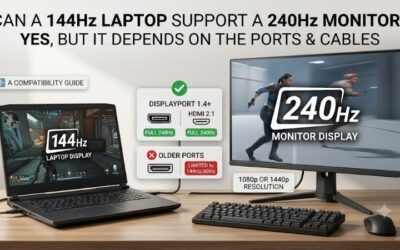
If you are upgrading to a 144Hz gaming monitor, you might wonder whether your existing VGA cable or graphics card can handle the higher refresh rate. The answer to can vga run 144hz depends on what you mean by VGA. A traditional 15-pin analog VGA connection is generally unsuitable for 144Hz gaming, while a video graphics card can absolutely output 144Hz when its digital ports support the required display mode. The important factors are your monitor’s input limits, graphics hardware, connection type, resolution, and refresh-rate settings.
- Can VGA run 144Hz? The short answer
- Why analog VGA connections struggle with 144Hz
- Which display connections can run 144Hz?
- How to check whether your PC supports 144Hz
- How to enable 144Hz after confirming compatibility
- Why your 144Hz monitor only shows 60Hz
- Does a graphics card need to produce 144 FPS for 144Hz?
- Can a VGA-to-HDMI adapter make 144Hz work?
- Frequently asked questions
- Final verdict: Should you use VGA for 144Hz gaming?
Can VGA run 144Hz? The short answer
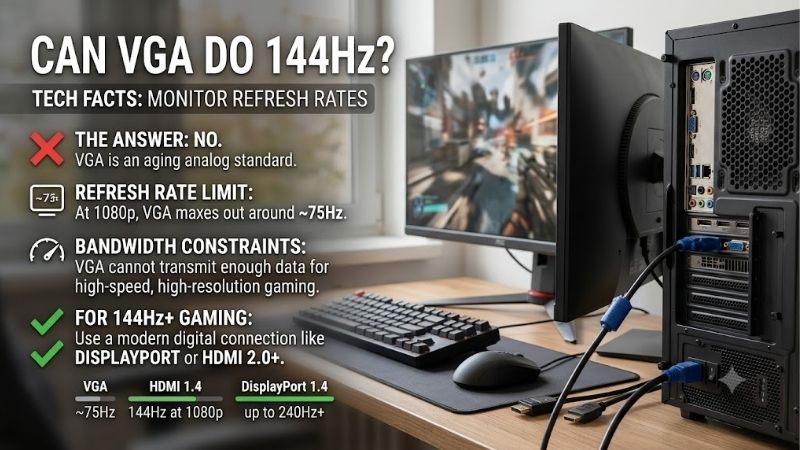
A traditional VGA (Video Graphics Array) connection is not a dependable way to run a modern gaming monitor at 144Hz. Most monitors equipped with analog VGA inputs support substantially lower refresh rates through that port, even when their HDMI or DisplayPort inputs can operate at 144Hz or higher.
However, VGA also sometimes refers informally to a graphics card, particularly in PC-building discussions. In that context, the answer changes: many dedicated and integrated GPUs support 144Hz through suitable digital outputs.
Can VGA run 144Hz through an analog cable?
For normal consumer gaming setups, you should not expect 144Hz through the blue, 15-pin VGA connector.
VGA transmits analog RGB video rather than the digital signal used by HDMI and DisplayPort. Its practical performance depends on the graphics output, analog signal quality, cable, monitor electronics, and supported display timings.
Importantly, VGA does not have one universal, fixed maximum refresh rate. Unusual high-frequency analog signals are technically possible with suitable equipment, but that does not establish compatibility with today’s 144Hz LCD gaming monitors.
For example, the AOC G2460PF documentation specifies 1920 × 1080 at 60Hz as its optimal VGA timing, while 1920 × 1080 at 144Hz is supported through dual-link DVI-D and DisplayPort.
That distinction is why a monitor advertised as 144Hz might still offer only 60Hz when connected using VGA.
Can a VGA graphics card run 144Hz?
Yes, if the term refers to a graphics processing card rather than the analog VGA connector.
A graphics card with a suitable HDMI, DisplayPort, or supported dual-link DVI output may drive a 144Hz monitor.
The GPU does not necessarily need to render games at 144 frames per second for the monitor to refresh at 144Hz.
For compatibility, distinguish three requirements:
-
Display output: The graphics hardware must transmit the selected resolution and refresh rate.
-
Monitor input: The monitor must accept that signal through the particular port being used.
-
Gaming performance: The CPU and GPU must render enough frames to benefit fully from the faster refresh rate.
A relatively modest GPU may be capable of displaying a 144Hz Windows desktop while producing far fewer than 144 FPS in demanding games.
Why analog VGA connections struggle with 144Hz
Understanding the limitations of analog VGA helps explain why a working connection may still lack the refresh-rate options advertised for a monitor.
Analog signaling and signal quality
VGA carries continuously varying electrical signals representing red, green, and blue image information.
Unlike modern digital display connections, analog VGA performance is particularly sensitive to electrical noise, cable construction, cable length, connectors, and signal timing.
At higher resolutions and refresh rates, the connection must transport more rapidly changing image information.
Poor signal integrity can produce ghosting, blurred text, unstable images, or other visible problems.
This does not mean every VGA cable has an identical bandwidth limit. Rather, reliable high-refresh operation requires the entire analog signal chain to support the chosen timing.
Modern gaming monitors typically prioritize digital connectivity instead.
Monitor input limits matter more than cable claims
A high-quality VGA cable cannot override restrictions imposed by a monitor’s analog input circuitry.
Consider a monitor with the following connection capabilities:
| Monitor input | Example supported mode |
|---|---|
| VGA (D-Sub) | 1920 × 1080 at 60Hz |
| HDMI | 1920 × 1080 at 120Hz |
| DisplayPort | 1920 × 1080 at 144Hz |
These timings illustrate a configuration documented for the AOC G2460PF family.
Connecting that monitor using a premium VGA cable does not enable its DisplayPort-only 144Hz mode.
Likewise, Windows cannot force a stable 144Hz picture if the monitor does not accept that mode over VGA.
The correct approach is to consult the monitor’s supported timing table, which often lists separate limits for each input.
Can VGA run 144Hz at a lower resolution?
Reducing resolution decreases the pixel throughput required for a particular refresh rate.
In principle, some analog video hardware can generate unusually high refresh rates at reduced resolutions. However, that does not mean a specific gaming monitor will accept those signals through its VGA input.
A monitor may support 144Hz through DisplayPort while restricting VGA to 60Hz or 75Hz regardless of a custom resolution.
Attempting unsupported custom timings can cause a black screen, image instability, or an out-of-range warning.
Therefore, lowering resolution should not be treated as a reliable workaround for obtaining 144Hz from an analog VGA connection.
Use documented display timings rather than relying on an assumed VGA maximum.
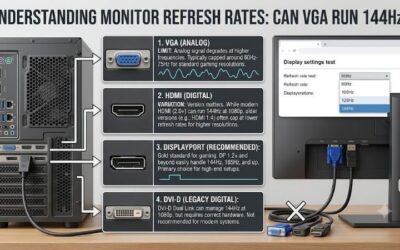
Which display connections can run 144Hz?
For most gaming PCs, HDMI and DisplayPort are the preferred options. Dual-link DVI can also be useful with certain older monitors and graphics cards.
The required connection depends on resolution, color format, bit depth, and the capabilities of both devices.
HDMI compatibility with 144Hz monitors
HDMI can carry 144Hz video, but support is not determined by the connector’s shape alone.
HDMI 1.4-class hardware can support certain 1080p high-refresh configurations. However, some monitors equipped with HDMI 1.4 ports restrict their available refresh rates.
HDMI 2.0 provides greater bandwidth, making 1440p at 144Hz practical with compatible hardware and display timings.
HDMI 2.1 supports substantially higher-bandwidth modes, although actual capabilities depend on the implementation and supported link rates.
For 4K at 144Hz, the connection may require suitable HDMI 2.1 bandwidth, Display Stream Compression, or specific color settings.
Never assume that an HDMI port automatically supports every advertised refresh rate.
DisplayPort compatibility with 144Hz monitors
DisplayPort is commonly a straightforward choice for desktop gaming monitors.
A suitable DisplayPort 1.2-class connection can carry common 1080p and 1440p 144Hz modes, depending on signal timing and color requirements.
Higher-resolution configurations may require greater bandwidth or Display Stream Compression.
Modern DisplayPort implementations provide additional capabilities, but the exact supported mode still depends on both endpoints.
When a monitor has different HDMI and DisplayPort refresh-rate limits, DisplayPort may offer the higher setting.
Manufacturer documentation is more reliable than assuming the newest connector will always perform better.
Dual-link DVI and legacy gaming monitors
Some older 1080p 144Hz gaming monitors use dual-link DVI-D.
This connection was especially common before high-refresh HDMI support became widespread.
Dual-link DVI offers more transmission capacity than single-link DVI. Certain monitors require dual-link DVI for 1080p 144Hz operation.
The distinction matters because a cable or adapter that physically fits a DVI connector may not support the required dual-link signal.
Many modern GPUs no longer include native DVI outputs.
If you have an older DVI-only 144Hz monitor, verify the exact output requirements before purchasing an adapter. An ordinary passive HDMI-to-DVI adapter should not be assumed to provide dual-link 144Hz functionality.
144Hz connection compatibility table
| Connection | 1080p 144Hz | 1440p 144Hz | 4K 144Hz |
|---|---|---|---|
| Analog VGA | Generally unsuitable | Generally unsuitable | Not practical for typical gaming monitors |
| HDMI 1.4-class | Possible on supported equipment | Usually insufficient for standard full-quality modes | No |
| HDMI 2.0-class | Yes | Yes, with compatible timing and format | Generally insufficient without additional compromises |
| HDMI 2.1 with adequate bandwidth | Yes | Yes | Yes, subject to link capability and format |
| DisplayPort 1.2 HBR2 | Yes | Yes, with compatible timing and format | Insufficient for typical uncompressed 4K 144Hz |
| DisplayPort 1.4 HBR3 | Yes | Yes | Possible with suitable DSC support |
| Dual-link DVI-D | Yes, on supported hardware | Not a dependable general solution | No |
This table summarizes connection capabilities rather than guaranteeing compatibility for every product. Actual monitor input limits and supported display timings take precedence.
How to check whether your PC supports 144Hz
Before replacing hardware, check the equipment you already own.
A missing 144Hz option is often caused by an unsupported connection, a monitor setting, or an incorrect display configuration.
Identify the exact graphics hardware
In Windows 11 or Windows 10:
-
Right-click the Start button.
-
Select Device Manager.
-
Expand Display adapters.
-
Record the listed GPU model.
-
Check whether your computer uses dedicated graphics, integrated graphics, or both.
You can also inspect System Information or your graphics manufacturer’s software.
Search the GPU manufacturer’s official specifications for supported display outputs and maximum resolutions.
Be careful with model variations. A desktop graphics card and a laptop GPU carrying similar names may expose different physical connectors.
For laptops, the system manufacturer’s port specifications are often more useful than the GPU’s general capabilities.
Inspect the monitor’s supported input modes
Find the monitor’s exact model number on its rear label, original packaging, or on-screen settings menu.
Locate its official specifications or user manual.
Look for a section named Supported Timing, Display Modes, Video Inputs, or Maximum Refresh Rate.
Check whether 144Hz is supported through the specific connector you intend to use.
Do not rely solely on a product listing that says 144Hz. That headline may describe the panel’s maximum refresh rate rather than every input’s capabilities.
For example, the ViewSonic VX2418-P-MHD documentation identifies a higher maximum refresh rate over DisplayPort than over HDMI. This illustrates why the physical connection matters.
Check the connection between PC and monitor
Inspect both cable ends.
A VGA connector normally has three rows of pins or corresponding sockets in a trapezoidal housing, with screws securing the connection.
HDMI uses a compact, flat connector. Standard DisplayPort connectors have a different shape, often with one beveled corner.
If you use an adapter, identify its input and output types.
A VGA-to-HDMI converter may allow an older computer to connect to a digital monitor, but it does not automatically provide high-refresh-rate operation.
Similarly, a USB-C port may support DisplayPort Alternate Mode, Thunderbolt, or USB4 display output, but not every USB-C port carries video.
Confirm the complete connection path before purchasing replacement cables.
How to enable 144Hz after confirming compatibility
Once the graphics output, monitor input, and cable support the desired mode, configure Windows to use it.
Set 144Hz in Windows 11
Follow these steps:
-
Open Settings.
-
Navigate to System > Display.
-
Select the correct monitor.
-
Open Advanced display.
-
Find Choose a refresh rate.
-
Select 144Hz if listed.
-
Confirm the change.
The exact options can vary depending on the Windows version, graphics driver, and connected display.
You should also verify the selected resolution.
If your monitor supports 144Hz only through DisplayPort, switching the Windows setting while still connected to an incompatible VGA input will not solve the problem.
Set 144Hz in Windows 10
On Windows 10:
-
Right-click the desktop.
-
Select Display settings.
-
Open Advanced display settings.
-
Select the intended display.
-
Open the display adapter properties if necessary.
-
Choose an available 144Hz mode.
-
Apply the setting.
Windows 10 interface details vary across releases.
Because standard Windows 10 support ended in October 2025, users should also consider upgrading to a supported operating system.
Verify the active refresh rate
Return to Advanced display and confirm that the active display reports the intended refresh rate.
Some monitors also provide an on-screen information panel showing the incoming resolution and refresh frequency.
For additional confirmation, check the monitor’s on-screen display and graphics control panel.
Be aware that a monitor reporting 144Hz does not prove your game is rendering 144 FPS.
The display refresh rate and game frame rate are separate measurements.
Why your 144Hz monitor only shows 60Hz
If 144Hz is missing, troubleshoot the signal path before assuming your graphics card is too old.
The monitor is connected through VGA
This is a common compatibility issue.
A monitor advertised as 144Hz may accept only 60Hz through its VGA input.
Check whether it includes HDMI, DisplayPort, or dual-link DVI connections that support the desired refresh rate.
If your PC has a suitable digital output, a direct digital connection is generally preferable to an analog adapter.
If the PC exposes only VGA, replacing the graphics output hardware may be necessary.
The wrong HDMI or DisplayPort input is being used
Some monitors have multiple inputs with different capabilities.
For example, one HDMI input may support a narrower set of display modes than another input or DisplayPort.
Consult the timing table for your exact monitor model.
Also check whether the monitor’s on-screen menu includes options controlling DisplayPort compatibility, HDMI signal format, or refresh-rate overclocking.
Only enable settings documented as supported by the manufacturer.
The cable or adapter limits the signal
A defective or unsuitable cable can prevent the desired display mode from working reliably.
Passive adapters can also introduce restrictions, particularly when converting between legacy connection standards.
Whenever possible, connect the graphics card directly to the monitor using matching digital ports.
Use a cable appropriate for the bandwidth requirements of your chosen resolution and refresh rate.
If the display becomes unstable, test a different known-working cable before changing graphics hardware.
The display driver or configuration is incorrect
An outdated or incorrect graphics driver can sometimes prevent Windows from exposing supported modes.
Install a suitable driver from NVIDIA, AMD, Intel, or your computer manufacturer.
Restart the system and check Advanced display again.
If you are using multiple monitors, select the intended gaming display before changing its refresh rate.
Duplicate display mode can also complicate available refresh-rate choices when the monitors have different capabilities.
Use Extend mode when appropriate.
Does a graphics card need to produce 144 FPS for 144Hz?
No. A graphics card can output a 144Hz display signal even when a game runs below 144 FPS.
This distinction is important when evaluating whether an existing graphics card needs upgrading.
144Hz versus 144 FPS
Refresh rate describes how often the display updates its image.
Frame rate describes how many frames the computer renders per second.
A 144Hz monitor has a nominal refresh interval of approximately 6.94 milliseconds.
At 60Hz, the interval is approximately 16.67 milliseconds.
These values describe the intervals between refreshes, not guaranteed input latency or complete pixel-response time.
A game rendering at 75 FPS can still be displayed on a monitor configured to 144Hz.
However, a fixed-refresh display may repeat frames or exhibit tearing depending on synchronization settings.
Variable refresh rate support
Adaptive-Sync technologies such as AMD FreeSync and NVIDIA G-SYNC Compatible operation can help coordinate display refreshes with varying frame delivery.
Their effectiveness depends on the monitor’s supported refresh range, graphics hardware, driver settings, and connection.
Not all monitors provide variable refresh functionality through every input.
Analog VGA should not be treated as a substitute for a supported digital variable-refresh connection.
When comparing monitors, examine their VRR compatibility separately from the advertised maximum refresh rate.
When is upgrading the GPU necessary?
Upgrade your graphics card only when you have identified a genuine limitation.
If your current GPU has a compatible output and can drive your desktop at 144Hz, a replacement may be unnecessary.
If gaming performance remains low, review actual frame rates, resolution, graphics quality settings, CPU limitations, and GPU utilization.
A more powerful card may help achieve higher FPS, but a new GPU will not fix a monitor input that cannot accept 144Hz.
Likewise, upgrading the GPU is not always necessary if simply changing from VGA to an already available DisplayPort connection resolves the compatibility issue.
Can a VGA-to-HDMI adapter make 144Hz work?
An adapter does not automatically eliminate the limitations of the signal entering it.
VGA-to-HDMI conversion limitations
A VGA-to-HDMI converter takes an analog VGA signal and converts it into a digital HDMI signal.
The converter must support the incoming resolution and refresh rate, while the monitor must accept its output timing.
Many consumer converters are intended for ordinary desktop presentation at 60Hz.
A converter marketed as supporting 1080p does not necessarily support 1080p at 144Hz.
Unless the manufacturer explicitly documents the complete 144Hz conversion path, do not assume compatibility.
HDMI-to-VGA conversion limitations
HDMI-to-VGA adapters perform conversion in the opposite direction.
Even when the digital source can generate 144Hz, the analog output circuitry and destination monitor may not support it.
The adapter’s capabilities must be verified independently.
For high-refresh gaming, converting modern digital video to analog VGA usually introduces unnecessary complexity.
When an adapter is appropriate
Adapters are reasonable when connecting legacy displays for ordinary office work or maintaining equipment without matching ports.
For a gaming monitor, prioritize a direct connection using supported digital interfaces.
If a direct connection is unavailable, look for an adapter with explicit documentation covering the exact resolution and refresh rate.
Avoid purchasing a generic converter based only on claims such as 4K compatible or high speed.
Those labels do not establish 144Hz compatibility.
Frequently asked questions
Can VGA run 144Hz on a 1080p monitor?
Most modern 1080p gaming monitors do not support 144Hz through their analog VGA inputs. Even if the monitor’s panel is rated for 144Hz, that mode may be available only through HDMI, DisplayPort, or dual-link DVI.
Check the manufacturer’s supported timing table before attempting a custom mode.
Can VGA run 144Hz with a better cable?
A better VGA cable may improve analog signal quality, but it cannot override the monitor’s supported input timings.
If the monitor limits its VGA input to 60Hz, purchasing a premium VGA cable will not make 144Hz officially supported.
A compatible digital connection is the more dependable solution.
Can HDMI support 144Hz without DisplayPort?
Yes. Many gaming monitors support 144Hz through HDMI.
The exact capability depends on the HDMI implementations, monitor timing restrictions, resolution, and signal format.
Check the specifications of both your graphics output and monitor input rather than assuming every HDMI port offers identical performance.
Can integrated graphics output 144Hz?
Yes. Certain integrated graphics processors support 144Hz through compatible digital display outputs.
However, motherboard ports, laptop wiring, processor generations, and firmware can affect available modes.
Integrated graphics support for a 144Hz desktop does not guarantee 144 FPS in demanding games.
Is VGA better than HDMI for gaming?
For modern high-refresh gaming monitors, HDMI is generally the more appropriate connection.
VGA is analog, more susceptible to signal degradation, and often restricted to lower refresh rates by monitor manufacturers.
DisplayPort and appropriately supported HDMI connections provide better compatibility with contemporary high-refresh display features.
Final verdict: Should you use VGA for 144Hz gaming?
If VGA means the traditional analog connector, it is not a recommended solution for 144Hz gaming. Although analog video does not have one universal refresh-rate ceiling, typical consumer monitors do not provide reliable 144Hz modes through VGA.
If VGA refers to your graphics card, many GPUs can operate a 144Hz monitor when connected through compatible digital outputs.
Before purchasing hardware, verify the monitor’s supported input timings, available graphics ports, cable capabilities, and Windows refresh-rate settings. In many cases, replacing an outdated analog connection with a suitable HDMI or DisplayPort connection is all that is needed to enable the monitor’s intended refresh rate.