RIKWOG 200pcs Pointed Cotton Swabs, 4 inch Precision Microblading Cotton Swab Cotton Sticks Applicator for Eyebrow Tattoo Beauty Make-up Nail Clean, Wood Handle Pointed Tip Head
Included for 'How to Choose an Ultrawide Monitor: Essential Buying Tips' because the listing specifies Wood Handle Pointed Tip Head, details this guide uses to compare options.
View on Amazon
Reusable Piping Bags and Tips Set, 21-Piece Cake and Cupcake Decorating Kit | Reusable piping bags pair with 12 icing tips, couplers and scrapers for precise frosting and easy cake or cupcake decorating.
Included for 'How to Choose an Ultrawide Monitor: Essential Buying Tips' because the listing specifies 21-Piece Cake and Cupcake Decorating Kit and Reusable piping bags pair with 12 icing tips, details this guide uses to compare options.
View on Amazon
Essential Home Buying Tips for Young Adults
Included for 'How to Choose an Ultrawide Monitor: Essential Buying Tips' as a relevant option in this category; details come from the product listing.
View on Amazon
150 Pcs Clear Nail Swatch Sticks with Ring, Fan Shape Nail Art Polish Display Tips, False Nail Sample Sticks, Nail Practice Color Display, Transparent Polish Board for Nails
Included for 'How to Choose an Ultrawide Monitor: Essential Buying Tips' because the listing specifies Fan Shape Nail Art Polish Display Tips and False Nail Sample Sticks, details this guide uses to compare options.
View on AmazonHow to choose an ultrawide monitor is easier when you stop comparing screen size alone. First-time buyers overlook desk depth, GPU load, panel behavior, refresh limits, and port bandwidth. That can turn an impressive 34-inch display into an awkward fit or an upgrade that never reaches its useful gaming potential there.
How to Choose an Ultrawide Monitor
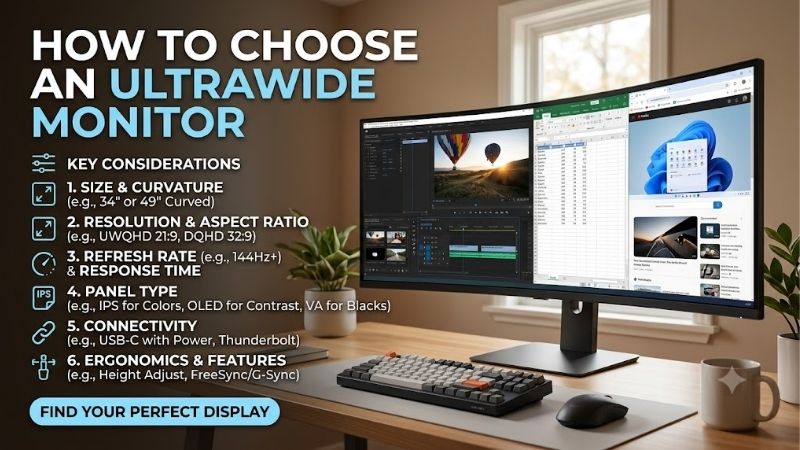
How to choose an ultrawide monitor starts with four checks: size and resolution, panel type, refresh rate, and ports plus ergonomics. These affect desk fit, image quality, gaming smoothness, and convenience. Treat them together, because a fast panel is pointless if your GPU, cables, or desk cannot support the display properly.
Size And Resolution
Size and resolution determine workspace and GPU demand. A 34-inch 21:9 display at 3440×1440 is a strong practical ground because it adds width without losing pixel sharpness. Measure desk depth and viewing distance first. A wide display needs room, while higher resolution also asks more from the graphics card in games.
For 34-inch 3440×1440 use, LG 34GP83A-B, Dell S3422DWG, ASUS TUF Gaming VG34VQL1B, and AOC CU34G2XP/BK all fit the same mainstream 34-inch class. LG uses a gentler 1900R curve, Dell 1800R, while ASUS and AOC use 1500R. Choose based on viewing distance and immersion rather than assuming stronger curvature is better.
Panel Type
Panel type changes how an ultrawide looks and moves. IPS usually offers consistent viewing angles and clean motion, while VA can deliver stronger native contrast but may show more dark-scene trailing. For office and color-sensitive work, IPS has an advantage. For movies and darker games, VA contrast can be especially compelling.
LG 34GP83A-B uses Nano IPS with 98% DCI-P3 coverage, while Dell S3422DWG, ASUS TUF Gaming VG34VQL1B, and AOC CU34G2XP/BK use VA designs. That makes LG the color-focused choice, while the other three lean toward contrast and gaming immersion. Your main workload should decide which panel behavior matters in daily use.
Refresh Rate
Refresh rate measures how often the primary display can update each second, but the practical target is what your PC can sustain. Moving from 60Hz to 100Hz is immediately noticeable for everyday motion; moving from 144Hz to 180Hz is subtler. Do not pay for maximum refresh if your GPU rarely reaches that level in games.
Dell S3422DWG tops out at 144Hz, LG 34GP83A-B reaches 144Hz or 160Hz with overclocking, ASUS reaches 165Hz, and AOC reaches 180Hz. A modest PC can make better use of Dell’s ceiling, while stronger hardware benefits from ASUS or AOC. LG sits between smooth gaming and image quality for mixed gaming and desktop workloads.
Ports And Ergonomics
Ports determine whether the monitor can deliver its headline modes and support your device mix. Check DisplayPort and HDMI versions, USB connectivity, and required bandwidth. Ergonomics matter too, because a wide screen becomes tiring when its height or viewing angle is difficult to position for long work sessions at home.
ASUS TUF Gaming VG34VQL1B offers two DisplayPort 1.4 inputs, two HDMI 2.0 inputs, and four USB 3.2 Gen 1 Type-A ports. Dell S3422DWG adds a four-port USB hub plus height and tilt adjustment. AOC provides USB and height adjustment, while LG focuses on height and tilt for a cleaner desk setup without avoidable complexity.
Top Picks
Top Picks should reflect different priorities rather than similar displays. For how to choose an ultrawide monitor, each model gets one role based on its panel, refresh rate, feature set, or value. That keeps the shortlist useful instead of turning the buying guide into a collection of specification-heavy but interchangeable screens.
| Product | Best For | Key Spec | Watch Out For |
|---|---|---|---|
| LG 34GP83A-B | Best Overall | 34″, 3440×1440, Nano IPS, 144Hz/160Hz O.C. | Modest HDR performance |
| Dell S3422DWG | Best Value | 34″, 3440×1440, VA, 144Hz | VA motion behavior |
| ASUS TUF Gaming VG34VQL1B | Best For Gaming Features | 34″, 3440×1440, VA, 165Hz | More settings to tune |
| AOC CU34G2XP/BK | Best For High Refresh Gaming | 34″, 3440×1440, Fast VA, 180Hz | HDMI limited to 100Hz |
LG 34GP83A-B — Best Overall
For how to choose an ultrawide monitor, LG 34GP83A-B is Best Overall for a first-time owner who wants gaming and desktop flexibility. It combines a 34-inch 3440×1440 Nano IPS panel, 144Hz native refresh, 160Hz overclocking, 1ms GtG, and 98% DCI-P3. Its weakness is modest HDR impact compared with newer displays.
The 1900R curve is gentle for a 34-inch screen, and the stand supports height and tilt adjustment. G-SYNC compatibility and FreeSync Premium add VRR support. The tradeoff is age: newer displays can offer faster refresh or newer connectivity. LG remains compelling when its IPS image quality and gaming features stay competitively priced.
Dell S3422DWG — Best Value
For how to choose an ultrawide monitor, Dell S3422DWG is Best Value for buyers wanting a competent 34-inch gaming screen without chasing high refresh. Its 3440×1440 VA panel runs at 144Hz, with 400 cd/m² brightness, 3000:1 contrast, and FreeSync Premium Pro. Its main limitation is VA motion behavior in some dark scenes.
Dell also includes a USB 3.2 Gen 1 hub and useful height adjustment, which improves desk setup. It lacks speakers and limits HDMI to 100Hz while DisplayPort handles 144Hz. That makes cable selection important. The feature mix is practical for a first ultrawide when price and functionality matter more than peak speed.
ASUS TUF Gaming VG34VQL1B — Best For Gaming Features
For how to choose an ultrawide monitor, ASUS TUF Gaming VG34VQL1B is Best For Gaming Features. Its 34-inch 3440×1440 VA panel runs at 165Hz and adds Adaptive-Sync, ELMB Sync, HDR10, PIP/PBP, and four USB 3.2 Gen 1 ports. The downside is complexity: its broad gaming feature set requires more tuning than a simpler model.
The 1500R curve gives games an enclosed feel, while ASUS states a 4000:1 contrast ratio and 550 cd/m² brightness. The adjustable stand offers 130mm height adjustment, swivel, and tilt. Its flexibility is the advantage, but beginners may spend more time learning gaming modes and motion controls before finding settings.
AOC CU34G2XP/BK — Best For High Refresh Gaming
AOC CU34G2XP/BK uses a 1500R curve and includes 130mm height adjustment, swivel, tilt, VESA mounting, and a four-port USB 3.2 Gen 1 hub. Those extras suit a serious gaming desk. For how to choose an ultrawide monitor, its main compromise is Fast VA behavior: dark-scene motion can still show noticeable smearing despite the 180Hz setting.
AOC targets high-refresh gaming with a 34-inch Fast VA panel, 3440×1440 resolution, 180Hz, and 1ms GtG and MPRT specifications. The benefit is refresh headroom for faster games, while the downside is that HDMI cannot reach the panel’s maximum mode. DisplayPort is therefore the better connection for 180Hz gaming.
Frequently Asked Questions
Frequently Asked Questions assist first-time buyers because ultrawide terms can hide practical limits. For how to choose an ultrawide monitor, focus on compatibility, desk space, gaming load, and workflow rather than assuming the fastest or most expensive screen is the right fit. Those factors have more impact on satisfaction and long-term use.
Is 3440×1440 Good For A First Ultrawide?
Yes, 3440×1440 is a practical resolution for a first ultrawide, at 34 inches. It adds valuable horizontal workspace while keeping solid pixel density. The catch is GPU demand: games must render roughly 34% more pixels than at 2560×1440. Your graphics card therefore matters as much as the monitor specification overall.
A midrange gaming GPU can handle 3440×1440 well, but your frame-rate target changes the equation. If the system rarely reaches 100fps, an 180Hz panel offers limited practical gain. Adaptive sync and sensible settings help, but resolution should be chosen around the performance your PC can realistically maintain in your games.
Can An Ultrawide Replace Two Monitors?
No, an ultrawide does not have to replace two monitors, but it can for users who want side-by-side applications. A single 34-inch 21:9 screen provides one continuous desktop without a center bezel. That is useful for browsers, documents, spreadsheets, timelines, and reference windows that need to stay visible together during work.
Two monitors still make more sense when you need separate orientations, separate inputs, or a vertical panel for documents. An ultrawide is strongest when the workflow benefits from one long canvas. Check software window management and the physical width of the desk because a 34-inch screen can consume significant width in front of you.
Is 144Hz Enough For Ultrawide Gaming?
A 144Hz ultrawide is more than sufficient for most PC gaming. Higher refresh can enhance motion clarity and input feel when the GPU matches it, but the jump from 144Hz to 165Hz or 180Hz is smaller than moving from 60Hz to 144Hz. Prioritize first on resolution, panel quality, or ergonomics when those features matter more.
If competitive gaming is central and your hardware sustains high frame rates, AOC CU34G2XP/BK has the highest 180Hz ceiling here, while ASUS reaches 165Hz. For mixed use, Dell’s 144Hz and LG’s 144Hz native mode can remain sensible targets. The right refresh depends on what your system consistently feeds to the screen.
Are Ultrawide Monitors Good For Office Work?
Yes, 21:9 ultrawide displays work well for office productivity when applications support flexible window placement. Extra width helps with timelines, spreadsheets, code editors, and reference windows. The main limitation is vertical workspace: a 34-inch 3440×1440 display is wide, but it is not dramatically taller than a typical 27-inch QHD monitor.
An ultrawide is less attractive when your work depends on portrait documents or software that behaves poorly outside 16:9. A monitor arm can improve positioning on a shallow desk, while window-splitting features can make one panel feel like two workspaces. These are workflow considerations, not reasons to chase a larger diagonal.
Final Thoughts
Final Thoughts: Ultimately, how to choose an ultrawide monitor comes down to matching the screen to your desk, GPU, connectivity, and workload. LG is the balanced IPS option, Dell emphasizes value, ASUS adds gaming controls, and AOC pushes refresh rate. Buy around current needs, rather than paying for unused specifications.