
Affiliate disclosure: As an Amazon Associate we earn from qualifying purchases. This post contains affiliate links — we may earn a small commission at no extra cost to you. This never affects our picks. Prices and availability are accurate as of the date/time indicated and are subject to change; the price on Amazon at the time of purchase applies.
- Builder’s Spec Comparison
- Round 1: GPU Pairing and Resolution Math
- Round 2: Desk and Case Layout Planning
- Round 3: VESA Mount and Arm Compatibility
- Round 4: Cable Management and Port Planning
- Round 5: Resolution Scaling and OS Considerations
- Round 6: Multi-Monitor Layout Planning
- Round 7: Upgrade Path Considerations
- Round 8: Long-Term Value and Resale
- Builder’s Decision Flowchart
- Compatibility Checklist Before Buying
- Refresh Rate Pairing with Format
- Connectivity and Future-Proofing
- Common Builder Mistakes to Avoid
- FAQ for Builders
- Final Verdict for Builders
- Related Guides
- Related Articles
- Frequently Asked Questions
- Related Articles
Top picks at a glance:
As an Amazon Associate we earn from qualifying purchases at no extra cost to you.


When you’re picking a monitor for a new build, the curved-versus-flat decision usually shows up late in planning, after the GPU and CPU are locked in. That’s backwards. The monitor dictates the resolution and refresh rate your GPU has to drive, sets the desk space left for everything else, and shapes arm and mount choices you really ought to know before you settle on a desk layout. This builder’s guide treats the monitor as a foundational decision rather than an afterthought.
Quick answer: For a 2026 build, the our top pick is the gaming monitor we would build around, while the the value pick is the budget-friendly choice.
Unlike a generic review that crowns a single winner, this guide hands you a decision flowchart at the end so you can answer the question yourself for your specific build, desk, and use case. The honest builder’s answer to curved versus flat is it depends, and that’s not a cop-out; it’s the practical reality. A 27 inch flat 1440p panel is right for one builder and a 34 inch curved ultrawide is right for another, and both can be defended with good reasoning. What this guide does is help you work out which builder you are.
One thing to clear up before diving in: 2026 is the year curved went truly mainstream at 34 inches and above, and just as clearly stalled at 27 inches and below. If you read older comparison guides from 2023 and 2024 recommending 27 inch curved panels, mentally cross those out. The market has moved on. Curved at small sizes is a niche product, and most major manufacturers are quietly de-emphasizing it to focus curved development on the 34 inch and 49 inch ultrawide segments where the format actually pays off.
🛒 Best Price Today on Amazon
Prime members get fast, free shipping on everything above, plus member-only deals. New members get a 30-day free trial — cancel anytime.
Start 30-Day Prime Free Trial →See Today’s Amazon DealsBuilder’s Spec Comparison
| Build consideration | Curved ultrawide | Flat 27 inch | Builder’s note |
|---|---|---|---|
| GPU class needed | Mid to high (UW resolution) | Mid (1440p) | Match GPU to panel |
| Desk width minimum | 120 cm comfortable | 80 cm comfortable | Measure first |
| Cable management depth | Deeper panel adds reach | Standard | Plan cable runs |
| VESA mount compatibility | Heavy-duty arm needed | Universal | Budget for arm |
| Single vs dual monitor | Often replaces dual | Pairs well in dual | Plan layout |
| USB-C / hub features | Common on premium UW | Increasingly common | Check ports needed |
| Upgrade path | Side panel for productivity | Easy second flat | Plan future |
| Resale value | Strong for premium UW | Strong for OLED 27 | Both hold value |
Round 1: GPU Pairing and Resolution Math
Flat 27 inch pairs cleanly with mid-range GPUs
From a builder’s perspective, a flat 27 inch 1440p panel is the most forgiving choice because the resolution matches the mid-range GPUs most builders are working with. A current-generation mid-range card comfortably drives 1440p at high refresh rates in nearly every modern title with sensible settings, which means your GPU won’t become the bottleneck before you even finish the build. That makes flat 27 inch 1440p the safest spec to pair with a balanced build in the 1500 to 2000 dollar tier.
Curved ultrawide demands more GPU
Curved ultrawide monitors at 34 inches run native 3440×1440, roughly 30 percent more pixels than standard 1440p. That extra pixel count maps directly onto GPU load, and you need to step up your GPU tier to keep the same frame rates you’d get at 1440p. If your build targets an ultrawide curved monitor, plan for a GPU at least one tier higher than you’d otherwise pick, and check that your power supply has the wattage headroom to support it.
Round 2: Desk and Case Layout Planning
Curved demands more usable desk
A 34 inch ultrawide curved monitor needs a wider desk than the panel dimensions suggest, because the included stand is usually substantial and the curve adds depth at the panel edges. The practical minimum desk width is 120 cm for a comfortable setup with room for keyboard and mouse motion, and 140 cm is more livable if you also want a microphone arm, speakers, or extra peripherals. Measure your desk before committing.
Flat fits in tighter setups
In practical terms, flat 27 inch panels fit comfortably on desks as narrow as 80 cm with room to spare, which makes them the practical choice for smaller bedrooms, dorms, or shared spaces. The smaller footprint also leaves room for the rest of your build including a microphone arm, speakers, and a notebook for reference materials. If your desk is the constraint, flat solves the problem.
Round 3: VESA Mount and Arm Compatibility
Flat is the universal arm-friendly choice
For builders who want a clean cable-managed look with the monitor on an arm rather than a stand, flat is the path of least resistance. Universal VESA arms in the budget and mid-range are designed around flat panel weight and balance, and arm options are plentiful at every price point. If you want a single articulating arm for a flat 27 inch monitor, you have dozens of solid options under 100 dollars.
Curved ultrawide needs premium arms</h3
Curved 34 inch ultrawide panels are heavier than equivalent flat 27 inch panels and have weight distribution that makes budget arms sag or fail. You need a heavy-duty articulating arm rated for the panel weight (often 8 to 12 kg) and ideally one designed with curved ultrawides in mind. That adds 100 to 200 dollars to the total setup cost versus a flat panel setup. Budget accordingly.
Round 4: Cable Management and Port Planning
Premium curved ultrawides bring USB-C hubs
Many premium curved ultrawide monitors include USB-C with power delivery, multiple USB-A passthrough ports, and even integrated KVM features that switch between a desktop and a laptop on the same panel. From a builder’s perspective, that can simplify cable management because the monitor becomes a dock for peripherals rather than another device that just needs DisplayPort. If your build is meant to share the desk with a laptop or include a streaming PC, the integrated hub features on premium ultrawides are genuinely useful.
Flat panels increasingly catch up
Flat 27 inch panels in the mid-range and above increasingly ship with USB-C power delivery and hub features too, though the budget tier still leaves these off. If you’re buying at the budget flat tier, plan for a separate USB hub. If you’re buying at the mid-range or above, you can often get hub functionality on flat as well.
Round 5: Resolution Scaling and OS Considerations
Flat 1440p is the well-trodden path
Native 1440p at 27 inches is the most well-supported resolution and pixel density in modern operating systems and games. UI scaling in Windows, macOS, and Linux is dialed in for this configuration, and games default to sensible settings without much fiddling. As a builder you don’t have to burn time troubleshooting scaling issues; everything just works.
Ultrawide 3440×1440 has more edge cases
Ultrawide resolutions have better support than a few years ago, but you still occasionally hit games with letterboxing, cutscenes that don’t scale properly, or UI elements that get stretched awkwardly. For most modern AAA titles this is no longer a problem, but if your library leans heavily on older games or specific indie titles, check ultrawide compatibility reports before committing. From a builder’s perspective, that’s a real consideration flat 1440p doesn’t face.
Round 6: Multi-Monitor Layout Planning
Dual flat 27 inch is a battle-tested layout</h3
Many builders end up with dual flat 27 inch panels as their long-term setup, and it’s a known-good configuration. Two 27 inch flats side by side cover most use cases including productivity, gaming on one screen with reference material on the other, and streaming with OBS on a secondary panel. Arm options for dual flat setups are abundant, and the total pixel area beats a single ultrawide.
Curved ultrawide plus small portrait flat
A curved ultrawide as the primary plus a small portrait-oriented flat as a secondary (for code editing, chat, or reference) is an increasingly popular layout for power users. It combines the immersion and productivity of the curved primary with the utility of a portrait secondary. The total cost runs higher than dual flat 27 inch, but the workflow benefits are real for specific use cases.
Round 7: Upgrade Path Considerations
Flat has a smoother upgrade path
From an upgrade-path perspective, flat is the safer starting point because adding a second flat panel later is trivial and arm options are universal. Start with one flat 27 inch and decide to expand to dual a year later, and the integration is seamless. You also keep the flexibility to upgrade the primary panel without changing your arm or mount.
Curved upgrade path is more committed
Starting with a curved ultrawide is a more committed choice. The format limits some future flexibility because you’ve already signed up for the wider desk, the heavier arm, and the specific resolution. Adding a secondary panel works, but you’re usually adding a small portrait-oriented flat or a second small flat for OBS, rather than expanding to dual primaries. The upgrade path is more about iterating on the same single-screen workflow.
Round 8: Long-Term Value and Resale
Both formats hold value at the OLED premium tier
In practical terms, premium OLED panels in both flat and curved formats hold their value reasonably well on the used market, with the curved ultrawide segment showing slightly stronger resale at the high end because the format is enthusiast-targeted and demand is steady. Flat OLED 27 inch panels also hold value well thanks to the broad appeal of the format to gamers and creators alike.
Budget panels depreciate in both formats
At the budget tier, both curved and flat panels depreciate similarly. The lesson for builders is that if resale value matters for your future upgrade plans, buy at the premium OLED tier in whichever format suits your build. The budget panels won’t return much when you upgrade, regardless of format.
Builder’s Decision Flowchart
Use this flowchart to decide which format fits your build:
Step 1: Will you mainly play competitive shooters at a high level (ranked grinding, aim training, esports)? If yes, pick flat 27 inch 1440p and stop here. If no, continue.
In practical terms, step 2: Is your desk wider than 120 cm with room for ultrawide plus accessories? If no, pick flat 27 inch and stop here. If yes, continue.
In practical terms, step 3: Will your GPU comfortably drive 3440×1440 at your target frame rate? If no, pick flat 27 inch (or upgrade your GPU plan). If yes, continue.
In practical terms, step 4: Do you do color-critical professional creator work (photo printing, video grading for clients)? If yes, pick flat 27 inch with a calibrated profile. If no, continue.
Step 5: Do you spend sizable time on productivity multitasking (coding, writing, streaming overlay management)? If yes, curved 34 inch ultrawide is the strong choice. If no, either format works; default to flat 27 inch for the simpler build.
This flowchart lands most builders on flat 27 inch by step 2 or 3 if their desk or GPU budget is constrained. It lands productivity-focused builders with proper desk space and GPU headroom on curved 34 inch ultrawide. It lands creator-leaning builders on flat for color accuracy. The honest builder’s answer is it depends, and the decision tree turns that into something concrete and actionable.
Compatibility Checklist Before Buying
For curved ultrawide builds
In practical terms, confirm desk width is at least 120 cm. Confirm your GPU can drive 3440×1440 at target frame rate. Budget 100 to 200 dollars extra for a heavy-duty articulating arm. Confirm your power supply has at least 100W headroom for the GPU upgrade. Check that your games library has ultrawide support for titles you care about. Confirm your case and motherboard layout supports the GPU class you need (clearance for a longer card, sufficient PCIe slots).
For flat 27 inch builds
In practical terms, confirm desk width is at least 80 cm. Confirm your GPU can drive 1440p at target frame rate. Standard VESA arm options work; budget 50 to 100 dollars for a quality arm. Power supply requirements are more relaxed because the GPU tier is more flexible. Games library has full compatibility at 1440p with no edge cases. Case and motherboard requirements are standard with no special considerations.
Refresh Rate Pairing with Format
One often-overlooked aspect of the curved-versus-flat decision for builders is how refresh rate scales with the format. Flat 27 inch panels at 240Hz and even 360Hz are well-established and pair cleanly with mid-range GPUs that can push the frame rates needed at 1440p. The 240Hz tier in particular hits a sweet spot for builders because the GPU requirement is achievable in current AAA titles with sensible settings, and the perceptual benefit of high refresh is fully realized for competitive shooters.
Curved ultrawide 34 inch panels in 2026 are mostly available in the 165Hz to 240Hz refresh range, with 240Hz going standard at the premium OLED tier. The catch for builders is that driving 3440×1440 at 240Hz takes substantially more GPU horsepower than 1440p flat at the same refresh, often forcing you up to the top GPU tier of your generation. If your budget doesn’t stretch to the top GPU tier, a 165Hz curved ultrawide is the practical choice and still delivers an excellent gaming experience. Match your refresh rate target to your GPU budget rather than chasing the highest number you can find.
Connectivity and Future-Proofing
When picking the monitor for a new build, check that the panel’s display inputs match your GPU’s output capabilities. Modern high-refresh curved and flat panels often need DisplayPort 2.1 or HDMI 2.1 to deliver their advertised refresh rates at native resolution. Older GPU generations with DisplayPort 1.4 may be limited to lower refresh rates or require DSC (Display Stream Compression) to hit advertised specs. That isn’t a curved-versus-flat issue per se, but it’s a builder consideration that often catches people off guard.
USB-C with DisplayPort Alt Mode is increasingly common on premium panels in both formats and is genuinely useful for builders planning to share the panel between desktop and laptop or wanting to cut cable clutter. Check the specific monitor model for USB-C power delivery wattage if you plan to use it with a laptop; many panels deliver 65W, which covers most laptops but not high-power workstation laptops. KVM features on premium curved ultrawides can simplify multi-system setups significantly.
Common Builder Mistakes to Avoid
The most common builder mistake on the monitor decision is leaving the panel choice for last, then discovering the GPU you already bought can’t drive the monitor you want at acceptable frame rates. Pick your target monitor early in planning so the GPU, power supply, and case selections can all support it cleanly. The second most common mistake is buying a curved ultrawide for a desk that can’t take it, then either returning it or living with a cramped setup for months. Measure your desk before committing. The third is underestimating the cost of a heavy-duty monitor arm for a curved ultrawide; budget for the arm at the same time as the monitor, not as an afterthought when you realize your existing arm can’t support the panel.
FAQ for Builders
Does a curved monitor need a more powerful GPU than a flat monitor?
If the curved monitor is ultrawide at 3440×1440, then yes, plan for roughly 30 percent more GPU load versus standard 1440p. That usually means stepping up one GPU tier, which has knock-on effects for power supply sizing and case airflow. If the curved monitor is at the same resolution as the flat alternative, the GPU requirement is identical.
Can I use a standard monitor arm with a curved ultrawide?</h3
In practical terms, sometimes, depending on the panel weight and your arm’s rating. Most budget arms are rated for panels up to 8 kg and ultrawide curved monitors often weigh more than that. Check your specific panel weight against your arm’s rating before committing. The safer plan is to budget for a heavy-duty arm designed with ultrawide curved panels in mind.
Should I plan for dual monitor with curved or flat?
In practical terms, flat 27 inch in a dual configuration is the more flexible setup with broader arm and mount options, more total pixel area, and easier swap-out for upgrades. Curved ultrawide in a single configuration with a small portrait-oriented secondary is the alternative for productivity power users. Both setups work; choose based on your primary workflow.
Is curved or flat better for a streaming PC build?
In practical terms, for most streamers, a curved 34 inch ultrawide as the primary with a small flat secondary for OBS, chat, and stream preview is the most efficient layout. The exception is streamers who play competitive shooters as primary content, who should use flat for the game and a separate small flat for streaming tools. Match the format to the content you stream.
Final Verdict for Builders
The builder’s answer to curved versus flat is it depends, and here is your decision tree. There’s no universal winner because the right format hinges on your desk size, GPU budget, primary use case, and upgrade-path plans. The decision flowchart above will land you on the format that fits your specific build with high confidence. Run through it, answer the questions honestly, and commit to the format that emerges.
In practical terms, for most balanced builds in the 1500 to 2000 dollar range with mid-range GPUs and standard desk constraints, flat 27 inch 1440p is the default that fits cleanly into the build. For premium builds with high-tier GPUs, wide desks, and productivity-heavy workflows, curved 34 inch ultrawide is the more enjoyable daily driver. Both are correct answers for the right builder.
To round out the rest of your build, see our gaming monitors buyer’s guide for specific panel recommendations matched to budget tiers. Pair the monitor with the right GPU from our graphics cards buyer’s guide and the right CPU from our gaming CPUs buyer’s guide. Match your input devices via our gaming keyboards buyer’s guide and gaming mice buyer’s guide. Confirm your memory budget with our gaming RAM buyer’s guide and your cooling plan via the CPU coolers buyer’s guide. If a prebuilt is in the running, our prebuilt vs DIY breakdown covers the trade-offs for matched-set thinking.
Related Guides
Related Articles
Want more on this topic? Browse the hand-picked guides below — each one runs the same scoring rubric used in this review.
Frequently Asked Questions
What is the main advantage of a curved monitor?
Curved monitors wrap the image slightly toward you, which can feel more immersive and keep the screen edges at a more consistent distance from your eyes. This is most beneficial on large and ultrawide displays, where a flat panel’s edges would sit farther away. The curve reduces perceived distortion and eye movement across wide screens, aiding comfort during long sessions.
Are curved monitors better for gaming than flat ones?
For immersive single-player and ultrawide gaming, curved panels can enhance the sense of presence. For competitive gaming, many players prefer flat monitors, since straight lines and consistent geometry aid precise aiming and there’s no curve to adjust to. The best choice depends on your genres: curved for immersion, flat for competitive precision and general versatility.
Do curved monitors distort the image?
On well-designed monitors, the curve is subtle and does not meaningfully distort content; instead it aims to reduce distortion at the edges of large screens. However, straight lines can appear slightly curved, which some users notice in productivity work like spreadsheets or design. For content requiring precise straight references, a flat panel avoids this potential visual quirk entirely.
What curve rating should I look for?
Curvature is expressed as a radius like 1800R or 1000R, where a lower number means a more aggressive curve. 1800R is gentle, while 1000R wraps more dramatically. More aggressive curves suit larger and ultrawide screens and closer viewing. Choose a curve matched to the screen size and your viewing distance, avoiding an aggressive curve on a smaller display.
Is a curved or flat monitor better for productivity?
It depends on your work. Curved ultrawides excel at immersive multitasking, spreading windows across one continuous screen comfortably. However, for design, photo editing, and CAD where straight-line accuracy matters, a flat panel avoids any perceived curvature in geometry. For general office work and multitasking, curved is comfortable; for precision visual work, flat is often the safer choice.
Ready to decide? Our #1 pick for 2026 is the GPU class needed.
Live price & availability on Amazon.
Top picks from this guide
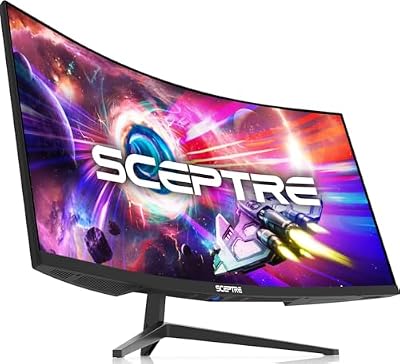 SceptreSceptre 34-inch Curved ultrawide WQHD Monitor (3440 × 1440), R1500,…$198 \xc2\xb7 99/100
 SANSUISANSUI 34-Inch Curved Gaming Monitor UWQHD 3440 x 1440P 200Hz…$216 \xc2\xb7 98/100
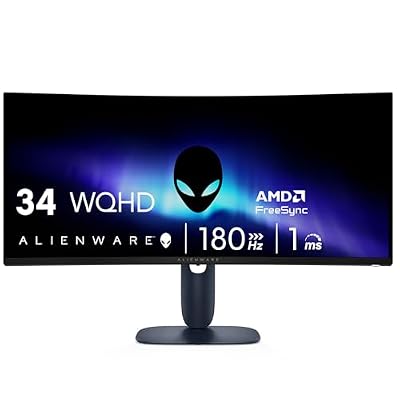 AlienwareAlienware 34 Curved Gaming Monitor – AW3425DWM - 34-inch WQHD…$360 \xc2\xb7 95/100
 SANSUISANSUI 32-Inch Curved Gaming Monitor WQHD 2560 x 1440 180Hz…$190 \xc2\xb7 94/100








