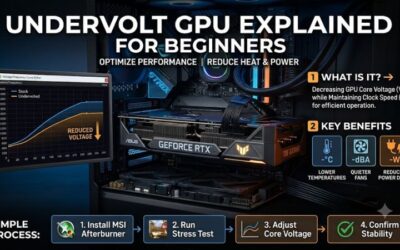
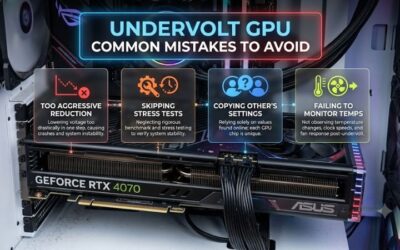
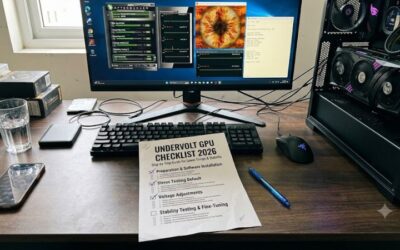
Undervolt GPU troubleshooting guide helps when a GPU crashes under load, the screen turns black, or a driver resets after lowering voltage. The safest fix is to restore a known-stable baseline, then retest one change at a time instead of copying another card’s settings. You’ll isolate voltage, driver, thermal, and power issues with practical reset steps.
How to Choose GPU Undervolting Tools
This undervolt gpu troubleshooting guide treats instability as a settings problem first, not proof that the GPU is damaged. Choose tools that match your graphics card, capture a stock baseline, and test changes in repeatable stages. A stable default profile provides the reference for every later comparison and helps separate tuning errors from unrelated faults.
Start With Driver-Level Controls
Start with the control panel designed for your GPU, because vendor software generally exposes settings supported by its driver and hardware. Radeon owners can begin with AMD Software: Adrenalin Edition, while GeForce owners should confirm their drivers are current before adding another tuning utility. This also reduces conflicts between startup profiles.
A feature missing from the menu may reflect the GPU generation, laptop firmware, or driver package rather than a broken installation. MSI Afterburner provides a flexible cross-brand option, while Adrenalin is the simplest starting point on supported Radeon cards. Avoid forcing hidden controls or running competing automatic profiles during the same test session.
Check Voltage-Frequency Curve Control
Voltage and clock speed are linked, so a GPU may crash because the selected frequency is too high for the reduced voltage, even when temperatures look normal. A curve editor makes this trade-off easier to inspect than a single power slider, although available controls vary by GPU generation and manufacturer. Record the original settings first.
An undervolt gpu troubleshooting guide is most useful when the selected utility makes changes easy to reverse. MSI Afterburner’s voltage-frequency editor and ASUS GPU Tweak III’s VF Tuner both display the relationship between clock speed and voltage. These tools help users compare conservative adjustments without guessing a universal millivolt target for every card.
Prioritize Monitoring and Logs
Monitoring helps reveal whether instability follows a voltage change, falling clock speed, unexpected temperature behavior, or a driver reset. Track GPU frequency, voltage, temperature, power consumption, and frame rate together whenever possible. MSI Afterburner provides hardware monitoring and an on-screen display, making it useful for comparing results during repeatable gaming sessions.
Logging matters because a brief black screen or stutter may disappear before you can inspect it. Save baseline readings and compare them against the results after each adjustment. AMD Adrenalin also provides performance metrics and tuning controls, but the available readings and voltage options depend on the particular Radeon model and software configuration.
Validate With More Than One Workload
A successful short benchmark does not prove that an undervolt will remain stable in every game. GPU loads change with rendering effects, frame rates, ray tracing, and power demands. Use OCCT for structured GPU stability testing, then validate the settings in demanding games you actually play. Different workloads can expose different weaknesses in the voltage curve.
A useful test utility should make failures identifiable without confusing a temperature limit with voltage instability. OCCT offers GPU stress tests, including adaptive 3D testing, alongside monitoring features. ASUS GPU Tweak III can handle detailed frequency-voltage adjustments, while OCCT checks the resulting behavior. Neither a single successful run nor a lower temperature guarantees complete stability.
Top Picks
The best tools for an undervolt gpu troubleshooting guide serve different purposes: adjusting voltage, returning to a default configuration, monitoring behavior, and testing stability. MSI Afterburner is the strongest general-purpose choice, Adrenalin suits supported Radeon cards, ASUS GPU Tweak III offers another detailed tuning interface, and OCCT helps uncover instability.
| Product | Best For | Key Spec | Watch Out For |
|---|---|---|---|
| MSI Afterburner | Best Overall | Voltage-frequency curve editor and hardware monitoring | Voltage controls vary by GPU |
| AMD Software: Adrenalin Edition | Best for Radeon GPUs | Built-in GPU tuning and undervolt presets on supported cards | Some features are hardware-dependent |
| ASUS GPU Tweak III | Best for Detailed Curve Tuning | Voltage-frequency tuner, clock controls, and fan settings | Available controls depend on the GPU |
| OCCT | Best for Stability Testing | GPU stress tests, adaptive 3D testing, and monitoring | Tests stability but does not replace a tuning utility |
MSI Afterburner — Best Overall
For an undervolt gpu troubleshooting guide, MSI Afterburner is the most versatile starting point because it supports nearly all GPU brands and provides a voltage-frequency curve editor, hardware monitoring, and saved profiles. It can help identify whether a voltage adjustment reduces power consumption or simply destabilizes clocks under demanding workloads.
Its main advantage is the combination of tuning controls and real-time readings in one interface. The drawback is that voltage access depends on the graphics card, firmware, and driver, so some options may be unavailable. Laptop owners should be especially conservative and monitor both CPU and GPU temperatures when testing changes.
AMD Software: Adrenalin Edition — Best for Radeon GPUs
AMD Software: Adrenalin Edition is a natural choice for supported Radeon cards because GPU tuning is integrated into the graphics driver software. Its Performance Tuning area includes an Undervolt GPU option on select models, alongside manual controls for available voltage, frequency, and power settings. This avoids installing a separate utility just to begin testing.
The built-in reset control and GPU-specific settings make troubleshooting more straightforward, particularly when a custom configuration becomes unstable. Its limitation is hardware-dependent feature availability; not every Radeon card exposes identical tuning controls. Start with the default or automatic settings offered for your specific GPU before attempting advanced manual adjustments.
ASUS GPU Tweak III — Best for Detailed Curve Tuning
ASUS GPU Tweak III is useful when you need granular frequency and voltage adjustments rather than a simple preset. Its Voltage-Frequency Tuner lets users customize the relationship between GPU clock speed and voltage, while additional controls cover power consumption, memory frequency, and fan behavior. It supports compatible NVIDIA and AMD desktop graphics cards.
For a detailed undervolt gpu troubleshooting guide, this utility provides another way to inspect the curve and save configurations for comparison. Its advantage is the range of manual controls and monitoring options. Its drawback is that features vary by card, and the extra interface complexity can make diagnosis harder if you change several settings simultaneously.
OCCT — Best for Stability Testing
OCCT is the strongest choice here for testing whether a tuned graphics card behaves reliably under changing workloads. Its GPU tests include 3D workloads, and its monitoring features help you observe system behavior while a test runs. This makes it a practical diagnostic partner when a GPU crashes after a previously promising voltage adjustment.
OCCT does not replace MSI Afterburner, Adrenalin, or GPU Tweak III for voltage tuning. Instead, it helps evaluate the configuration created in one of those utilities. A stress test can reveal instability quickly, but passing it is not proof of universal stability; follow up with actual games and your normal applications.
Frequently Asked Questions
The most useful undervolt gpu troubleshooting guide answers distinguish unstable tuning from driver, cooling, and power problems. Start by changing as little as possible, and restore defaults before investigating unrelated hardware. The following answers cover common crashes, recovery options, inconsistent test results, and the practical limits of GPU undervolting.
Why Does My GPU Crash After Undervolting?
Your GPU most likely crashes because the selected voltage is insufficient for the clock speed demanded by the current workload. Every chip has different stability limits, even within the same model. A configuration that appears stable on another person’s graphics card may fail on yours, particularly during demanding games or sudden load changes.
First, return to the previous stable configuration and confirm that the crash disappears. If it does, the undervolt is the leading suspect. If crashes continue at stock settings, investigate driver problems, overheating, unstable memory tuning, and power delivery instead. Do not assume every black screen after tuning has the same cause.
How Can I Reset an Unstable GPU Undervolt?
Restore the tuning utility’s default settings, apply the change, and restart the computer if necessary. AMD Adrenalin provides a reset option for its tuning controls, while MSI Afterburner and ASUS GPU Tweak III let you return to default behavior through their respective interfaces. Remove custom settings before attempting another undervolt.
If the settings automatically return at startup, disable automatic profile application before testing again. When Windows remains unresponsive, restart the PC and prevent the problematic tuning profile from loading, using recovery options when needed. Once the machine is stable, save the default profile separately so future experiments have a reliable fallback.
Why Does My Undervolt Pass a Benchmark but Fail in Games?
A practical undervolt gpu troubleshooting guide accounts for workload differences: a short benchmark may not reproduce the changing clock demands, rendering effects, and power transitions of a real game. Ray tracing, shader compilation, high frame rates, or sudden scene changes can expose instability that a brief, consistent test misses.
Use the same game or demanding workload that originally triggered the crash, and compare results with your stock configuration. Test one adjustment at a time instead of simultaneously changing GPU voltage, core frequency, and memory settings. A stable setting must work across your actual use cases, not only one synthetic benchmark.
Is GPU Undervolting Safe for Long-Term Use?
GPU undervolting is generally a low-risk way to reduce power consumption and heat when you use supported controls and remain within the card’s normal operating limits. Its most common drawback is instability, which can cause application crashes, driver resets, or lost work. Lower voltage does not automatically mean a stable or faster system.
Avoid unverified firmware modifications and do not force unavailable voltage controls. Keep the original profile, monitor temperatures and performance, and return to stock settings if unexplained problems persist. Results vary by individual chip and workload, so use the smallest practical changes and retain the configuration that proves stable over time.
Final Thoughts
A reliable undervolt gpu troubleshooting guide begins with stock settings, consistent monitoring, and testing across more than one workload. Use MSI Afterburner or your GPU vendor’s software to adjust settings, then validate them with OCCT and real games. If crashes persist at defaults, investigate drivers, cooling, and power delivery instead of repeatedly lowering voltage.