Undervolt gpu explained for beginners starts with excessive fan noise, elevated gaming temperatures, or unnecessarily high power consumption. Undervolting lowers the voltage needed for a chosen GPU clock speed. It can improve efficiency, but stable results depend on your specific chip, cooling, and the games you actually play.
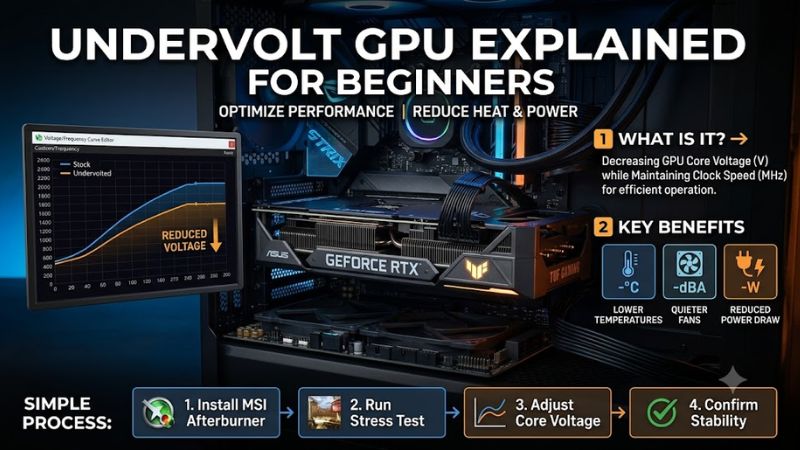
How to Choose GPU Undervolting Software
This undervolt gpu explained for beginners guide covers compatible software, voltage controls, repeatable tests, and profile recovery. Neither replacement hardware nor premium software is necessary. The aim is lower power at similar frame rates, using reversible software changes and restoring defaults whenever instability appears.
GPU Compatibility and Available Controls
GPU compatibility matters more than brand loyalty. A desktop GeForce card may expose a voltage-frequency curve, while a laptop can lock that control in firmware. Check the exact GPU and supported features before downloading any utility. For supported GeForce curve tuning, MSI Afterburner is a practical starting recommendation.
Radeon owners should initially investigate the full installation of AMD Software: Adrenalin Edition. Its tuning panel can offer voltage controls or automatic undervolting, depending on the GPU. Missing sliders are not a reason to flash firmware. Choose AMD Software: Adrenalin Edition when its supported controls meet your needs.
Automatic Tuning Versus Manual Curves
A voltage-frequency curve pairs clock speed with voltage. Lowering voltage while keeping a useful clock target is different from simply cutting the power limit. The latter caps the power budget and lets boost behavior adapt. For undervolt gpu explained for beginners, MSI Afterburner makes that curve relationship visible.
Prioritize understandable controls over extensive customization. Automatic tuning simplifies configuration, while manual curves expose individual operating points. Neither approach guarantees identical results across different chips. For a graphical tuner with straightforward frequency ceilings, consider ASUS GPU Tweak III.
Monitoring and Performance Comparisons
Record stock performance before changing voltage. Run the same game scene with fixed resolution, graphics settings, and frame limits, then note frame rate, board power, temperature, and fan speed. Let the GPU warm up first. MSI Afterburner is useful here because its monitoring helps connect individual adjustments to measurable improvements.
Temperature reductions alone cannot establish successful optimization. Reduced frequencies might explain both cooler operation and performance penalties, while altered fan curves complicate acoustic comparisons. Verify operating voltage under sustained load. For compatible existing EVGA systems, EVGA Precision X1 provides integrated monitoring.
Profiles and Recovery Controls
Profiles matter because a tune can pass one test and fail later. Keep automatic startup application disabled until several workloads behave normally. Save your stock settings separately and know where Reset is located. For undervolt gpu explained for beginners, AMD Software: Adrenalin Edition offers a useful reset path.
Apply voltage, frequency, and fan adjustments through one utility. Competing applications can overwrite settings and complicate troubleshooting. Read-only sensor monitoring usually avoids that conflict. If your compatible EVGA card already uses familiar profiles, EVGA Precision X1 offers convenient continuity without unnecessary software changes.
Top Picks
The tools below serve different hardware and workflows; purchasing multiple applications is unnecessary. For undervolt gpu explained for beginners, compatibility comes first, followed by controls you can verify under load. Start with one supported utility, keep memory settings stock, and judge success through measured results.
| Product | Best For | Key Spec | Watch Out For |
|---|---|---|---|
| MSI Afterburner | Best Overall | Voltage-frequency curve editor; Ctrl+F | Manual setup; hardware-dependent controls |
| AMD Software: Adrenalin Edition | Best Value | Automatic undervolting on select GPUs | Requires supported Radeon hardware and full installation |
| ASUS GPU Tweak III | Visual curve tuning | VF Tuner with Align Points Down | Multiple controls complicate troubleshooting |
| EVGA Precision X1 | Existing EVGA setups | Up to 10 profiles with hotkeys | Verify support for newer hardware |
MSI Afterburner: Best Overall
MSI Afterburner is the best overall starting point for supported GeForce desktop cards because its curve editor and monitoring work together. Press Ctrl+F to open the voltage-frequency graph. The axes show millivolts and megahertz, letting you inspect the stock relationship before selecting an appropriate adjustment target.
After recording the warmed-up stock clock, select a slightly lower voltage point and set it to that target frequency. Flatten the higher-voltage points to the same ceiling, apply, and verify load behavior. The tradeoff is manual setup: an incorrect curve can cause crashes, and unsupported hardware may not expose these controls.
AMD Software: Adrenalin Edition: Best Value
AMD Software: Adrenalin Edition is the best value for supported Radeon owners because tuning is included with the full driver installation. Search for Tuning, open Performance Tuning, and choose Undervolt GPU if available. This automatic option gives beginners a starting profile without additional software purchases or complicated installations.
Advanced controls on supported RX 6000 and later cards display voltage in mV and frequency in MHz. The voltage slider adjusts the voltage-frequency curve through an offset; it does not enforce constant voltage. Hardware-dependent availability is the limitation: controls illustrated for another Radeon model might be unavailable on yours.
ASUS GPU Tweak III: Best for Visual Curve Tuning
ASUS GPU Tweak III is best for users who prefer its graphical Voltage-Frequency Tuner. ASUS documents support beyond its own card brand, although actual controls depend on hardware. A useful feature is Align Points Down, which can flatten selected higher-voltage points to a chosen frequency ceiling in the supported tuner.
Its separate power-target control also helps explore efficiency, but reducing that percentage is not the same operation as editing voltage. In undervolt gpu explained for beginners, that distinction prevents confusing two different tests. The downside is interface complexity: presets, offsets, and curve changes require careful tracking.
EVGA Precision X1: Best for Existing EVGA Setups
EVGA Precision X1 is best for owners of compatible older GeForce systems already using EVGA controls. Its feature set includes individually adjustable voltage-frequency points and up to 10 profiles with hotkeys. Consolidating familiar fan settings and profile management can be useful when maintaining an established configuration.
Compatibility is the limitation: EVGA lists GeForce RTX, GTX 16, and GTX 10 series support, without explicitly guaranteeing every subsequent generation. Verify your specific hardware before installation. For undervolt gpu explained for beginners on recent builds, prioritize software with confirmed support for the installed graphics card.
Frequently Asked Questions
These answers cover undervolt gpu explained for beginners troubleshooting, including crashes, performance changes, appropriate voltage, and stability checks. Universal settings cannot account for individual chips, and brief benchmarks provide preliminary screening. Compare against stock performance and maintain an accessible recovery profile.
Can Undervolting Cause Crashes or Damage?
Yes, software undervolting can cause instability, usually seen as game crashes, driver resets, flickering, or a black screen. Lower voltage cannot guarantee consistently fault-free operation. Save open work before testing and stop when problems appear. Restore the stock profile rather than repeatedly running demonstrably unstable configurations.
Keep this process within the controls exposed by supported software. BIOS flashing, physical modifications, and bypassing locked voltage controls are outside a beginner workflow. If the computer also crashes at stock settings, troubleshoot that separately; a bad driver, overheating, or another hardware fault may be responsible.
Does Undervolting Reduce Gaming FPS?
No, undervolting does not necessarily diminish FPS, but performance loss is possible. A stable tune can preserve comparable frequencies while improving efficiency; an aggressive target can cut boost speed or produce stutter. Measure average FPS and frame-time behavior in the same scene rather than judging the result from a clock reading alone.
Do not claim a gain from one run that falls within normal variation. Repeat your benchmark and compare the spread of results, especially in games with changing weather or crowded scenes. A CPU-limited title may show little difference even if GPU power falls. Use a GPU-heavy workload to evaluate the tuning tradeoff clearly.
What Voltage Should I Use for My GPU?
No universal voltage setting guarantees stability. Identically branded cards can require different voltages at matching frequencies because individual chips vary. Establish your own baseline, apply small adjustments, and validate each change. Another owner’s screenshot demonstrates their particular results, not compatibility with your hardware.
During initial voltage experiments, preserve stock VRAM frequencies, memory timings, and power limits to isolate the adjustment responsible for results. After instability, select the previous stable profile and retain additional headroom. Settings that barely complete benchmarks offer insufficient evidence for dependable everyday operation.
Is One Benchmark Enough to Confirm Stability?
No, a single quick benchmark cannot establish stability. Start with a short run to catch obvious failures, then evaluate extended sessions across multiple demanding games, including ray tracing if you use it. Also check loading screens and changes between light and heavy load. A tune must work outside the one scene used to create it.
Recheck profiles after rebooting and following driver updates, which can affect saved settings or boost behavior. Confirm the expected configuration before comparing measurements. If instability affects one game, temporarily restore defaults for troubleshooting. Prioritize dependable efficiency over savings compromised by recurring crashes.
Final Thoughts
Undervolt gpu explained for beginners requires compatible controls, isolated adjustments, and recorded results. Choose MSI Afterburner for supported GeForce hardware or AMD Software: Adrenalin Edition for compatible Radeon cards. Preserve settings only after verifying improved efficiency and stable performance throughout the games you play.