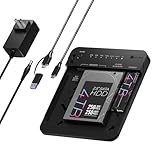
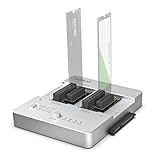
- Top Pick: GRAUGEAR NVMe M.2 & SATA SSD/HDD Hard Drive Docking and Clone Station
- Best Value: SABRENT USB 3.0 Dual Bay Hard Drive Docking Station & Cloner (EC-HD2B)
- Premium Choice: WAVLINK USB 3.0 and USB C to SATA Dual-Bay External Hard Drive Docking Station for 2.5/3.5 Inch HDD/SSD with UASP (6Gbps), Support Offline Clone/Duplicator Function [16TB X2 ]-Black
🛒 Best Price Today on Amazon
Prime members get fast, free shipping on everything above, plus member-only deals. New members get a 30-day free trial — cancel anytime.
- Still on HDD? Here’s How to Upgrade to SSD Without Losing Anything
- HDD vs SSD: The Performance Difference
- Before You Start: What You’ll Need
- Method 1: Clone Your Existing Drive (Recommended)
- Method 2: Fresh Windows Install (Clean Start)
- Choosing Your SSD: NVMe vs SATA
- How to Verify the SSD Is Running Correctly
- Repurposing Your Old HDD
- Frequently Asked Questions
- Related Articles
Still on HDD? Here’s How to Upgrade to SSD Without Losing Anything
Swapping a hard drive for an SSD is the single most impactful upgrade you can make to an older PC. Windows boot times fall from 60–90 seconds to under 10. Game load times halve. App launches turn instant. And you don’t even need to reinstall Windows — drive cloning carries everything across exactly as it is.
As an Amazon Associate we earn from qualifying purchases at no extra cost to you.


![WAVLINK USB 3.0 and USB C to SATA Dual-Bay External Hard Drive Docking Station for 2.5/3.5 Inch HDD/SSD with UASP (6Gbps), Support Offline Clone/Duplicator Function [16TB X2 ]-Black](https://m.media-amazon.com/images/I/31dgMm3OLfL._SL160_.jpg)


HDD vs SSD: The Performance Difference
| Task | HDD (7200 RPM) | SATA SSD | NVMe SSD |
|---|---|---|---|
| Windows boot time | 45–90 sec | 8–15 sec | 5–10 sec |
| Game load (Warzone) | 60–90 sec | 25–35 sec | 15–25 sec |
| Sequential read speed | 150 MB/s | 550 MB/s | 3,500–7,400 MB/s |
| Application launch | 5–15 sec | 1–3 sec | Under 1 sec |
Before You Start: What You’ll Need
Gather a few things before you begin so the migration goes smoothly. You’ll need the new SSD (sized so its capacity exceeds the used space on your current drive), a SATA-to-USB adapter or M.2 enclosure if your PC only has room for one internal drive at a time, and free cloning software. Critically, take a backup of your important files to a separate drive or the cloud first — cloning is reliable, but any drive operation carries a small risk, and a backup makes it stress-free. Finally, note whether your motherboard has a spare M.2 slot or SATA port; that decides whether you clone internally or through a USB enclosure.
Method 1: Clone Your Existing Drive (Recommended)
Drive cloning copies your whole Windows install, programs, and files onto the new SSD exactly. No reinstall needed. Best free tools: Macrium Reflect Free (most reliable), Clonezilla (open source), or Samsung Data Migration (if you’re moving to a Samsung SSD).
Cloning with Macrium Reflect Free
- Install new SSD (connect via USB enclosure if no free M.2/SATA ports)
- Download and install Macrium Reflect Free
- Open → Select source disk (your HDD) → “Clone this disk”
- Select destination (your new SSD)
- Click “Cloned Partition Properties” — resize Windows partition to fill the SSD
- Run clone (30–90 minutes depending on data size)
- Swap drives: remove HDD, install SSD in the main slot
- Boot — Windows loads from SSD automatically
If the PC won’t boot from the SSD after cloning, enter your BIOS/UEFI (usually Del or F2 at startup) and set the SSD as the first boot device — occasionally the board holds onto the old HDD’s boot order. Make sure your storage mode is set to AHCI rather than the older IDE mode for full SSD speed.
Method 2: Fresh Windows Install (Clean Start)
A fresh install gives you a clean, bloatware-free Windows on the new SSD. Best for PCs that have built up years of software clutter. Use the Windows 11 Media Creation Tool to make a bootable USB, install Windows on the new SSD, then reinstall only the apps you actually need. Your files can be pulled off the old HDD after installation.
Choosing Your SSD: NVMe vs SATA
For Windows and games, NVMe is the clear pick if your motherboard has an M.2 slot (check the specs). NVMe SSDs cost the same as SATA in 2026 but deliver 6–14x faster sequential speeds. If you’ve got no M.2 slot (older boards), a SATA SSD is still a massive upgrade over an HDD.
How to Verify the SSD Is Running Correctly
After the swap, confirm a few things so you’re getting the full benefit. Open Task Manager → Performance to check the SSD appears and shows fast read/write speeds. Run a quick CrystalDiskMark benchmark to verify you’re hitting the expected numbers — around 550 MB/s for SATA or several thousand MB/s for NVMe; anything far lower suggests a wrong slot or a SATA/PCIe misconfiguration. Then confirm Windows enabled TRIM (it does automatically for SSDs) and that disk defragmentation is off for the SSD, since defragging an SSD is unnecessary and adds wear. Windows should already treat it correctly, but a quick check under “Optimize Drives” confirms it shows as a solid-state drive.
Repurposing Your Old HDD
Don’t toss the old hard drive — it’s still useful as secondary storage. Once you’ve confirmed the SSD boots and runs cleanly, reformat the HDD and use it for large, access-insensitive files: video libraries, game archives you don’t currently play, photo backups, and downloads. Keeping your operating system and active games on the SSD while parking bulk data on the HDD gives you the best of both worlds — snappy performance where it counts and cheap capacity where it doesn’t. If your case has no room for a second internal drive, an inexpensive external enclosure turns the old HDD into a portable backup disk.
Can I clone a larger HDD to a smaller SSD?
Do I need to reinstall Windows after replacing my HDD with SSD?
Should I keep my old HDD after migrating to SSD?
How long does drive cloning take?
Will an SSD make my games run at higher FPS?
Is NVMe worth it over SATA for gaming?
Frequently Asked Questions
Can I move Windows to an SSD without reinstalling?
Yes, you can clone your existing drive to a new SSD using disk cloning software, which copies Windows, your programs, files, and settings exactly. After cloning and setting the SSD as the boot drive in BIOS, your system boots from the SSD with everything intact. This avoids a fresh install and reconfiguring all your applications and preferences.
What do I need to clone my drive to an SSD?
You need the new SSD, a way to connect it to your PC simultaneously with the old drive such as a spare SATA port, M.2 slot, or a USB to SATA adapter, and cloning software. Ensure the SSD has enough capacity for your used data. Back up important files first as a safety precaution before starting.
What if my SSD is smaller than my current HDD?
You can clone to a smaller SSD as long as it has enough space for the data actually used, not the full HDD capacity. Delete unnecessary files and move large media to another drive first so your used space fits the SSD. Most cloning tools then resize partitions to fit the target drive automatically during the process.
How do I set the SSD as the boot drive after cloning?
After cloning, restart and enter your BIOS or UEFI settings, usually by pressing Delete or F2 at startup. In the boot order menu, set the SSD as the first boot device and save. Windows should then boot from the SSD. You can keep the old HDD as extra storage or disconnect it to confirm the SSD boots alone.
Should I clone or do a fresh Windows install on my SSD?
Cloning is faster and preserves all your programs and settings, ideal if your current Windows install is healthy. A fresh install takes longer and requires reinstalling software, but it removes accumulated clutter and can improve performance and stability. If your system runs well, clone it; if it is bogged down or unstable, a clean install is better.
Ready to decide? Our #1 pick for 2026 is the Windows boot time.
Live price & availability on Amazon.