To fix FPS drops in FragPunk, first work out whether the dips come from your GPU, your CPU or shader loading, then set Ray Tracing to Off, Shadow Quality and Effect Quality to Low, leave Frame Generation off, try both Graphics API options (DX12 and DX11), and let the shader cache rebuild after every GPU driver or game update. Those changes cover most reported drops, from frame rates that collapse in card-heavy gunfights to hitches the first time you enter a new part of a map.
Why FragPunk drops frames
FragPunk runs on Unreal Engine 5, and its performance problems follow the usual UE5 pattern. Most drops come from one of these causes:
- Shader compilation and asset streaming. New shaders and textures load as you move around the map. The first time an effect appears, the driver has to compile it, and that shows up as a short, sharp hitch. A driver update or a big seasonal patch, such as the Season 6 Chapter 1 update in August 2026, throws out the old cache, so the hitches come back for a few matches.
- Effect-heavy fights. Shard Card effects, ability visuals and flashy weapon skins stack particles on screen. With Effect Quality on High, a five-on-five fight can push GPU load well above what you see while walking the map.
- Ray Tracing. Published settings guides report that turning ray tracing on creates a hard CPU ceiling, often around 150–200 FPS even on top-tier hardware. That can be enough to stop a 240 Hz monitor from ever being fed properly.
- VRAM overflow. If Texture Quality is set higher than your card’s memory can hold, data spills into system RAM and you get slowdowns that build up over a session.
- Background load and heat. Browsers, Discord, recording software and Windows updates compete for CPU time, and a CPU or laptop GPU that hits its thermal limit lowers its clocks right in the middle of a round.
Checks to run before changing anything
There is a Benchmark Tool at the bottom of the Video tab. Run it once before you change anything, so you have a baseline you can repeat. Then play a round with a performance overlay showing GPU usage, CPU usage and frame time, and compare what you see with the table below.
| What you see | Likely cause | First fix |
|---|---|---|
| FPS sinks in fights while GPU usage sits at 95–99% | GPU overloaded by effects and shadows | Effect Quality Low, Shadow Quality Low, DLSS or FSR on Quality |
| FPS stops around 150–200 whatever you change, with GPU usage under 80% | CPU limit (ray tracing or an older CPU) | Ray Tracing Off, close background apps, cap the frame rate |
| Single big spikes on the frame-time graph, in the same places each time | Shader compilation or asset streaming | Let the cache rebuild, try the other Graphics API, install on an SSD |
| Performance gets worse the longer you play | VRAM overflow or heat | Lower Texture Quality one step, check temperatures |
| FPS falls when you click on a second monitor | Out of Focus FPS Limit kicking in | Raise that limit, or keep the game window in focus |
Settings that fix most drops
These values aim for a frame rate that stays steady in fights, not the highest number on an empty map. Once the drops are gone, raise individual settings again to suit your hardware.
| Setting | Value | Why |
|---|---|---|
| Graphics API | DX12 first, then DX11 if the stutter continues | Players report opposite results; on some systems DX11 has a higher average FPS but more stutter |
| Ray Tracing | Off | Removes the CPU ceiling described above |
| Upsampling & Anti-Aliasing | DLSS on RTX cards, FSR on others | Renders fewer pixels, so GPU-bound dips get smaller |
| Resolution Quality | 100% with an upscaler, 80–90% without one | Avoid lowering resolution twice |
| Frame Generation | Off | Adds latency and does nothing about a CPU or shader hitch |
| Low Latency Mode | NVIDIA Reflex On (drop Boost if FPS falls) | Some players report lower FPS with On + Boost |
| Shadow Quality | Low | One of the most expensive settings |
| Effect Quality | Low | Biggest saving in busy fights, where the drops actually happen |
| Texture Quality | High with 8 GB+ of VRAM, Medium below that | Prevents VRAM overflow |
| Screen Space Reflection | Off | Costs performance for very little visibility |
| V-Sync | Off (Anti-Tearing is the DX12 alternative) | V-Sync queues frames and makes dips feel worse |
Set a frame cap you can actually hold
A stable cap often feels smoother than a higher, uncapped number, because what you notice as a stutter is the change in frame time. Frame time in milliseconds is 1000 divided by FPS. Say your PC hits 220 FPS on an empty map but drops to 130 FPS in fights. Uncapped, frame time jumps from 4.5 ms to 7.7 ms, a change of 3.2 ms that you feel as a hitch. Capped at 141 FPS on a 144 Hz monitor, it only moves between 7.1 ms and 7.7 ms.
| FPS | Frame time (ms) | Suggested Gameplay Frame Rate Limit |
|---|---|---|
| 60 | 16.7 | 58 for a 60 Hz screen |
| 144 | 6.9 | 141 for a 144 Hz screen |
| 165 | 6.1 | 162 for a 165 Hz screen |
| 240 | 4.2 | 237 for a 240 Hz screen, if your fight FPS can hold it |
If your FPS in fights is always below your refresh rate, set the cap just under your typical fight FPS instead. A steady 120 FPS feels better than an average of 180 that keeps dropping to 110.
Fix shader and streaming hitches
- Update the GPU driver, then warm up the cache. After a new driver, sit in the menus for a minute and play a casual match or a custom room before ranked. Some players also clear stubborn stutter by reinstalling the game after a driver update, which forces a fresh shader build.
- Clear a corrupted cache. In Windows, go to Settings, System, Storage, Temporary files and remove the DirectX Shader Cache. On AMD cards, Adrenalin has a Reset Shader Cache option under Gaming, Graphics. In the NVIDIA Control Panel, leave Shader Cache Size on Driver Default or set it to Unlimited so shaders are not thrown away.
- Verify the game files. In Steam, open the game’s Properties, then Installed Files, and verify integrity. If stutter returns after verifying, suspect the driver instead.
- Reset driver profiles. If you changed FragPunk’s profile in the NVIDIA app or AMD Adrenalin, restore it to default. Automatic per-game optimizations have caused drops for some players.
- Install on an SSD. The game now needs about 60 GB, and a hard drive cannot stream UE5 assets fast enough to avoid hitches in new areas.
Fix CPU and system bottlenecks
Compare your PC with the official requirements on the game’s store page. Many drops on older systems happen simply because the PC sits between the two tiers.
| Tier | CPU | GPU | RAM | Target |
|---|---|---|---|---|
| Minimum | Core i7-4790 / Ryzen 3 3100 | GTX 750 Ti / RX 550 / Arc A380 | 8 GB | Low quality, 1080p, 60 FPS |
| Recommended | Core i7-10700K / Ryzen 5 5600X | RTX 3060 / RX 5700 XT / Arc A750 | 16 GB | Highest quality (ray tracing off), 1440p, 144 FPS |
- 8 GB of RAM is tight. With a browser and Discord open, Windows starts paging to disk, which causes periodic drops. Close them before you play, or move to 16 GB, the recommended amount.
- Windows settings. Turn on Game Mode and Hardware-accelerated GPU scheduling. On laptops, set FragPunk to High performance under Settings, System, Display, Graphics so it does not run on the integrated GPU.
- Overlays. Turn off any overlay you do not need: Discord, Steam, the NVIDIA or AMD overlay, Xbox Game Bar and RGB control software. Each one hooks into the game and can add frame-time spikes.
- Temperatures. A CPU that sits at 90–100°C will throttle. Clean dust filters, check the cooler’s mounting, and keep laptops plugged in during play.
When the problem is not your PC
If the FPS counter stays steady while enemies teleport or your shots fail to register, that is a network problem, and graphics settings will not help; use a wired connection and check for packet loss. If performance gets worse straight after a patch, check the official patch notes before you change hardware, because regressions after a seasonal update are often fixed in the smaller patches that follow it.
Still Dropping Frames? When an Upgrade Makes Sense
If FragPunk still stutters or falls below your monitor’s refresh rate after every fix above, the limit is usually the graphics card or system memory rather than a setting. These are common upgrade paths for that situation.

ASUS Dual NVIDIA GeForce RTX 5060 8GB GDDR7 OC Edition (PCIe 5.0, 8GB GDDR7, DLSS 4, HDMI 2.1b, DisplayPort 2.1b, 2.5-Slot Design, Axial-tech Fan Design, 0dB Technology), 3 Year Warranty
Included for 'How to Fix FPS Drops in FragPunk: Causes, Checks, Fixes' because the listing specifies 8GB GDDR7 and DLSS 4, details this guide uses to compare options.
View on Amazon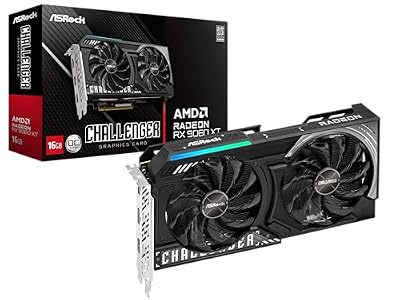
ASRock Radeon RX 9060 XT Challenger 16GB OC, RDNA 4, 3290MHz Boost, 16GB GDDR6 128-bit, PCIe 5.0, Dual Fans, 0dB Silent, LED Indicator, DisplayPort 2.1a, HDMI 2.1b
Included for 'How to Fix FPS Drops in FragPunk: Causes, Checks, Fixes' because the listing specifies RDNA 4 and 3290MHz Boost, details this guide uses to compare options.
View on Amazon