Quick answer: For most people in 2026, the best hell let loose settings for higher fps is the Low-end: older or entry-level GPU, around 4–6 GB VRAM — our #1 rated choice. See the full ranked comparison, alternatives and buying advice below.
Best Hell Let Loose Settings for Higher FPS
The best Hell Let Loose settings for FPS are to lower shadows and foliage first, keep textures matched to your VRAM, and use a resolution or upscaling mode your GPU can sustain. The presets below are practical starting points for low-end, mid-range, and high-end PCs—not fixed benchmark promises: actual FPS varies with resolution, CPU, map, player count, graphics settings, and game patches.
Choose a preset for your PC
| PC class | Starting resolution | Shadows | Foliage | View distance | Textures | Upscaling | Typical FPS range |
|---|---|---|---|---|---|---|---|
| Low-end: older or entry-level GPU, around 4–6 GB VRAM | 1920×1080 | Low | Low | Medium | Medium; Low if VRAM is full | Use a supported upscaler at Quality or Balanced | About 35–60 FPS |
| Mid-range: mainstream modern GPU, around 8–12 GB VRAM | 1920×1080 or 2560×1440 | Low or Medium | Medium | High | High | Quality at 1440p if supported; otherwise native resolution | About 55–100 FPS |
| High-end: powerful modern GPU, 12 GB or more VRAM | 2560×1440; 3840×2160 if performance allows | Medium or High | High | High or Epic | Epic | Quality or native; use Balanced only if needed | About 80–140+ FPS at 1440p; lower at 4K |
These broad ranges are estimates consistent with the variation seen across published PC performance reports, not a guarantee for a particular system. Hell Let Loose can become CPU-limited during busy battles, so a stronger graphics card alone may not deliver higher minimum FPS.
Build your settings in this order
-
Set a resolution your system can hold
Start at your monitor’s native resolution. If frame rate is too low, try a supported upscaling mode before dropping the game resolution. At 1440p, Quality upscaling renders fewer pixels internally and reconstructs the image; Balanced can add more FPS but makes fine detail softer. At 1080p, upscaling is often less appealing because distant edges and foliage can look noticeably less clear.
-
Lower shadows before textures
Set shadow quality to Low on a low-end PC and Low or Medium on a mid-range system. Shadows can be costly in scenes with many objects and light sources. Textures affect VRAM more than raw rendering workload, so keep them higher if your graphics card has enough memory. If textures cause stuttering or delayed loading, reduce them one step.
-
Reduce foliage only as far as you need
Use Low on a low-end PC, Medium on a mid-range PC, and High on a high-end PC. Dense vegetation adds visual complexity and can reduce performance, especially in wooded areas. Lower foliage may also make the battlefield look less natural, so it is a sensible early FPS trade-off but not an automatic Low setting for every system.
-
Keep view distance at Medium or higher
View distance can affect how far terrain, objects, and detail remain visible. Start at Medium if performance is poor, but avoid reducing it blindly: shorter visibility can make distant landmarks and battlefield details harder to read. High is a good compromise for most mid-range PCs, while high-end systems can try Epic and compare performance in a busy outdoor area.
-
Test post-processing and effects last
If the game still drops below your target, lower costly effects and post-processing options a step at a time. Keep a note of each change, then retest in the same type of scene. Changing several settings at once makes it difficult to identify which adjustment actually helped.
Settings by hardware situation
| Your situation | Recommended choice | Why |
|---|---|---|
| FPS drops mainly in forests or when looking across a crowded area | Lower foliage and shadows one step; keep resolution unchanged for the first test | These settings can reduce scene complexity without making the entire image smaller. |
| FPS is consistently low, including in open areas | Try Quality upscaling at 1440p or reduce resolution scale; then check GPU usage | A graphics workload limit is more likely if the GPU stays busy across different scenes. |
| FPS falls during explosions, large fights, or crowded towns | Lower shadows and effects; check CPU usage and background tasks | Heavy scenes may expose CPU limits that lowering resolution will not solve. |
| Textures stutter or objects take time to appear | Lower texture quality and close memory-heavy background apps | Texture settings can exceed available VRAM even when average FPS looks acceptable. |
Estimate the resolution trade-off
Pixel count is a useful way to understand why resolution changes matter. A 2560×1440 image contains 3,686,400 pixels, while 1920×1080 contains 2,073,600. That means 1440p draws about 78% more pixels than 1080p. If your GPU is the bottleneck, moving from 1440p to 1080p can help substantially, but it will not necessarily raise FPS by 78%: CPU limits, game workload, and upscaling all affect the result.
Use this as a decision rule: if lowering resolution improves FPS, keep the lower resolution or try an upscaler. If FPS barely changes, restore native resolution and focus on CPU-heavy scenes, background processes, and settings such as shadows or view distance instead.
Check whether the change worked
- Use the same map, location, and approximate view direction for before-and-after comparisons.
- Watch the lowest or most unstable frame rates as well as the average; smoothness matters in firefights.
- Make one or two changes per test, and allow the scene to settle after loading.
- Confirm that the game is using the intended graphics card and that its driver is current.
For a low-end PC, begin with 1080p, Low shadows, Low foliage, Medium view distance, and reduced textures only if memory pressure appears. For a mid-range PC, prioritize 1440p Quality upscaling where supported, Low or Medium shadows, Medium foliage, and High view distance. For a high-end PC, keep native resolution and raise foliage or shadows only after confirming that busy scenes remain smooth.
When Settings Aren’t Enough: Upgrade Options
If the lowest sensible settings still can’t hold a steady frame rate in Hell Let Loose, a newer graphics card is the upgrade that changes the most. These cards cover the usual budget-to-midrange steps.

ASUS Dual NVIDIA GeForce RTX 5060 8GB GDDR7 OC Edition (PCIe 5.0, 8GB GDDR7, DLSS 4, HDMI 2.1b, DisplayPort 2.1b, 2.5-Slot Design, Axial-tech Fan Design, 0dB Technology), 3 Year Warranty
Included for 'Best Hell Let Loose Settings for Higher FPS' because the listing specifies 8GB GDDR7 and DLSS 4, details this guide uses to compare options.
View on Amazon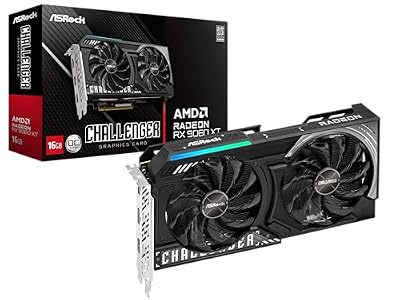
ASRock Radeon RX 9060 XT Challenger 16GB OC, RDNA 4, 3290MHz Boost, 16GB GDDR6 128-bit, PCIe 5.0, Dual Fans, 0dB Silent, LED Indicator, DisplayPort 2.1a, HDMI 2.1b
Included for 'Best Hell Let Loose Settings for Higher FPS' because the listing specifies RDNA 4 and 3290MHz Boost, details this guide uses to compare options.
View on AmazonReady to decide? Our #1 pick for 2026 is the Low-end: older or entry-level GPU, around 4–6 GB VRAM.
Live price & availability on Amazon.