Novery 2PCS 10.6" Rubber Tip Reptile Feeding Tongs, Straight & Curved | Soft Non-Scratch Tips, For Bearded Dragon Snakes, Aquarium Terrarium Enclosure & Craft Tools, Tank Accessories
Included for 'DisplayPort 2.1 Common Mistakes To Avoid: Best Setup Tips' because the listing specifies Straight & Curved and Soft Non-Scratch Tips, details this guide uses to compare options.
View on Amazon
Stylus(10 PCS), Stylus Pen for Touchscreen iPad. 2-in-1 Universal Stylus | High Sensitivity,Soft Rubber Tips,No Charging,Alloy Body,Suitable for iPad iPhone Android Tablets Nintendo Switch,20 Tips
Included for 'DisplayPort 2.1 Common Mistakes To Avoid: Best Setup Tips' because the listing specifies Stylus Pen for Touchscreen iPad. 2-in-1 Universal Stylus and High Sensitivity, details this guide uses to compare options.
View on Amazon
USB-C Magnetic adapter 4-Pack, Up to 80Gbps 16K 240W PD 3.1 EPR | Low-profile alloy-PC tip, dust seal, port protector. Leave-in tip, snap-on magnetic cable. Desk, car, travel, nightstand
Included for 'DisplayPort 2.1 Common Mistakes To Avoid: Best Setup Tips' because the listing specifies Up to 80Gbps 16K 240W PD 3.1 EPR and Low-profile alloy-PC tip, details this guide uses to compare options.
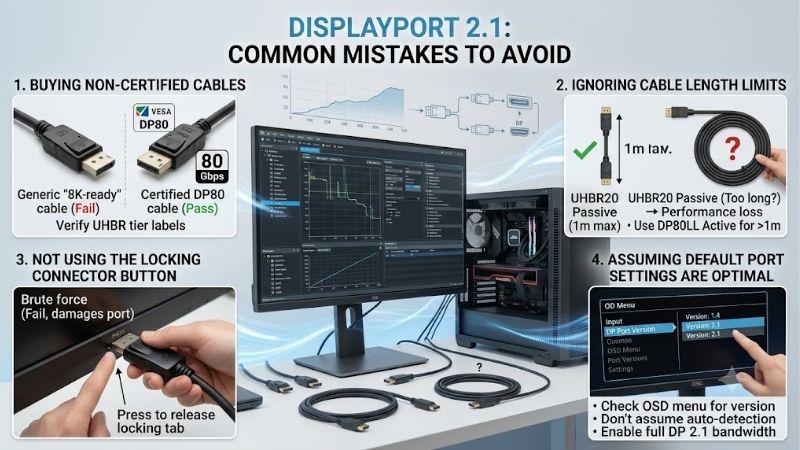
View on AmazonDisplayPort 2.1 common mistakes to avoid start with buying an 80 Gbps cable for incompatible hardware. A monitor may miss its top refresh rate because of the graphics card, a dock, or the selected input mode. Check the whole signal path before spending more, and never force a plug or pull a locked connector out by its cord.
How to Choose DisplayPort 2.1 Cables
This guide to displayport 2.1 common mistakes to avoid compares four certified cables and their key purchasing differences. You will learn which port specifications matter, how cable length affects the choice, and when a replacement can help. The aim is a working display mode, rather than a larger number printed on a box.
Check the Actual Port Link Rate
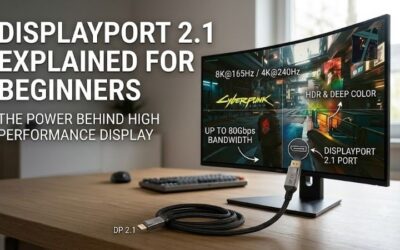
The version number describes a specification, not a promise that every port runs at its fastest rate. UHBR10, UHBR13.5, and UHBR20 provide 40, 54, and 80 Gbps of raw bandwidth across four lanes. Your graphics card and monitor must share a supported rate; a faster cable cannot add a missing transmission mode to either device.
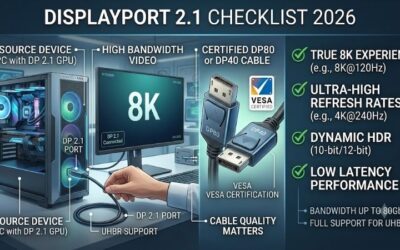
Look up the exact graphics card output and monitor input before buying. A DP80 cable supports the UHBR20 tier, but choosing it for slower hardware mainly gives room for a later upgrade. For a desktop with matching UHBR20 ports, Club 3D CAC-1091 is a sensible starting point because its certified rating covers that link speed.
Verify Certification and the Exact Model
Certification provides stronger purchasing guidance than vague gaming claims or resolution claims. VESA DP80 identifies cables tested for the highest UHBR transmission tier. Advertised resolutions omit conditions: refresh rate, color depth, and compression; superficially similar 8K claims can describe different configurations.
Verify certification against the model and length instead of treating a manufacturer’s reputation as universal proof. Decorative construction cannot improve an already functioning digital picture. Cable Matters 102095 provides a useful value candidate through published DP80 certification and an identifiable product number.
Measure the Cable Route
Length is a fit requirement, not a feature to maximize. Measure the route from the graphics card to the monitor with enough slack for screen movement and access to the ports. Too little slack puts strain on the sockets; extra length adds cable to manage. A desk route may be longer than the straight distance between devices.
Certification matters at the length you actually buy, so avoid treating a short model’s rating as proof for an unrelated extension. A longer certified cable is useful when the tower sits below the desk, even if it costs more or needs tidier routing. Choose Club 3D CAC-1094 when its 2-meter length fits that measured route.
Match Connectors and the Signal Path
Connector type is separate from DisplayPort version. These picks use full-size DisplayPort plugs at both ends, so none directly connects an HDMI-only screen, a Mini DisplayPort socket, or a USB-C laptop port. An adapter or dock adds another specification to check and can become the limit even when the cable supports DP80.
A direct connection removes those extra devices from the buying decision and makes later fault checks easier. Check the space behind the monitor as well, especially if its inputs sit inside a recessed compartment. For a tower close to the display with full-size ports, StarTech.com DP21V-1M-DP80-CABLE offers a defined 1-meter option.
Top Picks
These selections address displayport 2.1 common mistakes to avoid through certification and practical installation needs. Each product connects full-size DisplayPort endpoints without conversion. Roles reflect buying suitability rather than lab rankings, and advertised display modes remain conditional on compatible hardware.
| Product | Best For | Key Spec | Watch Out For |
|---|---|---|---|
| Club 3D CAC-1091 | Best Overall | DP80; 80 Gbps; 1.2 meters | Limited reach for floor-standing towers |
| Cable Matters 102095 | Best Value, subject to price | DP80; 80 Gbps; selectable lengths | Cannot directly connect USB-C-only laptops |
| Club 3D CAC-1094 | Longer Desk Routes | DP80; 80 Gbps; 2 meters | More cable to manage |
| StarTech.com DP21V-1M-DP80-CABLE | Short Routes | DP80; 80 Gbps; 1 meter | Little flexibility for equipment relocation |
Club 3D CAC-1091 — Best Overall
For displayport 2.1 common mistakes to avoid, Club 3D CAC-1091 provides an overall recommendation for nearby desktop hardware. Its specified 1.2-meter length offers modest additional routing allowance over one-meter alternatives. VESA DP80 certification supports the 80 Gbps raw transmission tier required for a compatible UHBR20 connection.
Club 3D specifies an UltraFlex jacket and locking connectors, offering flexible routing and retention behind a monitor. Installation distance remains the meaningful limitation: 1.2 meters may be insufficient for floor-mounted towers or extensive monitor-arm movement. Older outputs also cannot acquire additional bandwidth through cable replacement.
Cable Matters 102095 — Best Value
Cable Matters 102095 earns consideration for displayport 2.1 common mistakes to avoid as the best value candidate. The manufacturer specifies VESA DP80 certification and 80 Gbps support, matching the other picks. Its value recommendation applies when the chosen length carries a lower delivered price than comparable alternatives.
Backward compatibility supports older DisplayPort equipment during upgrades. The limitation is connector flexibility: Cable Matters 102095 has full-size DisplayPort ends, so a USB-C-only laptop needs different cabling. Selectable lengths also deserve attention at checkout; the shared product ID does not establish the chosen distance.
Club 3D CAC-1094 — Best for Longer Desk Routes
Club 3D CAC-1094 addresses displayport 2.1 common mistakes to avoid for installations requiring additional reach. Its specified two-meter length and DP80 certification make it the best selection for longer desk routes. A single appropriately sized connection avoids introducing a separate extension between the graphics output and monitor input.
Additional reach accommodates towers beneath desks or positioned beside furniture. The drawback is greater cable-management demand, and two meters remains insufficient for some room arrangements. Purchase this model for a measured installation requirement; length cannot improve picture quality or speed on a working connection.
StarTech.com DP21V-1M-DP80-CABLE — Best for Short Routes
StarTech.com DP21V-1M-DP80-CABLE addresses displayport 2.1 common mistakes to avoid as the best pick for short desk routes. Its one-meter length and VESA DP80 certification suit adjacent towers and monitors. Listing in the official DisplayPort product directory also provides a way to check the exact model for this cable.
Limited length reduces surplus cabling behind compact installations, although it restricts future placement. Moving the tower or extending a monitor arm could require replacement with a longer model. Verify the complete product designation when ordering, because similarly named StarTech.com products represent separate cable models.
Frequently Asked Questions
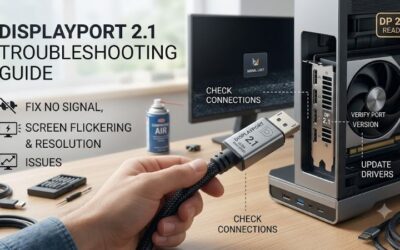
These answers cover displayport 2.1 common mistakes to avoid during setup and troubleshooting. Intermittent blackouts, unavailable refresh settings, and disappointing gaming performance suggest different investigations. Diagnose symptoms before purchasing replacements; a cable cannot resolve every limitation of a demanding monitor.
Does DisplayPort 2.1 Always Mean 80 Gbps?
No, DisplayPort 2.1 does not automatically provide 80 Gbps. Labels alone do not establish UHBR20 capability, and implementations differ between devices. DP80 identifies suitable cable certification for that transmission tier. Actual operation depends on shared endpoint capabilities, regardless of the fastest component’s specification.
Distinguish raw bandwidth from usable video capacity. Encoding and transport overhead prevent the entire stated 80 Gbps from carrying image information. For specific display modes, consult supported monitor timings alongside graphics-output capabilities; calculating pixel requirements against headline bandwidth alone overlooks those constraints.
Do I Need to Replace My DisplayPort 1.4 Cable?
No, replacing a DisplayPort 1.4 cable is unnecessary when the existing connection reliably delivers your preferred mode. A newer monitor label alone does not require replacement. Consider purchasing when higher transmission requirements exceed existing cable capabilities or repeatable connection problems indicate possible cable failure.
Display Stream Compression lets compatible hardware transmit demanding modes without carrying the uncompressed image stream. DSC targets visually lossless presentation, rather than mathematical losslessness. Buyers avoiding compression should verify supported uncompressed combinations of resolution, refresh rate, and color depth before purchasing.
How Do I Fix Flickering at High Refresh Rates?
Start flicker troubleshooting with a direct graphics card-to-monitor connection. Temporarily bypass docks or switches, reseat connectors, and reduce refresh rate while preserving other settings. Comparing behavior shows whether problems follow a more demanding transmission mode, although that relationship alone does not establish cable failure.
Check graphics-driver and monitor-firmware updates, then compare against a known-good cable rated for the required mode. Release connector latches before removal and maintain comfortable bends near plugs. Persistent failures across multiple suitable cables justify investigating hardware or settings instead of buying repeated replacements.
Will a DP80 Cable Increase My Gaming FPS?
No, a DP80 cable cannot increase graphics rendering performance. Replacement can enable a supported display mode when connectivity previously restricted it, but adds no computing power. Monitor refresh rate describes display cadence; gaming frame rate depends on workload and processing hardware, so those measurements need not match.
Confirm the intended refresh rate in system display settings, then inspect the game’s frame limit separately. Certain monitors require selecting an input mode through their own menus. A functioning 240 Hz connection can display gameplay below 240 frames per second without suggesting inadequate bandwidth or faulty connectivity.
Final Thoughts
The lesson behind displayport 2.1 common mistakes to avoid is to buy for a verified connection. Start with Club 3D CAC-1091, compare Cable Matters 102095 for value, choose CAC-1094 for a longer route, or use the StarTech.com model for a short one. Keep a working cable for your intended mode; upgrade to solve a defined limit.