Last updated: October 2026. Disclosure: this page contains affiliate links, and we may earn a commission if you buy through them at no extra cost to you.
- Quick answer: how do you control RGB on a CyberPowerPC?
- Quick facts
- Step 1: Work out what you are trying to control
- Step 2: Find your motherboard (for software control)
- Case lighting on the CyberPowerPC MA-01
- Case lighting on other CyberPowerPC cases
- Using motherboard software for case fans
- Rewiring fan lighting to the motherboard
- Keyboard lighting
- Mouse lighting
- Corsair iCUE, XPG and other brand software
- RGB and fan header basics
- Troubleshooting: RGB will not change
- OpenRGB: a third-party option, with a safety note
- When to contact CyberPowerPC support
- Accessories that help with case RGB
- Mistakes to avoid
- FAQ
- Wrap-up
Quick answer: how do you control RGB on a CyberPowerPC?
CyberPowerPC does not ship one app that controls everything. Case and fan lighting is controlled by a case button, knobs, a remote, or the motherboard’s utility (Armoury Crate, MSI Center, GIGABYTE Control Center or Polychrome). Keyboard and mouse lighting is controlled separately, by Fn key shortcuts, a button on the mouse, or the accessory maker’s software. First identify which part you want to change, then use the matching method below.
Quick facts
- Pressing a keyboard lighting shortcut changes the keyboard only. It does not change the case lighting.
- CyberPowerPC’s driver and software page sends buyers to each component maker, and lists makers such as Corsair, Cougar, ASUS ROG and XPG (RGB Sync App) for accessories. You need to know the exact part, so check your invoice or account order.
- CyberPowerPC builds some Corsair iCUE-certified systems. Those Corsair parts are controlled with iCUE.
- Its MA-01 case has analog controls that need no software.
- Some bundled keyboards offer preset lighting modes only, not full per-key customization.
- Menu names and key combinations change between models. Where this guide is unsure, it says so.
CyberPowerPC’s own support pages were not fully available for review when this guide was prepared, so details on the support pages below come from the search summaries and current competitor guides. Check your exact model’s support page if a step does not match your PC.
Step 1: Work out what you are trying to control
Most “RGB not working” complaints come from using the wrong control method. Match your goal to this table.
| What you want to change | Method | Software needed? |
|---|---|---|
| Case fans on a CyberPowerPC case with analog controls (MA-01) | Knobs and buttons on the case | No |
| Case fans on another case with an LED or RGB button | Press the button to cycle colors | No |
| Fans plugged into the motherboard ARGB header | Motherboard lighting app | Yes |
| Fans on a hub with a remote | Remote, or switch hub to motherboard mode | Depends on mode |
| Keyboard | Fn shortcuts, or the keyboard maker’s software | Depends on model |
| Mouse | Lighting button on the mouse, or the maker’s software | Depends on model |
| Corsair parts in an iCUE-certified system | Corsair iCUE | Yes |
Step 2: Find your motherboard (for software control)
- Press Windows + R.
- Type msinfo32 and press Enter.
- Read BaseBoard Manufacturer and BaseBoard Product.
The manufacturer tells you which app to use.
| Motherboard maker | Lighting app | Older name | Typical ARGB header label |
|---|---|---|---|
| ASUS | Armoury Crate | Aura Sync | ADD_HEADER / ADD_GEN2 |
| MSI | MSI Center (Mystic Light) | Mystic Light, Dragon Center | JRAINBOW |
| GIGABYTE | GIGABYTE Control Center | RGB Fusion 2.0 | D_LED |
| ASRock | Polychrome | Polychrome RGB / Sync | ADDR_LED |
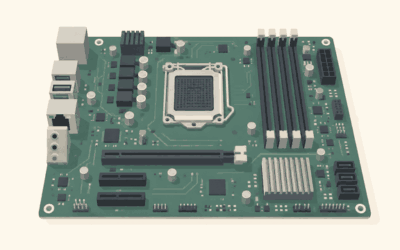
Header labels vary by board generation, so check the printed text next to the header or your motherboard manual. Some buyers report that ASRock boards include a utility called ASRock Utility or ASRRGBLED, so if Polychrome is not installed, look for those names too.
Case lighting on the CyberPowerPC MA-01
The MA-01 case uses analog controls so you can change lighting without software. A competitor guide that documents the case describes it like this, and you should confirm it against the labels on your own case:
- Button 3 switches between Mode 1 and Mode 2. Holding it resets the color to default white.
- Mode 1: Knob 1 picks one of 15 preset colors, Knob 2 changes brightness, and Knob 3 selects the effect.
- Mode 2: the three knobs set the red, green and blue values manually, for a custom color.
Case lighting on other CyberPowerPC cases
Many prebuilts have a small LED or RGB button on the top panel, front panel, or under the lip of the front panel. A short press typically moves to the next color or effect. Holding it for a few seconds may switch between hardware control and motherboard sync, if your controller supports that. If your PC shipped with a remote, try it next. If the lights obey the button but not the software, your fans are on the hub, not the motherboard. If they obey the software but not the button, the reverse is true.
Using motherboard software for case fans
Motherboard apps only control fans that are actually connected to the motherboard’s ARGB header, and a hub only follows the software when it is in motherboard mode.
- Install the app for your board from the motherboard maker’s support page.
- Close any other RGB program so the two do not fight for control.
- Open the app and go to the lighting section (Aura Effects in Armoury Crate, Mystic Light in MSI Center, RGB Fusion inside GIGABYTE Control Center, or the main Polychrome screen).
- Select the header or device. If you do not see the fans, they are probably not on that header.
- Pick an effect, a color, and then brightness or speed.
- Apply it and check the case.
If the fans run through a fan hub, you can leave them on the hub and use the button or remote. Or you can move their lighting lead to a motherboard ARGB header (see the next section).
Rewiring fan lighting to the motherboard
CyberPowerPC has a support guide for this task. The process is the same on most PCs, but the details depend on your fans and board.
- Shut down Windows, switch off the power supply, and unplug the PC. Touch bare metal on the case to discharge static.
- Open the side panel and locate where the fan lighting cable goes now (a hub or controller).
- Find an unused addressable header on the motherboard, using the label table above.
- Confirm the fan lead is a 5V three-pin ARGB connector. Do not use a 4-pin 12V RGB connector on an ARGB header.
- Match the pins. The connector is keyed, so it only fits one way. Do not force it, and check the motherboard manual for the header’s pin layout if unsure.
- If the cable is too short, use an ARGB extension cable. If you have more fans than headers, use a hub or a splitter designed for ARGB.
- Close the case, reconnect power, and boot. Open the motherboard app and check that the device appears.
If the fans light up but the app does not list them, restart the app and use its rescan or detect option.
Keyboard lighting
Keyboard lighting depends on the model that came with the PC. Check the model name printed on the keyboard or box first.
| Keyboard model | How lighting is controlled | Caveat |
|---|---|---|
| Skorpion K1 / K2 | Fn shortcuts (see below) | Combinations differ between models and revisions. |
| NOHI 2 | Fn key combinations for lighting modes | Documentation does not promise full RGB color customization. |
| CK60 mechanical 60% | Custom controller and software; also Fn shortcuts | Software name and download not confirmed here. Use the manual. |
| Multimedia gaming keyboard | Dedicated lighting key, often between Alt and Fn | Cycles through a small set of colors. |
For Skorpion K1 and K2 models, a competitor guide lists these shortcuts. They may vary by revision, so try them gently and check your manual:
- Fn + Ins: switch backlight effects (wave, ripple and so on).
- Fn + Home: change colors within an effect.
- Fn + plus / minus: increase or decrease effect speed.
- Fn + Del: rainbow mode.
- Fn + Page Down: reactive typing mode.
- Fn + End: custom individual key colors (hold, wait for the lights to blink, tap keys, then save with the same combination).
A simple rule: if the keyboard has a lighting key marked with a sun or bulb symbol, press it repeatedly to cycle colors. If a model offers software, it will be named in the manual or on the CyberPowerPC accessory listing. Do not install a “CyberPowerPC keyboard software” file from an unknown website. Use the official support page or the keyboard maker’s page.
Mouse lighting
Many CyberPowerPC gaming mice have a small button, often near the scroll wheel or the DPI selector, that cycles lighting. Pressing it repeatedly commonly steps through static colors, breathing, rainbow and off. Some models offer downloadable software on CyberPowerPC’s support page for deeper settings, such as custom colors and DPI. If you see no button, check the underside and sides of the mouse, or the manual. Mice from other brands, such as Corsair, Cougar or ASUS ROG, use their own software.
Corsair iCUE, XPG and other brand software
If your PC was sold as an iCUE-certified model, Corsair fans, coolers and hubs are controlled by Corsair iCUE. Install it from Corsair’s website, not from a mirror site. For XPG accessories, CyberPowerPC’s driver page lists the XPG RGB Sync App. Do not install several of these at once, because most vendor tools assume they are the only one controlling the lights.
RGB and fan header basics
| Type | Connector | Voltage | Behavior |
|---|---|---|---|
| RGB | 4-pin | 12V | One color at a time across the whole strip or fan. |
| ARGB (addressable) | 3-pin | 5V | Each LED can have its own color, so waves and rainbows work. |
- Never plug 5V ARGB into 12V RGB or the other way around. It can damage the LEDs.
- Fan power (the 3- or 4-pin fan connector) and fan lighting are separate cables. A fan can spin while its lights stay dark.
- AIO coolers can have three separate connections: pump power, fan power, and lighting (or USB for the cooler’s software).
- Many fan hubs take power from SATA. If a hub has no power, its lights will not work.
Troubleshooting: RGB will not change
| Symptom | Likely cause | Fix |
|---|---|---|
| Keyboard shortcut changes keyboard but not the case | They are separate systems | Use the case button, remote, or motherboard app for the case. |
| Motherboard app does not detect fans | Fans are on a hub, not the motherboard header | Use the hub controls, or rewire to an ARGB header. |
| Fans spin but stay dark | Lighting lead not connected or hub unpowered | Connect the ARGB cable and the hub’s SATA power. |
| App shows nothing at all | Another RGB app is running | Close it, restart, rescan devices. |
| Colors look wrong | RGB and ARGB mismatch or wrong LED count | Check connectors and settings. |
| Lights stuck on one color | Controller in the wrong mode | Press or hold the case button; check hub mode. |
| Settings reset after reboot | App not starting with Windows, or two apps competing | Keep one app and allow startup. |
Check the BIOS only after the cable and software checks, since lighting can be disabled there. Menu names vary by board and BIOS version. Do not flash a new BIOS just to fix lighting; a failed update can stop the PC from booting. CyberPowerPC does publish a motherboard-specific fix for one GIGABYTE board model, but that is only for that board, so follow the instructions on their support page rather than guessing.
OpenRGB: a third-party option, with a safety note
OpenRGB is an open-source program that tries to control RGB devices from many brands in one place. It is optional and is never required for a CyberPowerPC.
- It uses reverse-engineered protocols. The project itself warns that sending data to hardware you do not fully understand carries risk, and says controllers on some motherboards were damaged during development before safeguards were added.
- Close vendor RGB software such as iCUE, Armoury Crate, Mystic Light and RGB Fusion before running it. Two controllers at once causes conflicts.
- On Windows, run it as administrator at least once so it can detect memory and motherboard headers, and install its SMBus option if offered.
- Some antivirus and anti-cheat programs can block its low-level access. Do not leave security software disabled.
- Its documentation says only single-zone ASUS Aura and GIGABYTE RGB Fusion graphics cards are supported.
- Download it only from the official project page. If it causes crashes, start it with –nodetect and uninstall it.
A warranty claim may be harder if a third-party tool is involved, so test it carefully.
When to contact CyberPowerPC support
- A part is dead on every header and cable you try.
- You see burn marks or smell burning from a header or hub.
- You are unsure which cable goes where.
- The PC fails to start after you changed cables or BIOS settings.
- You have an unusual controller or custom motherboard that the common apps do not recognize.
Keep your order number, motherboard model, and clear photos of the inside of the case ready. If you are still choosing a PC, see our list of the best CyberPowerPC gaming PCs, our CyberPowerPC vs iBUYPOWER comparison, and where to buy a prebuilt gaming PC.
Accessories that help with case RGB
These are optional and only matter when your PC runs out of headers or cables.
A nine-port ARGB and PWM fan hub
The ShakingTank hub is a magnetic-mount nine-port fan hub with SATA power and 5V three-pin ARGB support. It is for builds with many fans and a limited number of motherboard headers. It reduces cable clutter, but you still need to connect it to a source for control, and it needs a free SATA power lead.

ShakingTank 9-Port ARGB PWM Fan Hub Controller - Magnetic PC Case Fan Splitter with SATA Power, 5V 3-Pin RGB LED Support for Desktop Cooling
Included for 'CyberPowerPC RGB Control: Keyboard, Mouse & Case Lighting' because the listing adds cooling or gel-infused layers, which is the attribute this article compares.
View on AmazonARGB extension cables
The MILAKE four-pack is a set of 30 cm female-to-female 5V three-pin ARGB extension cables. They help when a fan lead cannot reach the motherboard header after rewiring. They only extend; they do not add ports, and they do not fit 12V RGB.

MILAKE 4 Pcs 5V 3-Pin Female to Female ARGB Extension Cable (3 Pin) | 30cm / 11.8" Addressable RGB Extension Cable, 1-to-1 RGB Splitter Cord, Ideal for Extending Computer Case Fans and LED Strips
Included for 'CyberPowerPC RGB Control: Keyboard, Mouse & Case Lighting' as a representative gaming desktop pc in this roundup; selection reflects the product set returned for this topic.
View on AmazonA three-fan ARGB pack with motherboard sync
The Thermaltake CT120 EX is a three-pack of 120 mm ARGB case fans with magnetic connection and 5V motherboard sync. It suits a case where you want matching fans that follow the motherboard app. Its limit is that you still need available ARGB headers or a hub, so plan the connections first.

Thermaltake CT120 EX ARGB Sync PC Cooling Fan (3-Fan Pack), Magnetic Connection, 5V Motherboard Sync, 16.8 Million Colors 9 Addressable LEDs, 120 mm Case/Radiator Fan, CL-F181-PL12SW-A
Included for 'CyberPowerPC RGB Control: Keyboard, Mouse & Case Lighting' because the listing adds cooling or gel-infused layers, which is the attribute this article compares.
View on AmazonFor help with the wider decision, read the prebuilt specs that actually matter.
Mistakes to avoid
| Mistake | Why it matters | Better approach |
|---|---|---|
| Expecting one app to control everything | Keyboard, mouse, case, and cooler use different systems | Identify each device and its control method. |
| Downloading “CyberPowerPC RGB software” from unknown sites | Malware and wrong versions | Use the official support page or the part maker’s site. |
| Plugging 5V ARGB into 12V RGB | Can damage LEDs | Match connector, pin count, and voltage. |
| Opening a plugged-in PC | Electrical and static risk | Shut down, switch off the PSU, unplug. |
| Running several RGB apps | Conflicts and flicker | Keep one app active. |
FAQ
What software does CyberPowerPC use for RGB?
There is no single program. CyberPowerPC points buyers to each component maker’s software, such as the motherboard utility, Corsair iCUE for iCUE-certified parts, or the accessory brand’s own app. Some lighting needs no software at all.
How do I change RGB on my CyberPowerPC case?
Use the case LED or RGB button, the analog knobs on an MA-01 case, a remote if one came with the PC, or the motherboard app if the fans are on a motherboard ARGB header.
How do I change the keyboard color on a CyberPowerPC?
Press the lighting key if the keyboard has one, or use an Fn shortcut for your model. On Skorpion K1 and K2 keyboards, Fn plus Home changes colors within an effect and Fn plus Ins switches effects. Check your manual for other models.
How do I change the lighting on a CyberPowerPC mouse?
Look for a small lighting button near the scroll wheel or DPI selector and press it to cycle modes. Some models also have software on CyberPowerPC’s support page for more detailed settings.
Why won’t my CyberPowerPC RGB change?
The fans may be on a hub instead of the motherboard, another RGB app may be conflicting, or the lighting cable may be unplugged. Test the case button first, then close other RGB apps and check the ARGB cable.
Why does my motherboard app not detect my fans?
The fans are probably wired to a hub or controller, not an ARGB header on the motherboard. Move the lighting lead to a header with the PC powered off, or control them with the hub’s button or remote.
Is OpenRGB safe on a CyberPowerPC?
It works for many devices, but it carries documented risk because it talks to hardware through reverse-engineered protocols. Close other RGB apps, download only from the official page, and avoid it if you cannot afford a warranty problem.
Can I turn off RGB on a CyberPowerPC?
Yes. Cycle the case button until the lights are off, choose Off in the motherboard app, or use the Off setting on your keyboard or mouse. Each device has its own control.
Wrap-up
CyberPowerPC lighting is a set of separate systems: case controls, the motherboard app, and accessory shortcuts or software. Work out which one controls the part you care about, keep only one RGB app running, and match RGB and ARGB connectors carefully. For help choosing the PC in the first place, see our CyberPowerPC picks.