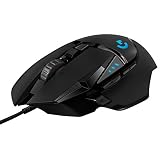
The most common gaming mouse mistakes are leaving Windows mouse acceleration (“Enhance pointer precision”) on, picking a sensitivity that is far too high for your mouse pad, and constantly changing DPI and in-game sensitivity so muscle memory never forms. Fixing just those three, by turning acceleration off, setting a sensible eDPI and keeping it for a few weeks, usually does more for aim than buying a new mouse.
This guide covers common gaming mouse mistakes in settings, setup and technique, with the exact values to check. It is not a buying guide: we only touch on purchase mistakes where they directly affect aim, such as shape and weight. Each fix below includes the reason it works, so you can decide what applies to your games.
Key takeaways
- Turn off Enhance pointer precision and keep the Windows pointer speed at the middle (10 of 20) for 1:1 input.
- Think in eDPI or cm/360, not DPI alone; 800 DPI with a lower in-game sensitivity is a common, stable starting point.
- Your mouse pad must be wider than your 180-degree swipe; low sensitivity on a small pad forces constant lifting.
- Polling rates above 1000 Hz help only if your CPU keeps up; 1000 Hz is the safe default.
- Pick one sensitivity and keep it for at least two to three weeks before judging it.
Quick answer: Our top pick in 2026 is the Windows acceleration on — our #1 rated choice. See the full ranked comparison, alternatives and buying advice below.
Common Gaming Mouse Mistakes at a Glance
| Mistake | What you notice | Fix | Target value |
|---|---|---|---|
| Windows acceleration on | Flicks overshoot when fast, undershoot when slow | Disable Enhance pointer precision | Off; pointer speed 10/20 |
| DPI too high | Jittery crosshair, hard micro-adjustments | Lower DPI, adjust in-game sens | 400-1600 DPI |
| Sensitivity too high for pad | Can’t track smoothly, wrist-only aim | Lower eDPI or use larger pad | Tactical FPS: 30-60 cm/360 |
| Changing sens every session | Inconsistent aim day to day | Lock settings for 2-3 weeks | One eDPI per game type |
| Polling rate too high for CPU | Frame drops, stutter in busy fights | Drop to 1000 Hz | 1000 Hz (2000-8000 Hz only on strong CPUs) |
| Lift-off distance too high | Crosshair drifts when you reposition | Set LOD in software | About 1 mm |
| Angle snapping on | Lines feel “straightened,” small diagonals lost | Disable in software | Off |
| Worn skates or pad | Scratchy or uneven glide | Replace skates; clean or replace pad | Pad cleaned monthly |
| Cable drag | Tug at the end of swipes | Use a bungee or go wireless | Cable lifted off desk |
| Wireless receiver far away | Occasional skips or stutters | Move dongle closer with extension | Within 8-12 inches of the mouse |
Gaming Mouse Settings Mistakes
1. Leaving mouse acceleration on
Windows’ Enhance pointer precision changes how far the cursor moves based on how fast you move the mouse. That helps a desktop pointer cross a big screen, but it breaks muscle memory in games, because the same physical distance produces a different result depending on speed. Most modern shooters use raw input and ignore it in-game, but menus, older games and some launchers do not.
- Open Settings > Bluetooth & devices > Mouse.
- Leave Mouse pointer speed at the middle (10 of 20). Above or below that, Windows scales input and can skip or repeat pixels.
- Select Additional mouse settings, open the Pointer Options tab and untick Enhance pointer precision.
- In each game, turn on Raw input if the option exists, and turn off any in-game mouse acceleration or smoothing.
2. Treating DPI as “higher is better”
DPI (or CPI) only sets how many counts the sensor reports per inch. A 26,000 DPI sensor is not more accurate at 26,000; it just reports more counts, which you then scale down in game. Very high DPI with very low in-game sensitivity can work, but it amplifies hand tremor and makes desktop use awkward. Most players settle between 400 and 1600 DPI. A good default is 800 DPI, then tune the in-game sensitivity.
3. Ignoring eDPI and cm/360
Two players with “800 DPI” can have completely different sensitivities. What matters is effective sensitivity:
- eDPI = mouse DPI x in-game sensitivity.
- cm/360 = how many centimeters you move the mouse to turn 360 degrees in game.
A worked example for Counter-Strike 2, which uses a yaw of 0.022 degrees per count: at 800 DPI and sensitivity 1.0, inches per 360 = 360 / (0.022 x 1.0 x 800) = 20.45 inches, or about 52 cm/360. In Valorant, whose sensitivity scale differs (divide a CS2 value by about 3.18), 800 DPI at 0.35 gives roughly 47 cm/360.
| Game type | Common cm/360 | Example eDPI (CS2 scale) | Why |
|---|---|---|---|
| Tactical shooters (CS2, Valorant) | 30-60 cm | 700-1300 | Precise first shots matter more than fast turns |
| Battle royale (Apex, Fortnite) | 25-45 cm | 900-1600 | Tracking plus frequent turning |
| Arena / fast FPS (Overwatch 2, Quake) | 15-35 cm | 1200-2700 | Constant 180-degree turns |
| MOBA / RTS | Desktop speed | N/A | Cursor-based; DPI 800-1600 for map coverage |
4. Changing sensitivity every time you miss
Aim improves through repetition at a constant setting. Every change resets the distance your arm has learned. A practical rule: choose a sensitivity where you can do a comfortable 180-degree turn in one swipe across your pad, then lock it for two to three weeks. If you play several shooters, convert the same cm/360 across games with a sensitivity calculator rather than guessing.
5. Cranking polling rate without checking performance
Polling rate is how often the mouse reports to the PC. 1000 Hz means once per millisecond. 4000 Hz and 8000 Hz reduce the interval to 0.25 ms and 0.125 ms, which can feel slightly smoother on 240 Hz+ monitors, but each step increases CPU load. On mid-range CPUs, or in CPU-heavy games, 8000 Hz can cause frame drops or input stutter. Start at 1000 Hz; try 2000 or 4000 Hz only if your frame rate stays stable.
6. Wrong lift-off distance and angle snapping
Lift-off distance (LOD) is how high the mouse can be lifted before the sensor stops tracking. If it is high, the crosshair drifts as you lift and reposition. Most gaming mouse software lets you set LOD to about 1 mm, or calibrate it to your pad. Angle snapping “straightens” movements into perfect lines; it helps in drawing apps but removes the small diagonal corrections aim depends on. Keep it off.
7. Wireless power-saving modes
Many wireless mice drop the polling rate or add sleep delay in battery-saver mode. If aim feels inconsistent late in a session, check the software for an “eco” or power-saving mode and turn it off while gaming.
Setup and Desk Mistakes
8. A mouse pad that’s too small for your sensitivity
Low sensitivity needs space. At 40 cm/360, a 180-degree turn needs 20 cm of travel in each direction from center, plus margin. A standard 32 x 27 cm pad forces constant lifting. Extended pads around 90 x 40 cm give room for arm aiming.
9. A dirty or worn surface and worn skates
Sweat and skin oils make cloth pads slower in the area you use most, so your glide changes across the pad. Wash cloth pads in lukewarm water with a little mild soap, rinse well and air-dry fully. Mouse skates (feet) also wear; once edges are scratchy or thin, replace them.
10. Cable drag
A wired mouse cable that rubs the desk edge adds resistance at the end of each swipe, which causes undershooting. Lift the cable with a mouse bungee, route it over a monitor arm, or switch to a modern wireless mouse, which no longer has meaningful latency at 1000 Hz.
11. Plugging the wireless receiver into the back of the PC
Metal cases, USB 3.0 ports and distance can weaken a 2.4 GHz signal. Use the included extension adapter and place the receiver on the desk within about 8-12 inches of the mouse.
12. Poor arm position
If your elbow hangs off the desk edge or the chair is too low, you aim mostly with the wrist, which limits range and consistency. Set the chair so your forearm rests flat on the desk with the elbow near 90 degrees, and give the forearm room to move.
Gaming Mouse Buying Mistakes That Affect Aim
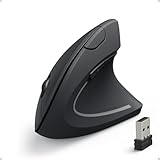
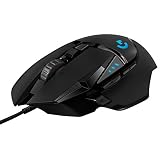
- Wrong size for your hand. A common guideline is a mouse length around 60% of hand length (wrist crease to middle fingertip). For a 19 cm hand, that is roughly 115-120 mm.
- Shape that doesn’t match your grip. Palm grip favors larger, ergonomic shapes; claw and fingertip grip favor shorter, symmetrical mice.
- Weight you can’t control. Very light mice (under 60 g) are easy to move but can overshoot for players used to heavier ones. Moving from 100 g+ to around 60 g is a big jump; give yourself time to adjust.
- Paying for specs you won’t use. Extreme DPI and 8000 Hz are marketing headlines; shape, weight and a reliable sensor matter more.
Gear That Helps
- SteelSeries QcK XXL (cloth · extended desk size · non-slip base): room for low-sensitivity arm aiming at a mid-tier cost.
- Logitech G840 XL (cloth · 900 x 400 x 3 mm · thin profile): a large, consistent surface for keyboard and mouse together.
- PWNAGE SmoothGlide Universal Dot Skates (PTFE · rounded edges · cut-to-fit dots): revives glide on a mouse with worn feet.
- Pulsar SUPERGRIP Universal Grip Tape (pre-cut · sweat-absorbing): helps claw and fingertip players keep control during long sessions.
A 10-Minute Reset Routine
- Disable Enhance pointer precision and set Windows pointer speed to 10/20.
- Set your mouse to 800 DPI, 1000 Hz, angle snapping off, LOD about 1 mm.
- Enable raw input in-game and disable mouse smoothing and acceleration.
- Pick an in-game sensitivity giving 30-60 cm/360 for tactical shooters, or 25-45 cm for battle royale.
- Check that a 180-degree swipe fits on your pad without lifting.
- Clean the pad and check skates.
- Play two to three weeks before changing anything.
Frequently Asked Questions
What DPI should I use for gaming?
Most players use 400-1600 DPI, with 800 a common default. DPI alone does not set your sensitivity; combine it with in-game sensitivity and judge by eDPI or cm/360.
Should I turn off Enhance pointer precision for gaming?
Yes. It adds acceleration that makes the same hand movement produce different results at different speeds. Turn it off in Additional mouse settings > Pointer Options.
Is 8000 Hz polling rate worth it?
Only on a strong CPU with a high refresh rate monitor. Otherwise it can cause frame drops. 1000 Hz is a safe default for nearly everyone.
Why does my aim feel inconsistent from day to day?
The usual causes are changing sensitivity often, a worn or dirty pad that changes glide, and wireless power-saving modes. Lock your settings, clean the pad and check battery mode.
Is low sensitivity always better for aim?
No. Low sensitivity helps precision in tactical shooters but makes fast turns harder. Choose based on the game type and your desk space.
How often should I replace mouse skates?
When the edges feel scratchy or the glide becomes uneven. For daily players, that is often every 6-12 months, depending on the pad surface.
Ready to decide? Our #1 pick for 2026 is the Windows acceleration on.
Live price & availability on Amazon.