The best webcam for a streaming setup is the one your build can actually feed. A 4K camera plugged into a shared front-panel USB 2.0 header will stutter, drop to 15fps or fight your audio interface for bandwidth — while a plain 1080p60 camera on a rear USB 3.0 port looks clean all night. This guide picks cameras from the build side: ports, encoder headroom, light and mounting first, sensor marketing second.
What your PC has to do before the webcam matters
Most webcam roundups compare sensors. In practice, three things in the rest of the machine decide whether the picture you paid for ever reaches your viewers.

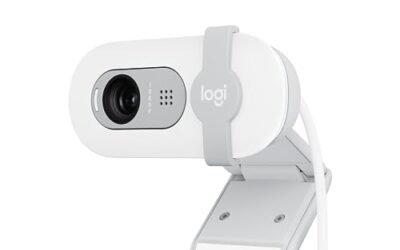
Logitech StreamCam Premium Webcam for Streaming and Content Creation, Full HD 1080p 60 fps, Works with Microsoft Teams, Google Meet, Zoom, Nintendo Switch 2’s new GameChat mode, for PC/Mac – Graphite
Included for 'Best Webcams for a Streaming Setup (Build-Focused Guide, 2026)' because the listing specifies Full HD 1080p 60 fps and Works with Microsoft Teams, details this guide uses to compare options.
View on AmazonUSB bandwidth and which port you use
A USB 2.0 port tops out around 480 Mbps of shared theoretical bandwidth, and real throughput is well below that. Compressed 1080p30 over MJPEG or H.264 fits comfortably. 1080p60 fits on most cameras. Uncompressed or lightly compressed 4K does not, which is why cameras like the Razer Kiyo Pro Ultra and Elgato Facecam Pro are specified for USB 3.0 and will either refuse their top mode or silently fall back on a 2.0 link.
Two rules that fix more streams than any camera upgrade: plug the camera into a rear USB 3.0 port wired directly to the motherboard, and do not share a hub with your audio interface. Front-panel headers run a long internal cable to a single controller, and an unpowered hub splits one controller’s budget across everything hanging off it. The symptom is not a dead camera — it is a camera that works for twenty minutes and then drops frames while your mic crackles. If you are planning a case and port layout, that is worth deciding early in a streaming PC build.
Encoding headroom for 1080p60 versus 4K
Two separate jobs happen at once. Your camera hands the PC an MJPEG or H.264 stream that must be decoded, then OBS scales, composites and encodes the whole scene. MJPEG decoding is cheap at 1080p and genuinely expensive at 4K60 — a 4K webcam feed can occupy a meaningful slice of CPU before a single frame is encoded, which is exactly the resource your game wants.
On the encode side, any modern discrete GPU with NVENC, AMD’s VCN or Intel’s Quick Sync handles 1080p60 output with almost no gameplay cost, and RTX 40-series and newer plus Arc cards add AV1 for better quality at the same bitrate. Software x264 at medium on a 6-core CPU while gaming is where people’s framerates die. The practical takeaway: a 1080p60 camera on a hardware encoder is a better build than a 4K camera forcing CPU work, unless you are on a dedicated second PC. See our notes on GPU versus CPU encoding and on choosing a GPU for streaming.
The part nobody wants to hear: light beats sensors
Webcam sensors are small. A small sensor in poor light raises gain, and gain is noise; the encoder then spends bitrate describing that noise instead of your face, so the stream looks soft and blocky. Adding one diffused key light in front of you — a panel, a ring light, even a bright window at the right angle — improves a $70 camera more than $250 of extra camera does. Light the subject, keep your bright RGB and monitor glow out of frame or behind you, and lock exposure manually so the camera stops hunting every time a bright game scene changes.
Best webcam for streaming by budget tier
| Tier | Representative cameras | Top usable mode | Port needed | Best for |
|---|---|---|---|---|
| Entry | Logitech C920x, Logitech Brio 100/300, Anker PowerConf C200 | 1080p30 (C200 offers 2K30) | USB 2.0 | First stream, second angle, laptop travel rig |
| Core streaming | Logitech StreamCam, Elgato Facecam MK.2, Razer Kiyo Pro | 1080p60 | USB 3.0 preferred | Talking head with motion; the sweet spot for most builds |
| Low-light focused | Razer Kiyo Pro Ultra, Elgato Facecam MK.2 | 1080p60 with a larger sensor / wide aperture | USB 3.0 required | Evening streamers, dark rooms, moody setups |
| 4K and framing | Elgato Facecam Pro, Insta360 Link 2, Obsbot Tiny 2 | 4K30 or 4K60 | USB 3.0 required | Downsampled 1080p detail, full-desk shots, tracking |
| Beyond webcams | Sony ZV-E10 II / Canon EOS R50 + Elgato Cam Link 4K | 1080p60 clean HDMI out | USB 3.0 capture device | Background blur and image quality no webcam matches |
Prices move constantly and the cards above show live pricing, so judge tiers by what they demand from your build rather than by a number you read last year.
Picks by use case
Talking head at a desk
This is the majority case and the easiest to build for. A 1080p60 camera with a roughly 78–90 degree field of view sits close, fills the frame with your head and shoulders, and keeps your room out of shot. The Logitech StreamCam and Elgato Facecam MK.2 both fit here; the Facecam family’s fixed-focus design is a feature, not a cut corner, because there is no autofocus hunting mid-sentence. Skip it if you sit far from the desk — fixed focus assumes a fairly predictable distance.
Full-desk or full-body shot
Wide field of view (90 degrees and up) or a camera that can pan. The Insta360 Link 2 and Obsbot Tiny 2 use a motorised gimbal to track you, which is genuinely useful for handcam, craft and build-log streams. The trade-off is honest: tracking software runs on your CPU, the wide end distorts faces, and a wide shot puts your whole room in frame, so your desk and cable management becomes part of the content. Skip it if you only ever sit still and talk — you are paying for motion you will not use.
Low-light rooms
Look at aperture and sensor size, not resolution. The Kiyo Pro Ultra’s headline is a large-for-a-webcam sensor with a bright lens, and it does help. But test it honestly against the cheaper fix: the same money spent on a key light usually wins, and it also helps your second camera, your photos and your video calls. Skip it if you have not yet added any lighting — buy the light first, then decide whether you still need the camera.
4K and why you probably still stream 1080p
Almost nobody streams at 4K. Twitch’s practical bitrate ceiling makes 1080p60 the target, and YouTube viewers overwhelmingly watch a window smaller than their screen. The real argument for a 4K camera is downsampling: capturing 4K and outputting 1080p produces visibly cleaner edges and lets you crop or reframe without losing detail. That is a legitimate reason to buy one — just budget the USB 3.0 port and the CPU cost of decoding the feed, and check you have the RAM headroom for streaming alongside your game.
Mounting: monitor lip, arm, or tripod
Mounting decides your camera angle, and camera angle does more for how you look than the sensor does. The included clip on a monitor lip is free and fine, but it forces the camera to your monitor’s height and it wobbles when you type on a desk-mounted keyboard. A small desk tripod gives you height and distance control for a few dollars. A dedicated camera arm or a mount on your monitor arm is the best of the three: it puts the lens just above your eyeline, tilted very slightly down, independent of where the monitor sits.
One build detail people miss — heavy webcams on thin, high-refresh monitors with slim top bezels can flex the panel. If your monitor’s top edge is under a centimetre, use a tripod or arm instead of the clip.
When a mirrorless camera and capture card beats any webcam
There is a hard ceiling to webcam image quality, and it is physics: the sensor and lens are small. A mirrorless body like the Sony ZV-E10 II, Canon EOS R50 or Fujifilm X-S20 with a fast prime produces the shallow depth of field, colour and low-light performance that makes a stream look professionally shot. You send clean HDMI into an Elgato Cam Link 4K or similar USB 3.0 capture device and OBS sees it as a camera.
The costs are real and worth stating plainly: you need a dummy battery or AC adapter for all-day power, the camera must output clean HDMI (no overlays) and not overheat or time out, you add a capture device to your USB budget, and the whole rig needs a stand. Budget an evening for setup, not ten minutes. If you already own a capture card for console capture, the marginal cost is much lower — though a single card can only take one source at a time.
Troubleshooting the usual failures
- Camera drops to 15 or 20fps in OBS. Almost always bandwidth or a hub. Move to a rear USB 3.0 port on its own controller, and check that OBS is requesting the MJPEG or H.264 output format rather than an uncompressed one.
- Picture pulses brighter and darker. Auto-exposure reacting to your game or lights. Turn off auto exposure and auto white balance in the vendor software or OBS device properties and set them once.
- Focus hunts while you talk. Disable continuous autofocus and set focus manually at your normal seating distance.
- Audio crackles only when the camera is on. Shared USB controller. Separate the mic interface and camera onto different controllers — this is a known interaction worth planning around when you pick a streaming microphone.
- Stream looks noisy despite a good camera. Add light before changing anything else, then raise bitrate.
Frequently Asked Questions
Do I need a 4K webcam to stream in 1080p?
No. Twitch and most YouTube viewers cap out at 1080p60 in practice, so a native 1080p60 camera on a rear USB 3.0 port is enough for the large majority of streamers. The one genuine benefit of 4K is downsampling: capturing more pixels than you output gives cleaner edges and room to crop your framing later, at the cost of extra CPU work decoding the feed and a mandatory USB 3.0 connection.
Will a webcam hurt my in-game framerate?
Slightly, and the size of the hit depends on resolution and encoder choice more than on the camera brand. Decoding a 1080p60 MJPEG feed is minor on any modern six-core CPU, while a 4K60 feed is noticeably heavier. Encoding your final stream on the GPU with NVENC, VCN or Quick Sync keeps the cost low; software x264 encoding while gaming on the same machine is what typically causes dropped frames and stutter.
Which USB port should I plug my streaming webcam into?
Use a rear USB 3.0 or higher port that connects directly to the motherboard, and avoid sharing an unpowered hub with your audio interface or capture card. Front-panel ports route through a long internal cable to a shared controller and are a common source of intermittent frame drops. If you must use a hub, choose a powered one and keep audio devices on a separate controller entirely.
Is better lighting really more important than a better webcam?
For most setups, yes. Webcam sensors are physically small, so in dim rooms they raise gain, which introduces noise that your encoder then wastes bitrate describing. One diffused key light placed in front of you typically improves picture quality more than upgrading from a mid-range camera to a flagship. Light first, lock your exposure and white balance manually, then decide whether the camera itself is still the limitation.
When is a mirrorless camera with a capture card worth the extra hassle?
When image quality is part of your brand and you stream regularly enough to justify the setup time. A mirrorless body with a fast lens gives background separation and low-light performance no webcam can match. Budget for a dummy battery or AC adapter, confirm the body outputs clean HDMI without overlays or recording time limits, add a USB 3.0 capture device, and plan a stable mount before you buy anything.