Tracking down a great gaming monitor under $200 has never been easier. In 2026, budget displays serve 1080p resolution at 144Hz or higher, low 1ms response times, and features that were premium-only just two years back. Whether you’re building your first rig or adding a second display, there’s a solid panel at this price tier.
We put dozens of sub-$200 panels through their paces to find the best performers for everyday gaming. Here are our top picks.
Quick answer: For most people in 2026, the best gaming monitor under $200 is the AOC C24G2 — our #1 rated choice. See the full ranked comparison, alternatives and buying advice below.
Top Gaming Monitors Under $200


What to Look For in a Budget Gaming Monitor
Resolution and Refresh Rate
Under $200, you’re mostly in 1080p (Full HD) territory. Most monitors at this price hit 144Hz or 165Hz — a huge step up from 60Hz for gaming. Put refresh rate ahead of resolution; the jump from 60Hz to 144Hz is far more noticeable than 1080p to 1440p when money’s tight.
Panel Type: IPS vs VA vs TN
Panel technology shapes color accuracy, viewing angles, and response time:
- IPS panels: Best color accuracy and wide viewing angles. Slightly higher response times (1–4ms GtG), but modern IPS is fast enough for most gamers.
- VA panels: Deepest blacks and highest contrast ratios. Great for single-player games. Can have slower pixel transitions (“smearing”) in fast motion.
- TN panels: Fastest response times (under 1ms). Worst color reproduction and viewing angles. Best for competitive eSports where speed is everything.
For most budget gamers, an IPS panel at 144Hz strikes the best balance of performance and image quality.
Response Time
Look for monitors rated at 1ms MPRT (Moving Picture Response Time) or 4ms GtG (Gray to Gray) or faster. These specs wipe out visible motion blur and ghosting in fast-paced play.
Adaptive Sync Support
Even at budget prices, most monitors now bundle FreeSync Premium (for AMD GPUs) and many are G-Sync Compatible too (for Nvidia GPUs). Adaptive sync kills screen tearing without leaning on V-Sync and its input lag penalty.
Best Budget Monitors Compared
| Monitor | Size | Resolution | Refresh Rate | Panel | Price |
|---|---|---|---|---|---|
| AOC C24G2 | 24″ | 1080p | 144Hz | VA Curved | ~$130 |
| ASUS VP249QGR | 24″ | 1080p | 144Hz | IPS | ~$150 |
| ASUS VG279QM | 27″ | 1080p | 280Hz | IPS | ~$200 |
| LG 24GN600-B | 24″ | 1080p | 144Hz | IPS | ~$140 |
| MSI Optix G241 | 24″ | 1080p | 144Hz | IPS | ~$145 |
Best Overall Pick: ASUS VP249QGR
The ASUS VP249QGR is still one of the best value gaming monitors going. Its 24-inch 1080p IPS panel serves accurate colors with wide viewing angles, and the 144Hz refresh rate with 1ms MPRT keeps motion crystal-clear. FreeSync Premium and Nvidia G-Sync Compatible certification mean it runs smoothly with any GPU in your budget build.
Best Value Curved Pick: AOC C24G2
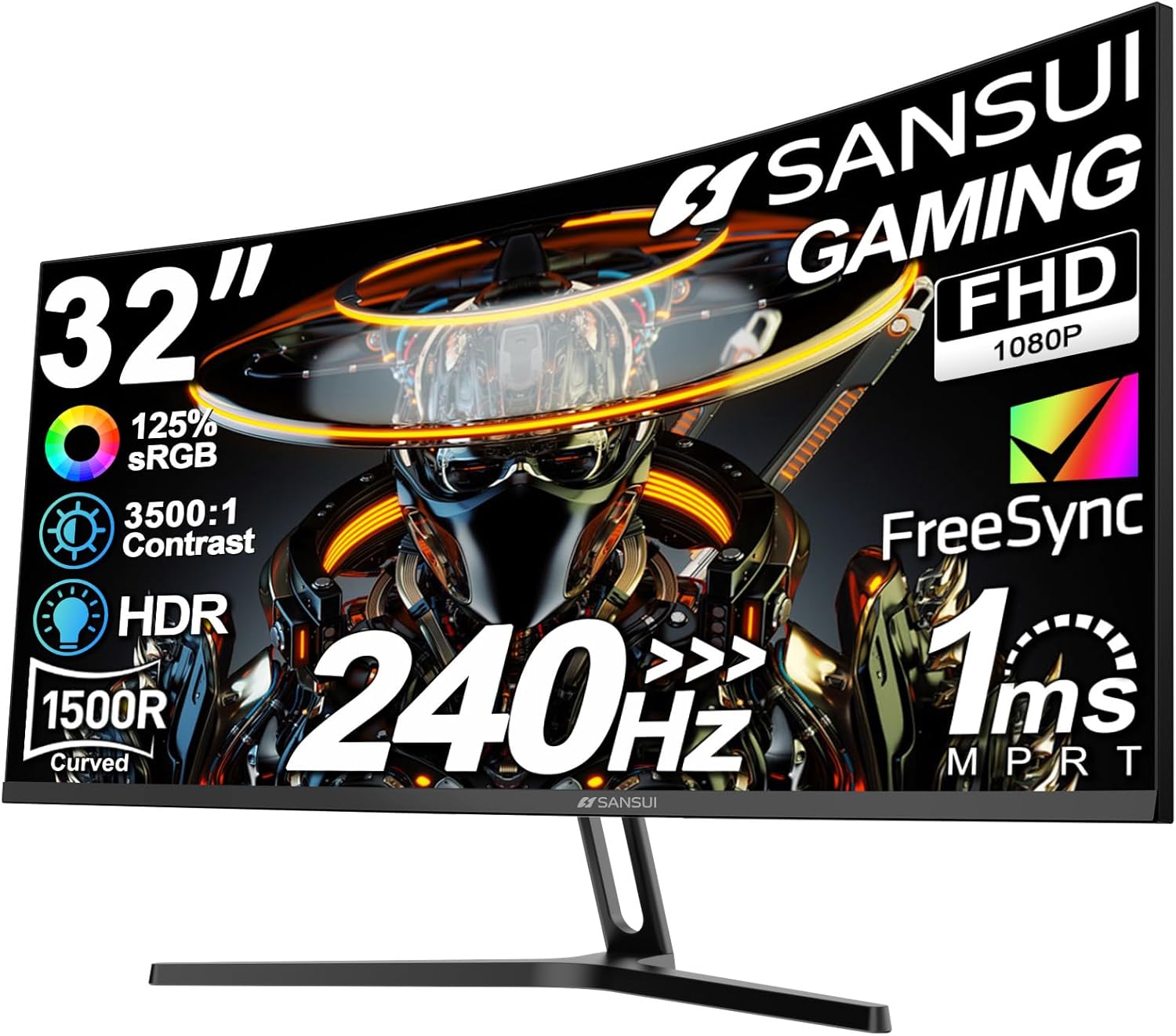
If you want the immersive feel of a curved display without blowing the budget, the AOC C24G2 is outstanding. Its 24-inch 1500R curved VA panel delivers excellent contrast ratios and deep blacks — perfect for atmospheric RPGs and story-driven games. The 144Hz refresh keeps competitive play smooth.
Best Refresh Rate Under $200: ASUS VG279QM
At the top of the budget range, the ASUS VG279QM serves an incredible 280Hz refresh rate on a 27-inch IPS panel. This is the monitor for dedicated competitive gamers playing CS2, Valorant, or Apex Legends who want every frame advantage. The Fast IPS panel offers under 1ms GtG response with ELMB Sync for blur elimination.
Monitor Size: 24-inch vs 27-inch
At 1080p, 24 inches is the sweet spot. At this size, pixel density is around 92 PPI — crisp without requiring GPU-intensive anti-aliasing. A 27-inch 1080p monitor has lower pixel density (~81 PPI), which can make text and UI elements look slightly soft. If you want 27 inches, consider saving up for 1440p instead (see our Best 1440p Gaming Monitor guide).
Is 1080p Still Worth It for Gaming in 2026?
Absolutely — especially for budget and mid-range builds. 1080p at 144Hz or higher is still the standard for competitive gaming. Games like CS2, Valorant, Overwatch 2, and Apex Legends get played at 1080p by pros precisely because higher frame rates beat resolution in esports. If your GPU is an RTX 4060 or RX 7600, 1080p high-refresh is your sweet spot.
Connectivity: What You Need
Most budget gaming monitors include:
- DisplayPort 1.4 — The preferred connection for full refresh rate support
- HDMI 2.0 — Supports up to 144Hz at 1080p
- Audio jack — For headphone passthrough
Use DisplayPort wherever you can for the best signal quality and full refresh-rate headroom. HDMI 2.0 is fine at 1080p/144Hz but won’t push higher resolutions at full refresh rates.
Tips for Getting the Most from a Budget Monitor
Once you have your monitor, dial in these settings:
- Enable Adaptive Sync in both your GPU control panel and monitor OSD
- Set refresh rate manually to max in Windows Display Settings (it doesn’t always default to max)
- Disable overdrive if ghosting occurs — many budget monitors overdrive too aggressively by default
- Adjust brightness to 80-120 nits for comfortable extended gaming sessions
- Enable Low Blue Light mode for late-night gaming to reduce eye strain
Ready to decide? Our #1 pick for 2026 is the AOC C24G2.
Live price & availability on Amazon.