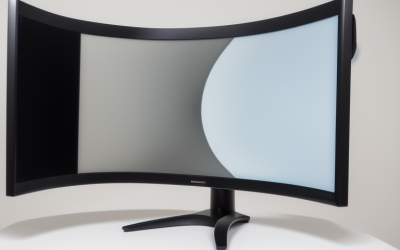
The best large curved monitor for work is the Dell UltraSharp U3425WE if you want two useful windows side by side and a hub for your laptop. Choose the 40-inch U4025QW for sharper text and more vertical space, or the 49-inch U4924DW if you already use two QHD screens and want one continuous desktop.
Best large curved monitor for work at a glance
A 34-inch ultrawide is the best starting point for most single-monitor desks. It can hold a working document and a reference window without taking up the space of a 49-inch display. Move up to 38 or 40 inches if you often run out of vertical space. Go wider still if you can name three windows you need visible at once.
| Monitor | Native resolution | Best fit | Main trade-off |
|---|---|---|---|
| Dell UltraSharp U3425WE | 3440 × 1440 | An everyday work desk with laptop docking | The screen has 1,440 vertical pixels, the same as a standard QHD monitor |
| Dell P3424WE | 3440 × 1440 | A straightforward office setup with USB-C | The core workspace is similar to the pricier 34-inch Dell, so compare the features you’ll use |
| Samsung ViewFinity S65UC, LS34C654UANXGO | 3440 × 1440 | Sharing a desk between a desktop and laptop | Confirm that the KVM switches the peripherals your workflow depends on |
| LG UltraWide 38WR85QC-W | 3840 × 1600 | More room for spreadsheets, timelines, and stacked panes | The extra vertical resolution is useful but smaller than the jump to a 5K2K panel |
| Dell UltraSharp U4025QW | 5120 × 2160 | Dense text, large spreadsheets, and Thunderbolt docking | Check host support for the intended resolution, refresh rate, and charging |
| Dell UltraSharp U4924DW | 5120 × 1440 | Replacing adjacent QHD monitors with one continuous workspace | More horizontal room without extra vertical resolution |
How these large curved monitors were selected
The comparison starts with a typical workday. The best fit depends on how many windows you use together, how small you can comfortably read text, and what your computer can drive through its available ports. Screen width matters most when it removes a specific interruption, such as switching away from a report every time you need to check a source.
All six picks are curved desktop monitors with at least 34 inches of diagonal screen size. The roundup covers three distinct upgrades. A 34-inch model adds width to a QHD-height workspace. The 38- and 40-inch models add vertical pixels as well. The 49-inch model maximizes horizontal room for people who already work across several panes. USB-C, Thunderbolt, and KVM features matter when they replace something you would otherwise need on the desk.
There’s no fixed U.S. budget in this roundup. Compare new units by exact model and include tax, shipping, and any arm, cable, or dock you would need. The recommendations reflect documented specifications and desk fit. A monitor with a higher purchase price can still make sense if it replaces a dock or a second display you planned to buy.
Which curved ultrawide fits your workday?
Start by sketching the windows you want across the screen. A document beside a browser points toward 34 inches. A wide spreadsheet with pinned rows or a timeline above several tracks points toward 38 or 40 inches. A 49-inch screen has a clearer purpose when several full-height applications need to stay visible.
Best large curved monitor for work on a single-screen desk — Dell UltraSharp U3425WE
The U3425WE is the most balanced choice here for a desk where one display handles documents, spreadsheets, meetings, and browser work. Its 34-inch curved screen provides 3440 × 1440 pixels, and the USB-C hub gives you a way to leave desk accessories connected while you take a compatible laptop with you.
The extra width is useful for two uneven panes. Give most of the screen to a spreadsheet and keep a browser or reference PDF open in the remaining space. That layout is often more practical than dividing the panel exactly in half. It also keeps both applications near your usual line of sight, which becomes harder if you put your primary tool at one far edge of a much wider screen.
The screen still has 1,440 vertical pixels. If your current 27-inch QHD monitor already feels short when you edit long documents, moving to this Dell will add columns or side panels more readily than it adds rows. The Dell U4025QW addresses that problem directly, while the LG 38WR85QC-W offers an intermediate step in size and vertical resolution.
Buy the U3425WE if you want one dependable working area for two applications and will use its hub. Compare the P3424WE if the two models would run the same window layout and your connection needs are modest. The best reason to pay more is a feature you can identify and use on your own desk.
Best for straightforward office docking — Dell P3424WE
The P3424WE fits offices that want a conventional 34-inch curved workspace and a USB-C connection to a compatible laptop. Its native 3440 × 1440 resolution provides the same basic window layout as the U3425WE. Compare these two first if you want the benefits of an ultrawide without paying for display features you might rarely use.
This model makes sense on a desk where you unplug a laptop at the end of the day and leave the display and peripherals in place. Before ordering, list the connections you intend to use. One person may need only a keyboard and mouse. Another may rely on wired networking, a webcam, and a dedicated charging arrangement. Verify what the monitor’s hub can handle together on your laptop.
If you already use a dock that works well, compare the P3424WE’s price with the total cost of keeping that dock and buying a simpler display. A built-in hub earns its place when it removes equipment or makes reconnecting more reliable for your routine. If the monitor will connect to the same desktop every day, its native resolution and physical fit may carry more weight than docking.
Buy the P3424WE if its price and port layout suit a general office setup. Choose the U3425WE if its specific feature set justifies the difference on the exact offers you find. If you switch between a desktop and laptop throughout the day, compare the Samsung’s KVM workflow before ordering.
Best for sharing peripherals between two computers — Samsung ViewFinity S65UC
The 34-inch ViewFinity S65UC suits buyers who alternate between a work laptop and a desktop but want one screen, keyboard, and mouse. The U.S. model in this comparison is LS34C654UANXGO. It combines a curved 3440 × 1440 panel with USB-C and a built-in KVM switch.
A KVM matters because changing video inputs alone changes only the picture. If the keyboard and mouse are still connected to the other computer, you end up reaching for another set of controls. With the Samsung, check the required video and USB upstream connections for both hosts. Then confirm that the peripherals follow the active computer after a switch and after sleep.
Test any device that matters to your work separately. A basic wired keyboard and mouse are a sensible starting point. A webcam, headset, card reader, or security key may behave differently when the connection switches. On a company-managed machine, your IT policies can also affect which USB devices work. If you only want the keyboard and mouse to switch, you can leave sensitive or interruption-prone devices plugged directly into the computer that uses them.
Buy the S65UC if you switch computers often and the documented KVM arrangement fits both machines. The P3424WE remains a sensible comparison if one laptop handles everything. If the screens in your current two-computer setup are also too small, decide whether a KVM on a 34-inch panel solves enough of the problem before committing to that size.
Best middle ground for extra vertical space — LG UltraWide 38WR85QC-W
The LG 38WR85QC-W is a good fit if 34-inch ultrawide feels cramped but you want to avoid the footprint of a 49-inch screen. Its 3840 × 1600 panel adds width and height over 3440 × 1440. That is useful for work that needs a broad horizontal view without giving up room above and below it.
Consider a spreadsheet with frozen headers and a formula bar. At the same interface scale, the extra height leaves more room for data beneath those controls. An editor can put a long timeline beside its tools and retain more space for the preview above it. A developer can keep a terminal open beneath the editor without leaving either pane quite as short. The benefit depends on the interface scale you actually choose.
The LG’s additional height is more modest than that of the 40-inch Dell. If you frequently zoom out just to fit long pages or tall images on screen, compare the U4025QW at a readable scale. If your problem is simply that a 34-inch display feels slightly tight in both dimensions, the LG gives you an intermediate option without committing to the widest chassis in this roundup.
Buy the LG when your workflow benefits from both axes and your desk can accommodate the panel. Use the full model name when checking U.S. offers and support materials. If you primarily want to show three side-by-side windows, the 49-inch Dell may be a closer fit than a moderate increase in height.
Best for fine text and Thunderbolt docking — Dell UltraSharp U4025QW
The U4025QW is the premium choice for people who read dense text all day and want space for several large panes. Its 40-inch curved panel uses 5120 × 2160 resolution. That combination gives you a wide canvas and finer pixel density than the 34-inch QHD-height displays in this roundup.
At native resolution, the screen contains 720 more vertical pixels than a 3440 × 1440 monitor. The actual difference in workspace depends on scaling. At 125%, a 5120 × 2160 desktop corresponds to roughly 4096 × 1728 logical pixels before application-specific behavior. You still have more effective height than a QHD screen at 100%, though the visible layout also depends on your app’s own zoom and toolbar settings.
Dell documents Thunderbolt 4, up to 140W of USB Power Delivery through the upstream connection, and support for up to 120Hz at native resolution over compatible paths. Check those requirements separately. Your laptop may support the full picture resolution at a lower refresh rate, or it may draw less than the monitor can supply. The cable, computer port, and graphics capabilities all affect the result.
Buy the U4025QW if text clarity, vertical space, and docking will each pay off in a normal week. The LG 38WR85QC-W makes sense if you want some extra height and the price difference is substantial. Choose the U4924DW if your priority is fitting more full-height windows across the desk with little need for extra rows.
Best replacement for adjacent QHD monitors — Dell UltraSharp U4924DW
The U4924DW is the pick for a workflow that already spans two monitors most of the day. Its 5120 × 1440 resolution provides the same total pixel grid as two 2560 × 1440 displays side by side. The center of the workspace is continuous, so a spreadsheet, timeline, or dashboard can cross it without a physical divider.
There’s a useful difference between having the pixels of two monitors and working as if you still have two. With one large desktop, maximizing an ordinary window can make text lines unnecessarily long. Set up window zones before deciding whether the monitor feels productive. A wide center area for your primary task and two narrower side areas can work better than treating the entire screen as one document.
If you present often, share an application window or a defined region when your meeting software supports it. Sharing all 5120 pixels across can make the result hard to read on a colleague’s laptop. Keep notes and messaging outside the shared area. If your workflow depends on sharing an entire conventional screen, test how your meeting application handles this layout before replacing two separate monitors.
Buy the U4924DW if you use two QHD workspaces and want to remove the divider, stands, or cabling. Check desk width, depth, and how easily you can read the outer edges from your usual seat. If you want more lines of text rather than more columns or panes, the 40-inch U4025QW better matches the problem.
How to choose a large curved monitor for work
Measure the desk and compare the screen at the scale you expect to use. Then verify how the computer will connect. For an ultrawide, these checks have more practical value than comparing diagonal size alone. A large panel can feel spacious or awkward depending on where the stand puts it and how your work is divided across it.
Measure usable desk space and viewing distance
Start with the monitor’s full chassis width and the stand’s footprint. Leave space for a laptop, speakers, or a charging area if those need to stay on the desk. Check whether the stand will bring the panel too close. A large screen can require more head movement if you sit close enough that the outer sections fall well outside your normal view.
A monitor arm can free some of that depth if the desk and arm accommodate the load. Use the monitor’s weight without its stand, the mounting pattern, and the arm maker’s guidance for the intended screen size. Account for clamp clearance, cable slack, and the room needed to move the arm. On a shallow desk, a wall or shelf behind the setup can limit the movement you expected to gain.
Compare vertical resolution as well as screen width
A 34-inch 3440 × 1440 panel gives a standard QHD-height desktop additional width. A 38-inch 3840 × 1600 panel adds a modest amount in both directions. The 40-inch 5120 × 2160 option is useful when fine text, additional rows, or taller panes are the reason you’re upgrading. A 49-inch 5120 × 1440 display gives that same 5120-pixel width with fewer vertical pixels.
Think through one task that regularly feels cramped. For a wide budget sheet, more columns may be the right answer. For a long contract or a code editor with a terminal stacked below, added height can do more. Before buying, decide which application gets the center of the screen and which ones can use narrower spaces around it.
Verify the laptop’s video, charging, and USB capabilities
Look up the computer’s supported external display modes before assuming a USB-C port can drive the full native resolution. Check the refresh rate you want as well, especially for 5120 × 2160. If you plan to use a dock, check that device’s supported outputs and how they change when another monitor is attached.
Then verify charging and peripherals. A laptop can display a picture through a monitor while drawing less power than it needs for sustained work. Test video and charging directly first, then reconnect accessories. If your computer already has a reliable dock, keep its capabilities in the price comparison. A monitor with a more elaborate hub only saves money or time when it replaces something you use.
Frequently asked questions
Is a 34-inch curved monitor enough for two windows?
Yes, for common pairs such as a document and browser or an editor and reference PDF. At 3440 × 1440, two equally sized panes each get about 1,720 pixels of width before borders and controls. Give one pane more room if your spreadsheet or design app needs it. Consider 38 or 40 inches if you need more vertical space as well.
Is a 49-inch curved monitor better than two monitors for work?
It can be better for a spreadsheet, dashboard, or timeline that crosses the center of the desk. Two separate monitors can be easier to position independently and make it straightforward to share one full screen in meetings. If you use two QHD displays today, try outlining your main and secondary window zones before replacing them with one 49-inch panel.
Conclusion
Choose the Dell U3425WE for a balanced 34-inch workspace, the P3424WE for straightforward office docking, or the Samsung S65UC to share peripherals between two computers. The LG 38WR85QC-W adds useful height without the footprint of a 49-inch screen. Buy the Dell U4025QW if sharper text and more vertical space drive the upgrade. Choose the U4924DW if your ideal desk already looks like two QHD monitors side by side.