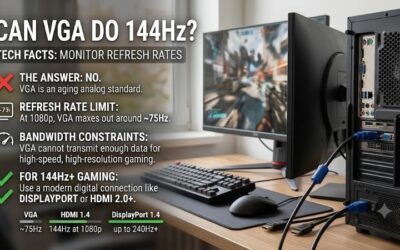
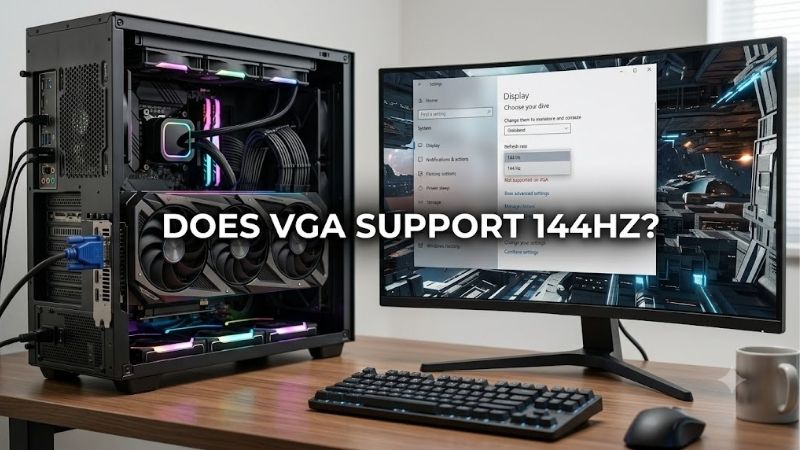
The answer to does vga support 144hz depends on your graphics hardware, monitor, resolution, and supported signal timings. VGA is an analog video connection without one universal refresh-rate ceiling, but many modern monitors limit their VGA inputs to 60Hz or 75Hz even when their panels support 144Hz through HDMI or DisplayPort. If your goal is smooth 1080p gaming at 144Hz, a compatible digital connection is usually the better choice.
- Does VGA support 144Hz on every monitor?
- Does VGA support 144Hz at 1080p?
- What determines 144Hz compatibility over VGA?
- Which connection should you use instead of VGA?
- How to check whether your VGA connection supports 144Hz
- How to enable 144Hz in Windows
- Troubleshooting when 144Hz is unavailable
- Frequently asked questions
- Final verdict
Does VGA support 144Hz on every monitor?
No. A VGA connection does not automatically support 144Hz just because the graphics card can render games at high frame rates or the monitor advertises a 144Hz panel.
Three separate capabilities determine what you can achieve: the graphics hardware must generate a compatible signal, the connection must transmit it reliably, and the monitor’s selected input must accept that signal. All three conditions must be met before Windows can offer 144Hz as a usable setting.
Consider the ViewSonic VA2532A-H, a 25-inch, 1920 × 1080 monitor advertised with a maximum refresh rate of 144Hz. Its official specifications list a vertical frequency range of 48–75Hz for RGB analog VGA and 48–144Hz for HDMI. The panel supports 144Hz, but the VGA input does not support that full range. [1]
This is the most important distinction when checking compatibility: the monitor’s maximum refresh rate is not necessarily the maximum refresh rate available through every port.
| Your hardware situation | Expected result | Recommended action |
|---|---|---|
| The monitor’s VGA input is rated for 60Hz | VGA will not provide 144Hz through that input | Use a compatible digital input. |
| The monitor’s VGA input is rated for 75Hz | The expected maximum through VGA is 75Hz | Switch to HDMI or DisplayPort if 144Hz is supported there. |
| The monitor supports 144Hz through HDMI or DisplayPort | Full refresh rate may be available through the supported port | Check the port-specific specifications and cable requirements. |
| The monitor’s VGA timings are undocumented | Compatibility is uncertain | Consult the exact model’s manual or manufacturer support page. |
| Windows lists only 60Hz or 75Hz | A restriction or configuration issue may exist | Verify the connection, input limits, resolution, and display settings. |
The practical rule is simple: verify the maximum refresh rate for the exact input you intend to use, not just the model name printed on the monitor.
Does VGA support 144Hz at 1080p?
It depends on the specific equipment, but you should not assume that VGA can deliver 1920 × 1080 at 144Hz.
VGA, or Video Graphics Array, carries analog video signals. HDMI and DisplayPort use digital signaling with defined interface bandwidth capabilities. Intel notes that analog VGA does not have a well-defined digital bandwidth limit, so its maximum usable resolution and refresh rate cannot be described by the same single bandwidth figure used for digital connections. [2]
That does not mean VGA can deliver every resolution and refresh rate. The source and display must still support the required signal timings, and the analog signal must remain clear enough to produce a usable image.
At 1080p and 144Hz, the display needs to refresh a 1920 × 1080 image 144 times per second. The graphics hardware, monitor electronics, and signal path must support the corresponding timing requirements. A VGA input designed for standard office refresh rates may not accept that mode, regardless of the computer’s processing power.
Why the resolution matters
Resolution describes how many pixels form the image, while refresh rate describes how many times the display refreshes that image each second.
Increasing either figure increases the demands placed on the display system. A lower resolution can reduce signal requirements and may allow a particular VGA setup to operate at a higher refresh rate, but that outcome is not guaranteed.
For example, switching from 1920 × 1080 to 1280 × 720 does not automatically unlock 144Hz. The monitor must support that refresh rate at the lower resolution, and the graphics hardware must be able to output the corresponding timing.
Always consult the monitor’s supported timing table instead of assuming that a resolution change will solve the problem.
Why VGA has no universal 144Hz rule
Analog signal quality depends on the graphics output, monitor circuitry, cable characteristics, and required signal frequency. Different devices can therefore behave differently even when they use the same 15-pin VGA connector.
Some older displays may support high refresh rates at particular resolutions, while others impose much lower limits. Neither outcome establishes a universal rule for every VGA connection.
The reliable answer comes from the manufacturer’s specifications for the exact graphics hardware and monitor. If the monitor lists VGA at up to 75Hz, treat that as the practical limit for that input rather than trying to force a higher refresh rate.
What determines 144Hz compatibility over VGA?
The monitor’s VGA input is often the limiting factor, but several parts of the setup can affect the final result. Check them individually before buying cables, replacing hardware, or changing Windows settings.
Graphics card or integrated graphics
Your graphics hardware must support the required resolution and refresh rate through the output you use.
An older desktop may have a native VGA connector, while a newer graphics card may offer only digital outputs. A computer may also use integrated graphics built into its processor. These differences affect which connections are available and which display modes can be generated.
A GPU capable of rendering a game at 144 frames per second does not necessarily support 144Hz over VGA. Game rendering performance and display-output compatibility are separate capabilities.
Check the manufacturer’s specifications for your exact graphics card or computer model. If it has several outputs, identify the one that supports your intended display mode.
Monitor input specifications
The monitor’s supported modes are essential. Manufacturers may specify separate refresh-rate ranges for VGA, HDMI, and DisplayPort because the inputs use different signaling methods and may have different hardware limitations.
The ViewSonic VA2450-HD offers another concrete example. Its official specification sheet lists 1920 × 1080 at 75Hz over VGA, while HDMI and DisplayPort support 1920 × 1080 at 144Hz under overclocked settings. Its native refresh rate is 120Hz, so the 144Hz mode is explicitly identified as an overclocked mode. [3]
This demonstrates two compatibility considerations: different inputs can have different refresh-rate limits, and an advertised maximum can depend on an optional operating mode.
Read the manual’s supported timing table carefully. Confirm both the resolution and refresh rate, along with any requirements for overclocking or specific ports.
VGA cable quality and length
A VGA cable carries analog signals, so its quality can influence image clarity and stability. Poor shielding, damaged connectors, electrical interference, or an unnecessarily long cable can contribute to blurred text, ghosting, or a noisy picture.
However, cable quality cannot override the monitor’s documented input limit. If the monitor accepts VGA only up to 75Hz, replacing a basic cable with a more expensive one will not make the input support 144Hz.
If your monitor officially supports the required VGA timing but the image is unstable, inspect the cable and connectors. If the timing itself is unsupported, changing to a suitable digital connection is the more effective solution.
Adapters and converters
Adapters can introduce additional compatibility restrictions. A VGA-to-HDMI converter, for example, must convert an analog signal into a digital one. It cannot simply change the connector shape while preserving every possible display mode.
The converter’s capabilities, input signal, output signal, and monitor compatibility all matter. Some adapters support only certain resolutions or refresh rates, so check the specifications before purchasing one.
Dell’s cable guidance recommends using matching ports directly when possible because adapters add another potential point of failure and can limit available display modes. [4]
If your PC has HDMI or DisplayPort and your monitor supports the same interface, using a direct cable is usually simpler than converting VGA to a digital signal.
Which connection should you use instead of VGA?
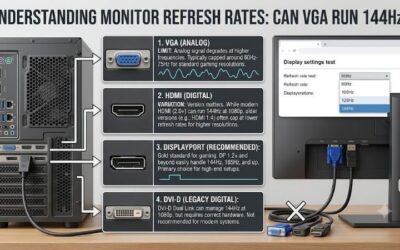
For a 144Hz gaming monitor, a supported digital connection is generally the preferred option. It can provide a sharper image than an analog signal at the same resolution and avoids the input restrictions that may prevent VGA from reaching the monitor’s advertised refresh rate. [4]
| Connection | Suitability for 144Hz | Compatibility check |
|---|---|---|
| DisplayPort | Often the best starting point for a desktop gaming monitor | Check the version, resolution, refresh-rate limits, and monitor input specifications. |
| HDMI | Often suitable for 1080p at 144Hz | Confirm the specific HDMI capabilities of both devices. |
| Dual-link DVI | Useful with some older gaming monitors | Verify that both devices support dual-link DVI and the required display mode. |
| Single-link DVI | Depends on the resolution and refresh rate | Do not assume it offers the same capabilities as dual-link DVI. |
| VGA | Often limited to lower refresh rates on modern monitors | Check the exact VGA input timing specifications. |
DisplayPort is a sensible first choice when both devices support it. HDMI is equally valid when the monitor and graphics output support the intended mode. Neither connection should be chosen purely by name or version number without checking the actual device specifications.
Older gaming monitors also illustrate why port-level compatibility matters. BenQ ZOWIE’s documentation for the XL2411 and XL2411P specifies dual-link DVI for 144Hz on the XL2411, while the XL2411P supports 144Hz through dual-link DVI and DisplayPort 1.2. The required connection differs by model. [5]
Before buying a cable, inspect the ports on both devices and check the manufacturer’s supported modes. You may already have everything required to achieve 144Hz without replacing the monitor or graphics card.
How to check whether your VGA connection supports 144Hz
Use these steps to establish compatibility before troubleshooting software or purchasing accessories.
Step 1: Identify the exact monitor model
Find the model number on the back of the monitor, in its on-screen menu, or on the original documentation. Search for the official manufacturer’s specifications or user manual.
Look for the maximum vertical frequency or supported refresh-rate table. Confirm that the figure applies specifically to VGA and to your intended resolution.
If the specifications list a 75Hz maximum for RGB analog, you should not expect 144Hz through VGA on that display. Look for a digital input that supports the full refresh rate instead.
Step 2: Identify the graphics output
Check the ports on your graphics card or computer. Determine whether you have native VGA, HDMI, DisplayPort, or DVI.
If your system has a dedicated graphics card, check the ports on that card rather than assuming that the motherboard’s video outputs will provide the same capabilities. On many desktop systems, motherboard display outputs depend on the installed processor and system configuration.
Match the graphics output to an input that supports 144Hz at the desired resolution.
Step 3: Check the cable or adapter
If both devices have the same compatible digital port, use a direct connection whenever possible. Confirm that the cable and any intermediate equipment support your required display mode.
If your setup relies on a converter, verify its maximum resolution and refresh rate. Do not assume that an adapter can unlock a mode the monitor or graphics hardware does not support.
Step 4: Check the supported resolution and refresh rate together
A specification that mentions 144Hz without stating the resolution or input may be incomplete for compatibility purposes.
Confirm all three details: the connection type, the resolution, and the supported refresh rate. Also check whether a particular mode requires enabling an overclock option in the monitor’s on-screen display.
This check is more reliable than simply searching for the monitor’s advertised maximum refresh rate.
How to enable 144Hz in Windows
Once you have confirmed that the graphics output, cable, and monitor input support 144Hz, select the correct refresh rate in Windows.
Set the refresh rate in Windows 11
-
Open Settings and select System.
-
Select Display, then Advanced display.
-
If you have multiple monitors, select the correct display.
-
Find the refresh-rate menu.
-
Select 144Hz if it appears among the available options.
Microsoft explains that the refresh rates shown in Windows depend on the display and the modes it supports. Some refresh rates may also require a different resolution. [6]
Check the setting in Windows 10
Open Settings, choose System, then Display. Select Advanced display settings and inspect the available refresh-rate options. Depending on your configuration, you may also need to open Display adapter properties and use the Monitor tab.
After selecting the desired mode, verify the active refresh rate in Advanced display. You can also check the monitor’s on-screen display if it reports the incoming signal frequency.
If Windows lists only 60Hz or 75Hz, do not immediately assume your graphics card is too old. Check whether the selected connection supports 144Hz before making further changes.
Troubleshooting when 144Hz is unavailable
If your monitor is advertised as 144Hz but Windows shows only a lower refresh rate, follow these checks in order.
-
If VGA is limited to 75Hz in the specifications, switch to an input that supports 144Hz. Software settings cannot override that input restriction.
-
If your monitor supports 144Hz on the selected digital input, confirm that the cable or adapter supports the required mode.
-
If the correct connection is already in use, select the correct monitor in Windows and check the available resolution and refresh-rate combinations.
-
If the expected mode remains missing, update the graphics driver using the graphics card manufacturer’s official support page, then check the display settings again.
-
If the screen goes blank after selecting an unsupported mode, return to a supported setting. Avoid repeatedly forcing custom timings outside the manufacturer’s specifications.
For monitors that require overclocking to reach the advertised maximum refresh rate, consult the manual to determine whether that feature must be enabled first. Do not assume every monitor requires the same menu option or procedure.
If you have verified the cable, output, input, driver, and supported timings but 144Hz is still unavailable, consult the monitor or graphics hardware manufacturer’s support documentation for the exact configuration.
Frequently asked questions
Does VGA support 144Hz at 720p?
Possibly, but the result depends on the supported timings of the graphics output and monitor input. A lower resolution can reduce signal requirements, but it does not automatically make 144Hz available. Check the manufacturer’s specifications for the specific resolution and refresh-rate combination.
Can a better VGA cable unlock 144Hz?
Not if the monitor’s VGA input is the limiting factor. A better cable may improve image clarity or reduce interference, but it cannot override the supported refresh-rate range of the input. Use a compatible digital connection if the monitor supports 144Hz through HDMI or DisplayPort.
Why does my 144Hz monitor show only 60Hz over VGA?
The VGA input may be limited to 60Hz at the selected resolution, or the system may be using a mode that does not expose the higher refresh rate. Check the monitor’s input-specific specifications first, then inspect the Windows refresh-rate menu and the capabilities of the graphics output.
Will a VGA-to-HDMI adapter provide 144Hz?
Only if the complete configuration supports the required mode. The converter must handle the input signal and output timing, the graphics hardware must provide a suitable signal, and the monitor must accept the result. An adapter does not guarantee 144Hz simply because it has an HDMI connector.
Does a graphics card that supports 144 FPS also support VGA at 144Hz?
No. Frame rate describes how many frames a game renders per second, while the graphics output determines which display signals can be transmitted. A GPU may render 144 FPS but still be unable to deliver a compatible 144Hz mode through a particular VGA connection.
Is DisplayPort better than HDMI for 144Hz?
Neither is universally better for every setup. Both can support 144Hz when the specific graphics output, monitor input, and cable are compatible with the desired resolution. DisplayPort is a convenient starting point for many desktop gaming monitors, but HDMI is also an excellent choice when its specifications meet your requirements.
Final verdict
VGA does not have one universal refresh-rate ceiling, but that does not mean every VGA connection can support 144Hz. The monitor’s supported input timings, resolution, graphics hardware, and signal path determine what is possible.
For a modern 144Hz gaming monitor, use a compatible DisplayPort or HDMI connection whenever available. Check the exact device specifications before buying cables or trying custom refresh rates. That approach is more reliable than assuming the monitor’s advertised 144Hz rating applies to every input.