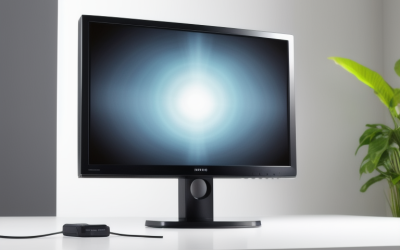
A touch screen gaming monitor makes sense when direct interaction solves a specific problem, such as navigating a compatible game or operating a secondary control panel. This review evaluates the ASUS VT229H as one concrete option: a compact touchscreen that can display games, but whose 60Hz ceiling and conventional stand make it a conditional choice for a gaming setup. Buy it for a defined touch workflow, rather than expecting touchscreen functionality to improve competitive gaming performance.
- Quick verdict: A touchscreen first, a gaming display second
- Review basis and exact product specifications
- Touch screen gaming monitor performance: What to expect
- Image quality and everyday use
- Connections and PC compatibility
- Desk fit and touch ergonomics
- Strengths and weaknesses in a gaming setup
- Alternatives that address different needs
- Buy or skip this touch screen gaming monitor
- Final verdict
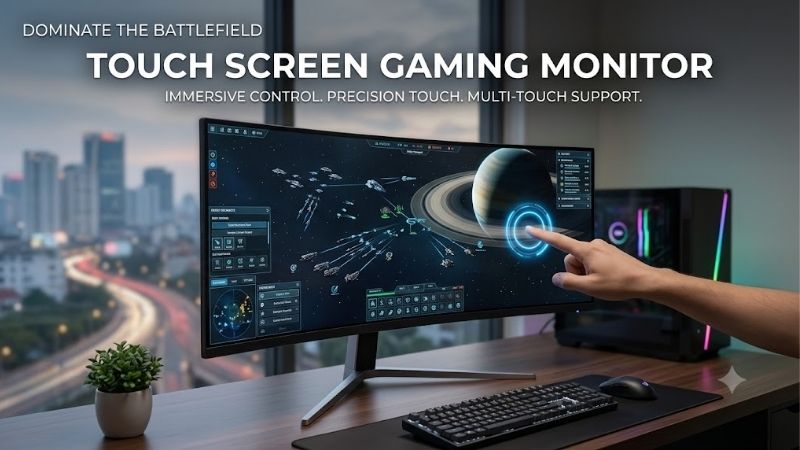
Quick verdict: A touchscreen first, a gaming display second
The ASUS VT229H deserves consideration if you want a desktop touchscreen for general Windows use with occasional gaming. Its appeal is straightforward: a familiar monitor format with direct finger input, rather than a portable screen that needs a separate support arrangement.
However, ASUS specifies a maximum refresh rate of 60Hz. That makes this a different proposition from a high-refresh gaming monitor, even before considering touch compatibility. Its advertised 5ms gray-to-gray response time is a manufacturer specification, not a measured end-to-end latency result.
The practical recommendation is to keep a faster main display if competitive play is important. Consider the VT229H beside it only when you already know which application or game will benefit from touch.
Who should consider it
The strongest candidate is a Windows desktop user who wants occasional direct interaction without replacing the entire PC with a tablet or all-in-one computer.
A compatible puzzle game, accessible menu interface, or dedicated control application could justify the touchscreen. The important word is compatible: the software must make useful sense when operated by fingers.
It can also suit a mixed-purpose desk where gaming shares time with browsing, media controls, and everyday applications. In that situation, touch is an additional input option, while the mouse and keyboard remain available.
Who should choose something else
Skip it as your primary upgrade if your main complaint is motion clarity in shooters, limited screen space, or insufficient resolution.
Also reconsider if you expect the screen to recline into a tablet-like working position. The supplied stand has a modest tilt range rather than an articulating design. That distinction matters more during repeated tapping than during ordinary mouse-driven use.
Review basis and exact product specifications
This is a specification-based editorial review of the ASUS VT229H. It draws on ASUS product documentation, its user manual, and official touchscreen support guidance. It does not include direct testing, measured touch latency, calibrated image results, or independently measured gaming response times.
The broad keyword does not identify a particular model. The VT229H is the editorial example selected here; the conclusions should not be generalized to every touchscreen.
| Specification | ASUS VT229H | Practical significance |
|---|---|---|
| Viewable screen size | 21.5 inches | Compact desktop format |
| Native resolution | 1920 × 1080 | Full HD workspace |
| Panel type | IPS | Conventional desktop LCD technology |
| Maximum refresh rate | 60Hz | Limited appeal for high-refresh gaming |
| Touch technology | Projected capacitive, 10-point | Supports multiple simultaneous contacts |
| Manufacturer response specification | 5ms gray-to-gray | Not a touch-latency measurement |
| Video inputs | HDMI 1.4 and VGA | Separate from the touch connection |
| Touch connection | USB Type-B upstream | Requires a USB connection to the computer |
| Included stand | −5° to +20° tilt; no height adjustment | Limited positioning flexibility |
| Mounting interface | 100 × 100mm VESA | Alternative mounting is possible |
These specifications come from ASUS documentation. The manual identifies the USB Type-B port specifically as the connection for touch functionality.
What the available evidence cannot establish
A specification sheet cannot tell us how accurately the panel tracks a quick drag, how stable the stand feels during repeated tapping, or how visible overshoot becomes in a moving game scene.
It also cannot establish whether your preferred game handles simultaneous touches correctly.
Those questions require testing with the actual monitor and software. Consequently, this review makes a suitability judgment rather than assigning a numerical performance score.
Touch screen gaming monitor performance: What to expect
The VT229H can serve as a screen for games, but displaying a game and providing useful touch controls are separate capabilities.
For conventional play, you can continue using a mouse, keyboard, or controller. Touch becomes relevant only when the operating system and application interpret those inputs appropriately.
The 60Hz ceiling is the central gaming limitation
A 60Hz display has a refresh interval of approximately 16.7 milliseconds. At 144Hz, that interval is about 6.9 milliseconds. These are calculations from refresh rate, not measurements of either monitor’s complete input delay.
The difference explains why a higher-refresh screen can present more frequent visual updates when the computer supplies enough frames.
Rendering more than 60 frames per second does not turn the VT229H into a high-refresh display. It also does not prove that the game will feel identical under every frame-rate configuration. The narrower conclusion is that this monitor cannot show 144 distinct refreshes each second.
For turn-based games and slower interactions, that limitation may be acceptable. For tracking fast-moving opponents, it is a substantial compromise.
Touch support does not establish low latency
Three separate processes matter: detecting a finger contact, handling the input in software, and displaying the resulting visual change.
The advertised gray-to-gray response figure describes a pixel-transition characteristic. It does not combine those processes into a verified touch-to-image result.
Likewise, 10-point touch describes simultaneous contact capability. It is not evidence of a particular polling rate, sampling frequency, or competitive advantage.
Without measurements, claims such as “instant response” or “lag-free touch gaming” would be unjustified. Evaluate this model around the interaction it enables, rather than attaching gaming-performance assumptions to the touchscreen specification.
Game interface design determines usefulness
A game designed around large touch targets is a more plausible match than one with dense toolbars, tiny inventory icons, or frequent right-click commands.
Even if tapping selects an item, other actions may remain awkward. Dragging, camera movement, modifier keys, hovering, and simultaneous commands can expose gaps between basic input recognition and a complete control scheme.
Before buying, identify the actions you perform repeatedly. If touch makes only the opening menu easier while complicating actual play, the feature has little practical value.
Image quality and everyday use
The compact Full HD format is a reasonable starting point for a mixed-use desk, but panel specifications should not be confused with independently verified image quality.
Viewing distance, lighting, scaling preferences, and the individual unit all affect the result.
Screen size favors compact setups
A smaller display can fit a desk where a larger touchscreen would crowd the keyboard or require excessive reaching.
However, compact dimensions also reduce the physical size of interface elements at a given scaling setting. A button that is easy to click with a pointer may be less comfortable to tap.
Increasing Windows scaling can help supported applications, but it also reduces the amount of usable workspace. Decide whether you need more visible information or larger controls before assuming that Full HD provides enough room for both.
Reflections deserve attention
ASUS lists a glare surface for this model. That makes room layout an important purchase consideration, particularly when a bright window or lamp faces the screen.
Inspect the intended position during the hours you normally use the computer. A placement that works in the evening may be less suitable beside a sunlit window.
Do not assume that increasing brightness will eliminate reflections. Moving the light source or changing the screen angle may be more useful, provided the resulting position remains comfortable for touch.
Avoid unsupported color and HDR expectations
This review does not establish factory calibration accuracy, uniformity, or suitability for color-critical work.
An IPS label alone cannot answer those questions. Similarly, accepting a video signal does not establish strong HDR performance.
For this purchase, the useful question is whether the screen meets your ordinary desktop and game-display requirements. If accurate editing or premium image presentation is equally important, require separate evidence for those tasks.
Connections and PC compatibility
The VT229H uses separate paths for the picture and touch input. Understanding that arrangement prevents a common installation mistake: connecting video successfully and expecting touch to work automatically through the same cable.
HDMI does not replace the USB touch connection
ASUS instructs users to connect the monitor’s USB Type-B cable to the computer for touch functionality, alongside the appropriate video connection.
For a straightforward desktop installation, plan for video, USB data, and monitor power.
If the computer has only USB-C ports, the setup may require suitable adapters. Choose them according to their actual video and data capabilities. A connector’s shape does not establish every function it supports.
Also avoid treating the monitor’s touch USB connection as a general-purpose docking station. The documented purpose is touch communication.
Windows is the clearest documented starting point
ASUS’s current global product page identifies Windows 11 and Windows 10 compliance, while the older US overview emphasizes Windows 10. That documentation difference should not be extended into an unsupported promise about every operating system.
For macOS, Linux, a handheld PC, or another platform, verify the exact combination before purchase.
Separate the questions carefully: Can the device output a compatible picture? Does the operating system recognize touch? Does the intended application use that input correctly?
Success at the first stage does not guarantee the other two.
Console video and console touch are different questions
Do not buy this monitor expecting a console’s HDMI connection to deliver touchscreen control.
This review does not verify touch input for PlayStation, Xbox, or Nintendo hardware. Even where a suitable picture can be displayed, that does not establish an operating-system or game-level touch pathway.
For a console-focused setup, touch is therefore an unproven benefit. Evaluate the purchase around verified console display behavior and your actual input device instead.
Desk fit and touch ergonomics
Touch changes where a monitor needs to sit. A screen positioned comfortably for viewing may be too far away for repeated interaction.
The VT229H’s conventional stand makes that issue especially relevant.
The included stand limits positioning
ASUS specifies no height adjustment and a tilt range from −5° to +20°. This is enough for ordinary viewing adjustment, but it is not equivalent to a stand designed to fold down toward the desk.
Imagine performing your intended gestures in that position. Occasional taps may be practical; sustained interaction may encourage leaning forward or holding an arm unsupported.
That is a usage consideration, not a measured comfort result. The right answer depends on your desk height, chair position, reach, and session length.
VESA mounting creates options, with extra costs
The documented VESA interface allows consideration of another mount, but compatibility involves more than matching the hole pattern.
Check supported monitor weight, mounting hardware, adjustment range, desk attachment requirements, and cable clearance.
For touch, also consider whether the mount resists movement during normal input. A freely moving arm may be convenient for repositioning yet frustrating when tapping shifts the screen.
Include the mount in the purchase budget. A low monitor price can become less attractive if a separate support system is necessary to make it usable.
Test the complete workspace
Before ordering, mark out the screen position with a similarly sized object. Place the keyboard and mouse where they would actually sit.
Check whether you can reach the full display without repeatedly moving your chair. Leave space for cables and for ordinary desk work.
For a secondary-screen installation, make sure the touch display does not force the main gaming monitor off-center. A useful accessory should improve the workstation as a whole.
Strengths and weaknesses in a gaming setup
The VT229H has a coherent role when touch is a deliberate requirement. Its weaknesses become more significant when it is purchased as a general gaming upgrade.
Its strongest advantage is direct interaction
A separate touchscreen lets you add finger input to an existing desktop without moving all your work onto a tablet.
That flexibility can be useful when a particular Windows application benefits from larger, directly accessible controls.
The important advantage is the input method itself. It should not be confused with better graphics performance, greater immersion, or improved game compatibility.
Its main weaknesses are speed and flexibility
The refresh ceiling limits its appeal as a primary display for fast games. The stand limits how easily it can accommodate frequent touch use.
Separate video and USB connections also create more cabling than some newer USB-C arrangements.
Finally, no verified touch-latency result is available in this review. Buyers whose task depends on precise timing should treat that missing evidence as a reason to test carefully, rather than assume satisfactory performance.
Alternatives that address different needs
These alternatives are not ranked as faster gaming touchscreens. They illustrate different ways to solve the problems that may lead someone to consider the VT229H.
Dell P2424HT for a more flexible desktop arrangement
Dell’s P2424HT offers a 23.8-inch Full HD touchscreen, an articulating stand, and USB-C connectivity with up to 90W power delivery. Its documented refresh rate remains 60Hz.
Consider it when positioning and laptop connectivity matter more than compact dimensions.
The stand addresses a practical weakness of the ASUS arrangement, but it does not establish a high-refresh gaming advantage. Confirm the connected laptop’s USB-C capabilities and charging requirements before relying on a simplified cable setup.
ASUS ProArt PA148CTV for a smaller secondary screen
The PA148CTV is a 14-inch portable touchscreen with 10-point touch. ASUS specifies particular host requirements for a single USB-C connection, including DisplayPort Alt Mode and sufficient power output.
Its smaller format may suit a movable auxiliary display better than a conventional desktop monitor.
However, reducing screen size also reduces touch-target size unless the application layout changes. Choose it for portability or a defined secondary task, rather than assuming a smaller touchscreen is automatically easier to operate.
A conventional gaming monitor when touch is optional
If your real objective is smoother motion, invest in a suitable high-refresh monitor with credible independent testing.
If you already own one, keeping it may be the best decision. Add touch only after identifying a separate task worth the expense and desk space.
That approach avoids asking one screen to satisfy conflicting priorities merely because its feature list includes both display output and touch input.
Buy or skip this touch screen gaming monitor
Buy the VT229H if you have confirmed that your software benefits from touch, you are comfortable with 60Hz, and its positioning works at your desk.
Skip it if the purchase is meant to improve competitive motion clarity, provide a deeply reclining touch surface, or guarantee touchscreen controls for software you have not checked.
Check the complete purchase cost
Compare the delivered US price for the exact model, seller, and condition. This review does not provide a verified current price or confirmed Amazon offer.
Account for adapters, a possible mount, and return shipping terms where applicable. Check included cables against the actual listing rather than assuming every regional package is identical.
Also verify the applicable US warranty. Product documentation alone should not be used to invent coverage for a particular seller or imported unit.
Use the return period for a meaningful evaluation
Test the real application rather than stopping after a successful desktop tap.
Check repeated selections, dragging, edge controls, and any simultaneous inputs the task requires. Then play using your normal mouse or controller to judge whether the display itself meets your expectations.
If using multiple monitors, confirm that touches affect the intended screen. Test after reconnecting cables and waking the computer, since a setup should remain practical beyond its first successful demonstration.
Final verdict
The ASUS VT229H is a conditional choice for a gaming desk: useful when a verified touch workflow matters, less convincing as a primary gaming upgrade. Its documented capabilities support a compact Windows touchscreen role, while its refresh rate and stand place clear limits on broader gaming ambitions.
Choose it after confirming the software, connections, and desk position. If touch remains an interesting feature without a specific purpose, keep your existing screen or prioritize a gaming monitor whose measured performance matches your games.