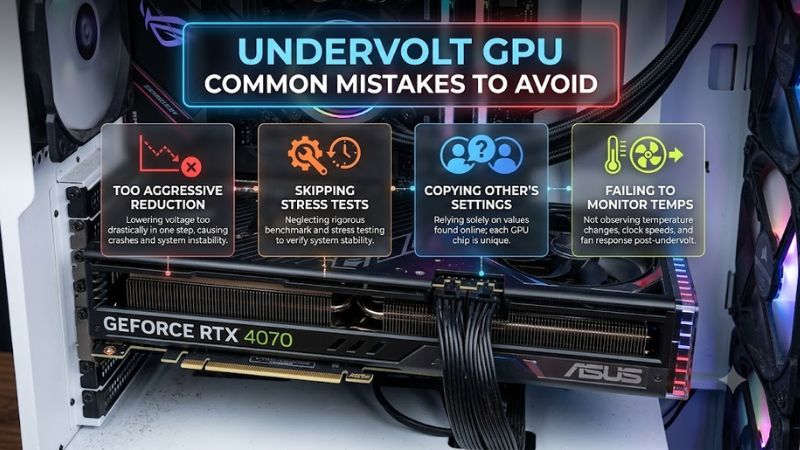
Undervolt gpu common mistakes to avoid include copied settings, simultaneous adjustments, and incomplete stability checks. Lower temperatures mean little if your next game crashes. This guide explains baseline measurements, conservative voltage changes, and workload testing before a profile becomes your daily configuration.
How to Choose GPU Undervolting Tools
This undervolt gpu common mistakes to avoid guide prioritizes stable performance: use supported controls, preserve factory defaults, and reverse adjustments that introduce errors. You will learn software selection, baseline recording, and validation. Establish reliable operation at stock first; undervolting cannot repair faulty hardware.
GPU Compatibility and One Tuning App
GPU tuning support depends on the chip, driver, and system maker, not just the logo on the cooler. Some laptops hide voltage controls, so a desktop guide may not apply. Check that your tool can change your card’s voltage before you follow a screenshot. For a supported NVIDIA card, MSI Afterburner is a useful place to start.
Conflicting utilities can overwrite voltage or frequency settings, producing behavior that differs from the displayed profile. Allow only one application to manage tuning; monitoring applications can remain separate. Radeon owners seeking integrated controls should consider AMD Software: Adrenalin Edition on supported hardware.
Repeatable Baselines and Sensor Logging
Lower heat only tells part of the story; you also need to know what happened to speed and power. Before you touch voltage, run the same game scene at stock and note its settings, frame rate, clocks, and watts. Use a scene you can repeat with few changes in the view. TechPowerUp GPU-Z helps you keep a log of available sensors.
Uncontrolled comparisons exaggerate improvements: cooler ambient conditions, revised fan settings, or a lower frame cap can reduce temperatures independently. Record these variables alongside benchmark results and allow temperatures to settle before comparing runs. TechPowerUp GPU-Z suits users who need consistent monitoring records.
Variable Loads and Error Detection
A fixed full-load test may miss a fault that shows up as the card boosts at a lighter load. You need a way to vary load, not just make the fans loud. After a short check, test changes in demand as well as steady work. OCBASE OCCT is useful here because its 3D Adaptive test can exercise more than one point on the boost curve.
Treat a detected error as a failed test, even when the image looks fine and the app has not closed. Do not wait for a black screen to decide a tune is too tight. Use test results to spot a bad change, then use games to judge how it feels in play. For that first pass through load changes, OCBASE OCCT adds a useful check.
Profile Recovery and Startup Control
Choose a tuning app with a clear way to reset defaults and save separate profiles. You need a known stock state if a game starts to fail, plus notes that show what each saved tune changed. Keep startup loading off while you experiment, so a bad profile does not return on reboot. MSI Afterburner offers five profile slots.
Profile names should identify meaningful settings and dates rather than promise stability. Document the driver version separately, since subsequent updates can alter behavior. After applying a profile, verify actual operating readings instead of trusting its saved label. AMD Software: Adrenalin Edition supports exporting Radeon tuning profiles.
Top Picks
These utilities address undervolt gpu common mistakes to avoid across configuration, monitoring, and validation. Their roles differ, so choosing complementary software matters more than collecting overlapping controls. Use one supported tuning application, then add workload testing and sensor logging to evaluate its results systematically.
| Product | Best For | Key Spec | Watch Out For |
|---|---|---|---|
| MSI Afterburner | Overall NVIDIA tuning | Voltage-frequency curve editor; five profile slots | Controls depend on GPU support |
| AMD Software: Adrenalin Edition | Value for Radeon owners | MHz and mV adjustments on supported hardware | Features vary by GPU and installation |
| OCBASE OCCT | Variable workload testing | 3D Adaptive test with error detection | Passing cannot guarantee every game |
| TechPowerUp GPU-Z | Sensor logging | Sensors tab with Log to file | Monitors hardware; cannot apply undervolts |
MSI Afterburner
MSI Afterburner earns the best overall role for supported NVIDIA tuning through its voltage-frequency editor. Ctrl+F opens the curve, exposing operating points rather than one universal voltage target. Begin modestly below your measured stock load voltage, choosing a frequency supported by your baseline instead of copying another card.
Review higher-voltage points after editing so they do not request unwanted higher frequencies. Apply the profile and examine its actual behavior during our research. The drawback is a learning curve plus hardware-dependent control availability. Avoid forcing restricted controls; conservative configuration matters more than matching tutorial screenshots.
AMD Software: Adrenalin Edition
AMD Software: Adrenalin Edition is the best value option for compatible Radeon owners because tuning resides within their driver application. Advanced controls expose MHz and mV on supported hardware. For undervolt gpu common mistakes to avoid, isolate voltage adjustments initially while preserving stock memory and power settings.
AMD describes the voltage slider on RX 6000 and later graphics as a curve offset, not a fixed operating voltage. Consequently, sensor readings need not equal the entered value. Its drawback is inconsistent feature availability across hardware and installation types; unsupported systems may lack the relevant tuning controls.
OCBASE OCCT
OCBASE OCCT is the best option here for validating changing workloads, with its 3D Adaptive test and error detection. Variable demand exercises conditions that a constant intensive workload might miss. Begin with screening before longer validation sessions. OCCT evaluates the resulting configuration; it does not replace voltage controls.
A successful synthetic test cannot certify every application, which is OCCT’s practical limitation. Include demanding games with your usual settings, especially ray tracing when relevant. In an undervolt gpu common mistakes to avoid workflow, menu transitions and desktop returns deserve attention because workload changes can expose instability.
TechPowerUp GPU-Z
TechPowerUp GPU-Z earns the monitoring role through its Sensors interface and Log to file option. Select the correct graphics processor before recording, particularly on hybrid systems. Logging preserves readings for later comparison instead of requiring constant attention to an overlay, making baseline and adjusted behavior easier to examine.
GPU-Z cannot apply voltage changes, and measurements depend on hardware sensor support. Its main limitation is context: lower reported power might reflect slower gameplay rather than better efficiency. Pair its records with separate benchmark results and frame-time observations before deciding whether a change improved anything.
Frequently Asked Questions
These answers address undervolt gpu common mistakes to avoid during tuning and troubleshooting. Success means repeatable efficiency gains without new performance problems. Another owner’s settings provide context rather than a requirement, while one passing benchmark cannot prove stability across different games and conditions.
What Voltage Should I Use to Undervolt My GPU?
No universal voltage suits every GPU, even among identical models. Chip differences and requested clocks determine stability requirements. Start near your measured baseline, making small changes through supported controls. Keep the clock target fixed during initial voltage trials so a failure has a clearer potential cause.
Following a failed trial, restore the previous passing configuration or relax the frequency target before further testing. Resist chasing impressive numbers from another owner’s screenshot. For undervolt gpu common mistakes to avoid, retain stability margin above the lowest barely passing voltage instead of using that boundary for daily operation.
Does a Cooler GPU Mean My Undervolt Is Stable?
No, reduced temperature does not prove stability. Driver timeouts, game crashes, or new visual corruption can occur below thermal limits. Stop evaluating efficiency when those symptoms appear. Compare the same workload at stock before blaming the undervolt, since games and drivers can have independent problems of their own.
Persistent failures at factory settings require separate troubleshooting before further tuning. Monitor hotspot or memory temperatures where supported, because the main GPU sensor cannot describe every component. Compare readings against guidance for your exact model rather than treating one generic temperature threshold as universally appropriate.
How Long Should I Test an Undervolted GPU?
Use varied workloads rather than a fixed time as your only test of stability. Brief screening catches obvious faults; longer gameplay explores real operating conditions. Thirty to sixty minutes per demanding title is a practical first check, not a guarantee. Include the resolution, effects, and frame caps you plan to use.
For undervolt gpu common mistakes to avoid, reassess the configuration after driver updates or warmer ambient conditions. Examine frame pacing alongside average performance, since intermittent stutters can undermine otherwise attractive results. Document changes to upscaling or frame caps so subsequent comparisons reflect equivalent workloads.
Is Lowering the Power Limit the Same as Undervolting?
No, a power limit and undervolting adjust different settings. Power limiting restricts the available power budget, while voltage tuning changes the voltage-frequency relationship. Both can affect heat and performance. Keep the power limit at stock during your first voltage trials so you do not mix two causes in one result.
Power limiting remains an alternative if voltage controls are unavailable or you prefer a simpler change. Judge its performance tradeoff rather than calling every cooler result an undervolt. After your checks pass, verify the saved profile after a restart before considering automatic loading during regular use of your PC.
Final Thoughts
Undervolt gpu common mistakes to avoid center on uncontrolled comparisons and incomplete validation. Choose Afterburner or Adrenalin for compatible tuning, GPU-Z for monitoring, and OCCT for variable workloads. Preserve stock recovery settings and prefer consistent gameplay with reduced consumption over an aggressive voltage that barely passes.