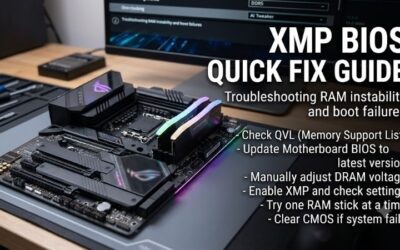
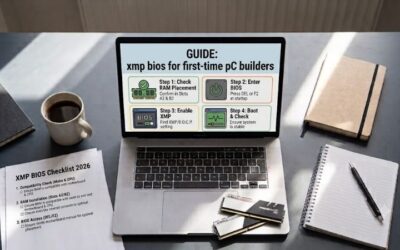
Xmp bios explained for beginners starts with one simple fact: XMP is a preset memory profile, not a new type of RAM. Your motherboard uses a safe JEDEC speed first, while XMP stores tested frequency, timings, and voltage that BIOS can apply. That lets compatible memory run faster without manual tuning on supported desktop platforms.
How to Choose XMP DDR5 RAM
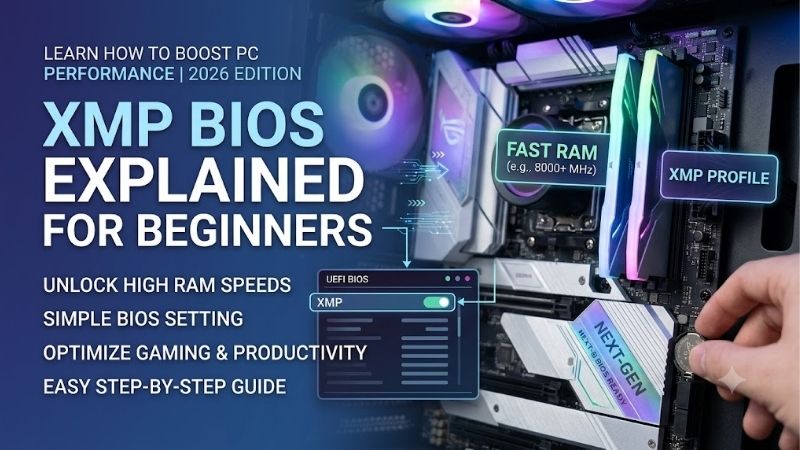
In xmp bios explained for beginners, builders install fast DDR5 and may wonder why BIOS reports 4800 MT/s instead of the advertised box speed. That is entirely normal. The advertised XMP setting usually needs a BIOS change, while the final result depends on the CPU, motherboard, memory kit, and module count on first boot.
XMP Profile Support
XMP profile support tells you what the motherboard can load automatically instead of forcing you to enter frequency, timings, and voltage by hand. Intel XMP 3.0 is designed for DDR5 and can store multiple profiles, giving some kits a performance setting and a conservative fallback.
Beginners need profile clarity more than the highest advertised number. G.SKILL Ripjaws S5 and Kingston FURY Beast expose XMP 3.0 profiles, while Corsair Vengeance and TeamGroup T-CREATE EXPERT offer XMP alongside AMD EXPO. Those four kits make profile-based setup easier on supported boards.
Rated Speed and Timings
Rated speed is the advertised transfer rate, while timings describe response at that setting. Compare both instead of assuming 6400 MT/s is automatically better than 6000 MT/s. Faster memory can demand more voltage or a stronger memory controller, while tighter timings can improve responsiveness at a lower transfer rate.
The G.SKILL Ripjaws S5 32GB kit reaches DDR5-6000 at CL30 and 1.35V, a well-calibrated choice for mainstream workloads. Corsair Vengeance reaches 6400 MT/s at CL32 and 1.40V, which is more aggressive. G.SKILL suits balanced builds, while Corsair fits validated high-speed platforms when stability matters more than peak bandwidth.
Platform Compatibility
Compatibility means matching the memory to the motherboard, processor, and supported profile standard. Intel XMP does not guarantee every board will reach an advertised setting because memory overclocking depends on the whole platform. Checking the motherboard QVL beats assuming DDR5 kits are universally interchangeable.
Kingston FURY Beast and TeamGroup T-CREATE EXPERT help when one kit moves between Intel and AMD systems because both support XMP and EXPO on selected models. G.SKILL Ripjaws S5 is positioned around compatible Intel platforms, while Corsair offers dual-profile Vengeance variants for wider flexibility.
Module Layout and Height
Module layout affects channel operation and upgrade planning. Two matched modules are usually preferable for a new desktop because they can operate in dual-channel mode. Adding more sticks later can also make high speeds harder to maintain, so buying the capacity you need as a matched kit is usually cleaner for a first build.
Physical height matters when an oversized CPU air cooler is installed in the chassis. G.SKILL Ripjaws S5 is only 33mm tall, while Kingston FURY Beast is about 34.9mm with its heatsink and Corsair Vengeance uses a compact aluminum spreader. These differences make G.SKILL, Kingston, and Corsair easier to fit before assembly starts.
Top Picks
This roundup for xmp bios explained for beginners compares four DDR5 kits because memory profiles only make sense with compatible hardware. The most useful distinctions are profile support, speed, timings, platform flexibility, and layout. Those factors explain why 6000 MT/s can be smarter than 6400 MT/s for some builds.
| Product | Best For | Key Spec | Watch Out For |
|---|---|---|---|
| G.SKILL Ripjaws S5 32GB (2x16GB) DDR5-6000 CL30 | Best Overall | XMP 3.0; 6000 MT/s; CL30; 1.35V | Intel-focused compatibility |
| Kingston FURY Beast 32GB (2x16GB) DDR5-6000 CL30 | Best Value | XMP 3.0 / EXPO; 6000 MT/s; CL30; 1.40V | Higher rated voltage |
| Corsair VENGEANCE 32GB (2x16GB) DDR5-6400 CL32 | Best For Higher-Speed Intel Builds | XMP / EXPO; 6400 MT/s; CL32; 1.40V | More platform-dependent |
| TEAMGROUP T-CREATE EXPERT 32GB (2x16GB) DDR5-6000 CL30 | Best For Low-Latency Tuning | XMP 3.0 / EXPO; 6000 MT/s; CL30; 1.35V | Top speed not guaranteed on every system |
G.SKILL Ripjaws S5 32GB (2x16GB) DDR5-6000 CL30
G.SKILL Ripjaws S5 32GB (2x16GB) DDR5-6000 CL30 is the Best Overall for xmp bios explained for beginners who want a clear XMP 3.0 profile without a tall heatsink. Its XMP speed reaches 6000 MT/s at 30-40-40-96 and 1.35V, giving a useful balance of frequency and primary CAS latency for performance-oriented desktops.
The major advantage is its 33mm module height, which leaves more clearance around oversized air coolers than taller RGB memory. The tradeoff is that this specific kit is positioned for compatible Intel platforms and lacks broad dual-profile flexibility, so motherboard validation remains important before purchase. That makes it an especially clean fit for compact Intel builds.
Kingston FURY Beast 32GB (2x16GB) DDR5-6000 CL30
Kingston FURY Beast 32GB (2x16GB) DDR5-6000 CL30 is the Best Value when xmp bios explained for beginners calls for strong timings plus XMP 3.0 and EXPO support. Kingston rates the kit at 6000 MT/s, 30-36-36, and 1.40V, with a default JEDEC profile of DDR5-4800 at 1.1V. That provides beginners with a valuable fallback profile.
Its biggest strength is profile flexibility across supported Intel and AMD platforms, which can make the same kit easier to reuse later. The drawback is the 1.40V rated profile and roughly 34.9mm heatsink height, so it is not the first choice when you want lower voltage or maximum cooler clearance. That is the main compromise.
Corsair VENGEANCE 32GB (2x16GB) DDR5-6400 CL32
Corsair VENGEANCE 32GB (2x16GB) DDR5-6400 CL32 is the Best For Higher-Speed Intel Builds when xmp bios explained for beginners meets a validated motherboard and processor. Corsair specifies 6400 MT/s at CL32 and 1.40V, with AMD EXPO and Intel XMP profiles on this variant. That stands well above its 4800 MT/s SPD setting for buyers targeting more memory bandwidth.
The benefit is more bandwidth from a matched two-module kit without moving to four sticks. The downside is that 6400 MT/s is a more demanding target than 6000 MT/s, so stability depends more heavily on the platform and BIOS. Buy it for a compatible high-speed build, not simply because the number is larger. Compatibility matters more than headline frequency.
TEAMGROUP T-CREATE EXPERT 32GB (2x16GB) DDR5-6000 CL30
TEAMGROUP T-CREATE EXPERT 32GB (2x16GB) DDR5-6000 CL30 is the Best For Low-Latency Tuning when xmp bios explained for beginners needs XMP 3.0 and EXPO in a space-efficient compact kit. This model is rated at 6000 MT/s with CL30-36-36 at 1.35V, and TeamGroup specifies a 32mm height. That keeps the memory hardware compact and the timings competitive for demanding desktop workloads.
The advantage is clean design plus a strong 6000 CL30 profile that is easy to compare against other kits. The limitation is that enabling XMP or EXPO is still an overclocking operation outside JEDEC defaults, and TeamGroup notes that some systems may not reach the stated frequency. That caveat matters for beginners and should guide compatibility checks before purchase.
Frequently Asked Questions
In xmp bios explained for beginners, XMP can look mysterious in BIOS, but the idea is simple: memory contains predefined performance settings that compatible firmware can load. This guide answers questions about enabling XMP, default speeds, stability, and whether Intel-oriented kits can also work on AMD during routine troubleshooting.
What Does XMP Do in BIOS?
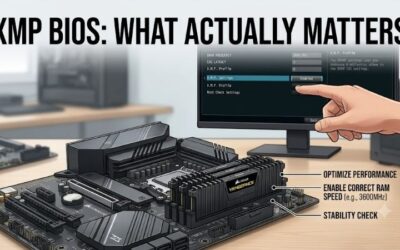
XMP tells the BIOS to load a manufacturer-tested memory profile containing values such as frequency, timings, and voltage. Instead of entering each value manually, you select the profile and save it. Intel describes XMP as a way to overclock compatible DDR4 or DDR5 memory with predefined profiles tested by memory vendors. This is why one setting can replace manual tuning.
The important detail is that XMP changes memory operation above default JEDEC settings. If the system becomes unstable after enabling it, return to the BIOS default profile instead of raising voltage repeatedly. A kit with multiple profiles can also provide a less aggressive option when the highest setting is unreliable, which is useful for early troubleshooting.
Should Beginners Enable XMP?
Yes, beginners can enable XMP when the memory, CPU, and motherboard are compatible because the profile is easier than manually tuning individual parameters. Intel describes XMP as an easy way to apply predefined settings through BIOS. The key is to verify platform support before treating the advertised memory speed as guaranteed on your build.
Do not confuse simple setup with guaranteed stability. Intel treats XMP as memory overclocking, and frequency or voltage changes can affect stability and warranty terms. After enabling it, test the system with normal workloads or a memory test. If errors appear, use the board default or a less aggressive profile rather than adding more manual adjustments immediately.
Why Does RAM Run at 4800 Instead of Its Rated Speed?
RAM can show 4800 MT/s because DDR5 commonly starts from a JEDEC default rather than the kit’s advertised XMP speed. Kingston’s 6000 CL30 kit, for example, lists DDR5-4800 at 1.1V as its default profile, then stores 6000 MT/s XMP and EXPO profiles separately. The box speed is therefore not necessarily the initial boot speed.
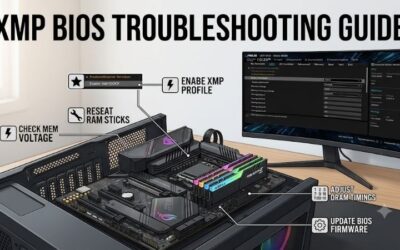
That behavior is normal and does not mean the memory is defective. Enter BIOS after the first successful boot, locate the memory profile setting, select the appropriate XMP option, and save. If the system fails to train afterward, reset BIOS settings and use the default profile before checking compatibility and firmware updates. Keep the first change reversible.
Can XMP Work on AMD Motherboards?
Yes, but support is not universal, and AMD systems commonly use EXPO for memory overclocking. Some DDR5 kits carry both standards, allowing the same hardware to provide an XMP profile on Intel and an EXPO profile on AMD. Kingston FURY Beast, dual-profile Corsair Vengeance variants, and TeamGroup T-CREATE EXPERT are examples.
Use the profile designed for your platform when both are available, and confirm the exact memory part number against the motherboard documentation. A dual-profile kit does not mean every board will run its top setting. The controller, firmware, slot population, and board design determine the final stable frequency. That is why QVL checking remains useful.
Final Thoughts
For first-time builders, xmp bios explained for beginners means buying matched DDR5, checking board support, enabling the profile, and testing stability. G.SKILL is the overall pick, Kingston offers broad profile flexibility, Corsair targets higher-speed builds, and TeamGroup suits low-latency tuning without adding unnecessary module height.