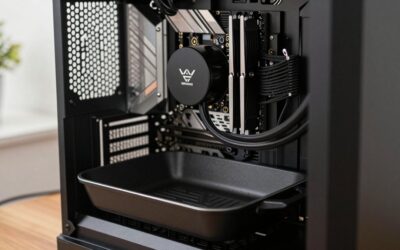
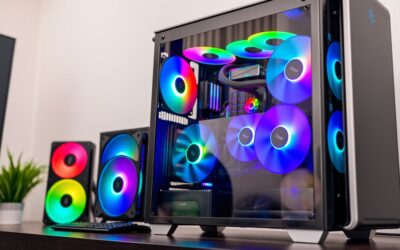
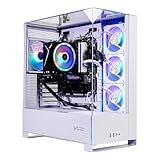
- Top Pick: The Horizon Autherium Dragon RGB I9 RTX Gaming PC || 64GB RAM || 5TB Storage || Core I9 Upto 5.4Ghz || RTX 5070 OC || Windows 11 PRO || 360MM AIO || 2.4GB/s WiFi, VR, Gaming Ready Desktop Computer
- Best Value: CyberPowerPC Gaming PC, Intel Core i5-14400F, GeForce RTX 5060 8GB
- Premium Choice: Skytech Gaming Archangel 5 Gaming PC, AMD Ryzen 7 7700 3.8GHz, NVIDIA RTX 5060, 1TB NVMe SSD, 32GB DDR5 RAM 6000, 750W Gold PSU, Wi-Fi, Win 11, Desktop
🛒 Best Price Today on Amazon
Prime members get fast, free shipping on everything above, plus member-only deals. New members get a 30-day free trial — cancel anytime.
Gaming Stutters: Causes and Fixes
Stutter — those quick, jarring hitches that break up otherwise smooth play — isn’t the same problem as a low average frame rate. A game can sit at 100 FPS on average yet feel awful because its 0.1% lows crater to 20 FPS. In this guide I walk through every big cause of PC gaming stutter and give you a targeted fix for each.
Common Causes of PC Gaming Stutters
1. Shader Compilation Stutters (DX12/Vulkan)
This is the number-one stutter culprit in current games. The first time a game hits a fresh shader combo it has to compile it on the spot, and that compile shows up as a quick freeze. Fixes:
- Allow shader pre-compilation on first launch (many games prompt this — let it complete)
- Install the game on an NVMe SSD to reduce shader cache I/O bottleneck
- Enable GPU shader cache in NVIDIA/AMD driver settings
- Do not delete the DirectX Shader Cache in Windows Storage settings
2. CPU Bottleneck / Background Processes
If your CPU usage pegs at 100% right when the stutter hits, that’s your bottleneck. Pull up Task Manager while playing and watch it. Background tasks — antivirus scans, Windows Update, Chrome, Discord — quietly eat CPU cycles and knock frames loose. Fixes: Shut down background apps, whitelist your game folders in the antivirus, and pause Windows Update before you sit down to play.
3. VRAM Overflow
When a game wants more texture data than the GPU’s VRAM can hold, the overflow gets shoved into system RAM, and you get nasty stutter as new areas load in. A 4GB card running 1440p Ultra textures will hitch nonstop. Check VRAM usage using GPU-Z or MSI Afterburner — if it’s parked above 90%, dial back texture quality or look at moving up to a 12GB+ VRAM card.
As an Amazon Associate we earn from qualifying purchases at no extra cost to you.


4. RAM Speed / Capacity Issues
Sticking with 8GB RAM will cause stutter in newer titles (2024+ games routinely want 12–16GB). Leaving RAM at its stock JEDEC clock rather than the rated XMP/EXPO speed also chokes memory bandwidth, starving the CPU during heavy scenes. Get into the BIOS and turn on XMP/EXPO right away.
As an Amazon Associate we earn from qualifying purchases at no extra cost to you.
5. HDD Game Installs
Open-world titles stream their assets nonstop. A hard drive plodding along at 100–150MB/s just can’t feed data quickly enough, so you get freezes that last seconds whenever you cross a zone line. Shift those games over to an NVMe SSD (3,000–7,000MB/s) and the open-world stutter clears up immediately.
6. Driver or Windows Update Interference
If the stutter showed up right after a driver update, you’ve likely got a driver regression on your hands. Roll it back through Device Manager → Display Adapters → Properties → Driver → Roll Back Driver. To stop Windows Update from butting in, set Active Hours in the Windows Update settings to cover your usual play time so it won’t patch mid-session.
7. Thermal Throttling
When a CPU reaches TjMax (typically 100°C on Intel, 95°C on AMD) it cuts clock speed to save itself, and that shows up as stutter spikes. Watch it with HWiNFO64 — keep an eye on CPU Package Power and Core temps. If it’s throttling: clear out dust, redo the thermal paste, or move to a better cooler.
As an Amazon Associate we earn from qualifying purchases at no extra cost to you.
8. G-Sync / FreeSync Misconfiguration
Letting FPS run above your VRR range brings on tearing and micro-stutter. Cap frames just under the monitor’s refresh (for instance, lock to 141 FPS on a 144Hz panel). RTSS handles precise capping nicely. For G-Sync, switch on “G-Sync for windowed and full screen mode” and turn V-Sync off globally in NVCP.
Why does my game stutter even with high FPS?
How do I check if my GPU is the bottleneck or CPU?
Does reinstalling GPU drivers fix stutters?
Frequently Asked Questions
What causes stuttering in PC games?
Stutter comes from many sources including shader compilation, background processes, insufficient RAM or VRAM, storage bottlenecks, driver issues, and inconsistent frame pacing. Because the causes vary, fixing it means working through them methodically rather than assuming a single culprit is responsible.
How do I fix shader compilation stutter?
Let games pre-compile shaders on first launch and after driver updates rather than skipping that step. Keeping GPU drivers current and clearing outdated shader caches helps. Some games offer a shader pre-cache option in settings that eliminates most of this early stutter.
Can background programs cause stuttering?
Yes. Overlays, browsers with many tabs, RGB software, and aggressive antivirus scans can steal CPU time and cause frame drops. Closing unnecessary applications before gaming and disabling non-essential overlays often smooths out intermittent stutter that appears without an obvious in-game cause.
Does a slow or full SSD cause stuttering?
An overfilled or slow drive can stutter when games stream assets, since the storage cannot keep up. Keep at least ten to fifteen percent free space and install demanding, open-world titles on a fast NVMe SSD to avoid streaming-related hitches.
Can drivers cause stuttering?
Absolutely. A buggy or outdated graphics driver is a frequent cause. Perform a clean driver installation to remove leftover files, and if a new driver introduces stutter, roll back to a previous stable version until an updated release fixes the problem.