- Top Pick: SANSUI 32 Inch Curved 240Hz Gaming Monitor High Refresh Rate, FHD 1080P
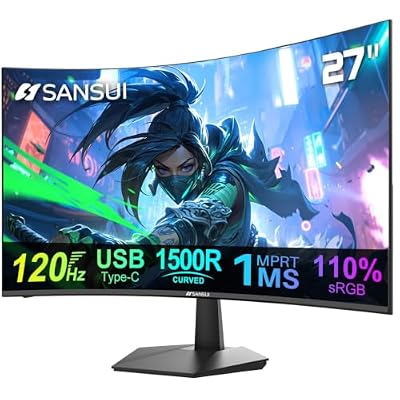
- Best Value: SANSUI Curved Monitor 27 inch 120Hz USB Type-C Computer Monitor
- Premium Choice: Moonag Wireless PC Controller with Hall Effect Joystick, 2.4G Wireless & Wired 1000Hz Polling Rate, Turbo & Dual Vibration, RGB Lighting, Gaming Controller for PC/Switch/iOS/Android, Black
🛒 Best Price Today on Amazon
Prime members get fast, free shipping on everything above, plus member-only deals. New members get a 30-day free trial — cancel anytime.
Input Lag: The Hidden Performance Killer
Your game can be cranking 200 FPS and still feel sluggish if input lag is dragging things down. Input lag is simply the gap between when you click or press a key and when something actually happens on screen, counted in milliseconds. Once you’re past 20ms you’ll feel it; get it down to 5ms or under and everything feels instant. Below I walk through every link in the chain, from the mouse on your desk to the panel in front of you.
As an Amazon Associate we earn from qualifying purchases at no extra cost to you.



What Contributes to Input Lag?
Total input lag is the sum of multiple pipeline stages:
- Mouse polling rate — how often the mouse reports position (125Hz to 8000Hz)
- OS processing delay — how fast Windows sends the input to the game
- CPU/GPU render latency — time to process and render the frame
- Frame queue depth — buffered frames waiting to display
- Display latency — time from signal to pixel lit on screen
How to Reduce Input Lag — Comprehensive Fixes
1. Enable NVIDIA Reflex or AMD Anti-Lag+
NVIDIA Reflex is hands-down the biggest single win you can get on input lag. Turn it on inside any game that supports it (Valorant, Apex, Fortnite, CS2 and friends) under Graphics settings → NVIDIA Reflex: On + Boost. It lines up the CPU and GPU work queues so frames don’t pile up, and it routinely shaves 30–50ms off system latency.
AMD Anti-Lag+ brings the same idea to Radeon cards and ships in Adrenalin 2026 Edition for supported DX11/12 games. Both cost nothing and take all of a couple seconds to switch on.
2. Use a High Refresh Rate Monitor
Run at 60Hz and every frame sits on screen for 16.67ms. Bump it to 240Hz and that drops to 4.17ms. A faster refresh rate shrinks the gap between a finished frame and the moment you see it. Even at matching FPS, a 144Hz panel feels snappier than a 60Hz one purely because the frame timing is tighter.
3. Enable G-Sync or FreeSync
Variable refresh rate through G-Sync (NVIDIA) or FreeSync (AMD) kills screen tearing without piling on the latency that V-Sync brings. V-Sync is one of the worst offenders for input lag — switch it off, let VRR handle tearing, and you can cut perceived latency by 1–3 frames.
4. Disable V-Sync (Use VRR Instead)
Old-school V-Sync buffers 1–3 frames to stop tearing. Kill it globally in the NVIDIA Control Panel or AMD Radeon Settings and let your monitor’s FreeSync/G-Sync do the anti-tearing work with no latency hit. If your frame rate runs past your refresh rate, cap it just underneath with RTSS (Rivatuner Statistics Server).
5. Maximize Mouse Polling Rate
A 125Hz mouse only checks in every 8ms. A 1000Hz mouse reports every single millisecond, and the high-end stuff now does 4000Hz or 8000Hz. For anything competitive, treat 1000Hz polling rate as your floor and enable it in your mouse software (Razer Synapse, Logitech G Hub, whatever you run). Just know higher polling nudges CPU usage up — only reach for 8000Hz if your CPU has the headroom.
6. Disable Mouse Acceleration
Head to Control Panel → Mouse → Pointer Options and untick “Enhance pointer precision”. That Windows-level acceleration throws inconsistency into your aim. Turning on raw input in your game does the same job — it skips Windows’ mouse handling entirely and feeds the hardware signal straight through.
7. Enable Low Latency Mode in GPU Driver
In the NVIDIA Control Panel go to Manage 3D Settings → Low Latency Mode → Ultra. That caps the pre-rendered frame queue at 1 frame instead of the default 3, so frames don’t back up between the CPU preparing them and the GPU drawing them. Stack it with NVIDIA Reflex for the full effect.
8. Enable Monitor’s Game Mode
Just about every gaming monitor has a Game Mode or Low Input Lag toggle buried in its OSD menu. Flipping it on shuts off the post-processing junk — noise reduction, motion smoothing — that piles 10–50ms of latency onto the display. Always run Game Mode for competitive play; it’s frequently the single biggest gain on the display side.
9. Use DisplayPort (Not HDMI)
DisplayPort 1.4 and 2.1 carry more bandwidth, handle G-Sync, and generally signal with lower latency than HDMI. Stick with DisplayPort on a gaming monitor wherever you can. HDMI 2.1 holds its own on TVs (and you need it for 4K 120Hz on consoles), but for PC gaming DisplayPort is still the connection I’d choose.
10. Plug Peripherals Directly into Motherboard USB
USB hubs throw extra latency and polling overhead into the mix. Plug your mouse and keyboard straight into the rear motherboard USB ports (USB 3.2 Gen 1 or newer) for the cleanest path. Skip the front-panel USB 2.0 ports for gaming gear.
What’s a good input lag target for competitive gaming?
Does wireless mouse add input lag vs wired?
Does frame rate actually affect input lag?
Frequently Asked Questions
What causes input lag in PC gaming?
Input lag accumulates from several stages: the mouse polling rate, the game engine, GPU rendering queue, V-Sync buffering, and the monitor’s response and refresh. Reducing it means trimming latency at each stage rather than relying on any single setting to fix everything.
Does V-Sync add input lag?
Yes, traditional V-Sync adds noticeable latency because it buffers frames to prevent tearing. A better approach is enabling a variable refresh rate like G-Sync or FreeSync combined with a frame-rate cap just below your monitor’s refresh, which removes tearing with far less lag.
Does higher FPS reduce input lag?
Yes. Rendering more frames per second means each new frame reaches your display sooner, lowering latency even beyond your monitor’s refresh rate. This is why competitive players push high frame rates. Pairing high FPS with a high-refresh monitor gives the most responsive feel.
What is NVIDIA Reflex and does it help?
Reflex reduces the render queue so frames are submitted just in time, cutting system latency significantly in supported games. If your GPU and the game support it, enabling Reflex is one of the easiest and most effective ways to lower input lag.
Does my monitor affect input lag?
Yes. A monitor’s processing delay, response time, and refresh rate all contribute. A fast high-refresh gaming monitor with low input lag and quick pixel response feels far more responsive than a slow office display, regardless of how powerful the rest of your PC is.