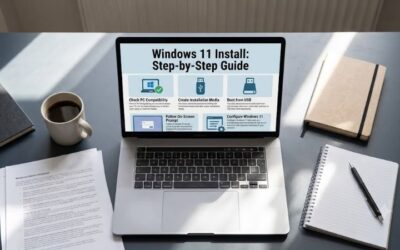
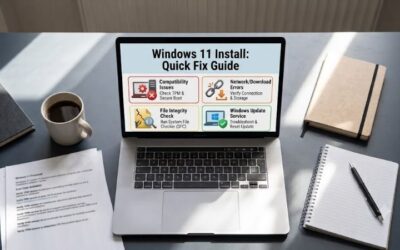
Windows 11 install troubleshooting guide is for when a new PC refuses to boot the installer, cannot see the target SSD, or reports a hardware requirement problem. A dependable USB drive will not fix every Windows error, but it removes one common failure point and gives you a clean base for diagnosing the rest of the build.
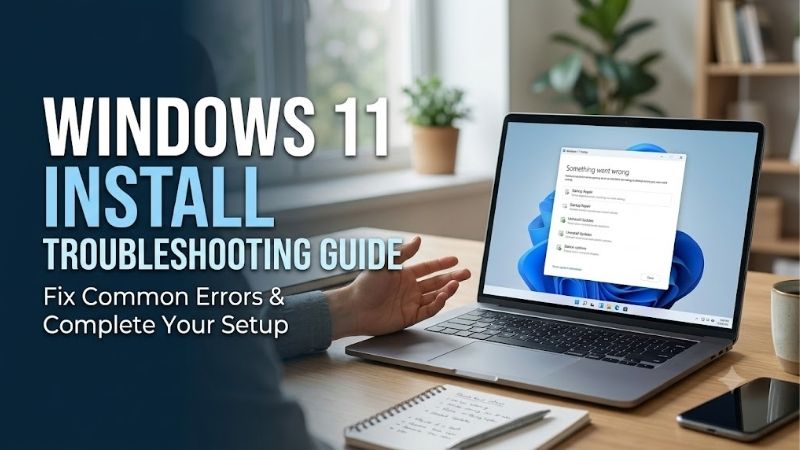
How to Choose a Windows 11 Troubleshooting USB
A good troubleshooting process in a windows 11 install troubleshooting guide starts before Windows setup loads. Check the PC against Microsoft’s requirements, prepare media on a blank USB, boot through UEFI, and isolate the component instead of changing settings at once. That keeps each error easier to identify and undo.
Capacity and Reuse
In a windows 11 install troubleshooting guide, capacity determines the room left after media and diagnostic files are placed on the USB. Microsoft requires at least 8GB for its installation-media drive, so 64GB is the practical baseline. It leaves room for drivers or firmware without making the drive unnecessarily expensive.
Do not buy a huge drive solely for Windows. A 128GB model becomes useful when you expect to carry multiple utilities, but a 64GB choice keeps a dedicated installer inexpensive and easy to replace. The Kingston DataTraveler Exodia M 64GB fits that value-first approach while leaving useful space for repair files afterward.
USB Interface and Rated Read Speed
USB interface and read speed matter most when you create media repeatedly or move large driver packages. They do not make Windows faster after installation, but a modern USB connection can reduce waiting during preparation. The windows 11 install troubleshooting guide favors the Samsung BAR Plus 64GB for builders who value speed. (Samsung uk)
Use the host port as the limiting factor, because a faster drive cannot exceed the connection or flash performance of the PC. Samsung rates the BAR Plus 64GB for up to 300 MB/s read, while Lexar’s JumpDrive S47 64GB reaches up to 250 MB/s read. Both help repeated builds, especially during repetitive media preparation.
Connector Compatibility
A connector should match the ports you actually have available during a repair. USB-A remains common on desktop motherboards, while USB-C can be crucial on newer laptops or compact systems. The windows 11 install troubleshooting guide favors the SanDisk Ultra Dual Drive Luxe 128GB when one drive needs both connector types.
A dual-ended drive also avoids relying on an extra adapter during an emergency reinstall. SanDisk lists USB-A and USB-C connectors with a USB 3.2 Gen 1 interface, so the Ultra Dual Drive Luxe 128GB can move between compatible systems more easily when the hardware you diagnose is varied. It eliminates adapter dependence.
Physical Design and Durability
Physical design matters when the USB lives in a toolkit instead of a desk drawer. A compact body is less likely to interfere with nearby cables, while a cap or swivel mechanism protects the connector during storage. The windows 11 install troubleshooting guide favors the Lexar JumpDrive S47 64GB when rear I/O space is tight.
Choose durability features based on travel frequency, not Windows installation quality. Lexar combines a low-profile body with a rated read speed of up to 250 MB/s and 256-bit AES encryption, making the S47 more versatile after the repair. Its tiny body is harder to grip for easier daily storage.
Top Picks
The Top Picks focus on four troubleshooting needs rather than pretending one flash drive solves every Windows problem. The windows 11 install troubleshooting guide favors dependable capacity, sensible speed, connector flexibility, and physical practicality, while the table below makes the tradeoffs clear before you buy.
| Product | Best For | Key Spec | Watch Out For |
|---|---|---|---|
| Samsung BAR Plus 64GB | Best Overall | USB 3.1, up to 300 MB/s read (Samsung uk) | Fixed USB-A connector |
| Kingston DataTraveler Exodia M 64GB | Best Value | USB 3.2 Gen 1, 64GB (Kingston Technology Company) | No published headline read speed |
| SanDisk Ultra Dual Drive Luxe 128GB | Best For USB-C Systems | USB-A/C, USB 3.2 Gen 1, up to 400 MB/s read (Sandisk) | More features than a basic installer needs |
| Lexar JumpDrive S47 64GB | Best For Crowded Rear I/O | USB 3.2 Gen 1, up to 250 MB/s read (Lexar) | Small body is harder to grip |
Samsung BAR Plus 64GB — Best Overall
Samsung BAR Plus 64GB is the Best Overall for builders seeking a durable, fast USB-A stick for repeated clean installs. It uses USB 3.1, reaches up to 300 MB/s read, has a metal body, and carries a five-year limited warranty, according to Samsung’s specifications.
The weakness is the fixed USB-A connector, which gives you less flexibility on systems that expose only USB-C without an adapter. For a desktop motherboard with accessible Type-A ports, its speed and metal construction make it a strong high-confidence pick for a repair kit.
Kingston DataTraveler Exodia M 64GB — Best Value
Kingston DataTraveler Exodia M 64GB is the Best Value for a first-time builder who needs a dedicated installer without paying for premium-rated transfer performance. Kingston lists USB 3.2 Gen 1, USB Type-A, 64GB capacity, and a five-year warranty, plus Windows 11 compatibility.
Its moving cap protects the connector while the drive is stored, and the keyring loop makes it easy to keep with a PC toolkit. The downside is that Kingston does not publish a headline read-speed figure, so performance is harder to compare directly with speed-rated rivals.
SanDisk Ultra Dual Drive Luxe 128GB — Best For USB-C Systems
SanDisk Ultra Dual Drive Luxe 128GB is the Best For USB-C Systems when one installer may move between a new motherboard and a USB-C laptop. Its 128GB capacity, USB-A and USB-C connectors, USB 3.2 Gen 1 interface, and up to 400 MB/s read rating provide versatility.
The extra capacity and dual connector design help when the drive also carries drivers or recovery files, but add features you do not need for a single install. SanDisk uses a swivel mechanism to protect both connectors, although the moving design is less minimal than a fixed plug.
Lexar JumpDrive S47 64GB — Best For Crowded Rear I/O
Lexar JumpDrive S47 64GB is the Best For Crowded Rear I/O, especially when a desktop has tight spacing around its motherboard ports. Lexar rates it at up to 250 MB/s read, with USB 3.2 Gen 1 support, a low-profile design, and 256-bit AES encryption for files you keep afterward.
The compact housing is its advantage during troubleshooting because it occupies little space beside neighboring cables or devices. The tradeoff is handling: a tiny stick is easier to overlook and harder to pull from a recessed port. Still, its balance of speed and size makes it a useful dedicated diagnostic drive.
Frequently Asked Questions
The windows 11 install troubleshooting guide should treat the USB as one variable, not the whole diagnosis. If setup fails, confirm whether the problem is media creation, firmware configuration, hardware eligibility, storage detection, or the installation target. The four questions below cover the failures new builders most often face.
Why Is My Windows 11 USB Not Booting?
A Windows 11 USB may fail to boot because its media is faulty, the wrong UEFI boot option is selected, or firmware has too many devices to evaluate. First, recreate the installation media on a known-good USB and select the motherboard’s UEFI boot option for that device. If it still fails, test another rear motherboard port.
Avoid repeatedly changing Secure Boot, boot order, and storage settings together. Change one variable, restart, and observe the result. A drive such as the Samsung BAR Plus 64GB or Lexar JumpDrive S47 64GB is useful here because both provide modern USB performance while remaining straightforward Type-A troubleshooting media.
Why Does Windows 11 Say My PC Is Unsupported?
A Windows 11 PC is unsupported when it misses a required hardware condition, rather than simply because the USB is bad. Microsoft’s minimum requirements include a compatible 64-bit processor, 4GB of RAM, 64GB of storage, UEFI firmware with Secure Boot capability, and TPM 2.0. Check those requirements before changing USB settings.
On a new motherboard, TPM can be present but disabled in firmware, so inspect the board’s security or trusted-computing settings before replacing hardware. Keep the diagnosis focused on supported configuration rather than bypassing requirements, especially on a primary PC that needs dependable updates and normal security features.
Why Is My SSD Missing During Windows Setup?
A missing SSD is usually a storage-detection problem, not an installer-media problem. First, confirm the drive appears in UEFI firmware. If it is absent there, check motherboard connections, M.2 seating, storage configuration, and whether the board detects the device at all. The USB cannot make an undetected SSD appear.
A common mistake is deleting partitions on the wrong disk after several drives are connected. During a clean install, disconnect other storage when practical, then verify the remaining drive by capacity before proceeding. This reduces the chance of erasing a data disk while you are trying to repair the Windows installation target.
Why Does Windows Installation Fail or Restart Repeatedly?
Repeated installation failure usually needs broader diagnosis than replacing the USB. Check that media was created correctly, then return firmware to a stable supported configuration before testing memory or storage. Different percentages or error messages are clues, so do not blame the USB first. Keep changes controlled reliably.
For repeated builds, keeping a known-good installer drive such as the Kingston DataTraveler Exodia M 64GB or SanDisk Ultra Dual Drive Luxe 128GB can help isolate the variable quickly. If the same failure follows reliable media, investigate RAM, SSD health, CPU stability, or motherboard firmware before another USB purchase.
Final Thoughts
Best choice depends on the job: Samsung BAR Plus 64GB is the overall speed-and-durability pick, Kingston DataTraveler Exodia M 64GB is the value choice, SanDisk Ultra Dual Drive Luxe 128GB suits USB-C systems, and Lexar JumpDrive S47 64GB works well in cramped ports. Keep the windows 11 install troubleshooting guide beside your notes.