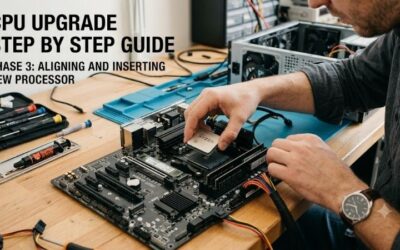
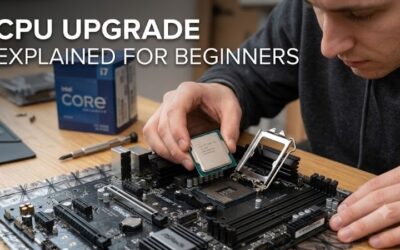
CPU upgrade common mistakes to avoid include ignoring motherboard BIOS updates, improper thermal compound application, and socket incompatibility. Mishandling delicate pin arrays or choosing undersized cooling hardware can result in permanent system damage and frustrating boot failures. Following proven steps guarantees smooth builds.
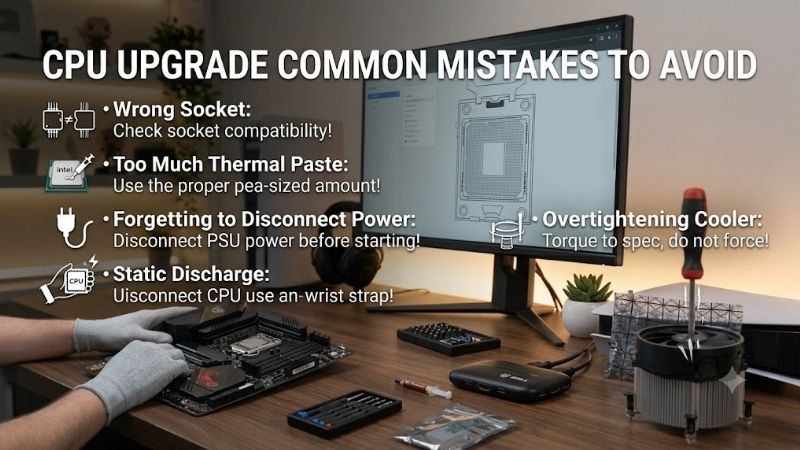
How to Choose the Right CPU Upgrade Common Mistakes to Avoid
Evaluating key parameters before assembling new processor hardware prevents hardware destruction and unexpected system crashes. Modern motherboard platforms require precise socket matching, adequate power delivery, and optimal thermal management. Careful preparation guarantees high performance and stability across demanding loads.
Processor Socket Compatibility and Chipset Support
Checking socket compatibility prevents costly physical damage to delicate processor pads and motherboard pins during installation. Upgrading desktop chips requires matching physical socket dimensions alongside chipset generation support. Verifying board specifications ensures seamless hardware detection upon initial power.
Ignoring manufacturer motherboard documentation often leads users to force incompatible silicon into mismatched slots. Physical alignment notches must align effortlessly without excessive mounting force to protect structural contacts. Learning cpu upgrade common mistakes to avoid when matching sockets protects your hardware investment.
Motherboard BIOS Update and Firmware Preparation
Performing a motherboard BIOS update before removing your old processor ensures complete microcode recognition for newer chips. Attempting to boot fresh silicon on outdated board firmware results in black screen boot loops and power cycles. Updating system software beforehand streamlines entire processor upgrade paths.
Failing to flash updated firmware leaves builders stranded without a working system to navigate update utilities safely. Keeping a low-capacity FAT32 flash drive loaded with verified binary files saves hours of tedious troubleshooting. Flashing motherboard microcode guarantees stability across modern CPU instruction sets.
Thermal Compound Application and Cooler Clearance
Mastering proper thermal paste application ensures efficient heat dissipation between processor heat spreaders and cooler plates. Applying excessive compound causes messy spillover onto socket electronics, while insufficient paste creates air pockets. Uniform pressure maintains low temperatures during continuous operation.
Installing underpowered cooling solutions leads directly to thermal throttling prevention failures during heavy gaming sessions. High-TDP processors require robust heatpipe tower coolers or liquid radiators to maintain boost clock frequencies. Matching cooler capacity to chip wattage preserves long-term hardware longevity.
Power Supply Headroom and VRM Cooling Specs
Calculating system power supply headroom prevents sudden shutdowns when new processors reach peak power consumption levels. Upgrading to higher core count chips increases wattage demands on primary motherboard power delivery circuits. Adequate power delivery keeps graphics cards and processors running without system drops.
Neglecting motherboard voltage regulator cooling causes severe power throttling under sustained multi-threaded processing loads. Entry motherboards without heatsinks over power stages struggle to deliver clean power to hungry CPUs. Pairing high-tier processors with capable power phases prevents motherboard thermal failure.
| Upgrade Tool / Component | Primary Function | Ideal Specification | Key Benefit |
| Thermal Paste | Heat Transfer | Non-Conductive / High Viscosity | Prevents Thermal Throttling |
| CPU Contact Frame | Bending Prevention | Anodized Aluminum / LGA1700 | Improves Contact Pressure |
| Precision Screwdriver Kit | Safe Assembly | Anti-Static / Magnetic Bits | Prevents Component Scratching |
| Anti-Static Wrist Strap | ESD Discharge | Grounding Clip Wire | Protects Delicate Microcode |
| High Performance Cooler | Heat Dissipation | Dual-Tower / 220W+ TDP | Maintains Peak Boost Clocks |
Top Picks
Selecting top-tier maintenance tools and accessories helps builders manage cpu upgrade common mistakes to avoid during assembly. We evaluated leading thermal pastes, contact frames, toolkits, and coolers for real-world reliability. These verified products safeguard components and optimize cooling performance across setups.
Noctua NT-H1 3.5g Pro-Grade Thermal Compound
Ideal for novice builders, this premium thermal paste prevents short circuits thanks to its non-conductive hybrid formula. Its ideal viscosity allows simple dot application without needing manual spreading across heat spreaders. Proper CPU cooler mounting paired with quality thermal paste ensures consistent low temperatures.
The 3.5g syringe package lacks included cleaning wipes for removing legacy thermal compound off older processor lids. Nevertheless, its non-drying composition and effortless application make it an essential tool for CPU upgrades. A reliable thermal interface choice for keeping operational temperatures low under load.
Thermalright LGA 1700 CPU Contact Frame
Designed for Intel 12th to 14th gen builders, this aluminum bracket prevents socket bending while protecting against bent processor pins during installation. Replacing stock retention mechanisms flattens heat spreaders for direct contact with liquid cooler cold plates. It includes custom mounting hardware for quick assembly.
Installing this custom contact frame requires carefully removing original motherboard socket screws, which may concern beginners. However, its outstanding thermal performance benefits and robust aluminum construction offer peace of mind. An essential mounting accessory for enthusiast Intel desktop builds.
iFixit Pro Tech Toolkit Repair Set
Perfect for thorough PC builders, this comprehensive toolkit includes precision steel bits and anti-static tools for safe maintenance. An included grounded wristband provides essential electrostatic discharge protection while handling sensitive motherboard logic. Precision magnetic drivers prevent dropped screws inside dark cases.
The premium price point may feel high for builders performing simple one-time desktop processor swap procedures. Nevertheless, its magnetic bit organization tray and lifetime replacement warranty deliver unmatched utility. A versatile toolkit investment for maintaining sensitive desktop PC electronics.
ARCTIC MX-6 Ultimate Thermal Paste
Great for high-wattage desktop processors, this dense thermal compound resists pump-out effects under intense heating cycles. High viscosity ensures thermal paste remains centered directly over multi-die CPU chiplets without leaking. The non-capacitive composition guarantees complete safety against electrical shorts.
The thick consistency makes spreading with plastic spatulas difficult, requiring direct cooler pressure to flatten compound evenly. Nonetheless, its superior heat transfer metrics and long service life yield exceptional cooling results. A top-tier paste choice for high-TDP processor cooling setups.
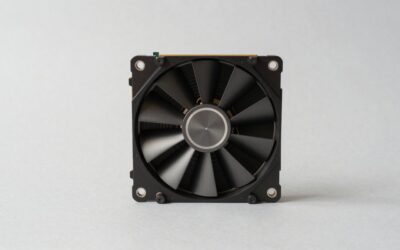
ARCTIC Freezer 36 Dual Fan CPU Cooler
Built for mainstream desktop rigs, this dual-fan tower cooler provides outstanding heat dissipation without obstructing memory slots. Its streamlined hardware installation guide simplifies mounting procedures across modern AMD AM5 and Intel LGA sockets. High-static pressure fans keep airflow steady through dense heatsink fins.
The tall heatsink height demands at least 159mm of side panel clearance inside compact micro-ATX computer cases. However, its impressive cooling capacity and whisper-quiet operation easily prevent thermal throttling during heavy workloads. An unbeatable budget cooling upgrade for modern multi-core chips.
Frequently Asked Questions
Answering key questions about cpu upgrade common mistakes to avoid helps builders troubleshoot installation issues and boot errors. Understanding power demands, motherboard updates, and socket handling eliminates potential hardware damage. These clear answers guide you through safe system upgrades.
Why does my PC turn on but show no display after a CPU upgrade?
Experiencing black screens after installing new processors usually points directly to outdated motherboard BIOS firmware versions. Older motherboard microcode lacks low-level instructions needed to communicate with newly released CPU architectures. Flashing updated firmware restores display outputs instantly.
Unseated RAM sticks or loose EPS CPU power cables also prevent motherboards from completing power-on self-test cycles properly. Reseating memory modules firmly in designated dual-channel slots clears simple hardware detection errors. Checking all internal power latches eliminates post-upgrade boot issues.
Can a CPU upgrade cause system bottlenecking with an old GPU?
Pairing a high-performance modern processor with an older graphics card can cause system bottlenecking during heavy gaming workloads. While the new CPU processes game physics effortlessly, the legacy GPU struggles to render high frame rates. Balancing hardware capabilities ensures optimal system efficiency.
Experiencing hardware bottlenecks will not damage components or create unstable operating environments inside your desktop PC. However, upgrading your graphics card alongside processors maximizes overall frame rates in demanding titles. Balanced component selection prevents performance waste across setups.
What is the best way to clean old thermal paste off a CPU?
Cleaning legacy thermal paste requires using high-purity isopropyl alcohol alongside lint-free microfiber cloths or specialized wipes. Saturating old paste dissolves dried silicone residue without scratching delicate metal heat spreaders. Thorough cleaning ensures new thermal compound adheres smoothly.
Avoiding rough paper towels or abrasive pads prevents leaving behind loose fibers or microscopic scratches on cold plates. Allowing cleaned metal surfaces to dry completely before applying fresh compound guarantees optimal contact. Proper surface preparation eliminates hidden thermal barriers effectively.
How do I avoid damaging motherboard socket pins during installation?
Understanding cpu upgrade common mistakes to avoid helps protect delicate socket pins when lowering processors straight down into sockets. Aligning corner triangle indicators on both socket frames and processors guarantees proper orientation. Never force retention levers if physical resistance feels unusually heavy.
Keeping plastic protective socket covers installed until processor alignment is complete prevents accidental screwdriver drops from bending pins. Inspecting socket arrays under bright lighting catches alignment errors before clamping levers down. Gentle handling ensures perfect pin contacts across builds.
Final Thoughts
Understanding cpu upgrade common mistakes to avoid ensures smooth hardware installations without risk of component failure. From verifying socket compatibility to applying quality thermal compound, meticulous preparation guarantees peak desktop stability. Upgrading your system carefully delivers maximum performance today.