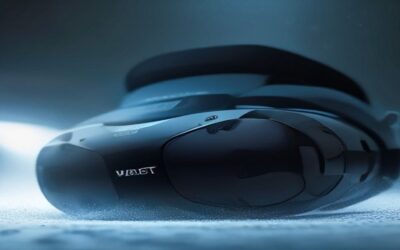
Virtual surround sound is software processing that makes a pair of stereo headphones sound as if audio is coming from around you, including behind and above, even though only two drivers are playing. It works by filtering each channel through models of how sound reaches your ears from different directions, so the brain places it in space.
- The core idea: fooling the brain with timing and tone
- HRTF in simple terms
- Virtual surround, stereo and true multi-driver compared
- Where the processing happens: software options on a PC
- Spatial audio setup and diagnostic table
- Which kinds of games benefit most
- Common mistakes and conflicts
- A worked example: setting up for a shooter
- Choosing between the formats
- Verification checklist
- When to stop and replace something
- Related guides
- Frequently asked questions
The Editorial team compiled this guide from published specifications, manufacturer documentation and buyer reviews, so it explains methods and settings rather than ranking any headset. If your aim is a faster, cleaner way to decide whether to switch it on, jump to the setup table and the checklist near the end.
The core idea: fooling the brain with timing and tone
Real-world hearing relies on small differences between your two ears. A sound from the left reaches the left ear slightly earlier and slightly louder than the right, and your head casts a sound shadow that dulls the far ear’s version. The folds of the outer ear also reshape the sound depending on the direction it comes from, particularly for front versus back and above versus below.
Virtual surround recreates those cues electronically. For each channel of a 5.1 or 7.1 mix, or each positioned sound object in a modern game, the software applies delays, level changes and tonal filters, then mixes the results into two outputs. When it fits you, a voice that is assigned to the rear left seems to sit behind your left shoulder instead of inside your head.
HRTF in simple terms
The filter set used for this is called a head-related transfer function, or HRTF. It is a mathematical description of how a typical head and ear change a sound from a given direction. The catch is that a generic model is an average. If your ear shapes differ from it, localization can be vague, front and back may swap, or sounds may feel as if they are on top of your head.
That is why some players find spatial audio uncanny while others love it. Some software lets you pick between profiles. If a mode is available, try each while a sound moves in a circle around you, then keep the one where directions feel most natural.
Virtual surround, stereo and true multi-driver compared
| Approach | How it works | Strengths | Weaknesses |
|---|---|---|---|
| Plain stereo | Two channels, no extra processing | Clean, predictable tone; works everywhere | Direction comes only from left-right panning and game mixing |
| Virtual surround | HRTF filters applied to multichannel or object audio | Works on any headphones; adds height and rear cues | Tone can change; fit varies per person |
| True multi-driver headset | Several small drivers per ear cup at different angles | Physical directionality | Heavier, costlier; many designs sound compromised |
Marketing often blurs the last two. A product labelled 7.1 may use plain two-driver cups and rely on software, so check the listing for driver count and compatible software before assuming anything else.
Where the processing happens: software options on a PC
There are several places on a Windows machine where virtualization can be applied, and they all do roughly the same job.
- Windows Sonic for Headphones. A spatial audio option built into Windows sound settings, available without an extra purchase.
- Dolby Atmos for Headphones. Needs a companion app from the Microsoft Store, and the headphone version typically requires a license purchase, so check the store listing for the current terms.
- DTS Headphone:X. Another third-party spatial format, generally available as a paid app or built into certain hardware.
- Headset driver software. Many gaming headsets ship their own 7.1 mode, usually as a virtual sound device you select in the game or Windows.
- Game-level spatial audio. Some titles process audio themselves using a built-in HRTF option.
Whichever you choose, the guiding rule is a single processing stage between the game and your ears.
Spatial audio setup and diagnostic table
| What you hear | Likely cause | First fix |
|---|---|---|
| Echoey, boomy, vague positions | Two spatial effects stacked | Turn off every layer but one |
| Everything sounds in front | Game outputs stereo while spatial mode expects 7.1 or objects | Set the game’s speaker mode to the surround option |
| Muffled voices, thin bass | Enhancement or equalizer running as well | Disable “enhancements” in the Sound control panel |
| Front and back swapped | Generic HRTF does not match your ears | Try a different profile or spatial format |
| Sound cuts or switches device | Wrong default playback device | Set the headset device as default for both playback and communication |
| Voice chat too quiet | Headset software lowering the mic or chat mix | Check the mixer in the headset app |
Which kinds of games benefit most
Virtual surround helps most where direction carries information. Competitive shooters, battle royale games and stealth titles all use footsteps, reloads and distant gunfire as clues, so a clearer sense of left, right and behind can help you react. Racing and flight games get less from it, since the engine and cockpit sounds sit mostly in front of you. Music and film playback depend on taste; some listeners like the wider soundstage, others prefer the unprocessed tone of a stereo mix.
| Game type | Likely benefit | Suggested starting point |
|---|---|---|
| Tactical or competitive shooter | Higher, direction cues matter | Spatial on, compare two formats |
| Open-world or horror | Moderate, atmosphere and warning cues | Spatial on if voices stay clear |
| Racing or flight | Low | Stereo or light spatial |
| Music and calls | Usually none | Stereo, effects off |
Common mistakes and conflicts
Most poor results come from configuration, not from the headphones. Frequent mistakes include selecting the headset’s own 7.1 device in the game while also enabling Windows spatial audio, leaving a loudness or bass-boost enhancement on top, and feeding a stereo-only game into a surround mode so that the software invents positions that were never in the mix.
Another trap is changing the source and forgetting to restart the game. Many titles detect the audio device when they launch, so a mode switched mid-session may not apply. Close the game, set the Windows output first, then relaunch.
A worked example: setting up for a shooter
Assumptions: stereo wired headphones, a Windows PC, a shooter that offers a speaker mode setting, and no headset software installed.
- Open the Sound settings and select your headphones as the default playback device.
- Turn off any enhancement and equalizer on that device.
- Choose one spatial format from the device properties, for example Windows Sonic for Headphones.
- Launch the game, set its speaker or audio mode to the surround or spatial option it lists, and keep any in-game processing off if the system layer is on.
- Play a replay or practice area and listen for a repeating sound moving around you, then compare each format and profile.
- Keep the one that lets you point at a sound’s source quickest, and switch the others off for good.
Choosing between the formats
There is no single best format, only the one that fits your ears and your games. The practical approach is a short elimination round. Start with the free Windows option, because it costs nothing and is quick to switch on. If positioning feels vague, try a paid format using its trial period if one is offered, and read the store listing for how the license works before you buy. Keep the winner, switch the others off, and resist stacking a second layer for extra immersion, since that is the most common route to a muddy result.
Verification checklist
- Only one spatial or surround layer is active.
- The correct device is the default for playback and communications.
- The game’s audio mode matches what the spatial layer expects.
- Enhancements and equalizers are off while you compare.
- You compared on and off in the same scene, by ear, before deciding.
When to stop and replace something
If channels are swapped, one ear is silent, or crackling continues with every effect off and a different cable or USB port, the issue may be physical: a worn cable, a failing driver or a faulty headset connector. Try the headphones on another device. If the fault follows them, repair or replace; if it stays with the PC, look at the audio driver and motherboard output instead.
Related guides
- Usb C Kvm Switch For Two Laptops And Two Monitors
- Vertical Laptop Stand For Dual Laptop Desk Setup
- Nvme Enclosure With Active Cooling For Mac Mini
Frequently asked questions
Is virtual surround sound better than stereo for gaming?
It depends on the game and on you. Games that mix audio as positioned objects can sound clearer with spatial processing because footsteps and gunfire get a sense of direction. Others sound hollow, muffled or echoey once processed. Because everyone’s ears differ, there is no universal answer. Switch it on and off in the same scene and keep whichever lets you locate sounds more reliably.
Do I need a 7.1 headset to use virtual surround?
No. Virtual surround is designed to work with any stereo headphones, since it processes the signal before it reaches your ears. A headset marketed as 7.1 may only add the software or a USB sound card that runs the same kind of effect. Physical multi-driver headsets exist, but they are a different design with their own trade-offs in weight and sound quality.
Can I run two surround effects together?
You should not. Stacking a headset driver’s 7.1 mode on top of Windows spatial audio or a third-party plugin processes the signal twice, which often gives echo, boomy bass and vague positioning. Pick one processing layer, turn the others off, and set the game’s output to plain stereo if the headset software is doing the virtualization.
Why do all sounds seem to come from the front?
Common causes are a double effect, a mismatch between the game’s speaker mode and the spatial setting, or a head-related profile that does not suit your ears. Check that the game outputs 7.1 or an object format when virtual surround is on, disable extra enhancements in the Sound control panel, and try a different spatial option.
Does virtual surround work with speakers?
Spatial processing built for headphones does not translate well to speakers, since the room and the position of both ears change what you hear. Some speaker setups have their own virtualization for soundbars, but the technique and results are different. For true surround from speakers, physical channels around the room remain the most reliable approach.