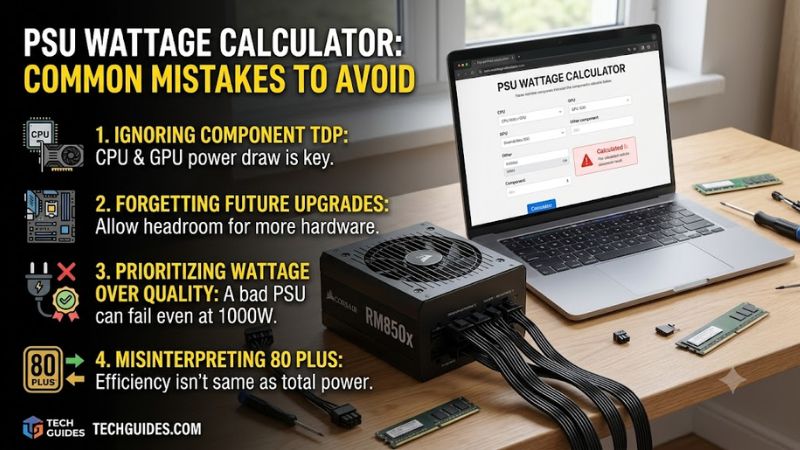
PSU wattage calculator common mistakes to avoid start with treating an estimate as an exact measurement. Wrong component selections, ignored power limits, and misunderstood headroom can distort the result. Use the estimate as a starting point, verify the graphics card’s guidance, and inspect PSU connectors before purchasing.
How to Choose a PSU Wattage Calculator
This guide to psu wattage calculator common mistakes to avoid compares four online tools and explains which inputs deserve attention. The picks cover quick gaming estimates, component inventories, cooling-heavy builds, and multiple GPUs. Each estimates suitable capacity, but none replaces checking the exact power supply’s specifications.
Component Coverage and Exact Model Selection
Component coverage determines whether a calculator matches your actual build. Select the exact processor and graphics card, then count storage, memory, and cooling hardware where fields are available. Choosing a similarly named GPU can introduce a larger error than forgetting one ordinary case fan, particularly with differing board power.
Do not invent a replacement model when your hardware is absent from a database. Check manufacturer power information and choose another calculator with appropriate coverage. Cooler Master Power Supply Calculator provides explicit motherboard, memory, and drive fields, supporting verification of a conventional component inventory.
Power Limits and Overclocking Controls
Power-limit controls matter because a processor’s published thermal rating may differ from its permitted boost consumption. Likewise, graphics cards can have factory-adjusted or manually increased limits. Enter the settings you actually use; selecting maximum overclocking for a stock machine inflates the recommendation without improving precision.
For psu wattage calculator common mistakes to avoid, distinguish real configuration changes from speculative performance upgrades. A calculator with overclocking options represents adjustments more clearly than an unexplained fixed allowance. The be quiet! PSU Calculator includes separate CPU and GPU overclocking selections for this purpose.
Output Labels and Included Headroom
Headroom is spare capacity above the estimated operating demand, but calculators do not all report the same quantity. Some show component consumption; others recommend a PSU tier with allowances included. Read the output label and explanation before applying percentage increases, or you may duplicate the existing reserve.
A supported future GPU upgrade justifies additional capacity, while vague upgrade plans provide insufficient sizing guidance. Compare the present build with one realistic upgrade scenario. CORSAIR PSU Calculator explicitly includes allowances for common components and upgrade headroom, making its methodology useful for mainstream gaming systems.
Form Factor and Multiple-GPU Support
Physical compatibility and connection capacity are separate from total wattage. Powerful ATX supplies remain incompatible with SFX-only cases, and several graphics cards can require more connectors than supplied. Verify the case specification and each card’s power connections before assuming wattage establishes compatibility.
Use a calculator that represents unusual hardware counts instead of squeezing a workstation into a single-GPU template. Multiple graphics cards also demand checks beyond aggregate capacity, including cable provision and chassis cooling. Seasonic Wattage Calculator accepts up to four GPUs and offers ATX/EPS or SFX selection for this planning stage.
Top Picks
These tools address psu wattage calculator common mistakes to avoid through different input styles rather than proven accuracy rankings. Manufacturer calculators naturally promote their own supplies, so compare the wattage guidance separately from the product suggestions. Choose the tool whose assumptions match your hardware.
| Product | Best For | Key Spec | Watch Out For |
|---|---|---|---|
| CORSAIR PSU Calculator | Best Overall for mainstream gaming estimates | Published allowances include up to 4 RAM modules, 4 M.2 SSDs, 2 SATA SSDs, an AIO, and 10 RGB fans | Predefined allowances may not represent unusual builds; recommendations favor CORSAIR. |
| Cooler Master Power Supply Calculator | Best Value for straightforward inventory checks | Separate SSD, HDD, and optical-drive categories, plus motherboard and RAM inputs | Current visible form lacks dedicated cooling and CPU-overclocking controls. |
| be quiet! PSU Calculator | Cooling-heavy builds | Fan and water-cooling fields; separate CPU and GPU overclocking selections | Product recommendations cover its own PSU range. |
| Seasonic Wattage Calculator | Multiple-GPU planning | Supports up to 2 processors and 4 GPUs; ATX/EPS or SFX selection | Baseline guidance includes reserve; additional capacity should reflect actual needs. |
CORSAIR PSU Calculator: Best Overall
CORSAIR PSU Calculator is best overall for a conventional gaming build needing straightforward initial guidance. Its published allowance covers up to four RAM modules, four M.2 SSDs, two SATA SSDs, an AIO cooler, and ten RGB fans. That transparency helps beginners understand which supporting parts are already represented.
The drawback is the use of predefined allowances instead of comprehensive component inventories for unusual systems. Its recommendations also favor CORSAIR products. For psu wattage calculator common mistakes to avoid, check whether your build exceeds those stated assumptions before accepting a suggested tier or shopping from its shortlist.
Cooler Master Power Supply Calculator: Best Value
Cooler Master Power Supply Calculator is best value for a straightforward component-by-component estimate without elaborate manual modeling. Its form separates three drive categories: SSD, HDD, and optical drive. Motherboard and RAM selections also encourage a more complete inventory than simply combining processor and graphics specifications.
The limitation is that its current visible form lacks dedicated fan, pump, and CPU-overclocking inputs. That reduces usefulness for custom loops or heavily adjusted power limits. Use it for stock configurations and inventory checks, then compare complex builds against tools exposing those controls rather than assuming they are covered.
be quiet! PSU Calculator: Best for Cooling-Heavy Builds
The be quiet! PSU Calculator is best for cooling-heavy builds and buyers checking connection-related recommendations. It includes fan and water-cooling fields alongside two overclocking selections, one for the CPU and one for the GPU. Its stated approach uses manufacturer component peak-power information, providing an explanation of its estimate.
Its downside is a brand-specific recommendation list, excluding competing manufacturers. The interface can exclude supplies because of connector shortages or selected components’ peak loads. Treat those notices as useful prompts for further verification; inclusion does not independently establish measured noise or superior electrical performance.
Seasonic Wattage Calculator: Best for Multiple GPUs
Seasonic Wattage Calculator is best for multi-GPU planning because its staged form supports up to two processors and four graphics cards. It also collects SSD, HDD, and fan counts before asking for form factor. This makes unusual hardware quantities explicit instead of relying on one generic allowance for an ordinary gaming machine.
The compromise is limited visible tuning detail: the staged form does not expose the same overclocking controls as be quiet!’s tool. Seasonic also describes its output as baseline guidance including reserve. Check its explanations against your intended workload and upgrades, especially before applying another automatic percentage increase.
Frequently Asked Questions
Questions about psu wattage calculator common mistakes to avoid usually concern spare capacity, wall readings, and conflicting estimates. The answers below distinguish sizing guidance from measured consumption. Treat connector compatibility as a requirement, use approved modular cables, and never open a PSU housing to investigate its internals.
How Much PSU Headroom Do I Need?
No single headroom percentage suits every build. First determine whether the result represents component demand or an already buffered recommendation, then check the GPU manufacturer’s system guidance. A demanding graphics card and raised processor limits need different consideration from a modest office computer with no discrete GPU.
Choose a suitable standard wattage tier after accounting for the actual configuration and planned changes. Avoid interpreting a spare-capacity target as justification for ignoring cable requirements or PSU quality. A larger nominal rating cannot compensate for inadequate connectors, weak protections, or a unit unsuitable for the workload.
Should I Use Wall Power to Size My PSU?
No, the wattage measured at an outlet is not identical to the DC power delivered to components. Conversion losses increase wall consumption. For example, a hypothetical 400W DC load at 90% efficiency draws about 444W AC. That arithmetic describes efficiency, not evidence that a correctly rated 400W supply loses its output capacity.
An ordinary wall meter also cannot capture every brief power excursion that influences PSU suitability. It remains useful for comparing typical workloads or estimating electricity consumption. Keep the monitor and other plugged-in devices outside the measurement if your goal is the computer alone, and record which workload produced the reading.
Why Do PSU Calculators Give Different Results?
Calculators disagree because their component databases, assumed loads, and built-in reserves differ. For psu wattage calculator common mistakes to avoid, reconcile the inputs before comparing totals. Check the exact GPU, CPU settings, drive counts, and result labels; differently labeled quantities may describe different assumptions.
A small numerical difference may simply round to the same practical PSU tier, while a large gap deserves investigation. Do not average conflicting recommendations without investigating discrepancies. If a selected component is missing or represented poorly, consult its manufacturer guidance and a better-matched calculator before purchasing.
Does an 80 PLUS Rating Prove PSU Quality?
No. For psu wattage calculator common mistakes to avoid, remember that 80 PLUS measures efficiency, not complete PSU quality. Voltage regulation, protections, connector support, and transient handling still matter. Favor documented specifications over a better-looking badge when comparing supplies with suitable capacity for your components.
For a modular PSU replacement, use the supplied cables or replacements explicitly approved for that exact model. Similar-looking PSU-side plugs do not guarantee compatible wiring, even within one brand. Install and route graphics power connections according to manufacturer instructions, allowing the specified connector clearance.
Final Thoughts
PSU wattage calculator common mistakes to avoid come down to accurate inputs, understood allowances, and verified compatibility. Start with CORSAIR for gaming, Cooler Master for inventories, be quiet! for cooling details, or Seasonic for multiple GPUs. Compare realistic scenarios, then select a PSU with the required connectors and form factor.