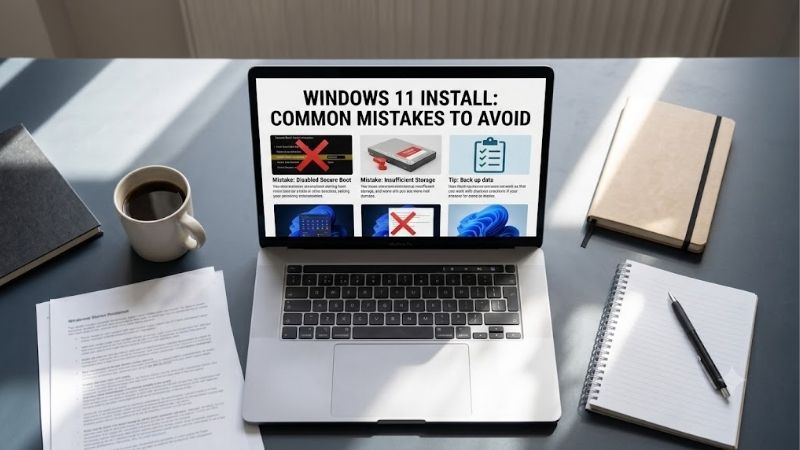
Windows 11 install common mistakes to avoid include deleting partitions, ignoring compatibility, and using unreliable installation media. Buying faster storage cannot correct unsupported hardware. Confirm compatibility and preserve your files before proceeding, then select accessories that address your installation needs.
How to Choose Windows 11 Installation Storage
This guide to windows 11 install common mistakes to avoid matches four storage picks to preparation needs. Recommendations cover conventional installation media, economical alternatives, flexible connectors, and independent backups. Each supports preparation without replacing compatible hardware, correct licensing, or careful disk selection.
Match the Connector to Your PC
Connector compatibility determines whether installation media connects directly to both computers involved. USB-A ports accept rectangular connectors, while USB-C ports accept smaller reversible plugs. Incompatible storage requires adapters, especially when preparing installation media on a desktop for use on a slim laptop.
Adapters introduce additional connections and costs without improving Windows compatibility. Direct connections simplify preparation when moving between different computers. Select the SanDisk Ultra Dual Drive Go 64GB for mixed connectors, or choose the Kingston DataTraveler Kyson 64GB when both computers have USB-A ports.
Separate Boot Media From Your Backup
For windows 11 install common mistakes to avoid, separate installation media from saved files. Microsoft’s media tool deletes existing contents on the selected flash drive. Sharing that device with your sole backup creates an avoidable risk, even before Windows installation begins. Measure your folders before purchasing backup storage.
Backup capacity should reflect your documents, photos, and work archives rather than installer requirements. Check that copied files open before proceeding, and retain originals until installation succeeds. Larger storage increases expense but accommodates libraries. Choose the Samsung T7 Shield 1TB when saving large personal or work archives.
Judge Read Speed Without Assuming Write Speed
Read performance describes accessing stored files, while write performance affects saving installer files. These figures are not interchangeable. For occasional installations, port fit and capacity usually deserve priority over peak speeds. Manufacturer maximums also depend on host connections and operating conditions.
The SanDisk Ultra Flair 64GB advertises reads reaching 150MB/s; the Kingston DataTraveler Kyson 64GB advertises 200MB/s. Neither maximum guarantees equal install times across PCs. Check current prices instead of assuming discounts. Select the Ultra Flair when cheaper, or choose the Kyson when prices are close for its capless metal body.
Buy for the Task, Not the Largest Capacity
Microsoft’s media-creation workflow requires a blank USB drive with at least 8GB. All three 64GB flash drives exceed that requirement, but capacity cannot compensate for unsupported processors, missing TPM 2.0, or firmware lacking UEFI and Secure Boot capability. Check computer compatibility before buying accessories for an unsupported PC.
An external 1TB SSD has excess capacity when preparing installation media for an empty computer. Its extra storage helps when saving large file collections before reinstalling. Choose the Kingston DataTraveler Kyson 64GB for reusable installation media, or the Samsung T7 Shield 1TB for separate backups of large file collections.
Top Picks
These recommendations for windows 11 install common mistakes to avoid address different storage needs. Flash drives provide installation media, while the external SSD keeps files separate. Rankings reflect suitability and published specs rather than hands-on install tests. Select for your preparation gap rather than purchasing every accessory.
| Product | Best For | Key Spec | Watch Out For |
|---|---|---|---|
| Kingston DataTraveler Kyson 64GB | Best Overall | USB-A; up to 200MB/s read | No built-in USB-C |
| SanDisk Ultra Flair 64GB | Best Value | USB 3.0; up to 150MB/s read | Read rating does not guarantee write speed |
| SanDisk Ultra Dual Drive Go 64GB | Best For Mixed USB Ports | USB-A and USB-C; 64GB | Confirm exact version before buying |
| Samsung T7 Shield 1TB | Best For Separate Backups | Up to 1,050MB/s read; 1,000MB/s write | Needs a cable and a fast host port |
Kingston DataTraveler Kyson 64GB: Best Overall
The Kingston DataTraveler Kyson 64GB is the overall pick for computers with USB-A. Its USB 3.2 Gen 1 interface supports rated reads up to 200MB/s, offering useful speed for reusable installation media. Capless metal construction eliminates a removable cover that could disappear when moving equipment between workspaces.
The limitation is connector flexibility: USB-C-only laptops require an adapter. Read ratings also cannot establish media-creation time because writing differs. Among windows 11 install common mistakes to avoid, overlooking port fit remains preventable. Choose this model when USB-A ports are confirmed on both computers.
SanDisk Ultra Flair 64GB: Best Value
The SanDisk Ultra Flair 64GB is the value candidate for occasional installs on USB-A computers. Its USB 3.0 interface offers rated reads up to 150MB/s, while metal construction provides practical protection during daily handling. Capacity exceeds Microsoft’s installation-media minimum without requiring a much larger backup drive.
Its value depends on checkout prices; discounts occasionally favor competing models. The key performance limit is that read speed does not guarantee equally fast writes, which can extend media preparation. Choose this model when priced below the Kyson and your priority is occasional installation rather than frequent large transfers.
SanDisk Ultra Dual Drive Go 64GB: Best For Mixed USB Ports
The SanDisk Ultra Dual Drive Go 64GB suits households combining USB-A desktops with USB-C laptops. Built-in connectors fit both interfaces without carrying extra adapters. Its swivel design helps protect connectors during transport, making this flexible flash drive useful when preparing media for different household computers.
The drawback is product revisions and capacity-based speed claims, so check listings carefully. For windows 11 install common mistakes to avoid, port fit matters more than borrowing speeds from another capacity. Choose this model for mixed connectors, while confirming the target computer supports booting through its selected USB port.
Samsung T7 Shield 1TB: Best For Separate Backups
The Samsung T7 Shield 1TB handles large backups before reinstalling Windows. Its USB 3.2 Gen 2 interface supports rated maximum reads of 1,050MB/s and writes of 1,000MB/s. Compared with the flash drives, extra capacity holds large collections of photos, videos, and project archives without dividing everything across small drives.
Its limitations include extra bulk and need for a suitable cable and port for maximum performance. Older connections reduce transfer rates despite advertised speeds. Reserve this SSD for verified backups and disconnect it before selecting partitions. Separate installation media prevents mistaken media creation from erasing saved files.
Frequently Asked Questions
Questions about windows 11 install common mistakes to avoid often concern file protection, compatibility, and activation rather than storage speed. Resolve these issues before shopping. Flash capacity cannot fix a mismatched Windows edition, unsupported processor, or missing network driver. Each problem needs separate troubleshooting.
Can I Install Windows 11 Without Losing My Files?
Yes, eligible upgrades and suitable in-place reinstalls can preserve files, while clean installations can erase files. Review the keep-options displayed before continuing. Running setup inside your current Windows installation differs from booting installation media, so instructions for one approach should not be assumed to suit the other.
If the required keep-option is unavailable, investigate before accepting destructive steps. Include unsynced local files and application-license details in your backup planning. Separately preserve your BitLocker recovery key before firmware adjustments, because recovery prompts can otherwise block access to encrypted files.
Why Does Setup Say My PC Is Not Supported?
Setup can reject unsupported processors or hardware, while missing firmware features can also prevent installation. Processor clock speed alone does not establish compatibility. Confirm the exact processor model, TPM status, and firmware capabilities before replacing storage; a different flash drive cannot change unsupported hardware requirements.
Some computers provide firmware TPM that requires enabling through manufacturer guidance. Avoid clearing TPM or changing storage-controller settings at random. For windows 11 install common mistakes to avoid, unsupported bypasses are poor default solutions: compatibility and future updates remain uncertain even when installation succeeds.
Should I Delete Every Partition During Setup?
No, remove partitions only from the confirmed target disk when planning a clean install after protecting its contents. Compare capacity and partition layout rather than trusting disk numbering alone. Other storage might hold unrelated files or backups, making careless partition deletion a potentially irreversible mistake.
On multi-drive desktops, disconnect other internal drives beforehand if comfortable doing so safely with power disconnected. Stop whenever disk identification remains uncertain. If setup cannot detect the intended SSD, investigate manufacturer storage drivers; formatting another available disk cannot resolve missing support for that destination.
Do I Need a New Windows Key for a Reinstall?
Usually, reinstalling the same edition on the same PC with a valid digital license does not require another key. Match Home or Pro to the existing license; selecting Pro cannot upgrade a Home license automatically. Confirm activation beforehand and preserve purchase records for separately purchased Windows retail licenses.
Major hardware changes can affect activation, while new computers may require separate licensing. Prepare connectivity because Windows 11 Home and Pro for personal use require internet during initial setup. Preserve manufacturer network drivers when necessary, then inspect Windows Update and Device Manager after reaching the desktop.
Final Thoughts
For windows 11 install common mistakes to avoid, prioritize compatibility, verified backups, and target identification. Select Kyson for USB-A, Ultra Flair when cheaper, Dual Drive Go for mixed connectors, or T7 Shield for large separate backups. Suitable existing gear remains sufficient; buy accessories only to fill a preparation gap.