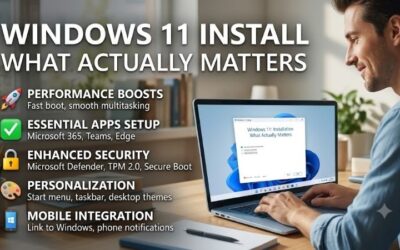
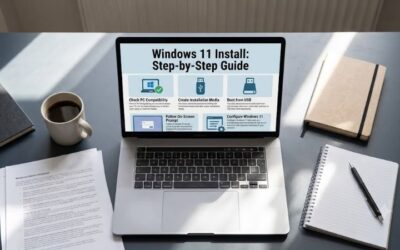
Windows 11 install explained for beginners addresses a practical concern: buying the wrong edition or losing files during setup. Your PC needs compatible hardware, suitable setup media, and legitimate activation. This guide compares four Microsoft configurations and explains when your existing license remains sufficient.
How to Choose Windows 11 Installation Options
For windows 11 install explained for beginners, the buying decisions are edition and delivery format. This guide compares Home versus Pro and download versus USB, then explains setup basics. Back up important files before proceeding, verify hardware compatibility, and distinguish upgrading an existing setup from starting fresh.
Hardware Support and Edition Fit
Home and Pro share minimum requirements: a supported processor, 4 GB RAM, a storage device of at least 64 GB, TPM 2.0, and UEFI firmware with Secure Boot support. Extra memory supports demanding applications, but buying Pro cannot resolve processor incompatibility. Run Microsoft’s PC Health Check before buying Windows.
Home covers personal use without requiring business management features. Pro includes extra admin features, which deserve attention only when your workload requires them. For windows 11 install explained for beginners, match the edition to actual responsibilities. Microsoft Windows 11 Home (Download) suits everyday home use.
Download or Ready-Made USB
Download delivery suits purchasers with access to a working PC for media preparation. Physical USB delivery suits new desktops when making media elsewhere is difficult. Neither format changes the selected edition’s features. Compare shipping delays against preparation requirements before deciding which delivery method fits your situation.
Microsoft’s Media Creation Tool prepares a blank USB drive with at least 8 GB, erasing its contents during preparation. Save existing files beforehand. Its standard setup media supports x64 processors rather than Arm processors. For a supported Intel or AMD desktop without another PC, select Microsoft Windows 11 Home (USB).
Work Features You Will Actually Use
Pro adds Remote Desktop hosting, work domain membership, and full BitLocker drive management. Home can connect to Remote Desktop hosts but cannot provide built-in hosting. Confirm your employer’s requirements before buying. A business edition offers specific admin features rather than automatically improving everyday application performance.
Some Pro features require extra hardware support, and buying Windows does not configure company infrastructure. Full BitLocker management differs from Device Encryption available on compatible Home devices. For windows 11 install explained for beginners with defined work requirements, Microsoft Windows 11 Pro (Download) provides digital delivery.
Total Cost and License Clarity
Compare preparation costs alongside the license purchase. Downloads require suitable setup access; USB configurations provide physical media but introduce delivery time. Seller identity, edition details, fulfillment method, and license terms matter more than discounts. Review the refund policy before buying from an unfamiliar seller.
Choose clearly described retail software when buying Windows for a personally managed PC. OEM offerings can carry different license terms and support arrangements, despite sharing the edition name. For a new business desktop requiring physical setup media, Microsoft Windows 11 Pro (USB) combines Pro features with ready-made media.
Top Picks
These picks for windows 11 install explained for beginners represent four retail configurations of two editions. Home addresses personal use, while Pro adds specific work features. Select physical USB media when preparation access is limited, or digital delivery when a working PC and suitable setup method are already available.
| Product | Best For | Key Spec | Watch Out For |
|---|---|---|---|
| Microsoft Windows 11 Home (USB) | Best Overall: First personal build | Home edition; English USB configuration | Shipping delay; supported hardware required |
| Microsoft Windows 11 Home (Download) | Best Value: Buyers with preparation access | Home edition; digital delivery | Bootable media requires preparation |
| Microsoft Windows 11 Pro (Download) | Best For Work Upgrades | Pro edition; BitLocker management and Remote Desktop hosting | Existing Home users should check upgrade options |
| Microsoft Windows 11 Pro (USB) | Best For New Work PCs | Pro edition; English USB configuration | Higher edition cost and delivery wait |
Microsoft Windows 11 Home (USB): Best Overall
Microsoft Windows 11 Home (USB) earns Best Overall for first-time personal desktop builders without an operating system. Physical setup media removes the requirement to prepare another drive beforehand. Home shares the minimum 4 GB RAM requirement, although extra memory provides more practical headroom for multitasking and demanding applications.
Ready-made media simplifies preparation, but shipping delays remain a real disadvantage compared with downloading. Confirm USB ports and hardware support before ordering. For windows 11 install explained for beginners on a new desktop, this package removes media preparation without changing compatibility requirements or supplying every driver.
Microsoft Windows 11 Home (Download): Best Value
Microsoft Windows 11 Home (Download) earns Best Value when personal needs match Home and setup preparation is already possible. Its features match the USB configuration, including the minimum 64 GB storage-device requirement. Digital fulfillment avoids shipping, making this option practical when another working PC is readily available.
The disadvantage is preparation: downloading Windows does not automatically provide bootable media for a new desktop. Choose this configuration when suitable setup access is available. Before buying for a reinstall, investigate your existing activation status. A valid license for the same edition may already cover that PC’s reinstallation.
Microsoft Windows 11 Pro (Download): Best for Work Upgrades
Microsoft Windows 11 Pro (Download) suits working PCs requiring work features and digital fulfillment. Full BitLocker management and Remote Desktop hosting distinguish it from Home. Minimum memory remains 4 GB, although application requirements may demand substantially more. Its advantage is access to admin features without waiting for shipping.
The drawback is paying for features that personal workloads may never require; digital delivery also leaves media preparation to you. For windows 11 install explained for beginners on a working Home PC, investigate Microsoft’s built-in Pro upgrade route before buying a full retail configuration intended for PCs needing a new license.
Microsoft Windows 11 Pro (USB): Best for New Work PCs
Microsoft Windows 11 Pro (USB) suits new work desktops needing Pro and ready-made media. The English USB configuration provides the same edition as the download. Work domain membership supports managed networks, making this package relevant when employer requirements extend beyond independent personal accounts and basic applications.
Its disadvantages include the extra expense of Pro compared with Home and waiting for shipping. Supplied media does not configure company infrastructure or guarantee specialized drivers. Purchase when ready-made media solves a practical setup constraint. If your employer supplies Windows through its deployment process, consult IT before ordering.
Frequently Asked Questions
Questions about windows 11 install explained for beginners often confuse setup, edition choice, and activation. Downloading setup files does not establish a paid entitlement. Decide whether your goal is preserving an existing environment or replacing it completely, then review the applicable procedure before approving changes to your PC.
Can I Install Windows 11 Without Losing My Files?
A supported in-place upgrade can preserve files and applications; a clean setup removes them. From a working Windows environment, open setup media in File Explorer and launch setup.exe. Review the available retention options and select Keep personal files and apps when offered. Confirm the final setup summary before proceeding.
If retention is unavailable, check language, edition, and compatibility. Starting setup inside Windows differs from booting directly into setup media. For a deliberate clean setup, positively identify the intended storage device before modifying partitions. Request assistance if another drive containing valuable files cannot be identified.
Do I Need a New Product Key to Reinstall Windows 11?
No, reinstalling the same edition on an already licensed PC may not require another purchase. A valid digital license can reactivate after setup and internet access. Before starting, inspect Settings, System, Activation and record the edition. Home entitlement cannot activate Pro simply because both products carry Windows branding.
Major hardware changes, such as motherboard replacement, can affect activation. Keep your receipt and link the digital license to your Microsoft account before changes. Microsoft’s Activation troubleshooter may help resolve eligible reactivation cases. Creating replacement setup media does not replace a license or expand its rights.
Can I Finish Windows 11 Setup Without Internet?
No, retail USB media does not eliminate standard connectivity requirements during personal setup. Windows 11 Home and Pro for personal use require internet access and a Microsoft account. Prepare those credentials beforehand. Reaching the installer does not mean the PC has completed account configuration or reached a usable desktop.
Company deployments may use different account procedures, so follow employer instructions on company equipment. For a personal desktop build, obtain the motherboard network driver in advance. If wireless networking remains unavailable during setup, compatible Ethernet connectivity or the correct driver may resolve that obstacle.
Will Buying Windows 11 Make an Older PC Compatible?
No, buying Windows cannot make unsupported hardware compatible. Processor eligibility matters alongside memory, storage, and TPM 2.0 requirements. If PC Health Check flags a problem, identify the failed check before buying. Disabled firmware features and unsupported processors require different responses, even when flagged in the same test.
Some PCs provide TPM or Secure Boot support that requires a firmware change. Consult manufacturer instructions before changing settings. Unsupported processors remain unsupported regardless of edition purchased. After successful setup, run Windows Update, verify activation, and check networking, display, and audio before restoring apps.
Final Thoughts
Use windows 11 install explained for beginners to select the edition before the delivery format. Home USB suits new personal desktops; Home Download suits accessible media preparation. Pro requires a specific work justification. Check existing activation, confirm hardware compatibility, and verify your backup before beginning any setup procedure.