Bios update safety tips are essential for anyone planning to flash their motherboard without risking severe system damage or unrecoverable bricking. Updating your system firmware can unlock new CPU support, improve stability, and patch security flaws, but power outages or corrupted files can render your hardware useless instantly.
How to Choose the Right Bios Update Safety Tips
Understanding the fundamental safeguards before flashing firmware is vital for maintaining system reliability and avoiding costly hardware failure. Following proper bios update safety tips guarantees that your motherboard remains stable throughout the entire procedure while keeping your data safe.
Selecting a Reliable Power Backup Solution
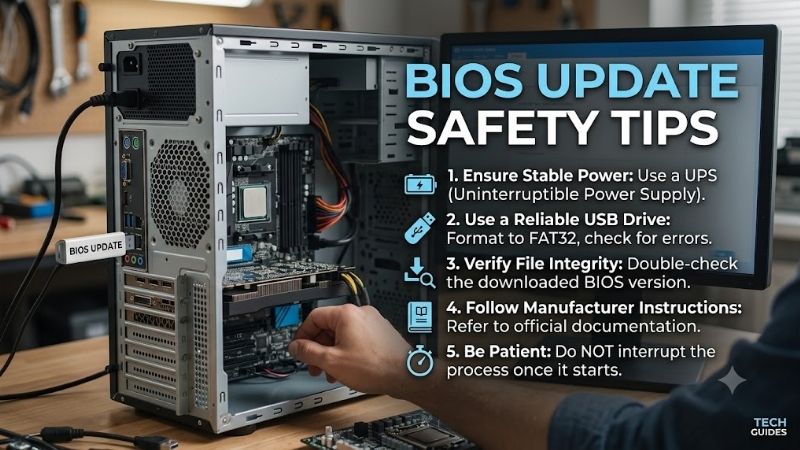
A sudden power drop during a firmware rewrite is the primary cause of dead motherboards across custom PC builds. Securing an uninterruptible power supply ensures that your computer stays powered on even if the local electrical grid flickers or shuts down during the crucial flashing process, protecting your system from fatal corrupted writes.
When picking a battery backup, calculate your desktop’s idle power draw and choose a unit with pure sine wave output for maximum component stability. Budget models with simulated sine wave can cause sensitive power supplies to shut off during transfer modes, so investing in a rated battery backup provides essential protection.
Preparing Dedicated Flash Drives Properly
Using a dedicated USB flash drive formatted with low storage capacity reduces reading errors during bootable firmware loads. A freshly formatted USB flash drive minimizes file system fragmentation and prevents hidden background partitions from interfering with the built-in flash utility, ensuring a smooth installation sequence.
Always clear existing files off your thumb drive before copying the new update file to maintain a clean directory structure. Avoid using old or worn-out drives with bad blocks, as hardware read dropouts during the flash sequence will corrupt the BIOS file and force you into complex hardware recovery procedures.
Verifying File System Compatibility
Motherboard setup utilities almost universally require a specific file structure to detect installation binaries reliably. Formatted drives using the FAT32 file system offer maximum firmware environment compatibility across legacy BIOS and modern UEFI platforms, preventing file recognition errors when booting into the update tool.
Larger flash drives often default to exFAT or NTFS, which many motherboard flashing tools cannot read natively without errors. Reformatting smaller drives under 32GB to FAT32 before copying the update package eliminates compatibility barriers and ensures your motherboard identifies the firmware file on the first attempt.
Leveraging Hardware Protection Features
Modern high-performance motherboards include hardware failsafes designed to salvage corrupted chips without requiring a working processor. Utilizing a dedicated BIOS flashback button lets you flash firmware directly from a USB stick even if the CPU is absent, broken, or improperly recognized by the existing system hardware.
These physical rear-panel buttons bypass standard system POST checks, providing an emergency restoration pathway if a update gets interrupted. Checking if your motherboard features dual BIOS chips or standalone flashing buttons gives you peace of mind and an extra layer of defense against permanent motherboard bricking.
Ensuring System Load and Thermal Safeguards
Maintaining reliable voltage stability and steady thermal performance during firmware writes prevents unexpected system reboots mid-process. Overclocked memory profiles or unstable CPU voltages can trigger system crashes during a update, so resetting all performance tweaks to stock values before updating is imperative.
Clear any aggressive RAM XMP or EXPO profiles inside the setup menu prior to initiating the flashing routine to guarantee hardware stability. Running stock clock speeds and default power targets eliminates thermal throttling or memory errors, providing a rock-solid environment for updating your motherboard.
Top Picks
Equipping your workstation with verified hardware accessories drastically reduces failure risks when executing firmware modifications on your machine. Following proven bios update safety tips alongside reliable power and storage gear ensures that every flash attempt completes smoothly without catastrophic motherboard failure.
| Product Name | Category | Primary Safety Benefit | Recommended User |
| APC BR1500MS2 | Battery UPS | Pure Sine Wave Backup Power | High-End Workstation Builders |
| SanDisk 32GB Ultra Flare | USB 3.0 Flash Drive | Low-Capacity FAT32 Formatting | Safe USB Flashing |
| CyberPower CP1500AVRLCD3 | Line-Interactive UPS | Automatic Voltage Regulation | Budget-Conscious Builders |
| MSI MAG B650 Tomahawk | AMD Motherboard | Flash BIOS Button & Clear CMOS | AM5 Builders & Upgrade Enthusiasts |
| ASUS ROG Strix Z790-E II | Intel Motherboard | Dual BIOS & Q-Flash Support | Intel Enthusiasts & Overclockers |
| Kingston DataTraveler Exodia | Compact USB Drive | Reliable Flash Drive Read Speed | Everyday System Builders |
APC BR1500MS2 Pure Sine Wave UPS
Ideal for high-end desktop builders who need uncompromising power delivery during sensitive firmware writes, this unit provides robust power protection. Its pure sine wave output guarantees smooth electricity to active PFC power supplies, making an uninterruptible power supply indispensable when flashing motherboards safely.
The unit is somewhat heavy and occupies noticeable floor space under your desk, which might bother minimalist setup owners. However, its real-time LCD status display and reliable battery runtime make it a top-tier investment for preventing power-loss motherboard damage during critical firmware installation procedures.
SanDisk 32GB Ultra Flare USB 3.0
Perfect for system builders needing a reliable storage medium for BIOS files, this compact drive offers reliable read performance. Formatting this unit as a formatted USB flash drive formatted in FAT32 guarantees seamless recognition in UEFI utilities, ensuring that update files transfer cleanly without read errors.
The durable metallic casing can become warm during extended heavy file writes, though this does not impact read integrity. For dedicated BIOS flashing and routine motherboard maintenance, its combination of low cost and solid construction provides total peace of mind during system updates.
CyberPower CP1500AVRLCD3 Mini-Tower UPS
Designed for home office users looking for budget-friendly power backup, this line-interactive battery unit protects against sudden blackouts. Its integrated voltage regulation corrects brownouts without draining battery life, giving you stable current while executing essential bios update safety tips at home.
It uses a simulated sine wave output which may cause mild coil whine on ultra-high-end modular power supplies during battery mode. Nevertheless, its 12 protected outlets and informative digital panel deliver excellent value for safeguarding consumer desktops from dangerous power interruptions during updates.
MSI MAG B650 Tomahawk WiFi Motherboard
Tailored for AMD Ryzen 7000 and 9000 series builders, this ATX board includes comprehensive recovery features directly on the rear I/O. Its dedicated BIOS flashback button lets users update or recover motherboard firmware without installing a CPU or memory kit, making setup updates completely hassle-free.
Initial boot times can feel slightly long during memory training on early BIOS revisions before applying official updates. Despite this minor delay, its robust VRM power phases and foolproof flashing button make it one of the safest AMD motherboards on the market for seamless firmware maintenance.
ASUS ROG Strix Z790-E Gaming WiFi II
Engineered for Intel enthusiasts seeking flagship performance, this motherboard provides top-tier hardware safeguards against update failures. Featuring built-in BIOS FlashBack and Clear CMOS buttons, it offers a reliable safety net to prevent motherboard bricking if a power glitch interrupts a update attempt.
The premium price tag makes it an investment intended mainly for high-performance builds rather than budget-conscious desktop setups. However, its exceptional power delivery, diagnostic LEDs, and robust firmware tools ensure maximum safety whenever you perform routine motherboard updates.
Kingston DataTraveler Exodia 32GB Flash Drive
Suited for general PC builders who need an affordable thumb drive dedicated exclusively to hardware updates, this drive performs reliably. Navigating your UEFI setup utility with this clean drive ensures immediate file recognition, reducing navigation headaches when locating firmware binaries inside bios menus.
The plastic casing feels lightweight compared to premium metal options, requiring careful handling on tight USB ports. Overall, its reliable FAT32 compatibility and ultra-affordable price point make it a smart addition to any PC builder’s toolkit for safe motherboard flashing routines.
Frequently Asked Questions
Flashing motherboard firmware often raises questions regarding hardware risks, preparation steps, and recovery procedures for custom PC builds. Following essential bios update safety tips clarifies common uncertainties and helps users navigate setup menus with complete confidence during hardware upgrades.
What Should I Do If My PC Loses Power During a BIOS Update?
If power cuts out while writing firmware, do not turn off your power supply or reset the motherboard immediately without checking recovery tools. If your board features a BIOS Flashback button or dual BIOS chips, you can restore corrupt code by reloading official binaries using a formatted thumb drive.
If your motherboard lacks dedicated recovery hardware, you may need to clear system memory settings using a physical CMOS clear jumper on the board. Resetting battery power forces factory hardware parameters, which sometimes allows the bootloader to attempt emergency recovery from a USB device.
Is It Safe to Update BIOS Through Windows Software?
Updating motherboard firmware directly through desktop Windows utility software increases system crash risks due to background application conflicts. Operating system background tasks, antivirus scans, or driver crashes can interrupt the write process, leading to unrecoverable system corruption mid-update.
Flashing directly within the native UEFI utility or using a rear BIOS flashback button remains the safest approach for all users. Bypassing Windows removes operating system instability from the equation, giving your motherboard firmware a clean and controlled environment to execute firmware updates safely.
Should I Update My BIOS if My System Is Working Fine?
If your computer operates smoothly without hardware compatibility issues or security vulnerabilities, updating your BIOS is generally unnecessary. Motherboard manufacturers usually recommend updating firmware only when installing a new CPU, fixing known system bugs, or patching critical security flaws.
Unnecessary firmware changes introduce avoidable risks if power fails or files become corrupted during the installation sequence. Evaluating patch notes on the official manufacturer support page helps determine whether a new release offers tangible benefits for your specific desktop build.
How Do I Prepare My USB Drive for Flashing?
To prepare your thumb drive properly, use a drive smaller than 32GB and format it completely using the FAT32 file system format. Download the official update file directly from your motherboard manufacturer product page and extract the compressed ZIP folder to access the raw firmware binary file.
Copy the standalone BIOS file directly to the root directory of your USB drive without placing it inside subfolders or extra directories. Rename the file if your motherboard manufacturer specifies a precise naming convention for flashback utilities, ensuring the board detects it seamlessly.
Final Thoughts
Adhering to these bios update safety tips guarantees a secure and worry-free firmware installation process for any desktop PC build. By utilizing reliable battery backup protection, formatting dedicated USB drives correctly, and choosing boards with flashback features, you can achieve a seamless system stability upgrade safely.