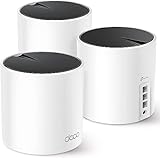
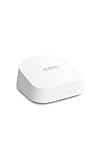
- Top Pick: Amazon eero Pro 7 tri-band mesh Wi-Fi 7 router – Supports internet plans up to 5 Gbps, Coverage up to 2,000 sq. ft., 1-pack
- Best Value: Amazon eero Pro 7 tri-band mesh Wi-Fi 7 router (newest model) – Supports internet plans up to 5 Gbps, Coverage up to 6,000 sq. ft., 3-pack
- Premium Choice: Amazon eero Pro 7 tri-band mesh Wi-Fi 7 router (newest model) – Supports internet plans up to 5 Gbps, Coverage up to 4,000 sq. ft., 2-pack
A dropped connection during an online match is the fastest way to ruin a good gaming session, which is why a fast, low-latency mesh network matters as much as any peripheral. The Amazon eero Pro 7 brings tri-band Wi-Fi 7 to the home, supporting internet plans up to 5 Gbps and blanketing large spaces with reliable coverage. For gamers and streamers who want to eliminate dead zones, it is one of the most compelling mesh systems available.
- Watch: Amazon Eero Pro 7 Router Included: Review & Buyer’s Guide — Video Review
- Design & Build
- Performance
- Pros & Cons
- Alternatives to Consider
- Is the eero Pro 7 the Right Fit for Your Home?
- How Wi-Fi 7 Features Work in Practice
- Placement and Setup: Step by Step
- Common Mistakes With a Mesh System
- Troubleshooting Guide
- Understanding the Speed Numbers
- Planning a Wired Backbone
- Frequently Asked Questions
- Verdict
- Related Articles
This review covers the eero Pro 7 family, from the single-unit pack up to the four-piece system, plus the more powerful eero Max 7, so you can match coverage and speed to your home.
As an Amazon Associate we earn from qualifying purchases at no extra cost to you.




🎮 Get More From Your Setup — Free
Prime Gaming gives you free PC games every month, in-game loot, and a free Twitch channel sub — plus fast free shipping on all the gear above. New members get a 30-day free trial.
Watch: Amazon Eero Pro 7 Router Included: Review & Buyer’s Guide — Video Review
Design & Build
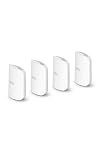
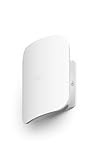
The eero Pro 7 keeps Amazon’s signature minimalist look: a small, rounded white unit that blends into a shelf rather than demanding a dedicated spot. Setup is handled entirely through the eero app, which walks you through placement and naming in minutes. Each node adds coverage, so the 1-pack suits apartments, the 2-pack and 3-pack cover typical homes at 4,000 to 6,000 square feet, and the 4-pack scales to large houses around 8,000 square feet. There is even a bundle pairing three Pro 7 units with an eero Outdoor 7 for yard coverage.
Performance
Wi-Fi 7 and a tri-band design are the stars here. The eero Pro 7 supports plans up to 5 Gbps and uses the newer standard’s wider channels to reduce congestion and latency, which is exactly what competitive gaming and 4K streaming need. The step-up eero Max 7 raises the ceiling to 10 Gbps and can connect 250-plus devices, making it the choice for very fast fiber connections or device-dense smart homes. In everyday use, roaming between nodes is seamless and the mesh backhaul keeps speeds high even far from the main unit.
Pros & Cons
- Pro: True Wi-Fi 7 with support for multi-gigabit internet plans.
- Pro: Effortless app-based setup and reliable, seamless roaming.
- Pro: Flexible pack sizes cover apartments up to very large homes.
- Pro: Optional Outdoor 7 and Max 7 options extend the ecosystem.
- Con: Some advanced features sit behind an eero Plus subscription.
- Con: Premium pricing compared with basic single routers.
- Con: You need Wi-Fi 7 devices to unlock the full speed benefit.
Alternatives to Consider
If your internet plan tops out well below 5 Gbps, a smaller two-pack of the eero Pro 7 will likely deliver all the speed you can use for less money. For households with 10 Gbps fiber, hundreds of connected devices, or a home lab, the eero Max 7 is the more capable choice despite its higher cost. Match the tier to your actual plan and device count rather than overbuying.
Is the eero Pro 7 the Right Fit for Your Home?
A tri-band Wi-Fi 7 mesh system is built for specific situations. This table matches common household setups to the hardware class, using eero’s published specifications as the reference.
| If your home… | Then the eero Pro 7 is… |
|---|---|
| has an internet plan up to 5 Gbps | a match, since each unit lists two auto-sensing 5 GbE ports |
| is around 2,000 sq ft or smaller | covered by a single unit under eero’s published rating |
| spans 4,000 to 6,000 sq ft | best bought as a two or three-unit set, since each unit is rated for roughly 2,000 sq ft |
| has only older Wi-Fi 5 devices | more than you need, although it still improves coverage and handles many devices |
| contains Thread or Matter smart-home gear | useful, because it includes a built-in hub for Thread devices |
How Wi-Fi 7 Features Work in Practice
Multi-Link Operation
Multi-Link Operation, usually shortened to MLO, lets a compatible device use more than one band at the same time, or switch between them with less delay. For gaming this can reduce latency spikes, because traffic is not stuck on a congested channel. The benefit only appears when the device itself supports Wi-Fi 7 and MLO, so a phone or laptop with an older chip will not use it.
320 MHz Channels and 4K-QAM
Wi-Fi 7 widens the channel in the 6 GHz band to 320 MHz and packs more data into each signal with 4K-QAM. Together these raise peak speeds on short, clear paths. They also depend on distance: the 6 GHz band travels poorly through walls, so the fastest connections occur in the same room or one room away from a node.
Why Tri-Band Helps a Mesh
The system’s rating of BE10800 spans the 2.4, 5, and 6 GHz bands. In many mesh designs, one band doubles as the link between nodes, which cuts available speed for clients. A dedicated wireless link, or a wired connection between units, leaves the client-facing bands free to carry your traffic.
Placement and Setup: Step by Step
- Connect the first unit to the modem. Use the port that handles the plan speed, then power on and follow the app prompts.
- Place the main unit centrally. Keep it in the open, ideally at head height or higher, away from metal shelves, aquariums, and microwaves.
- Space additional units sensibly. Put each one roughly halfway between the main unit and the dead zone, not inside the dead zone. A node that sits where the signal is already weak passes that weakness along.
- Use Ethernet between units where possible. A wired link frees wireless capacity and gives steadier performance, which suits consoles and gaming desktops.
- Wire fixed devices directly. Plug a console, PC, or streaming box into a spare port on the nearest unit.
- Restart the modem once the mesh is online. Then confirm in the app that each node shows a strong connection.
Common Mistakes With a Mesh System
- Buying more units than the home needs. Each extra node increases handoffs without always improving speed. Match the count to the floor area.
- Hiding nodes in cabinets or behind TVs. Enclosures and electronics absorb signal and reduce range noticeably.
- Expecting Wi-Fi 7 speeds on Wi-Fi 5 devices. Older clients connect, but they do not gain the new features.
- Daisy-chaining nodes too far apart. Every wireless hop loses capacity, so keep the chain short.
- Judging speed from a distant room on the 6 GHz band. That band is meant for nearby, high-speed devices rather than long-range coverage.
Troubleshooting Guide
| Symptom | Likely cause | What to try |
|---|---|---|
| Slow speeds in one room | Distance or obstacles from the nearest node | Move the node closer, or add a wired unit |
| Wired device runs below plan speed | Old Ethernet cable or a slow port on the device | Use a Cat 6 or better cable and check the link speed in the device’s network settings |
| Connection drops during gaming | Device roaming between nodes or 2.4 GHz interference | Use a wired connection for the console or PC |
| Smart-home device will not pair | Device uses a protocol the hub supports only as a controller | Confirm whether it uses Thread, Matter, or Zigbee before buying |
| New nodes will not join | Weak signal during setup | Set up nodes close to the main unit, then move them |
Understanding the Speed Numbers
The “BE10800” rating is a combined theoretical figure across the three bands, not a speed any single device will reach. Eero lists wireless speeds of up to about 3.9 Gbps for the system, and real results for one phone or laptop are lower and depend on its antenna count, channel width, and distance. Wired connections are different: a device plugged into a 5 GbE port is limited only by the cable, the device’s own port, and your internet plan.
For gaming, steady latency matters more than peak throughput. A Wi-Fi 7 link that stays consistent beats a faster link that fluctuates, so placement and wired backhaul deserve more attention than headline numbers.
Planning a Wired Backbone
- Map your cable runs. Identify rooms with existing Ethernet jacks, since these are ideal places for additional units.
- Use quality cable. Cat 6 or better supports multi-gigabit speeds over typical home distances.
- Connect through a switch if needed. An unmanaged multi-gigabit switch can link several wired devices without hurting performance.
- Keep the gateway unit close to the modem. Short runs reduce the chance of cable-related problems.
Frequently Asked Questions
How many eero Pro 7 units do I need?
It depends on square footage and layout. The 2-pack covers around 4,000 square feet, the 3-pack about 6,000, and the 4-pack roughly 8,000. Multi-story homes with thick walls may benefit from an extra node.
Do I need Wi-Fi 7 devices to benefit?
You still gain from the improved mesh, tri-band design, and higher capacity even with older devices. However, the top speeds and lowest latency require Wi-Fi 7-capable clients.
Is a subscription required?
No. The system works fully without one. An eero Plus subscription adds extras like advanced security and content filtering, but core mesh performance is included out of the box.
Is it good for gaming?
Yes. Wi-Fi 7’s wider channels and low latency, combined with stable mesh roaming, make it well suited to online gaming, though a wired connection to the main unit is still ideal for competitive play.
Verdict
The Amazon eero Pro 7 is an excellent, easy-to-live-with mesh system that brings genuine Wi-Fi 7 speed and dependable coverage to homes of nearly any size. Most buyers should pick the pack that matches their square footage, while those on 10 Gbps plans or with very dense networks should step up to the eero Max 7. It is a smart upgrade for anyone tired of dead zones and lag.