- Top Pick: USB C Hub Adapter for MacBook Pro/Air M5 M4 M3 M2 M1 2026-2018 13" 15" 16", Mac Multiport Adapter, 8 in 2 MacBook Accessories Dongle with HDMI 4K@60hz, Thunderbolt, USB C&A Data Ports, SD Card Reader
- Best Value: MacBook Pro Docking Station Dual Monitor 4K@60Hz for M5/M4/M3 Pro & Max
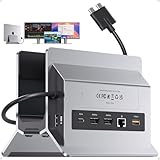
- Premium Choice: iVANKY 12-in-2 FusionDock 1 for M5 MacBook Pro Docking Station
The M2 MacBook Air remains a fantastic everyday laptop, but its two USB-C ports vanish quickly once you add a monitor and a charger. A good dock or hub restores the connectivity Apple left off, turning the Air into a tidy, single-cable desktop when you sit down to work.
Because the M2 chip has specific external-display behavior, picking the right dock matters. Here’s a practical breakdown of the best options and how to match one to how you actually use your Air.
As an Amazon Associate we earn from qualifying purchases at no extra cost to you.






🎮 Get More From Your Setup — Free
Prime Gaming gives you free PC games every month, in-game loot, and a free Twitch channel sub — plus fast free shipping on all the gear above. New members get a 30-day free trial.
Watch: m2 MacBook Air Dock — Video Review
Design & Build
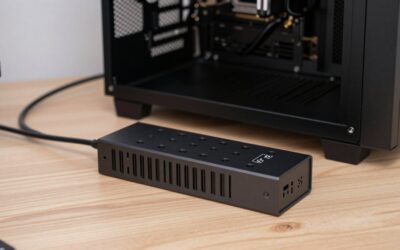
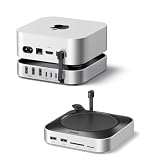
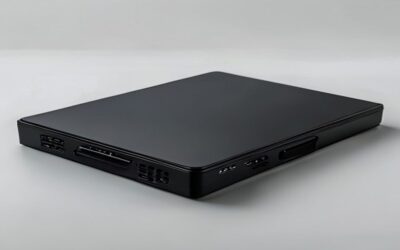
Most M2 Air docks are compact aluminum hubs designed to plug straight into the laptop. The 8-in-2 multiport adapter uses both USB-C ports for a stable connection and broad I/O, while the UGREEN Revodok 6-in-1 and Revodok Pro 8-in-1 are slim, travel-ready units with clean finishes. For a more permanent desk, the dual-monitor 4K@60Hz dock and the version with a built-in M.2 NVMe enclosure add serious functionality in a sturdier housing. Heat management is good across the board thanks to metal shells.
Performance
The key limitation to understand is that the base M2 Air natively drives just one external display. Standard hubs like the UGREEN Revodok deliver crisp 4K@60Hz to a single monitor plus fast USB data, Ethernet, and pass-through charging, which is exactly what most users need. Docks advertising dual-monitor support for the M2 rely on DisplayLink software to add a second screen, and while that works for productivity, it isn’t ideal for video or gaming. The M.2 enclosure dock is a highlight, letting you add fast internal-style storage alongside your display and ports.
Pros & Cons
- Single-cable desk: monitor, power, and peripherals in one connection.
- Reliable 4K@60Hz: sharp single-display output on standard hubs.
- Compact and portable: most models slip easily into a bag.
- Storage option: M.2 enclosure docks add fast SSD expansion.
- Single native display: the M2 needs DisplayLink for a second monitor.
- Bus power limits: compact hubs offer modest pass-through charging.
- DisplayLink caveats: software-driven screens aren’t great for video.
Alternatives to Consider
For most M2 Air owners, the UGREEN Revodok Pro 8-in-1 or Revodok 6-in-1 covers a single 4K monitor and peripherals beautifully. If you want storage built in, the dock with the M.2 NVMe enclosure is uniquely handy. Those set on dual monitors should accept the DisplayLink requirement with a dual-4K dock, and future upgraders eyeing newer MacBook Pros could consider the iVANKY FusionDock.
Related Guides
- Satechi Thunderbolt Dock (2026)
- Best Laptop For Light Gaming (2026)
- Satechi Thunderbolt Dock (2026)
- Macmini Hub (2026)
Frequently Asked Questions
Can the M2 MacBook Air use two external monitors?
Natively, no. The base M2 Air supports one external display. A dock with DisplayLink software can add a second screen for productivity use.
What’s the best single-monitor dock?
A UGREEN Revodok hub delivers reliable 4K@60Hz to one display along with USB, Ethernet, and charging, which suits the vast majority of M2 Air setups.
Can I add storage through a dock?
Yes. The MacBook docking station with an M.2 NVMe enclosure lets you install a fast SSD that connects alongside your other peripherals.
Will a hub charge my MacBook Air?
Compact hubs offer pass-through charging, though wattage is limited. For full-speed charging, use a dock or hub rated to a high power delivery figure.
Verdict
For the M2 MacBook Air, a quality USB-C hub like the UGREEN Revodok Pro is the sweet spot, cleanly handling a 4K monitor and peripherals. If you crave built-in storage, the M.2 enclosure dock is a clever pick, and dual-monitor users can get there with a DisplayLink dock as long as they accept its video limitations.